

Docker Commands Beginners Should Know
This tutorial reviews basic Docker commands for a new user.
 CORE
·
Docker is an open-source platform for creating, deploying, and running containers. It's available for macOS, Windows, and Linux, and enjoys wide support from all the major cloud providers. So, you can create your containers on your favorite operating system and deploy them anywhere.
Let's look at the Docker commands you need to know to manage Docker images and containers.
List Running Containers With docker ps
First, seeing what Docker is doing is a good place to start, so let's open with getting a list of running containers. You do this with docker ps:

This system has three running containers. Docker shows you their IDs, names, status, and a few more useful statistics. If you look at the fifth column, you'll see that all the containers are "up."
Let's add the -a argument to docker ps and see if there is a difference:

This command line option added another container to the list, and its status is exited. The -a argument means "all," including containers that are stopped or exited.
Run Containers With docker run
Listing containers is great, but running them is even more fun.
Let's start with a shell running in an Ubuntu container. For this, we use docker run:
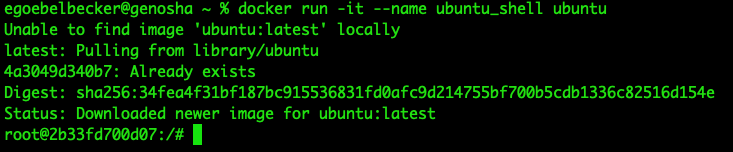
We used three sets of command line arguments to start this shell:
-itcombinesifor interactive andtfor creating a pseudo-terminal for the shell.--name ubuntu_shellassigns a name to the container, instead of one chosen from random.ubuntuis the name of the image we want Docker to run.
If you don't tell Docker what to name your containers, you'll get a combination of random words. Specifying a name makes it much easier to keep track of what's running.
Docker run has an enormous set of command-line options. Let's look at one more variation before moving on.
Let's run nginx:

We started this container with a different set of command line arguments:
-dputs the container in the background. This makes sense with a web server.--name nginxnames the containernginx.-p 8080:80tells Docker to redirect input to port 8080 on the host to port 80 for the container.nginxis the image we want Docker to start for this container.
After starting the container, docker ps -a shows it running, with the port mappings.
Let's retrieve a page from the new web server.
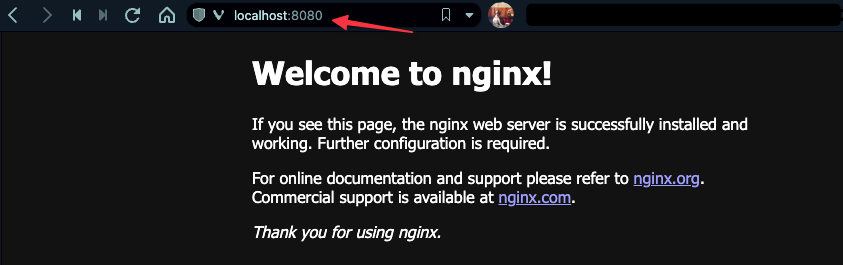 There it is! The web server responds to a request on port 8080.
Stop and Remove Containers
What happens when we exit the Ubuntu shell?

The container transitioned from running to exited, but it's still there.
We need to remove it:

docker rm with the container name removes it from memory. This is a reason to explicitly name your containers: It's easier to figure out what's running and what's stopped.
How do we stop the web server, though?

docker stop with the container name will stop it. Then you still need to use rm to remove it.
Docker Statistics
Finally, let's look at the resources our containers are using with docker stats:
docker stats shows you how much memory, CPU, and I/O your containers are consuming. It refreshes every few seconds until you quit out of it, so it's a great tool for keeping an eye on a container while you're testing it.
Basic Docker Commands
Getting started with Docker is easy. You can start, stop, remove, and watch your containers with a few simple commands. Get started with containers today!
Opinions expressed by DZone contributors are their own.