

git-secret: Encrypt and Store Secrets in a Git Repository
Learn how to set up git-secret and gpg in a Docker container and create workflows for different scenarios via Makefile recipes.
Join the DZone community and get the full member experience.
Join For FreeIn this tutorial, we will setup git-secret to store secrets directly in the repository. Everything will be handled through Docker and added as make targets for a convenient workflow.
All code samples are publicly available in my Docker PHP Tutorial repository on GitHub.
Introduction
Dealing with secrets (passwords, tokens, key files, etc.) is close to “naming things” when it comes to hard problems in software engineering. Some things to consider:
- Security is paramount — but high security often goes hand in hand with high inconvenience (and if things get too complicated, people look for shortcuts).
- In a team, sharing certain secret values is often mandatory (so now we need to think about secure ways to distribute and update secrets across multiple people).
- Concrete secret values often depend on the environment (inherently tricky to “test” or even “review”, because those values are “by definition” different on “your machine” than on “production”).
In fact, entire products have been built around dealing with secrets, e.g., HashiCorp Vault, AWS Secrets Manager, or the GCP Secret Manager. Introducing those in a project comes with a certain overhead as it’s yet another service that needs to be integrated and maintained. Maybe it is the exactly right decision for your use case — maybe it’s overkill. By the end of this article, you’ll at least be aware of an alternative with a lower barrier to entry. See also the Pros and cons section at the end for an overview.
Even though it’s generally not advised to store secrets in a repository, I’ll propose exactly that in this tutorial:
- Identify files that contain secret values.
- Make sure they are added to
.gitignore. - Encrypt them via
git-secret. - Commit the encrypted files to the repository.
In the end, we will be able to call:
make secret-decrypt
This will be to reveal secrets in the codebase, make modifications to them if necessary, and then run:
make secret-encrypt
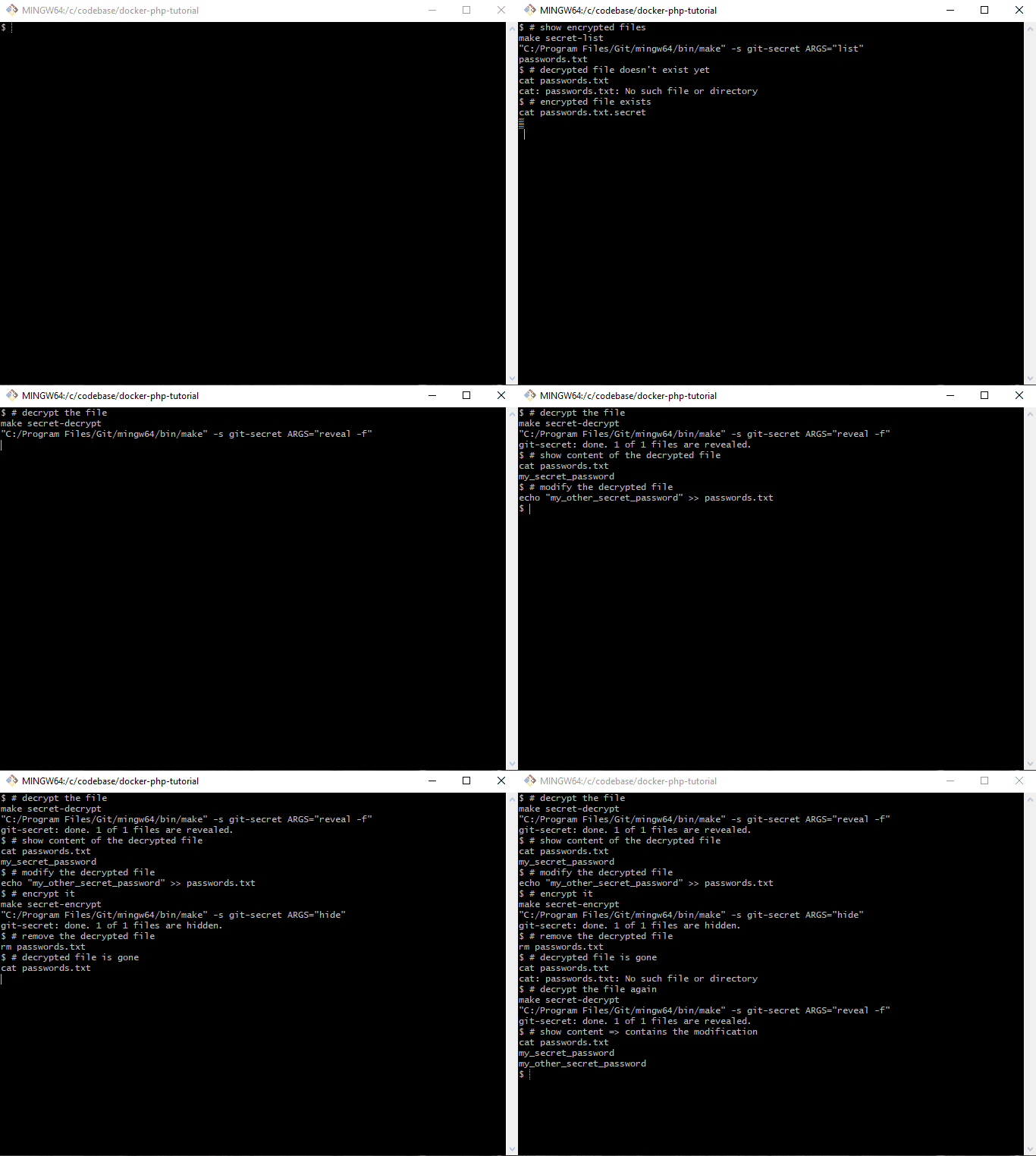
This will lead to encrypting them again so that they can be committed (and pushed to the remote repository). To see it in action, run the following commands:
# checkout the branch
git checkout part-6-git-secret-encrypt-repository-docker

# build and start the docker setup
make make-init
make docker-build
make docker-up

# "create" the secret key - the file "secret.gpg.example" would usually NOT live in the repo!
cp secret.gpg.example secret.gpg

# initialize gpg
make gpg-init

# ensure that the decrypted secret file does not exist
ls passwords.txt

# decrypt the secret file
make secret-decrypt

# show the content of the secret file
cat passwords.txt
Tooling
We will set up gpg and git-secret in the PHP base image so that the tools become available in all other containers. Please refer to Docker from scratch for PHP 8.1 Applications in 2022 for an in-depth explanation of the docker images.
Caution: All following commands are executed in the application container.
Tip: See Easy container access via din .bashrc helper for a convenient shortcut to log into docker containers.
Please note, that there is a caveat when using git-secret in a folder that is shared between the host system and a docker container. I'll explain that in more detail (including a workaround) in the section below called "The git-secret Directory and the gpg-agent Socket."
gpg
gpg is short for The GNU Privacy Guard and is an open-source implementation of the OpenPGP standard. In short, it allows us to create a personal key file pair (similar to SSH keys) with a private secret key and a public key that can be shared with other parties whose messages you want to decrypt.
gpg Installation
To install it, we can simply run apk add gnupg and thus update .docker/images/php/base/Dockerfile accordingly:
# File: .docker/images/php/base/DockerfileRUN apk add --update --no-cache \
        bash \
        gnupg \
        make \
#...
gpg Usage
I’ll only cover the strictly necessary gpg commands here. Please refer to the "Using GPG" section in the git-secret docu for further information.
Create gpg Key Pair
We need gpg to create the gpg key pair via:
name="Pascal Landau"
email="[email protected]"
gpg --batch --gen-key <<EOF
Key-Type: 1
Key-Length: 2048
Subkey-Type: 1
Subkey-Length: 2048
Name-Real: $name
Name-Email: $email
Expire-Date: 0
%no-protection
EOF
The %no-protection will create a key without a password. See also "Creating gpg keys non-interactively."
Output:
$ name="Pascal Landau"
$ email="[email protected]"
$ gpg --batch --gen-key <<EOF
> Key-Type: 1
> Key-Length: 2048
> Subkey-Type: 1
> Subkey-Length: 2048
> Name-Real: $name
> Name-Email: $email
> Expire-Date: 0
> %no-protection
> EOF
gpg: key E1E734E00B611C26 marked as ultimately trusted
gpg: revocation certificate stored as '/root/.gnupg/opengpg-revocs.d/74082D81525723F5BF5B2099E1E734E00B611C26.rev'
You could also run gpg --gen-key without the --batch flag to be guided interactively through the process.
Export, list, and import private gpg keys.
The private key can be exported via:
email="[email protected]"
path="secret.gpg"
gpg --output "$path" --armor --export-secret-key "$email"
This secret key must never be shared!
It looks like this:
-----BEGIN PGP PRIVATE KEY BLOCK-----

lQOYBF7VVBwBCADo9un+SySu/InHSkPDpFVKuZXg/s4BbZmqFtYjvUUSoRAeSejv
G21nwttQGut+F+GdpDJL6W4pmLS31Kxpt6LCAxhID+PRYiJQ4k3inJfeUx7Ws339
XDPO3Rys+CmnZchcEgnbOfQlEqo51DMj6mRF2Ra/6svh7lqhrixGx1BaKn6VlHkC
...
ncIcHxNZt7eK644nWDn7j52HsRi+wcWsZ9mjkUgZLtyMPJNB5qlKQ18QgVdEAhuZ
xT3SieoBPd+tZikhu3BqyIifmLnxOJOjOIhbQrgFiblvzU1iOUOTOcSIB+7A
=YmRm
-----END PGP PRIVATE KEY BLOCK-----
All secret keys can be listed via:
gpg --list-secret-keys
Output:
$ gpg --list-secret-keys
/root/.gnupg/pubring.kbx
------------------------
sec   rsa2048 2022-03-27 [SCEA]
      74082D81525723F5BF5B2099E1E734E00B611C26
uid           [ultimate] Pascal Landau <[email protected]>
ssb   rsa2048 2022-03-27 [SEA]
You can import the private key via:
path="secret.gpg"
gpg --import "$path"
Get the following output:
$ path="secret.gpg"
$ gpg --import "$path"
gpg: key E1E734E00B611C26: "Pascal Landau <[email protected]>" not changed
gpg: key E1E734E00B611C26: secret key imported
gpg: Total number processed: 1
gpg:              unchanged: 1
gpg:       secret keys read: 1
gpg:  secret keys unchanged: 1
Caution: If the secret key requires a password, you would now be prompted for it. We can circumvent the prompt by using --batch --yes --pinentry-mode loopback:
path="secret.gpg"
gpg --import --batch --yes --pinentry-mode loopback "$path"
See also Using Command-Line Passphrase Input for GPG. In doing so, we don’t need to provide the password just yet — but we must pass it later when we attempt to decrypt files.
Export, list, and import public gpg keys.
The public key can be exported to public.gpg via:
email="[email protected]"
path="public.gpg"
gpg --armor --export "$email" > "$path"
It looks like this:
-----BEGIN PGP PUBLIC KEY BLOCK-----

mQENBF7VVBwBCADo9un+SySu/InHSkPDpFVKuZXg/s4BbZmqFtYjvUUSoRAeSejv
G21nwttQGut+F+GdpDJL6W4pmLS31Kxpt6LCAxhID+PRYiJQ4k3inJfeUx7Ws339
...
3LLbK7Qxz0cV12K7B+n2ei466QAYXo03a7WlsPWn0JTFCsHoCOphjaVsncIcHxNZ
t7eK644nWDn7j52HsRi+wcWsZ9mjkUgZLtyMPJNB5qlKQ18QgVdEAhuZxT3SieoB
Pd+tZikhu3BqyIifmLnxOJOjOIhbQrgFiblvzU1iOUOTOcSIB+7A
=g0hF
-----END PGP PUBLIC KEY BLOCK-----
List all public keys via:
gpg --list-keys
Output:
$ gpg --list-keys
/root/.gnupg/pubring.kbx
------------------------
pub   rsa2048 2022-03-27 [SCEA]
      74082D81525723F5BF5B2099E1E734E00B611C26
uid           [ultimate] Pascal Landau <[email protected]>
sub   rsa2048 2022-03-27 [SEA]
The public key can be imported in the same way as private keys via:
path="public.gpg"
gpg --import "$path"
Example:
$ gpg --import /var/www/app/public.gpg
gpg: key E1E734E00B611C26: "Pascal Landau <[email protected]>" not changed
gpg: Total number processed: 1
gpg:              unchanged: 1
git-secret
The official website of git-secret is already doing a great job of introducing the tool. In short, it allows us to declare certain files as “secrets” and encrypt them via gpg, using the keys of all trusted parties. The encrypted file can then be stored safely directly in the Git repository and decrypted if required.
In this tutorial, I’m using git-secret v0.4.0:
$ git secret --version
0.4.0
git-secret Installation
The installation instructions for Alpine read as follows:
sh -c "echo 'https://gitsecret.jfrog.io/artifactory/git-secret-apk/all/main'" >> /etc/apk/repositories
wget -O /etc/apk/keys/git-secret-apk.rsa.pub 'https://gitsecret.jfrog.io/artifactory/api/security/keypair/public/repositories/git-secret-apk'
apk add --update --no-cache git-secret
We update the .docker/images/php/base/Dockerfile accordingly:
# File: .docker/images/php/base/Dockerfile

# install git-secret
# @see https://git-secret.io/installation#alpine
ADD https://gitsecret.jfrog.io/artifactory/api/security/keypair/public/repositories/git-secret-apk /etc/apk/keys/git-secret-apk.rsa.pub

RUN echo "https://gitsecret.jfrog.io/artifactory/git-secret-apk/all/main" >> /etc/apk/repositories  && \
    apk add --update --no-cache \
        bash \
        git-secret \
        gnupg \
        make \
#...
git-secret Usage
Initialize git-secret
git-secret is initialized via the following command run in the root of the Git repository.
git secret init$ git secret init
git-secret: init created: '/var/www/app/.gitsecret/'
We only need to do this once, because we’ll commit the folder to Git later. It contains the following files:
$ git status | grep ".gitsecret"
        new file:   .gitsecret/keys/pubring.kbx
        new file:   .gitsecret/keys/pubring.kbx~
        new file:   .gitsecret/keys/trustdb.gpg
        new file:   .gitsecret/paths/mapping.cfg
The pubring.kbx~ file (with the trailing tilde ~) is only a temporary file and can safely be git-ignored. See also "Can't find any docs about keyring.kbx~ file."
The git-secret Directory and the gpg-agent Socket
To use git-secret in a directory that is shared between the host system and Docker, we need to also run the following commands:
tee .gitsecret/keys/S.gpg-agent <<EOF
%Assuan%
socket=/tmp/S.gpg-agent
EOF

tee .gitsecret/keys/S.gpg-agent.ssh <<EOF
%Assuan%
socket=/tmp/S.gpg-agent.ssh
EOF

tee .gitsecret/keys/gpg-agent.conf <<EOF
extra-socket /tmp/S.gpg-agent.extra
browser-socket /tmp/S.gpg-agent.browser
EOF
This is necessary because there is an issue when git-secret is used in a setup where the codebase is shared between the host system and a Docker container. I've explained the details in the GitHub issue "gpg: can't connect to the agent: IPC connect call failed" error in docker alpine on shared volume."
In short:
gpguses agpg-agentto perform its tasks and the two tools communicate through sockets that are created in the--home-directoryof thegpg-agent.- The agent is started implicitly through a
gpgcommand used bygit-secret, using the.gitsecret/keysdirectories as a--home-directory. - Because the location of the
--home-directoryis shared with the host system, the socket creation fails (potentially only an issue for Docker Desktop, see the related discussion in GitHub issue Support for sharing Unix sockets).
The corresponding error messages are:
gpg: can't connect to the agent: IPC connect call failed

gpg-agent: error binding socket to '/var/www/app/.gitsecret/keys/S.gpg-agent': I/O error
The workaround for this problem can be found in this thread: Configure gpg to use different locations for the sockets by placing additional gpg configuration files in the .gitsecret/keys directory:
S.gpg-agent
%Assuan%
socket=/tmp/S.gpg-agent
S.gpg-agent.ssh
%Assuan%
socket=/tmp/S.gpg-agent.ssh
gpg-agent.conf
extra-socket /tmp/S.gpg-agent.extra
browser-socket /tmp/S.gpg-agent.browser
Adding, Listing, and Removing Users
To add a new user, you must first import its public gpg key. Then run:
email="[email protected]"
git secret tell "$email"
In this case, the user [email protected] will now be able to decrypt the secrets.
To show the users, run:
git secret whoknows$ git secret whoknows
[email protected]
To remove a user, run:
email="[email protected]"
git secret killperson "$email"
FYI: This command was renamed to removeperson in git-secret >= 0.5.0.
$ git secret killperson [email protected]
git-secret: removed keys.
git-secret: now [[email protected]] do not have an access to the repository.
git-secret: make sure to hide the existing secrets again.
User [email protected] will no longer be able to decrypt the secrets.
Caution: The secrets need to be re-encrypted after removing a user!
Reminder: Rotate the encrypted secrets.
Please be aware that not only your secrets are stored in Git, but who had access as well. For example, even if you remove a user and re-encrypt the secrets, that user would still be able to decrypt the secrets of a previous commit (when the user was still added). In consequence, you need to rotate the encrypted secrets themselves as well after removing a user.
But isn’t that a great flaw in the system, making it a bad idea to use git-secret in general?
In my opinion: No.
If the removed user had access to the secrets at any point in time (no matter where they have been stored), he could very well have just created a local copy or simply “written them down”. In terms of security, there is really no “added downside” due to git-secret. It just makes it very clear that you must rotate the secrets ¯\_(ツ)_/¯.
See also this lengthy discussion on git-secret on Hacker News.
Adding, Listing, and Removing Files for Encryption
Run git secret add [filenames...] for files you want to encrypt. Example:
git secret add .env
If .env is not added in .gitignore, git-secret will display a warning and add it automatically.
git-secret: these files are not in .gitignore: .env
git-secret: auto adding them to .env
git-secret: 1 item(s) added.
Otherwise, the file is added with no warning.
$ git secret add .env
git-secret: 1 item(s) added.
You only need to add files once. They are then stored in .gitsecret/paths/mapping.cfg:
$ cat .gitsecret/paths/mapping.cfg
.env:505070fc20233cb426eac6a3414399d0f466710c993198b1088e897fdfbbb2d5
You can also show the added files via:
git secret list$ git secret list
.env
Caution: The files are not yet encrypted!
If you want to remove a file from being encrypted, run:
git secret remove .env
Output:
$ git secret remove .env
git-secret: removed from index.
git-secret: ensure that files: [.env] are now not ignored.
Encrypt Files
To actually encrypt the files, run:
git secret hide
Output:
$ git secret hide
git-secret: done. 1 of 1 files are hidden.
The encrypted (binary) file is stored at $filename.secret, i.e. .env.secret in this case:
$ cat .env.secret
�☺♀♥�H~�B�Ӯ☺�"��▼♂F�►���l�Cs��S�@MHWs��e������{♣♫↕↓�L� ↕s�1�J$◄♥�;���dž֕�Za�����\u�ٲ& ¶��V�► ���6��
;<�d:��}ҨD%.�;��&��G����vWW�]>���߶��▲;D�+Rs�S→�Y!&J��۪8���ٔF��→f����*��$♠���&RC�8▼♂�☻z h��Z0M�T>
The encrypted files are decryptable for all users that have been added via git secret tell. That also means that you need to run this command again whenever a new user is added.
Decrypting Files
You can decrypt files via:
git secret reveal
Output:
$ git secret reveal
File '/var/www/app/.env' exists. Overwrite? (y/N) y
git-secret: done. 1 of 1 files are revealed.
- The files are decrypted and will overwrite the current, unencrypted files (if they already exist).
- Use the
-foption to force the overwrite and run non-interactively. - If you only want to check the content of an encrypted file, you can use
git secret cat $filename(e.g.,git secret cat .env).
In case the secret gpg key is password protected, you must pass the password via the -p option. The following is an example of the password 123456:
git secret reveal -p 123456
Show Changes Between Encrypted and Decrypted Files
One problem that comes with encrypted files: You can’t review them during a code review in a remote tool. So in order to understand what changes have been made, it is helpful to show the changes between the encrypted and the decrypted files. This can be done via:
git secret changes
Output:
$ echo "foo" >> .env
$ git secret changes
git-secret: changes in /var/www/app/.env:
--- /dev/fd/63
+++ /var/www/app/.env
@@ -34,3 +34,4 @@
 MAIL_ENCRYPTION=null
 MAIL_FROM_ADDRESS=null
 MAIL_FROM_NAME="${APP_NAME}"
+foo
Note the +foo at the bottom of the output. It was added in the first line via echo "foo"> >> .env.
Makefile Adjustments
Since I won’t be able to remember all the commands for git-secret and gpg, I've added them to the Makefile at .make/01-00-application-setup.mk:
# File: .make/01-00-application-setup.mk

#...

# gpg

DEFAULT_SECRET_GPG_KEY?=secret.gpg
DEFAULT_PUBLIC_GPG_KEYS?=.dev/gpg-keys/*

.PHONY: gpg
gpg: ## Run gpg commands. Specify the command e.g. via ARGS="--list-keys"
    $(EXECUTE_IN_APPLICATION_CONTAINER) gpg $(ARGS)

.PHONY: gpg-export-public-key
gpg-export-public-key: ## Export a gpg public key e.g. via EMAIL="[email protected]" PATH=".dev/gpg-keys/john-public.gpg"
    @$(if $(PATH),,$(error PATH is undefined))
    @$(if $(EMAIL),,$(error EMAIL is undefined))
    "$(MAKE)" -s gpg ARGS="gpg --armor --export $(EMAIL) > $(PATH)"

.PHONY: gpg-export-private-key
gpg-export-private-key: ## Export a gpg private key e.g. via EMAIL="[email protected]" PATH="secret.gpg"
    @$(if $(PATH),,$(error PATH is undefined))
    @$(if $(EMAIL),,$(error EMAIL is undefined))
    "$(MAKE)" -s gpg ARGS="--output $(PATH) --armor --export-secret-key $(EMAIL)"

.PHONY: gpg-import
gpg-import: ## Import a gpg key file e.g. via GPG_KEY_FILES="/path/to/file /path/to/file2"
    @$(if $(GPG_KEY_FILES),,$(error GPG_KEY_FILES is undefined))
    "$(MAKE)" -s gpg ARGS="--import --batch --yes --pinentry-mode loopback $(GPG_KEY_FILES)"

.PHONY: gpg-import-default-secret-key
gpg-import-default-secret-key: ## Import the default secret key
    "$(MAKE)" -s gpg-import GPG_KEY_FILES="$(DEFAULT_SECRET_GPG_KEY)"

.PHONY: gpg-import-default-public-keys
gpg-import-default-public-keys: ## Import the default public keys
    "$(MAKE)" -s gpg-import GPG_KEY_FILES="$(DEFAULT_PUBLIC_GPG_KEYS)"

.PHONY: gpg-init
gpg-init: gpg-import-default-secret-key gpg-import-default-public-keys ## Initialize gpg in the container, i.e. import all public and private keys

# git-secret

.PHONY: git-secret
git-secret: ## Run git-secret commands. Specify the command e.g. via ARGS="hide"
    $(EXECUTE_IN_APPLICATION_CONTAINER) git-secret $(ARGS)

.PHONY: secret-init
secret-init: ## Initialize git-secret in the repository via `git-secret init`
    "$(MAKE)" -s git-secret ARGS="init"

.PHONY: secret-init-gpg-socket-config
secret-init-gpg-socket-config: ## Initialize the config files to change the gpg socket locations
    echo "%Assuan%" > .gitsecret/keys/S.gpg-agent
    echo "socket=/tmp/S.gpg-agent" >> .gitsecret/keys/S.gpg-agent
    echo "%Assuan%" > .gitsecret/keys/S.gpg-agent.ssh
    echo "socket=/tmp/S.gpg-agent.ssh" >> .gitsecret/keys/S.gpg-agent.ssh
    echo "extra-socket /tmp/S.gpg-agent.extra" > .gitsecret/keys/gpg-agent.conf
    echo "browser-socket /tmp/S.gpg-agent.browser" >> .gitsecret/keys/gpg-agent.conf

.PHONY: secret-encrypt
secret-encrypt: ## Decrypt secret files via `git-secret hide`
    "$(MAKE)" -s git-secret ARGS="hide"

.PHONY: secret-decrypt
secret-decrypt: ## Decrypt secret files via `git-secret reveal -f`
    "$(MAKE)" -s git-secret ARGS="reveal -f"

.PHONY: secret-decrypt-with-password
secret-decrypt-with-password: ## Decrypt secret files using a password for gpg via `git-secret reveal -f -p $(GPG_PASSWORD)`
    @$(if $(GPG_PASSWORD),,$(error GPG_PASSWORD is undefined))
    "$(MAKE)" -s git-secret ARGS="reveal -f -p $(GPG_PASSWORD)"

.PHONY: secret-add
secret-add: ## Add a file to git secret via `git-secret add $FILE`
    @$(if $(FILE),,$(error FILE is undefined))
    "$(MAKE)" -s git-secret ARGS="add $(FILE)"

.PHONY: secret-cat
secret-cat: ## Show the contents of file to git secret via `git-secret cat $FILE`
    @$(if $(FILE),,$(error FILE is undefined))
    "$(MAKE)" -s git-secret ARGS="cat $(FILE)"

.PHONY: secret-list
secret-list: ## List all files added to git secret `git-secret list`
    "$(MAKE)" -s git-secret ARGS="list"

.PHONY: secret-remove
secret-remove: ## Remove a file from git secret via `git-secret remove $FILE`
    @$(if $(FILE),,$(error FILE is undefined))
    "$(MAKE)" -s git-secret ARGS="remove $(FILE)"

.PHONY: secret-add-user
secret-add-user: ## Remove a user from git secret via `git-secret tell $EMAIL`
    @$(if $(EMAIL),,$(error EMAIL is undefined))
    "$(MAKE)" -s git-secret ARGS="tell $(EMAIL)"

.PHONY: secret-show-users
secret-show-users: ## Show all users that have access to git secret via `git-secret whoknows`
    "$(MAKE)" -s git-secret ARGS="whoknows"

.PHONY: secret-remove-user
secret-remove-user: ## Remove a user from git secret via `git-secret killperson $EMAIL`
    @$(if $(EMAIL),,$(error EMAIL is undefined))
    "$(MAKE)" -s git-secret ARGS="killperson $(EMAIL)"

.PHONY: secret-diff
secret-diff: ## Show the diff between the content of encrypted and decrypted files via `git-secret changes`
    "$(MAKE)" -s git-secret ARGS="changes"
Workflow
Working with git-secret is pretty straightforward:
- Initialize
git-secret. - Add all users.
- Add all secret files and make sure they are ignored via
.gitignore. - Encrypt the files.
- Commit the encrypted files like “any other file:" if any changes were made by other team members to the files => decrypt to get the most up-to-date ones.
- If any modifications are required from your side => make the changes to the decrypted files and then re-encrypt them again.
But: the devil is in the details. The "Process Challenges" section below explains some of the pitfalls that we have encountered and the "Scenarios" section gives some concrete examples for common scenarios.
Process Challenges
From a process perspective, we’ve encountered some challenges that I’d like to mention — including how we deal with them.
Updating Secrets
When updating secrets you must ensure to always decrypt the files first in order to avoid using “stale” files that you might still have locally. I usually check out the latest main branch and run git secret reveal to have the most up-to-date versions of the secret files. You could also use a post-merge Git hook to do this automatically, but I personally don't want to risk overwriting my local secret files by accident.
Code Reviews and Merge Conflicts
Since the encrypted files cannot be diffed meaningfully, the code reviews become more difficult when secrets are involved. We use GitLab for reviews and I usually first check the diff of the .gitsecret/paths/mapping.cfg file to see "which files have changed" directly in the UI.
In addition, I will:
- Check out the
mainbranch. - Decrypt the secrets via
git secret reveal -f. - Checkout the
feature-branch. - Run
git secret changesto see the differences between the decrypted files frommainand the encrypted files fromfeature-branch.
Things get even more complicated when multiple team members need to modify secret files at the same time on different branches, as the encrypted files cannot be compared — i.e., Git cannot be smart about delta updates. The only way around this is to coordinate the pull requests, i.e., merge the first, update the secrets of the second and then merge the second.
Fortunately, this has only happened very rarely so far.
Local git-secret and gpg Setup
Currently, all developers in our team have git-secret installed locally (instead of using it through Docker) and use their own gpg keys.
This means more onboarding overhead because of the following reasons.
- A new dev must:
- Install
git-secretlocally (*). - Install and setup
gpglocally (*). - Create a
gpgkey pair.
- Install
- The public key must be added by every other team member (*).
- The user of the key must be added via
git secret tell. - The secrets must be re-encrypted.
For offboarding:
- The public key must be removed by every other team member (*).
- The user of the key must be removed via
git secret killperson. - The secrets must be re-encrypted.
Plus, we need to ensure that the git-secret and gpg versions are kept up-to-date for everyone to not run into any compatibility issues.
As an alternative, I’m currently leaning more towards handling everything through Docker (as presented in this tutorial). All steps marked with (*) are then obsolete; i.e., there is no need to setup git-secret and gpg locally.
But the approach also comes with some downsides, because:
- The secret key and all public keys have to be imported every time the container is started.
- Each dev needs to put his private
gpgkey "in the codebase" (ignored by.gitignore) so it can be shared with docker and imported bygpg(in docker). The alternative would be using a single secret key that is shared within the team - which feels very wrong.
To make this a little more convenient, we put the public gpg keys of every dev in the repository under .dev/gpg-keys/ and the private key has to be named secret.gpg and put in the root of the codebase.
In this setup, secret.gpg must also be added to the.gitignore file.
# File: .gitignore
#...
vendor/
secret.gpg
The import can now be simplified with make targets:
# gpg

DEFAULT_SECRET_GPG_KEY?=secret.gpg
DEFAULT_PUBLIC_GPG_KEYS?=.dev/gpg-keys/*

.PHONY: gpg
gpg: ## Run gpg commands. Specify the command e.g. via ARGS="--list-keys"
    $(EXECUTE_IN_APPLICATION_CONTAINER) gpg $(ARGS)

.PHONY: gpg-import
gpg-import: ## Import a gpg key file e.g. via GPG_KEY_FILES="/path/to/file /path/to/file2"
    @$(if $(GPG_KEY_FILES),,$(error GPG_KEY_FILES is undefined))
    "$(MAKE)" -s gpg ARGS="--import --batch --yes --pinentry-mode loopback $(GPG_KEY_FILES)"

.PHONY: gpg-import-default-secret-key
gpg-import-default-secret-key: ## Import the default secret key
    "$(MAKE)" -s gpg-import GPG_KEY_FILES="$(DEFAULT_SECRET_GPG_KEY)"

.PHONY: gpg-import-default-public-keys
gpg-import-default-public-keys: ## Import the default public keys
    "$(MAKE)" -s gpg-import GPG_KEY_FILES="$(DEFAULT_PUBLIC_GPG_KEYS)"

.PHONY: gpg-init
gpg-init: gpg-import-default-secret-key gpg-import-default-public-keys ## Initialize gpg in the container, i.e. import all public and private keys
That needs to be run one single time after a container has been started.
Scenarios
The scenarios assume the following preconditions:
- You have checked out the Git repo.
git checkout part-6-git-secret-encrypt-repository-docker
- No running Docker containers.
make docker-down
- You have deleted the existing
git-secretfolder, the keys in.dev/gpg-keys, thesecret.gpgkey and thepasswords.*files
rm -rf .gitsecret/ .dev/gpg-keys/* secret.gpg passwords.*
Initial Setup of gpg Keys
Unfortunately, I didn’t find a way to create and export gpg keys through make and docker. You need to either run the commands interactively OR pass a string with newlines to it. Both things are horribly complicated with make and docker. Thus, you need to log into the application container and run the commands there directly. It's not great, but this needs to be done only once when a new developer is onboarded anyways.
FYI: I usually log into containers via Easy container access via din .bashrc helper.
The secret key is exported to secret.gpg and the public key to .dev/gpg-keys/alice-public.gpg.
# start the docker setup
make docker-up

# log into the container ('winpty' is only required on Windows)
winpty docker exec -ti dofroscra_local-application-1 bash

# export key pair
name="Alice Doe"
email="[email protected]"
gpg --batch --gen-key < .dev/gpg-keys/alice-public.gpg
$ make docker-up
ENV=local TAG=latest DOCKER_REGISTRY=docker.io DOCKER_NAMESPACE=dofroscra APP_USER_NAME=application APP_GROUP_NAME=application docker compose -p dofroscra_local --env-file ./.docker/.env -f ./.docker/docker-compose/docker-compose.yml -f ./.docker/docker-compose/docker-compose.local.yml up -d
Container dofroscra_local-application-1  Created
...
Container dofroscra_local-application-1  Started
$ docker ps
CONTAINER ID   IMAGE                                COMMAND                  CREATED          STATUS          PORTS                NAMES
...
95f740607586   dofroscra/application-local:latest   "/usr/sbin/sshd -D"      21 minutes ago   Up 21 minutes   0.0.0.0:2222->22/tcp dofroscra_local-application-1

$ winpty docker exec -ti dofroscra_local-application-1 bash
root:/var/www/app# name="Alice Doe"
root:/var/www/app# email="[email protected]"
gpg --batch --gen-key < Key-Type: 1
> Key-Length: 2048
> Subkey-Type: 1
> Subkey-Length: 2048
> Name-Real: $name
> Name-Email: $email
> Expire-Date: 0
> %no-protection
> EOF
gpg: directory '/root/.gnupg' created
gpg: keybox '/root/.gnupg/pubring.kbx' created
gpg: /root/.gnupg/trustdb.gpg: trustdb created
gpg: key BBBE654440E720C1 marked as ultimately trusted
gpg: directory '/root/.gnupg/openpgp-revocs.d' created
gpg: revocation certificate stored as '/root/.gnupg/openpgp-revocs.d/225C736E0E70AC222C072B70BBBE654440E720C1.rev'

root:/var/www/app# gpg --output secret.gpg --armor --export-secret-key $email
root:/var/www/app# head secret.gpg
-----BEGIN PGP PRIVATE KEY BLOCK-----

lQOYBGJD+bwBCADBGKySV5PINc5MmQB3PNvCG7Oa1VMBO8XJdivIOSw7ykv55PRP
3g3R+ERd1Ss5gd5KAxLc1tt6PHGSPTypUJjCng2plwD8Jy5A/cC6o2x8yubOslLa
x1EC9fpcxUYUNXZavtEr+ylOaTaRz6qwSabsAgkg2NZ0ey/QKmFOZvhL8NlK9lTI
GgZPTiqPCsr7hiNg0WRbT5h8nTmfpl/DdTgwfPsDn5Hn0TEMa79WsrPnnq16jsq0
Uusuw3tOmdSdYnT8j7m1cpgcSj0hRF1eh4GVE0o62GqeLTWW9mfpcuv7n6mWaCB8
DCH6H238gwUriq/aboegcuBktlvSY21q/MIXABEBAAEAB/wK/M2buX+vavRgDRgR
hjUrsJTXO3VGLYcIetYXRhLmHLxBriKtcBa8OxLKKL5AFEuNourOBdcmTPiEwuxH
5s39IQOTrK6B1UmUqXvFLasXghorv8o8KGRL4ABM4Bgn6o+KBAVLVIwvVIhQ4rlf

root:/var/www/app# gpg --armor --export $email > .dev/gpg-keys/alice-public.gpg
root:/var/www/app# head .dev/gpg-keys/alice-public.gpg
-----BEGIN PGP PUBLIC KEY BLOCK-----

mQENBGJD+bwBCADBGKySV5PINc5MmQB3PNvCG7Oa1VMBO8XJdivIOSw7ykv55PRP
3g3R+ERd1Ss5gd5KAxLc1tt6PHGSPTypUJjCng2plwD8Jy5A/cC6o2x8yubOslLa
x1EC9fpcxUYUNXZavtEr+ylOaTaRz6qwSabsAgkg2NZ0ey/QKmFOZvhL8NlK9lTI
GgZPTiqPCsr7hiNg0WRbT5h8nTmfpl/DdTgwfPsDn5Hn0TEMa79WsrPnnq16jsq0
Uusuw3tOmdSdYnT8j7m1cpgcSj0hRF1eh4GVE0o62GqeLTWW9mfpcuv7n6mWaCB8
DCH6H238gwUriq/aboegcuBktlvSY21q/MIXABEBAAG0HUFsaWNlIERvZSA8YWxp
Y2VAZXhhbXBsZS5jb20+iQFOBBMBCgA4FiEEIlxzbg5wrCIsBytwu75lREDnIMEF
AmJD+bwCGy8FCwkIBwIGFQoJCAsCBBYCAwECHgECF4AACgkQu75lREDnIMEN4Af+
That’s it. We now have a new secret and private key for [email protected] and have exported it to secret.gpg resp. .dev/gpg-keys/alice-public.gpg (and thus shared it with the host system). The remaining commands can now be run outside of the application container directly on the host system.
Initial Setup of git-secret
Let’s say we want to introduce git-secret "from scratch" to a new codebase. Then you would run the following commands.
Initialize git-secret:
make secret-init$ make secret-init
"C:/Program Files/Git/mingw64/bin/make" -s git-secret ARGS="init";
git-secret: init created: '/var/www/app/.gitsecret/'
Apply the gpg fix for shared directories:
$ make secret-init-gpg-socket-config$ make secret-init-gpg-socket-config
echo "%Assuan%" > .gitsecret/keys/S.gpg-agent
echo "socket=/tmp/S.gpg-agent" >> .gitsecret/keys/S.gpg-agent
echo "%Assuan%" > .gitsecret/keys/S.gpg-agent.ssh
echo "socket=/tmp/S.gpg-agent.ssh" >> .gitsecret/keys/S.gpg-agent.ssh
echo "extra-socket /tmp/S.gpg-agent.extra" > .gitsecret/keys/gpg-agent.conf
echo "browser-socket /tmp/S.gpg-agent.browser" >> .gitsecret/keys/gpg-agent.conf
Initialize gpg After Container Startup
After restarting the containers, we need to initialize gpg; i.e., import all public keys from .dev/gpg-keys/* and the private key from secret.gpg. Otherwise, we will not be able to en- and decrypt the files.
make gpg-init$ make gpg-init
"C:/Program Files/Git/mingw64/bin/make" -s gpg-import GPG_KEY_FILES="secret.gpg"
gpg: directory '/home/application/.gnupg' created
gpg: keybox '/home/application/.gnupg/pubring.kbx' created
gpg: /home/application/.gnupg/trustdb.gpg: trustdb created
gpg: key BBBE654440E720C1: public key "Alice Doe <[email protected]>" imported
gpg: key BBBE654440E720C1: secret key imported
gpg: Total number processed: 1
gpg:               imported: 1
gpg:       secret keys read: 1
gpg:   secret keys imported: 1
"C:/Program Files/Git/mingw64/bin/make" -s gpg-import GPG_KEY_FILES=".dev/gpg-keys/*"
gpg: key BBBE654440E720C1: "Alice Doe <[email protected]>" not changed
gpg: Total number processed: 1
gpg:              unchanged: 1
Adding (New) Team Members
Let’s start by adding our own user to git-secret:
make secret-add-user EMAIL="[email protected]"$ make secret-add-user EMAIL="[email protected]"
"C:/Program Files/Git/mingw64/bin/make" -s git-secret ARGS="tell [email protected]"
git-secret: done. [email protected] added as user(s) who know the secret.
Verify that it worked via:
make secret-show-users$ make secret-show-users
"C:/Program Files/Git/mingw64/bin/make" -s git-secret ARGS="whoknows"
[email protected]
Adding and Encrypting Files
Let’s add a new encrypted file secret_password.txt.
Create the file:
echo "my_new_secret_password" > secret_password.txt
Add it to .gitignore.
echo "secret_password.txt" >> .gitignore
Add it to git-secret.
make secret-add FILE="secret_password.txt"$ make secret-add FILE="secret_password.txt"
"C:/Program Files/Git/mingw64/bin/make" -s git-secret ARGS="add secret_password.txt"
git-secret: 1 item(s) added.
Encrypt all files:
make secret-encrypt$ make secret-encrypt
"C:/Program Files/Git/mingw64/bin/make" -s git-secret ARGS="hide"
git-secret: done. 1 of 1 files are hidden.$ ls secret_password.txt.secret
secret_password.txt.secret
Decrypt Files
Let’s first remove the “plain” secret_password.txt file.
rm secret_password.txt$ rm secret_password.txt$ ls secret_password.txt
ls: cannot access 'secret_password.txt': No such file or directory
Then decrypt the encrypted one.
make secret-decrypt$ make secret-decrypt
"C:/Program Files/Git/mingw64/bin/make" -s git-secret ARGS="reveal -f"
git-secret: done. 1 of 1 files are revealed.$ cat secret_password.txt
my_new_secret_password
Caution: If the secret gpg key is password protected (e.g. 123456), run the following:
make secret-decrypt-with-password GPG_PASSWORD=123456
You could also add the GPG_PASSWORD variable to the .make/.env file as a local default value so that you wouldn't have to specify the value every time, and could then simply run the following without passing GPG_PASSWORD:
make secret-decrypt-with-password
Removing Files
Remove the secret_password.txt file we added previously:
make secret-remove FILE="secret_password.txt"$ make secret-remove FILE="secret_password.txt"
"C:/Program Files/Git/mingw64/bin/make" -s git-secret ARGS="remove secret_password.txt"
git-secret: removed from index.
git-secret: ensure that files: [secret_password.txt] are now not ignored.
Caution: This will neither remove the secret_password.txt file nor the secret_password.txt.secret file automatically.
$ ls -l | grep secret_password.txt
-rw-r--r-- 1 Pascal 197121     19 Mar 31 14:03 secret_password.txt
-rw-r--r-- 1 Pascal 197121    358 Mar 31 14:02 secret_password.txt.secret
But even though the encrypted secret_password.txt.secret file still exists, it will not be decrypted:
$ make secret-decrypt
"C:/Program Files/Git/mingw64/bin/make" -s git-secret ARGS="reveal -f"
git-secret: done. 0 of 0 files are revealed.
Removing Team Members
Removing a team member can be done via:
make secret-remove-user EMAIL="[email protected]"$ make secret-remove-user EMAIL="[email protected]"
"C:/Program Files/Git/mingw64/bin/make" -s git-secret ARGS="killperson [email protected]"
git-secret: removed keys.
git-secret: now [[email protected]] do not have an access to the repository.
git-secret: make sure to hide the existing secrets again.
If there are any users left, we must make sure to re-encrypt the secrets via:
make secret-encrypt
Otherwise (if no more users are left), git-secret would simply error out:
$ make secret-decrypt
"C:/Program Files/Git/mingw64/bin/make" -s git-secret ARGS="reveal -f"
git-secret: abort: no public keys for users found. run 'git secret tell email@address'.
make[1]: *** [.make/01-00-application-setup.mk:57: git-secret] Error 1
make: *** [.make/01-00-application-setup.mk:69: secret-decrypt] Error 2
Caution: Please keep in mind to rotate the secrets themselves as well!
Pros and Cons
Pros:
- Very low barrier to entry
- No third-party service required
- Easy to integrate into existing codebases, because the secrets are located directly in the codebase
- Everything can be handled through Docker (no additional local software necessary).
- Once set up, it is very easy/convenient to use and can be integrated into a team workflow.
- Changes to secrets can be reviewed before they are merged.
- This leads to fewer mess-ups on deployments.
- “Everything” is in the repository, which brings a lot of familiar benefits.
- Version control
- A single
git pullis the only thing you need to get everything (=> good dev experience).
- A single
Cons
- Some overhead during onboarding and offboarding
- The secret key must be put in the root of the repository at
./secret.gpg. - No fine-grained permissions for different secrets; e.g., the MySQL password on production and staging can not be treated differently
- If somebody can decrypt secrets, ALL of them are exposed.
- If the secret key ever gets leaked, all secrets are compromised.
- => Can be mitigated (to a degree) by using a passphrase on the secret key
- => This is kinda true for any other system that stores secrets as well BUT third parties could probably implement additional measures like multi-factor authentication.
- Secrets are versioned alongside the users that have access; i.e., even if a user is removed at some point, he can still decrypt a previous version of the encrypted secrets.
- => Must be mitigated by rotating the secrets themselves as well
Wrapping Up
Congratulations, you made it! If some things are not completely clear by now, don’t hesitate to leave a comment. You are now able to encrypt and decrypt secret files so that they can be stored directly in the Git repository.
If you enjoy this kind of content, feel free to take a look at the remaining parts of the Docker PHP Tutorial on GitHub.
Published at DZone with permission of Pascal Landau. See the original article here.
Opinions expressed by DZone contributors are their own.
Comments