

How To Create a PDF File From a List of Images With Python
Although you can manually use any tool to create PDF files from a list of images, it's fun to use Python programming tasks. Here we look at two methods!
Introduction
Doesn't it feel tedious when you need to create a separate .pdf for each image then combine it into one? What if we could do some “magic” with programming to make a single .pdf file with several images at once?
Well, here's some good news for you. We have a solution!
Python is a powerful programming language that you can use to work on simple life hacks, web applications, machine learning, and so much more. There are several python packages that you can use for image opening, manipulations, editing, and even document transformations with minimal lines of code. If you already know basic Python, it can be a cool little trick you can learn. Even if you are someone new to the language, it won’t be difficult for you to understand. Let’s get started.
We will discuss two different methods (using two different python packages) to create a single .pdf file with several images.
Method 1
In this method, we will use the FPDF Python package.
What is FPDF? FPDF is a PHP class that allows users to generate .pdf files. In FPDF, F stands for free; some of the main features of FPDF are:
- It will enable you to choose the page format and the measurement unit
- It supports footer management
- It supports JPEG, PNG, and GIF format.
- It does not depend upon any extension
Now let’s create a project together. You can make it in your favorite IDE; I prefer the VS code, but the pattern remains the same for every IDE.
The folder structure should be like this:
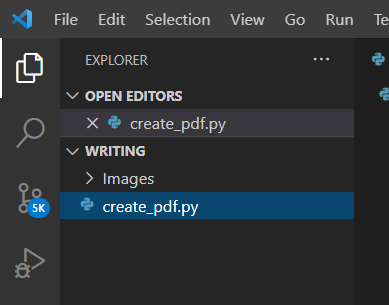
In create_pdf.py, write the following lines of code:
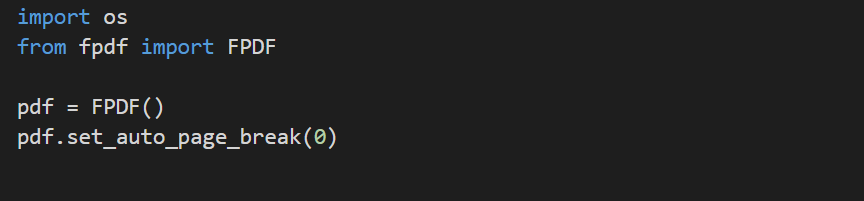
set_auto_page_break(0) sets auto page break to False. Note that setting an auto page break to False is important; otherwise, it will create a blank page after each image page.
Now, save the list of images in the ImageList variable. In this .pdf, we only want jpg images. If you want any other extension, you can modify the specific code.

Loop over the sorted ImageList and add each image in the Images folder into the .pdfs’ new page. We have sorted the list to get the sequence as wanted. We are providing a specific height and width to images to avoid the blur effect.

Now, export all the content in the pdf file using a single line of code:

Here, F means save pdf to the local storage with the name provided. You can also use the following instead of F.
D: Send the resulting pdf to the browser and force download by the specified name
S: Return the document as String
I: Send the file inline to the browser, and you can view the file using a pdf viewer if available
Similarly, you can add links and texts to the images. You can read the complete documentation of FPDF here.
The final step is to write python your_file_name.py in the VS code terminal to run the program, and the pdf is created in a snap of a finger!
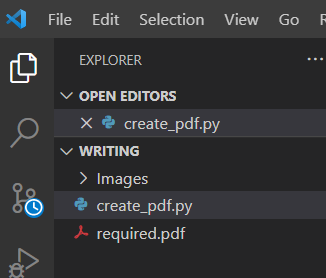
Voila! You did it!
Method 2
In this method, we will use PIL or Python Imaging Library. It has powerful image processing abilities. Let’s see how we can create a pdf of images using PIL.
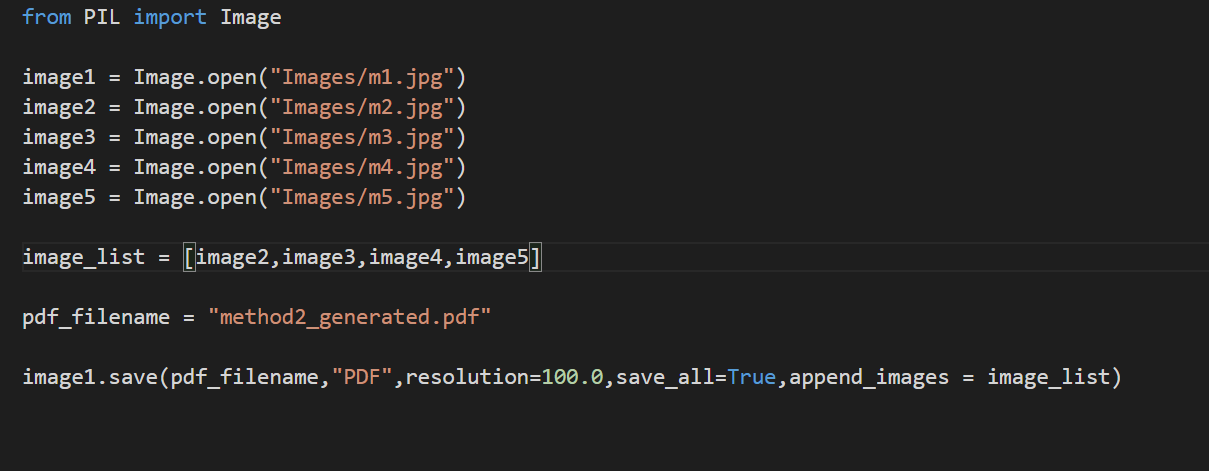
First, store all the images in their respective variables like image1, image2, and likewise. Secondly, create a list of variables and store all images in it for processing. Thirdly, name a variable to store the pdf filename. Next, append all the images after the first image in the pdf.
Here, the image resolution of all should be 100.0; you can change it accordingly.
We have not stored image1 in image_list initially because if included, it would have appeared twice, as we are appending all the images after image1.
You can check the complete documentation of PIL modules here.
Conclusion
I hope you like these solutions to create a pdf of a list of images using a single program. Although you can manually use any tool, It is fun to do these kinds of programming tasks as a programmer.
Happy learning!
Opinions expressed by DZone contributors are their own.