

How To Handle NoSuchWindowException In Selenium
This blog discusses some of the most common reasons for NoSuchWindowException in Selenium and the best practices to handle it.
 ·
·
Join the DZone community and get the full member experience.
Join For FreeIn today’s digital landscape, websites are brimming with dynamic content, captivating users with interactive experiences. A notable feature is the frequent emergence of new windows and tabs triggered by specific actions taken by users. These dynamic elements play a vital role in enhancing user engagement and providing seamless navigation.
As an automation tester, encountering scenarios where multiple windows or tabs need to be handled within an end-to-end flow is a common occurrence. Successfully managing this dynamic behavior becomes essential to ensure the accuracy and reliability of your automated tests.
However, this becomes highly challenging as automated tests tend to fail, making your test scripts less reliable. Your automation testing script should be able to manage many windows for better testing. In such situations, switching focus to perform any action on the necessary window or tab becomes an unsaid requirement.
Selenium offers various methods to work with multiple windows. But any slightest mistake, like using an invalid window handle, switching to a closed window, etc., can lead to NoSuchWindowException in the automation script. We will discuss more about these in the next sections.
NoSuchWindowException occurs when the WebDriver tries to interact with a window that is not available at that moment. This could be due to a closed window or the window in focus being different.
This Selenium Java tutorial will discuss how to handle NoSuchWindowException in Selenium. We will discuss the most common reasons for the same and the best practices to handle it. The practical implementation of these practices using Selenium Java will help you to learn how to handle NoSuchWindowException in your automation scripts to make tests run smoothly and reliably.
So, Let’s get started.
What Is a Window and Window Handle?
In Selenium, a window refers to a graphical user interface (GUI) window or a web browser window/tab, particularly while working with web automation. When Selenium WebDriver launches a web browser, it opens a new window in which the webpage gets loaded.
Each window is represented by a unique ID called a window handle. It allows the WebDriver to interact with the window and its elements. These handles are also used to switch between different windows, manipulate the size and position of the window, and perform other actions on the window and its contents.
If you have multiple browser windows open, you can use this method to retrieve a set of all the window handles. In this blog, Selenium with Java language has been used for demonstration and to provide code samples.
driver.getWindowHandles()


Returns a Set<String> containing handles of all the windows
To get the current window handle:
driver.getWindowHandle()


Returns the handle of the current window as a String
To switch to a specific window by passing in its handle:
driver.switchTo().window("<random_window_handle>")To switch to the main window back:
driver.switchTo().defaultContent()To understand these methods better, consider the following test scenario.
We want to reach the Twitter page and click on the Login button. This button is available on the page loaded in a new window. This new window, Window2, is loaded by clicking the Follow button on the previous/main window, Window1.
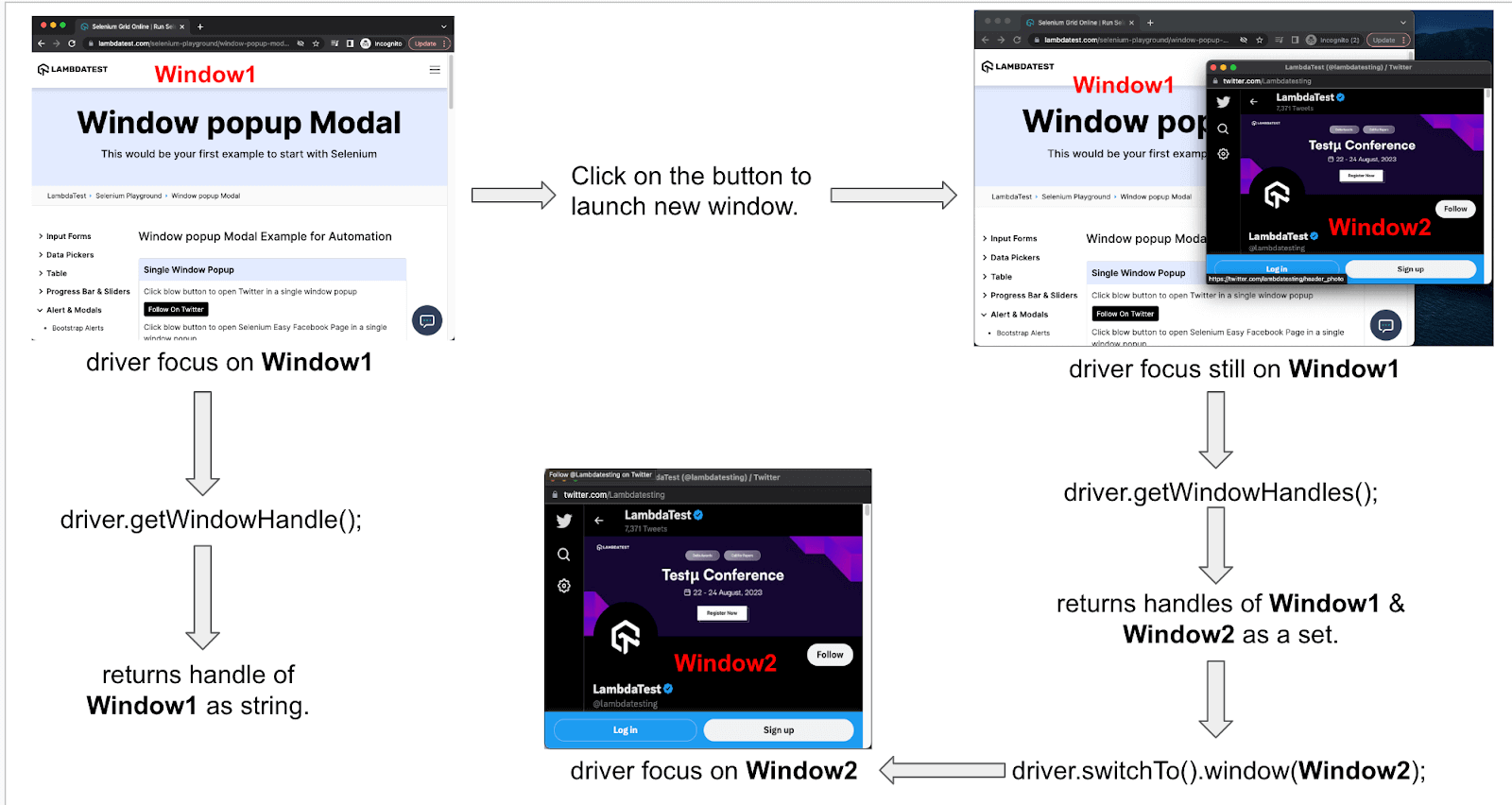
Now, if we want the test scenario to pass, the driver focus must be switched first to Window2 once it is loaded. If you try to switch driver focus before the load is completed, it will raise a NoSuchWindowException.
What Is a NoSuchWindowException in Selenium?
NoSuchWindowException is one of the most frequently encountered exceptions in Selenium WebDriver while working with multiple windows/tabs. The NoSuchWindowException is raised when the WebDriver cannot find the desired browser window or tab that it needs to interact with.
This exception would occur if there are multiple open windows and WebDriver is looking for one with incorrect window handles. Another reason could be that the required window is closed already and is no longer available.
The NoSuchWindowException can also occur if there is a problem with the browser itself like it has crashed due to some previous actions or has become unresponsive.
An important thing to note here is that handling multiple frames in Selenium slightly differs from handling multiple windows in Selenium. As for frames, the methods provided to switch are different, and similarly, the expectation raised in case a frame is not found is NoSuchFrameException.
Reasons for NoSuchWindowException in Selenium
This exception can occur for many reasons while working with multiple windows. A few of the most common ones are.
Closure of Window
This is the most common of all reasons leading to NoSuchWindowException in Selenium. The required window might get closed before the desired action is performed.
This could occur due to some error in the flow of the automation script or any other exception that could lead to a terminated window.
Driver Focuses on Another Window
Selenium WebDriver focus could get shifted to another window as a part of the automation flow. In this case, if we try to interact with the previous window again, NoSuchWindowException in Selenium is raised.
This is because, according to Selenium, only the window currently in focus is present. It cannot interact with any other window directly, and we need to switch to it before performing any action.
Invalid Window Handle
Window handles, as mentioned in the earlier section, are used to identify various windows and switch between them uniquely. You can fetch these handle values for the current window or all the open windows at any given moment using getWindowHandle() or getWindowHandles(), respectively. These handle values are AlphaNumeric string values like window-ISERZ1M69HCDVY7KRFXS.
If the window handle passed is invalid or non-existent, then no associated window will be found, and Selenium will throw a NoSuchWindowException.
Window Load Timing Issue
Occasionally, there are instances where Selenium WebDriver faces difficulty locating a new window until it has finished loading completely. This situation can arise from variations in code execution and disparities in window loading times, leading to potential challenges in synchronizing test actions with the window’s availability.
If the automation script tries to interact before that without waiting for the window load to complete, NoSuchWindowException is thrown from the WebDriver.
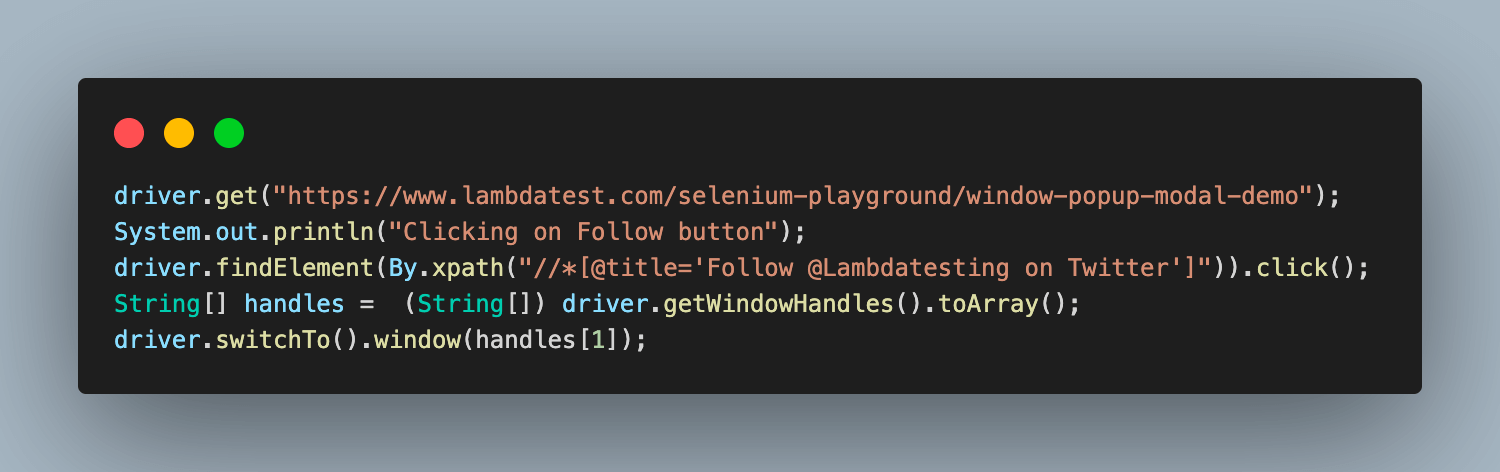
For instance, the above code immediately attempts to switch to the new window without waiting for it to fully load after clicking the button.
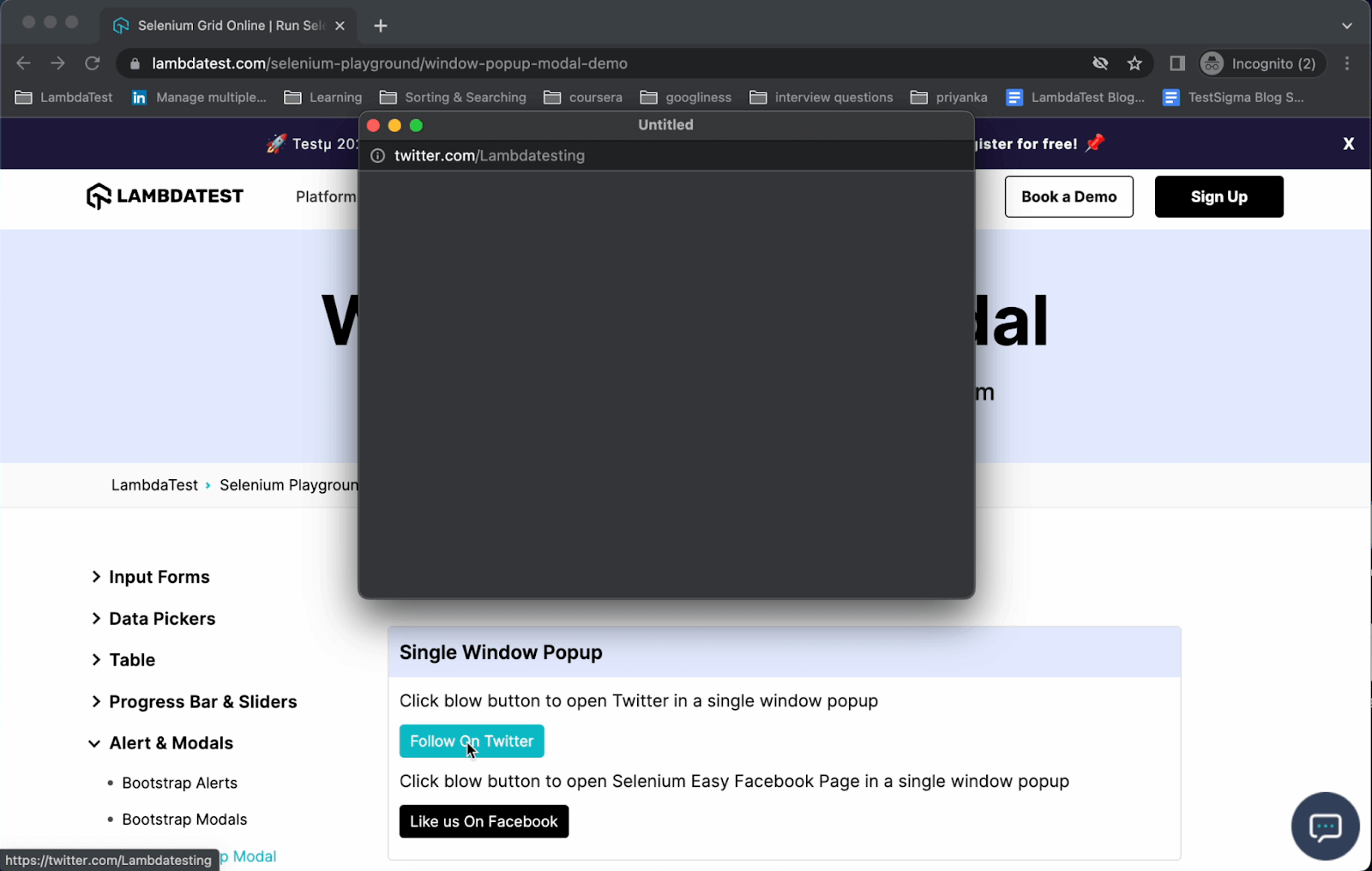
Based on the provided screenshot, if the new window displayed is not yet fully loaded, it could potentially result in a NoSuchWindowException in Selenium being raised.
Demonstration: How To Fix NoSuchWindowException in Selenium?
To demonstrate the best practices for handling NoSuchWindowException in Selenium, we will create a Java project with Maven and TestNG framework using Selenium 4.
Test Scenario – 1 (Demonstrate NoSuchWindowException)
- Navigate to the Lambdatest site.
- Click Follow on Twitter.
- Get a list of all window handles and print them on the console.
- Try to switch to the new window using an invalid window handle.
- Verify NoSuchWindowException is raised.
Test Scenario – 2 (Handle NoSuchWindowException Using Try-Catch)
- Navigate to the site.
- Click Follow on Twitter.
- Get a list of all window handles and print them on the console.
- Start the try block.
- Try to switch to the new window using an invalid window handle.
- Verify NoSuchWindowException is raised and caught inside the catch block.
Test Scenario – 3 (Handle NoSuchWindowException Using Explicit Wait)
- Navigate to the site.
- Click Follow on Twitter.
- Add Explicit Wait using Expected Conditions to wait until the number of windows is 2.
- Fetch a list of all window handles and store them in a variable.
- Start a loop to switch to each window using the window handle one by one.
- Switch to the new window using the window handle.
- Check if this is the required window by verifying its title.
- If it is a match, break the loop. If not, repeat Steps 6 and 7 till the required window is found.
- Click on the Login button on the new window.
This blog uses the Eclipse IDE for demonstration purposes, but feel free to use any IDE of your preference. The implementation process remains identical until the creation of a Maven project, regardless of the IDE you choose.
As we are working with Selenium web automation, we would start by adding Selenium dependency along with TestNG, which will be used for test execution to the pom.xml of the project.
After the project is created and dependencies are added, the final pom.xml would be like the one below.
<project xmlns="http://maven.apache.org/POM/4.0.0" xmlns:xsi="http://www.w3.org/2001/XMLSchema-instance"
xsi:schemaLocation="http://maven.apache.org/POM/4.0.0 https://maven.apache.org/xsd/maven-4.0.0.xsd">
   <modelVersion>4.0.0</modelVersion>
   <groupId>NoSuchWindowException</groupId>
   <artifactId>NoSuchWindowException</artifactId>
   <version>0.0.1-SNAPSHOT</version>
   <build>
       <sourceDirectory>src</sourceDirectory>
       <plugins>
           <plugin>
               <artifactId>maven-compiler-plugin</artifactId>
               <version>3.8.1</version>
               <configuration>
                   <release>19</release>
               </configuration>
           </plugin>
       </plugins>
   </build>
   <dependencies>
       <dependency>
           <groupId>org.seleniumhq.selenium</groupId>
           <artifactId>selenium-java</artifactId>
           <version>4.8.3</version>
       </dependency>
       <dependency>
           <groupId>org.testng</groupId>
           <artifactId>testng</artifactId>
           <version>7.7.1</version>
           <scope>test</scope>
       </dependency>
   </dependencies>
</project>
Next, add a new Java test file TestNoSuchWindowException.java under src.test package. Once added, the project structure would look like this.
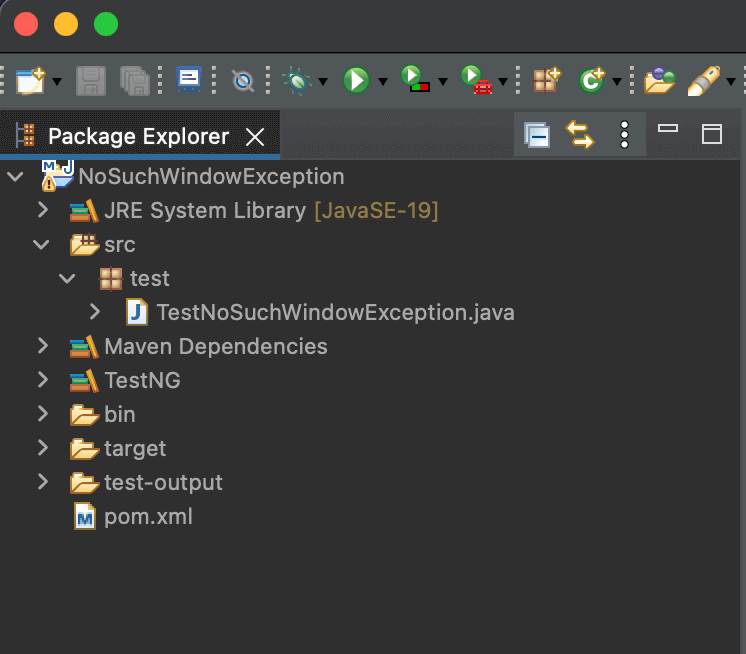
We will add our test cases to this to see how to prevent NoSuchWindowException from occurring in our Selenium automation scripts.
After adding all the WebDriver configurations and test case examples to demonstrate the fix for NoSuchWindowException, the completed file should look like the below:
package test;


import java.net.*;
import java.time.Duration;
import java.util.HashMap;
import java.util.Set;


import org.openqa.selenium.remote.RemoteWebDriver;
import org.testng.annotations.*;
import org.openqa.selenium.By;
import org.openqa.selenium.NoSuchWindowException;
import org.openqa.selenium.safari.`Options;
import org.openqa.selenium.support.ui.*;


public class TestNoSuchWindowException {


   public RemoteWebDriver driver = null;


   String username = System.getenv("LT_USERNAME") == null ? "<lambdatest_username>" : System.getenv("LT_USERNAME");
   String accessKey = System.getenv("LT_ACCESS_KEY") == null ? "<lambdatest_accesskey>" : System.getenv("LT_ACCESS_KEY");


   @BeforeTest
   public void setup()
   {
       try {
           SafariOptions safariOptions = new SafariOptions();
           safariOptions.setPlatformName("MacOS Big sur");
           safariOptions.setBrowserVersion("14.0");

           HashMap<String, Object> ltOptions = new HashMap<String, Object>();
           ltOptions.put("build", "NoSuchWindowException in Selenium");
           ltOptions.put("name", "Handling NoSuchWindowException");
           ltOptions.put("w3c", true);
           safariOptions.setCapability("LT:Options", ltOptions);

           driver = new RemoteWebDriver(
                   new URL("https://" + username + ":" + accessKey + "@hub.lambdatest.com/wd/hub"), safariOptions);
       } catch (MalformedURLException e) {
           e.printStackTrace();
       }
        driver.get("https://www.lambdatest.com/selenium-playground/window-popup-modal-demo");
   }


   @AfterTest
   public void tearDown() {
       driver.quit();
   }


   @Test
   public void testNoSuchWindowException()
   {
       System.out.println("Clicking on Follow button");
       driver.findElement(By.xpath("//*[@title='Follow @Lambdatesting on Twitter']")).click();

       Set<String> handles = driver.getWindowHandles();
       for(String handle : handles)
       {
           System.out.println("Valid handle value : " + handle);
           //adding -updated to valid handle value to demonstrate exception
           //due to invalid handle value
           driver.switchTo().window(handle + "-updated");
       }
   }


   @Test
   public void testNoSuchWindowException_fix()
   {
       System.out.println("Clicking on Follow button");
       driver.findElement(By.xpath("//*[@title='Follow @Lambdatesting on Twitter']")).click();

       WebDriverWait wait = new WebDriverWait(driver, Duration.ofSeconds(15));
       wait.until(ExpectedConditions.numberOfWindowsToBe(2));
       System.out.println("Verified total windows are 2");

       System.out.println("Fetching window handles of all windows");
       Set<String> handles = driver.getWindowHandles();


       System.out.println("Switching to each window one by one to verify if it is required one");
       for(String handle : handles)
       {
           System.out.println("Switching to window with handle : " + handle);
           driver.switchTo().window(handle);
           //using window title to reach to required window
           if(driver.getTitle().equals("Profile / Twitter"))
           {
               System.out.println("Reached required window");
               break;
           }
       }
       driver.findElement(By.xpath("//*[@data-testid='login']")).click();
       System.out.println("Clicked Login button successfully");
   }

   @Test
   public void testNoSuchWindowException_fix_tryCatch()
   {
       System.out.println("Clicking on Follow button");
       driver.findElement(By.xpath("//*[@title='Follow @Lambdatesting on Twitter']")).click();
       try
       {
           Set<String> handles = driver.getWindowHandles();
           for(String handle : handles)
           {
               System.out.println("Valid handle value : " + handle);
               //adding -updated to valid handle value to get exception
               //due to invalid handle value
               System.out.println("Invalid handle value used : " + handle + "-updated");
               driver.switchTo().window(handle + "-updated");
           }
       } catch (NoSuchWindowException ex) {
           System.out.println("We are inside catch block");
           System.out.println("NoSuchWindowException has been caught.");
       }
   }
}
CodeWalkthrough
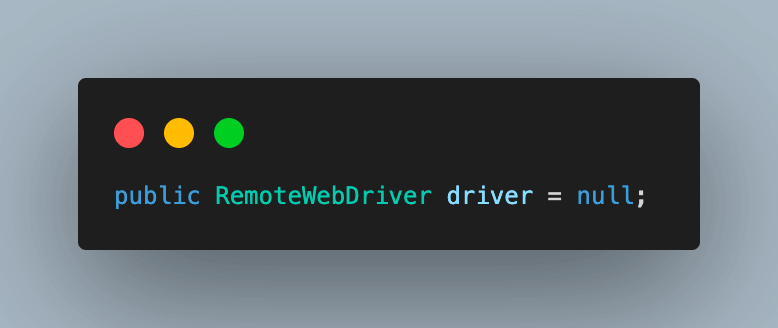
1. We start by creating an instance of RemoteWebDriver as we will execute the code on the cloud Selenium Grid.
2. Navigate to the LambdaTest Profile section once you create your account to fetch the username and access key. These will be used to make a connection to their cloud grid.

You can also configure the username and access key as environment variables using the following commands and directly fetch them in code.
For macOS and Linux:
export LT_USERNAME=LT_USERNAME
export LT_ACCESS_KEY=LT_ACCESS_KEY
For Windows:
set LT_USERNAME=LT_USERNAME
set LT_ACCESS_KEY=LT_ACCESS_KEY
We can also fetch the required browser capabilities to use the LambdaTest platform by navigating to their Automation Capabilities Generator. This helps by offering ready-to-use code for setting up browser capabilities that can be used in execution.
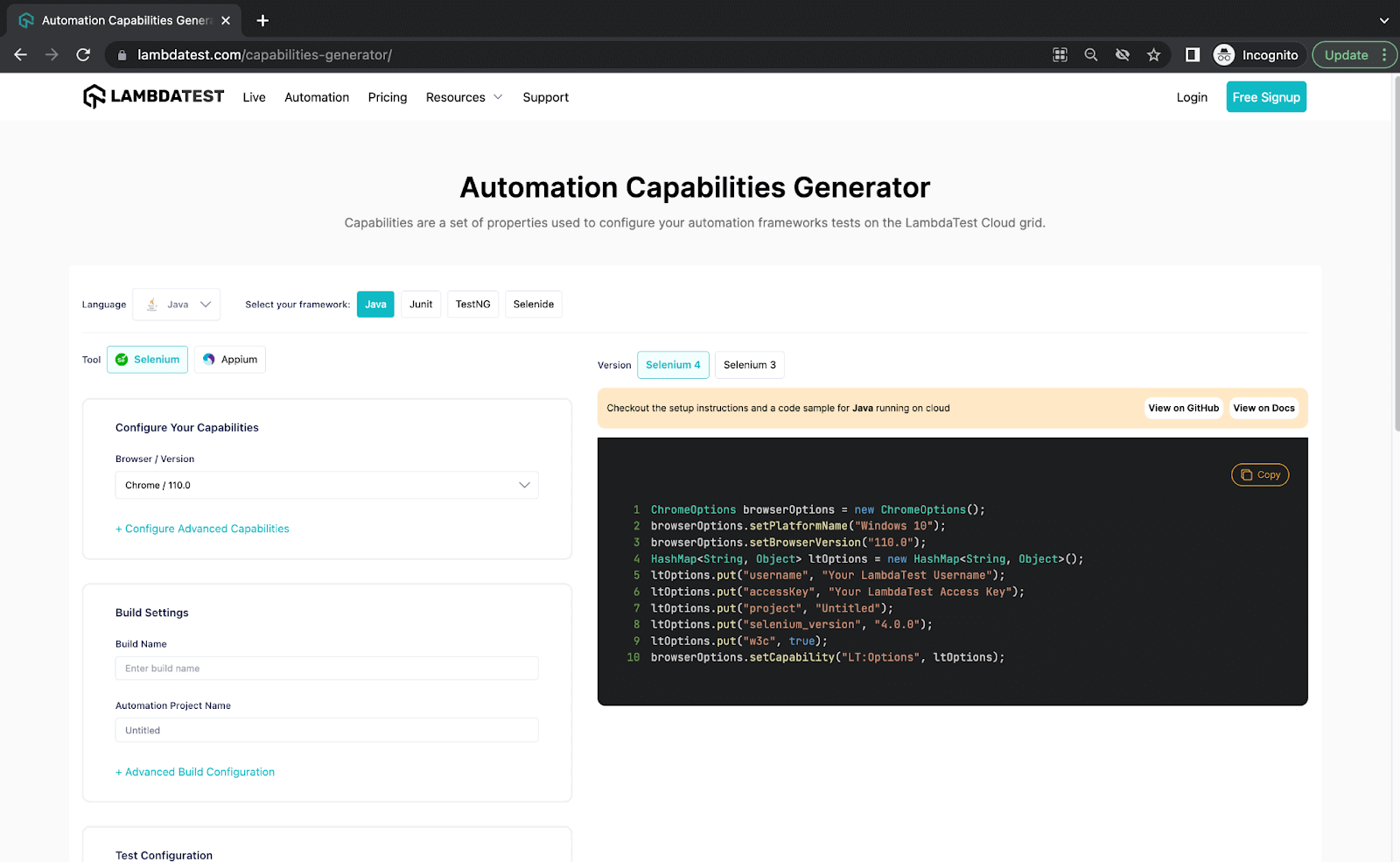
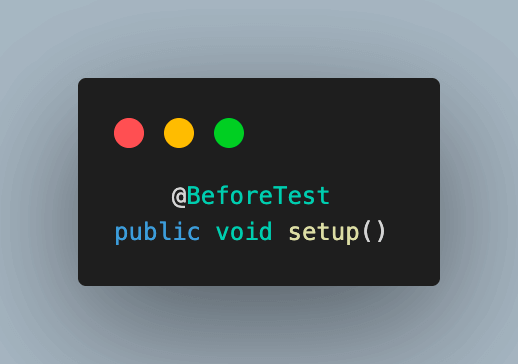
Step 3. Create a base method and name it as setup() and annotate with @BeforeTest annotation in TestNG. This method will be used for driver setup and opening the webpage before each test.
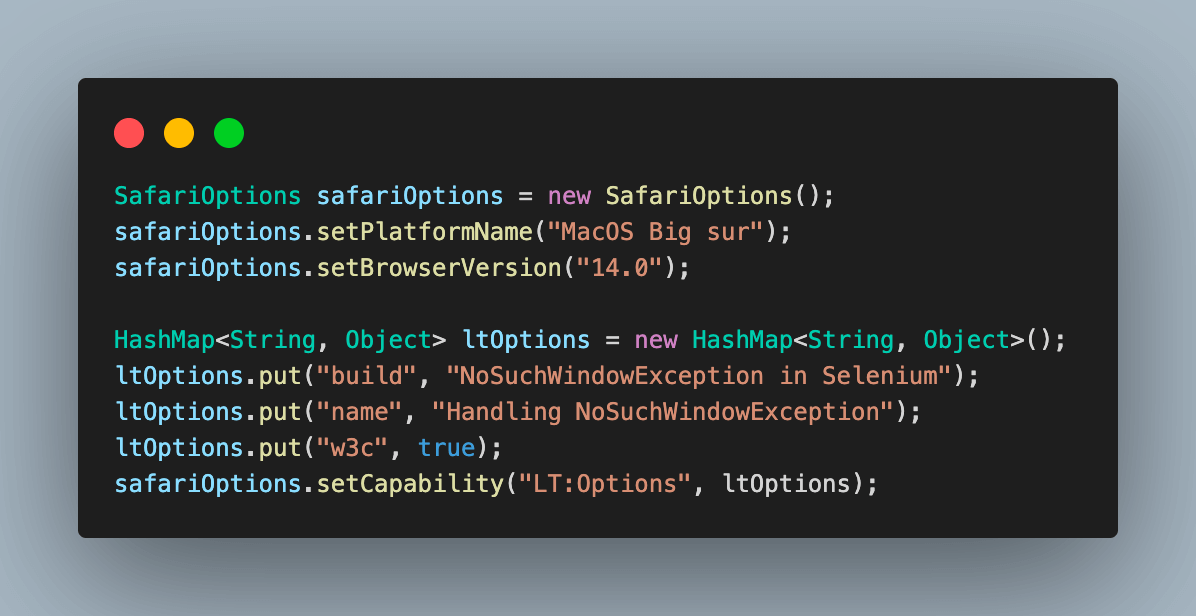
In this blog, we have used Selenium 4, which supports SafariOptions class. In this function, an object of the same is created to define browser properties like browser version, OS version, etc. It also accepts the variables required for LambdaTest execution as a capability.
These variables are used to set values like build, name, or any other browser property, which will help to identify the run on the LambdaTest Dashboard or modify behavior.
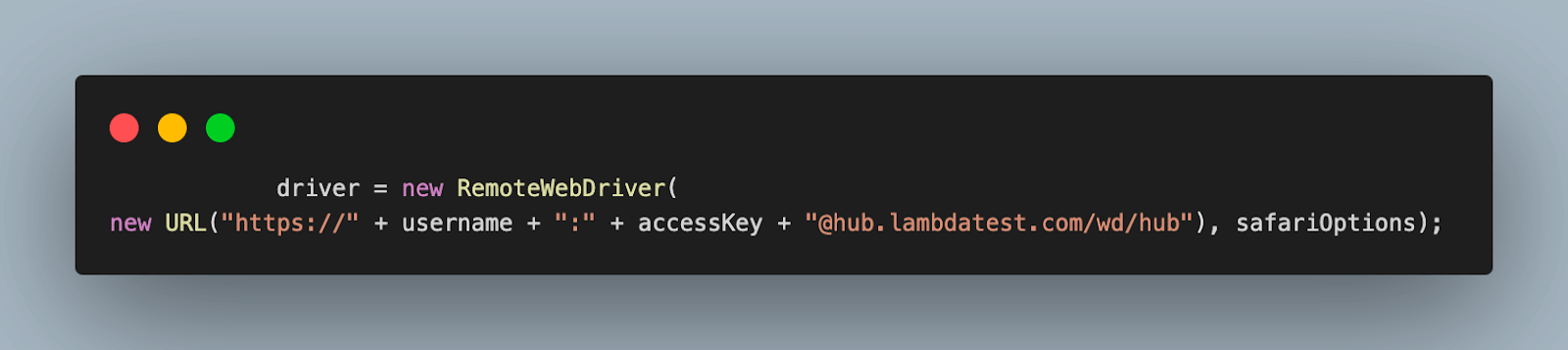
Step 4. Finally, an instance of RemoteWebDriver is created to connect to the LambdaTest Cloud grid using the safariOptions, and your Lambdatest username, and the access key.
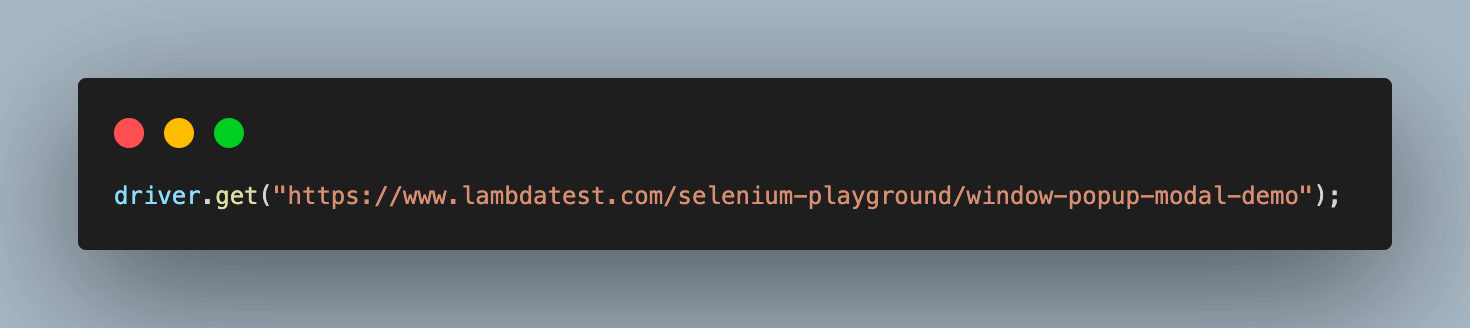
Step 5. Finally, navigate to the sample website under test, which will have a new window open on clicking a button.
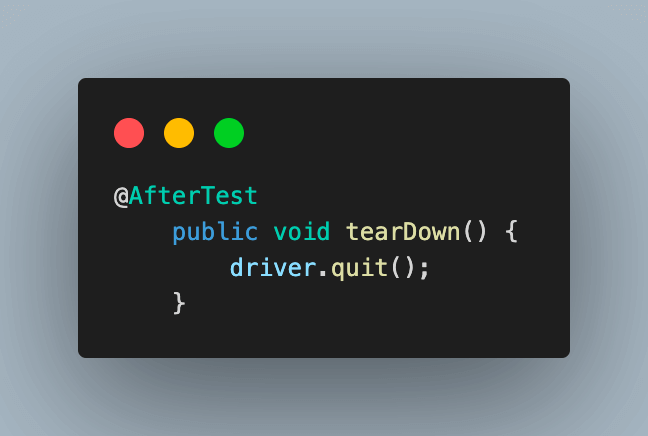
Step 6. Add a method as tearDown() and annotate it with @AfterTest annotation. This will be used to close the session after each test case.
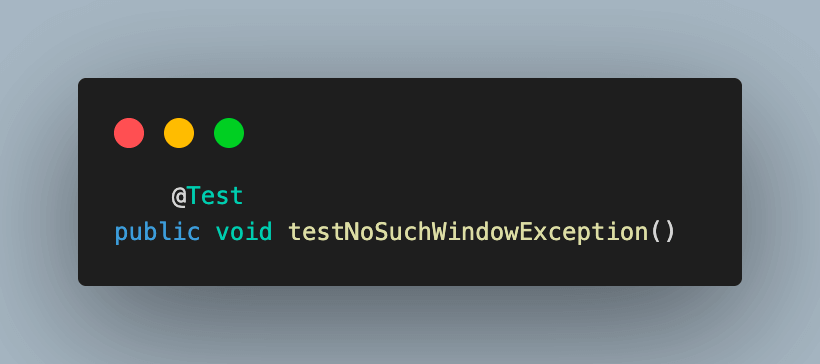
Test Scenario: NoSuchWindowException in Selenium
Step 1. Add the first test case and name it as testNoSuchWindowException(). In this test, we try to simulate the NoSuchWindowException in Selenium by using an invalid window handle.
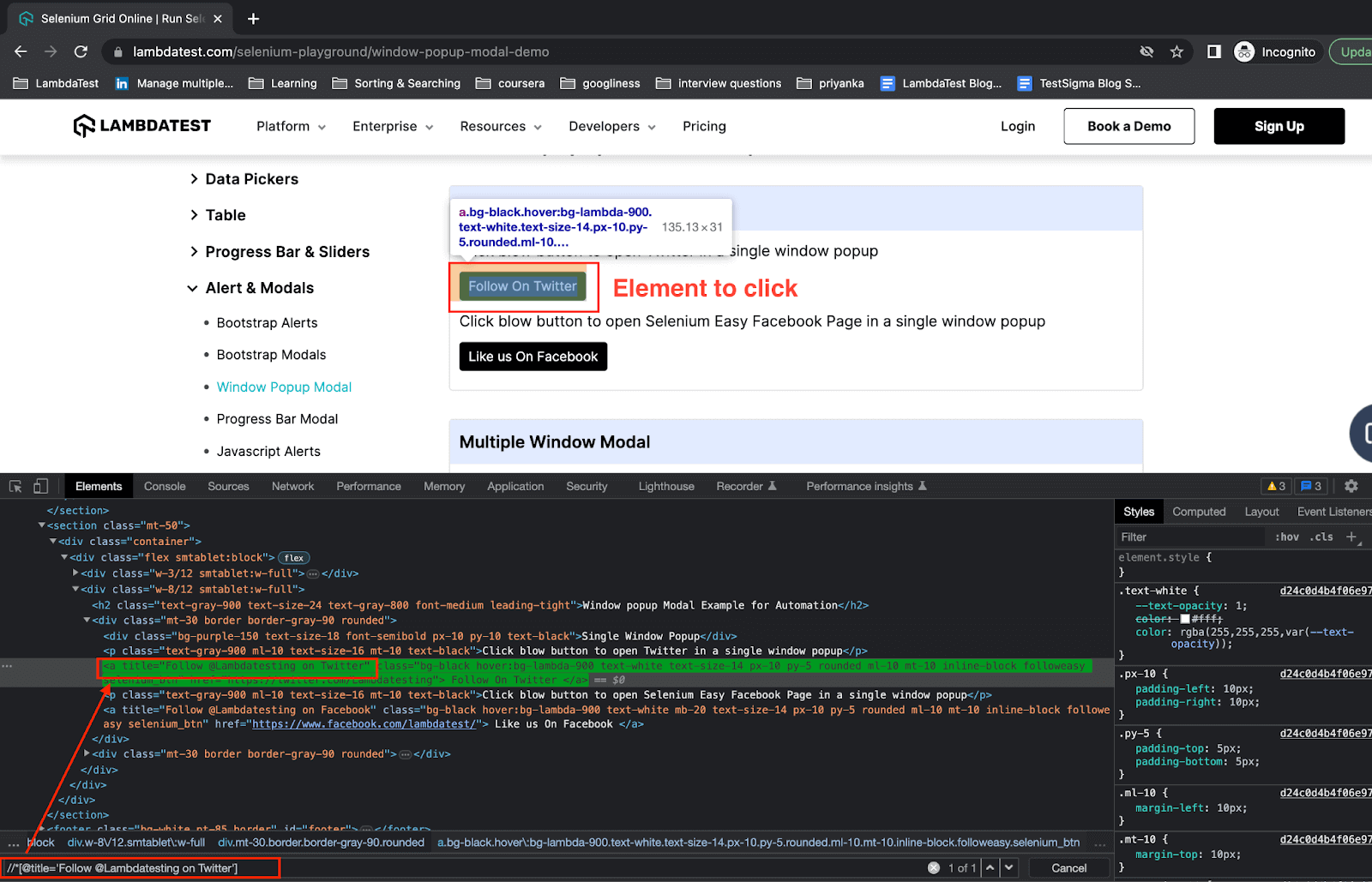
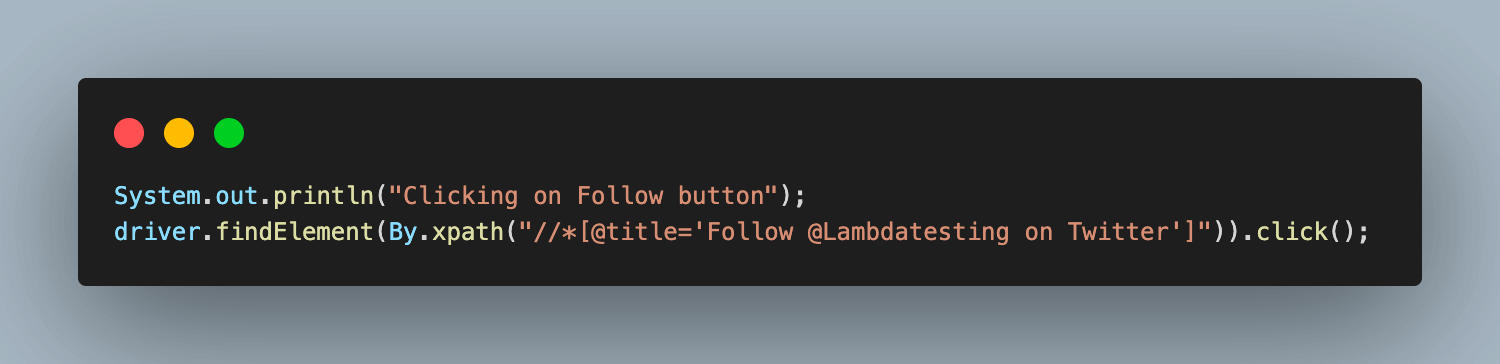
Step 2. We start by clicking the Follow button, which will open a new window.
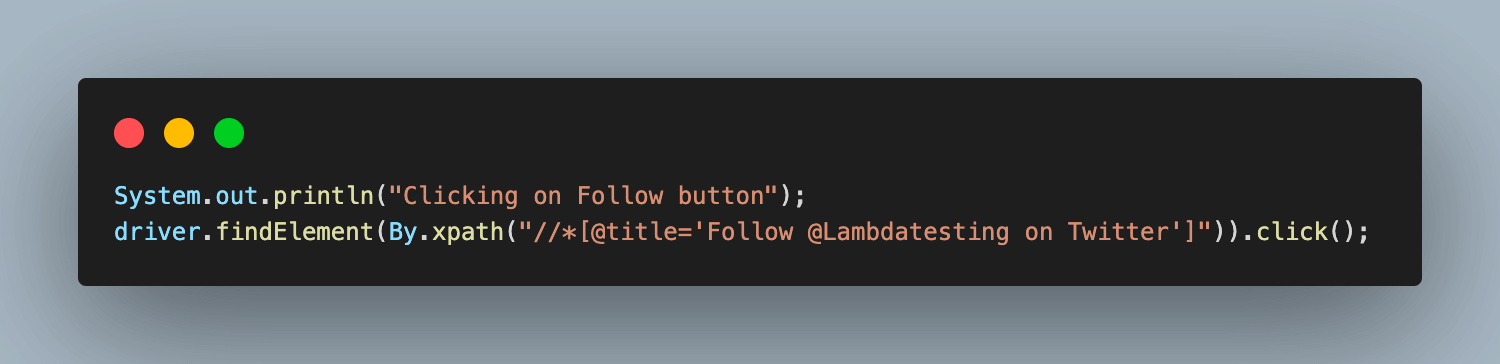
For this, we use the driver.findElement() method in Selenium and use XPath as a web element locator.
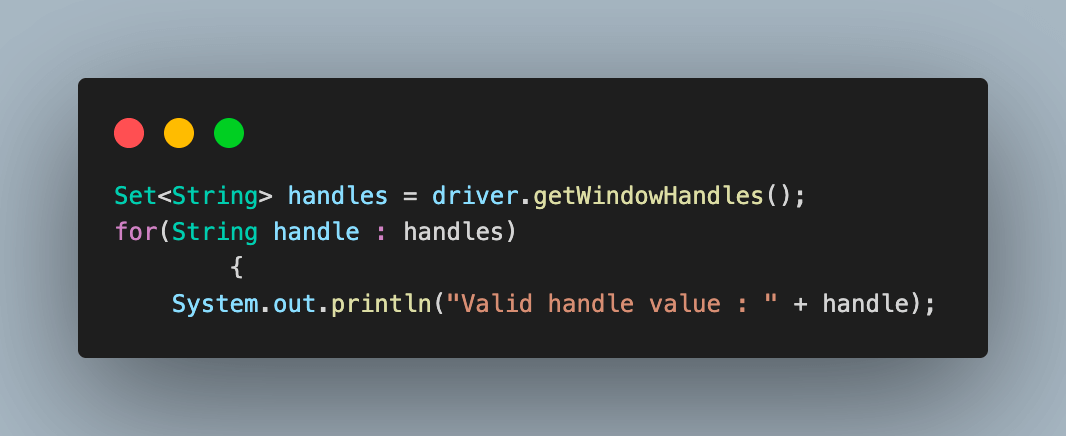
Step 3. Next, fetch the list of all window handles using driver.getWindowHandles() and store them in a variable. This traverses through the window handles list and prints valid handle values.
Step 4. Lastly, our attempt to switch to the newly opened window involves passing an invalid window handle. For this, the valid handle value from the previous step is manipulated to demonstrate the exception.
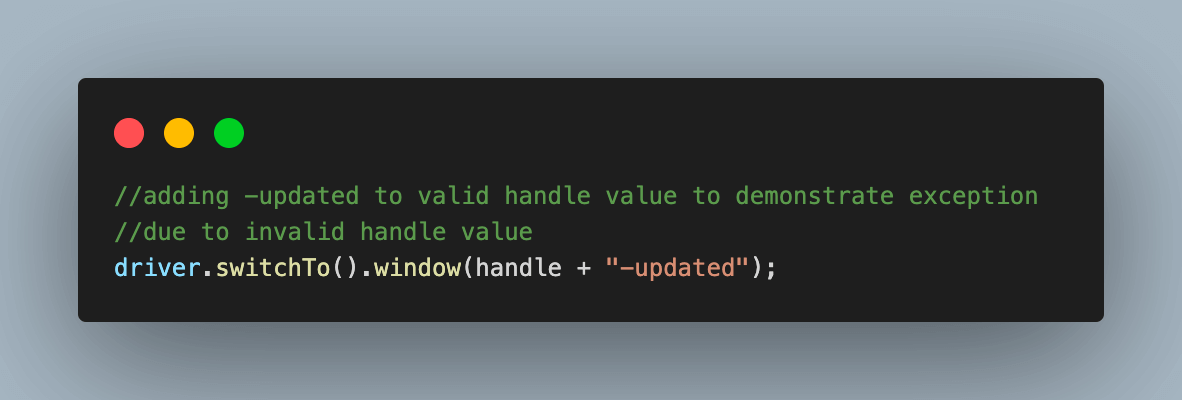
Step 5. On executing this, you can observe that the test case fails with NoSuchWindowException in Selenium as the window handle passed is invalid, and Selenium cannot locate a window using the same.
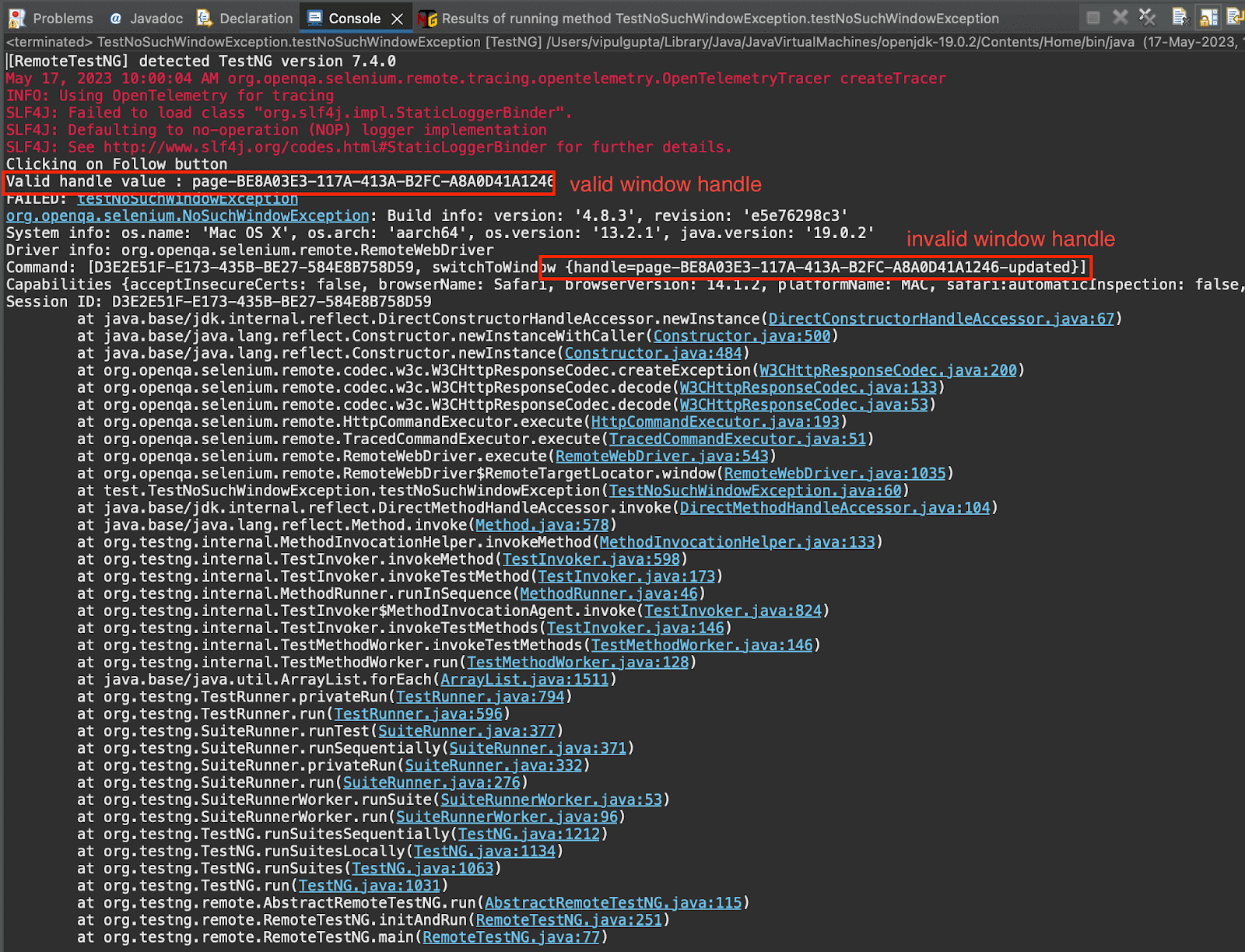
In the following sections, we will see the implementation of some of the best practices to prevent this NoSuchWindowException in Selenium from happening.
Fixing NoSuchWindowException in Selenium Using Try-Catch
As discussed in the best practices sections, one of the most used ways to handle NoSuchWindowException in Selenium is using the try-catch block.
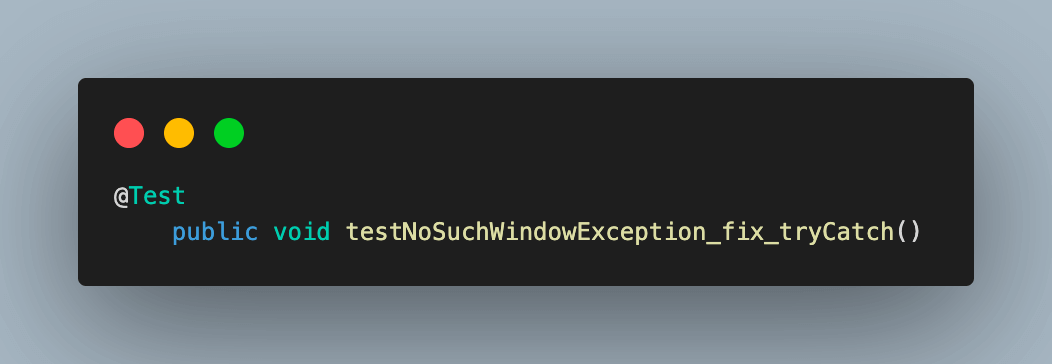
Step 1. For this, add another test case to the Java file and name it testNoSuchWindowException_fix_tryCatch().
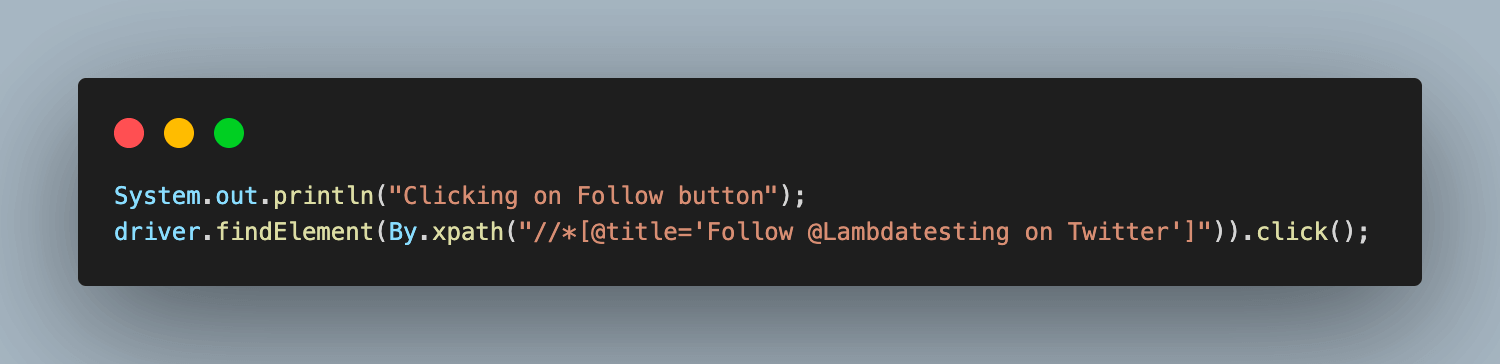
Step 2. Click the Follow button, which is expected to open a new window.
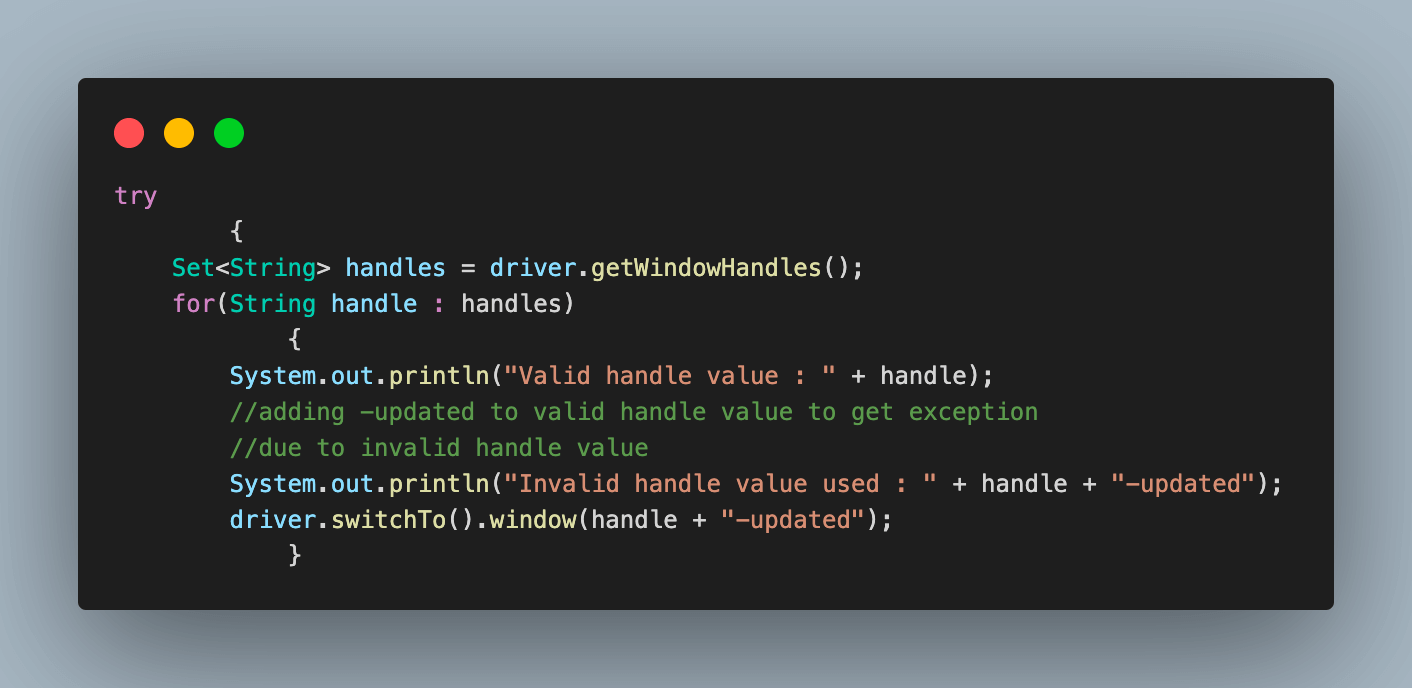
Step 3. In this approach, code that would lead to an exception on switching to a new window, like the previous scenario, is used.
The only difference is that we place this code inside the try block. This will help to catch the exception and prevent abrupt behavior from the automation script.
Step 4. This is followed by a catch block. This helps to catch the exception if it occurs and perform any subsequent actions. It also helps to terminate the code gracefully in such cases.
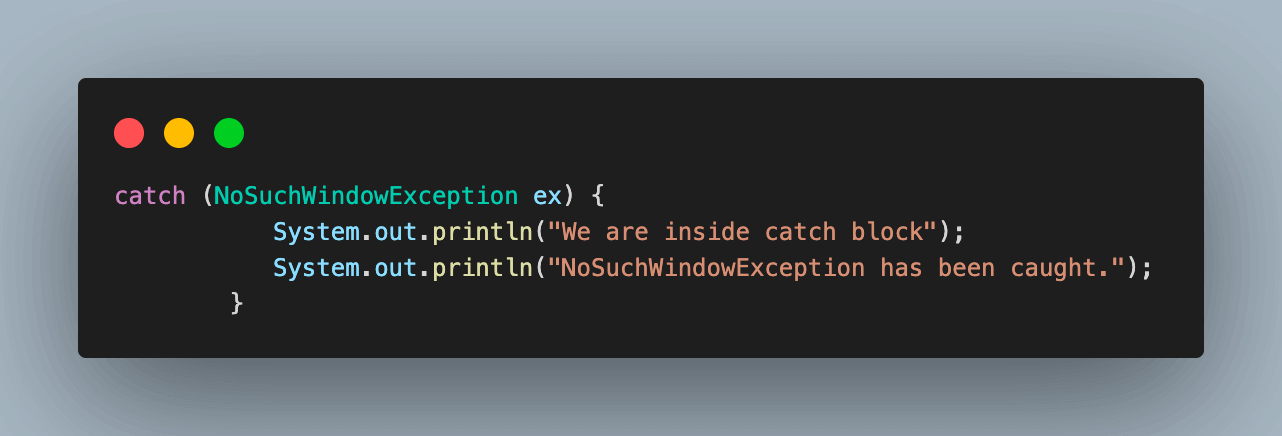
Step 5. Executing the above code, you will get the following output. In this, you can see that NoSuchWindowException is raised but is handled gracefully inside the catch block.
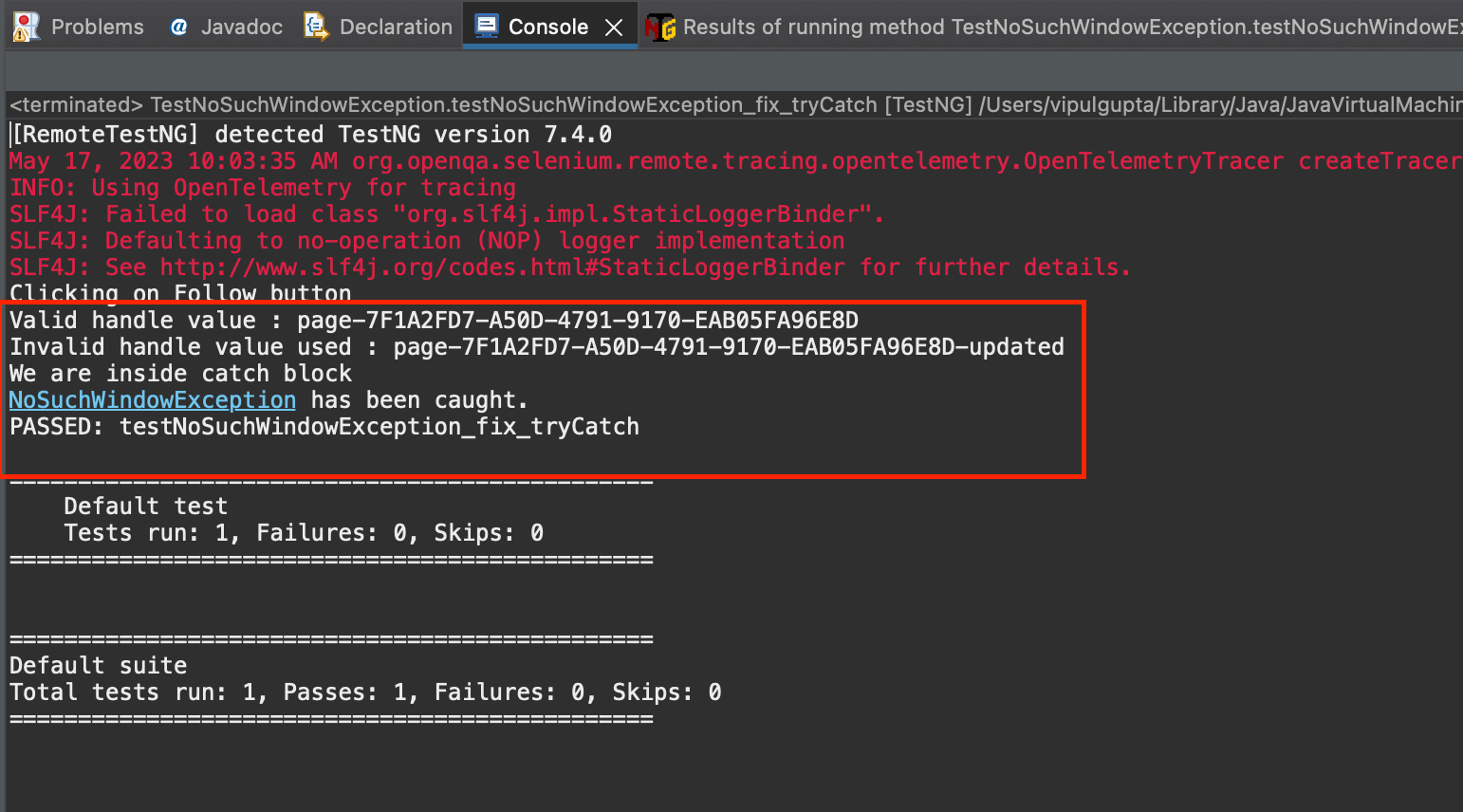
But it is very important to note that even if the exception is handled, you cannot perform any action on the new window. This is because the exception was raised, which means either the window handle is incorrect or the window does not exist.
You can always add a retry in such a case to try again the previous action, which should launch the window or check if the handle is correct and try to switch again.
Fixing NoSuchWindowException in Selenium Using Window Handles and Waits
Step 1. Next, add a new test case and name it testNoSuchWindowException_fix(). We will use this to demonstrate how using Waits and Window Handles properly helps us to prevent NoSuchWindowException from happening.
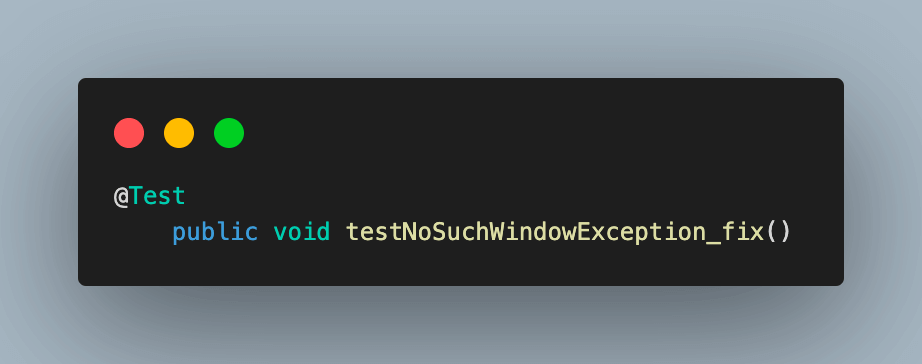
Step 2. We start by clicking on the button, which is expected to open a new window.
Step 3. As we click on the button, the expectation here is that now the total number of windows should be 2, like below.
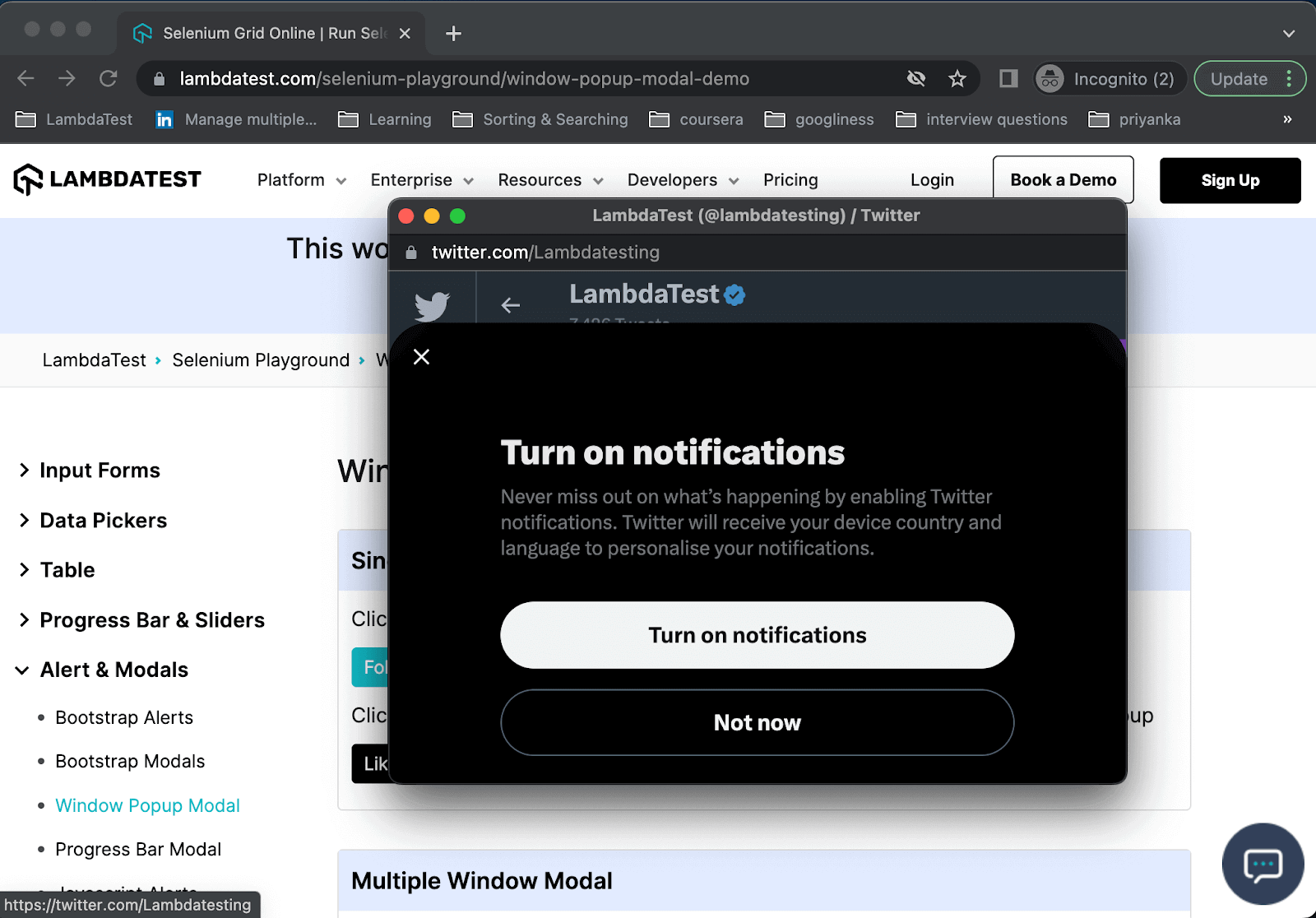
To handle the exception, we use explicit waits in Selenium to wait until the number of windows is equal to 2 and then move forward with the flow.
Step 4: For this, create an object of WebDriverWait class and pass the driver object and the duration for which we want to wait for the maximum time.
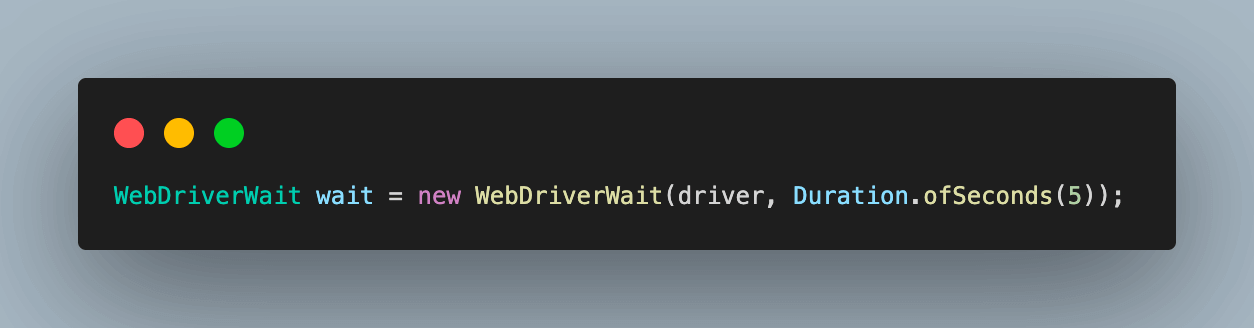
Using this object with the until() function, we add an ExpectedConditions to wait for the number of windows to be 2. The driver waits for a maximum of 5 seconds for this condition to happen.
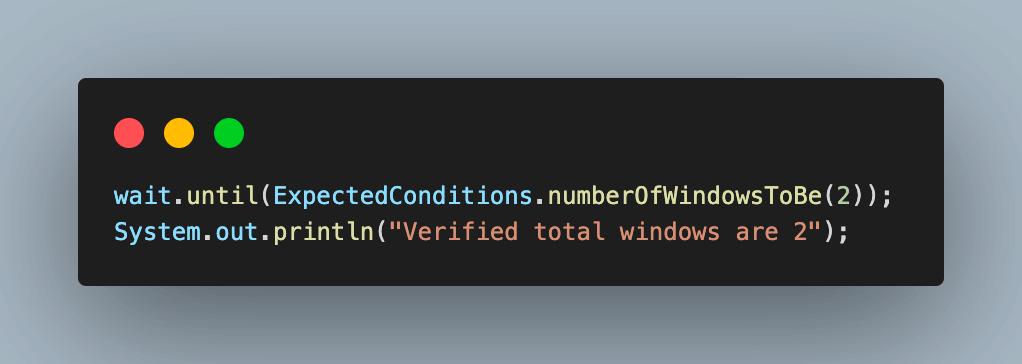
If the number of windows is validated, we move forward else the driver throws an error to show that condition is not fulfilled.
Step 5. Next, fetch the window handle for all the open windows. We will be storing this in a Set.
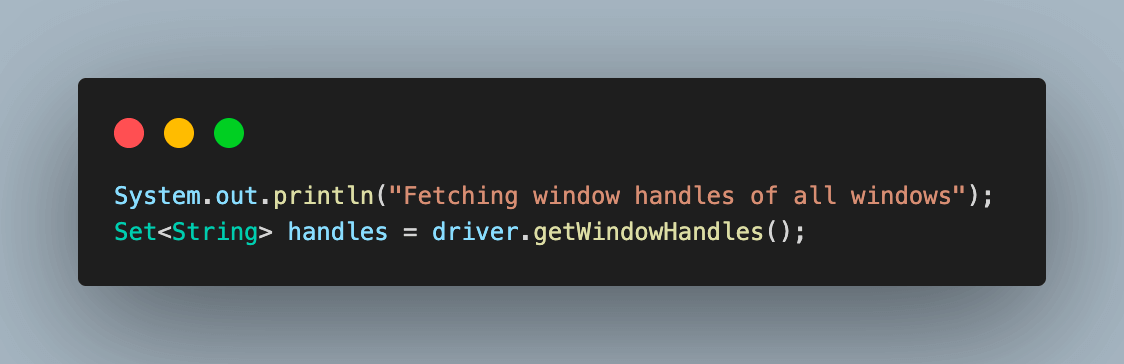
Step 6. We will traverse through this list of handles and switch to each window one by one until the required window is found.
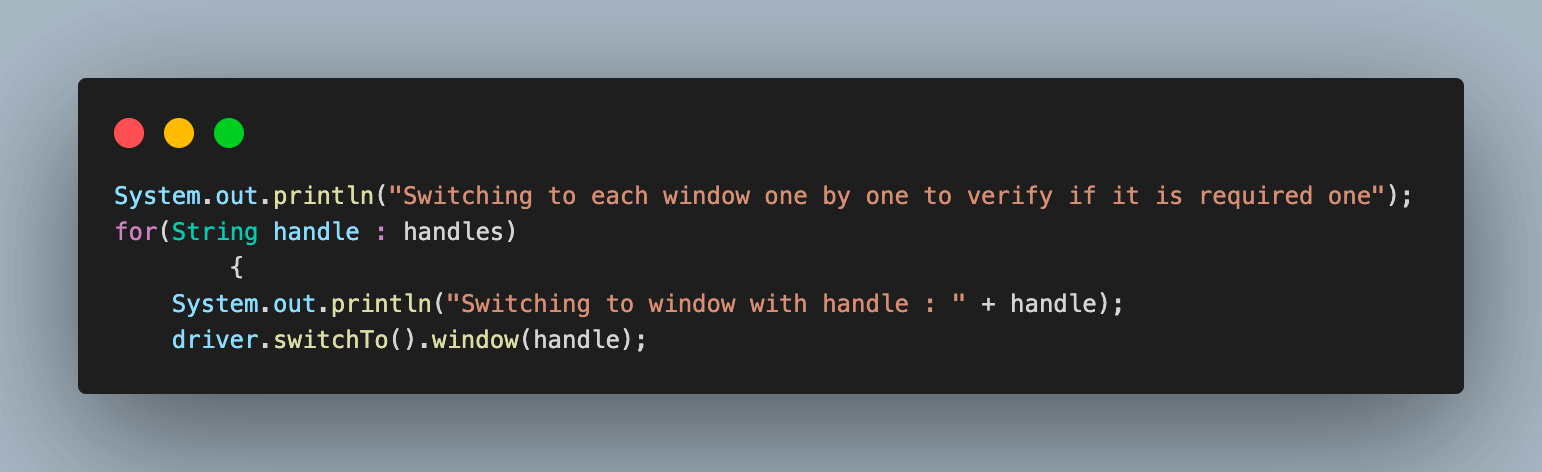
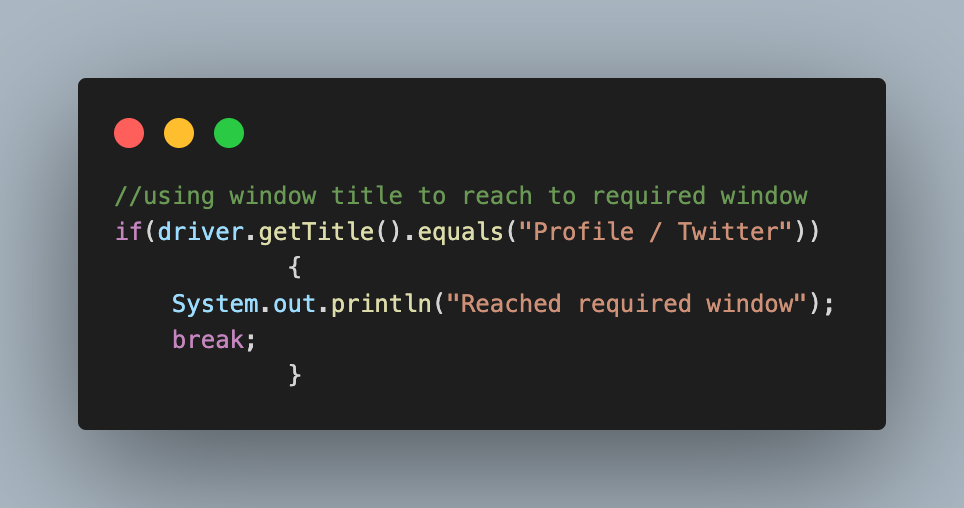
Step 7. To check if the current window is required or not, we check by matching the title of the required window with the current window. If it’s a match, break the loop and continue. If not, switch to the next window using the handle and continue the same flow.
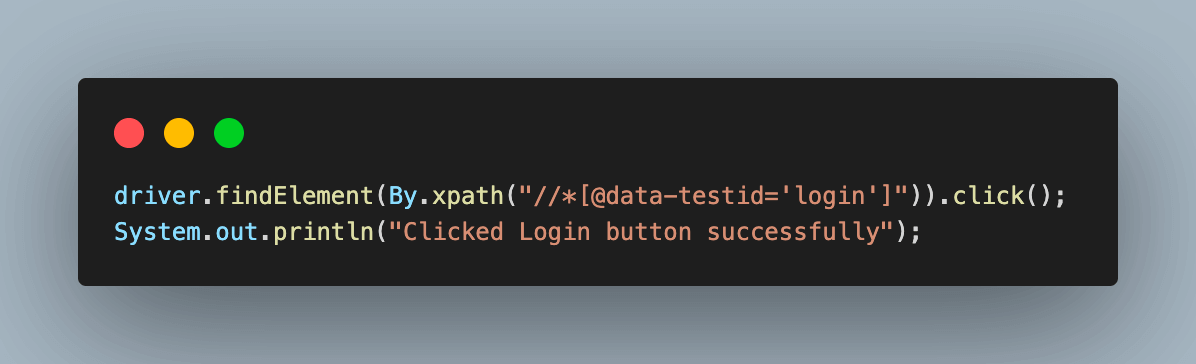
Step 8. When the required window is found in WebDriver focus, click on the login button, and the success message is printed.
Executing the above test case, we get an output like the one below.
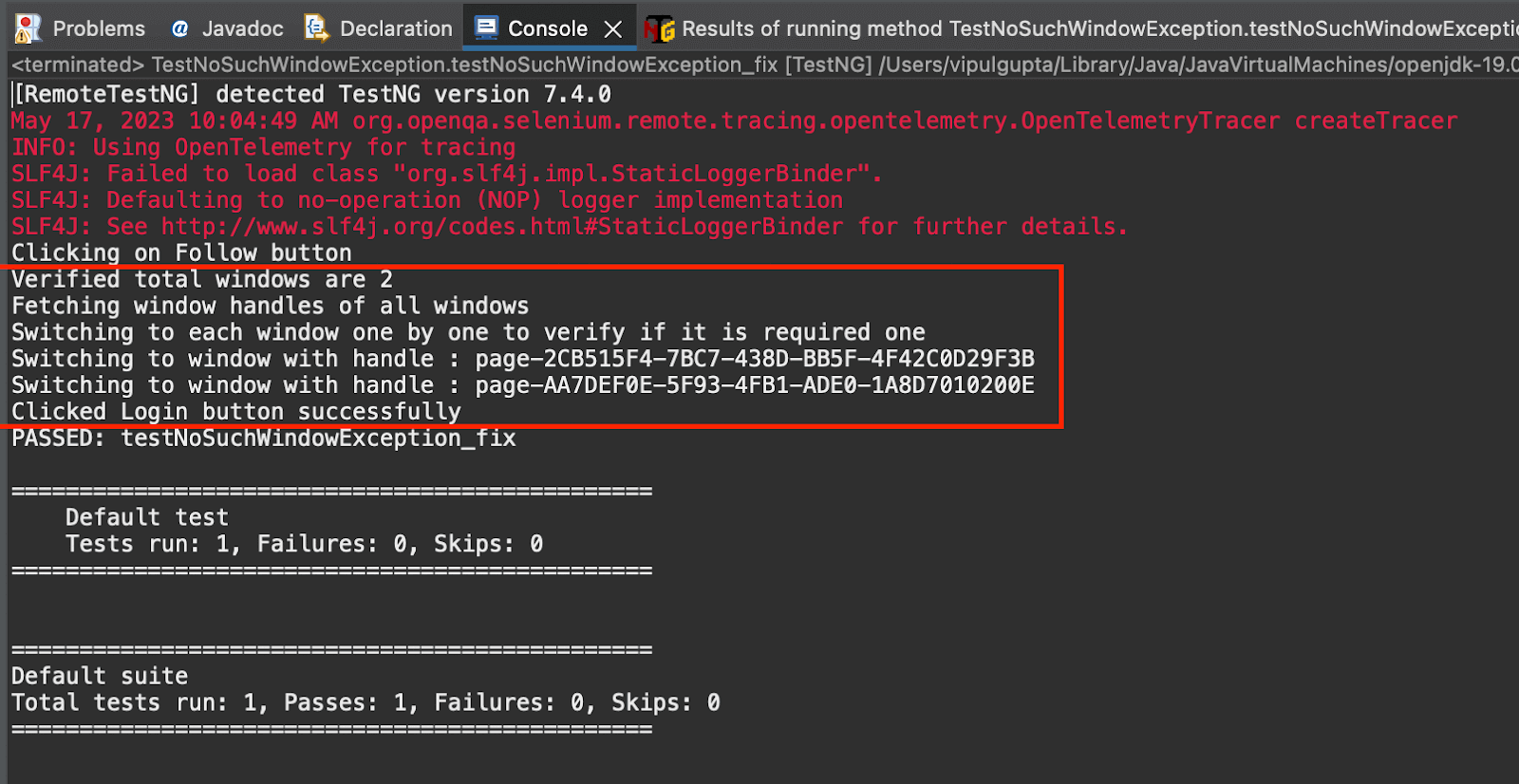
From the output screenshot, you can see that we had successfully verified that 2 windows are present using waits. Then we switch driver focus to the required new window and can successfully click on the Login button without encountering an exception.
Best Practices To Handle NoSuchWindowException in Selenium
From the demonstration section, it is quite clear that NoSuchWindowException in Selenium can be easily handled in your automation script by following some of the best practices.
Let us have a look at these in a bit more detail.
Using Explicit Waits
When working with multi-window functionalities, you are already aware if a new window is added as a result of the last action. This information, combined with explicit waits, helps you to wait for the new window to be open before you perform any action on it.
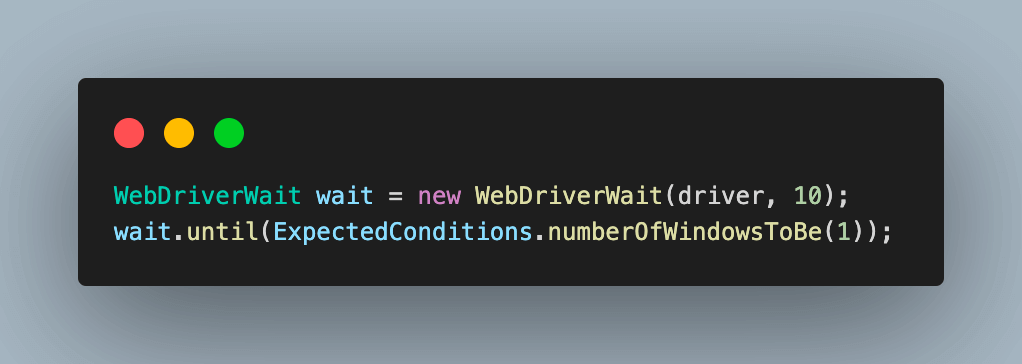
This can be done by using the ExpectedConditions class. It contains a collection of predefined conditions that can be used in explicit waits. It tells the WebDriver to explicitly wait for the given amount of time unless a certain given condition is met before moving to the next step.
In this case, it is done by checking the total number of windows using the numberOfWindowsToBe() condition. The below code will make the WebDriver wait for 10 seconds until the number of windows is equal to 1 before throwing an exception.
Using Valid Window Handles
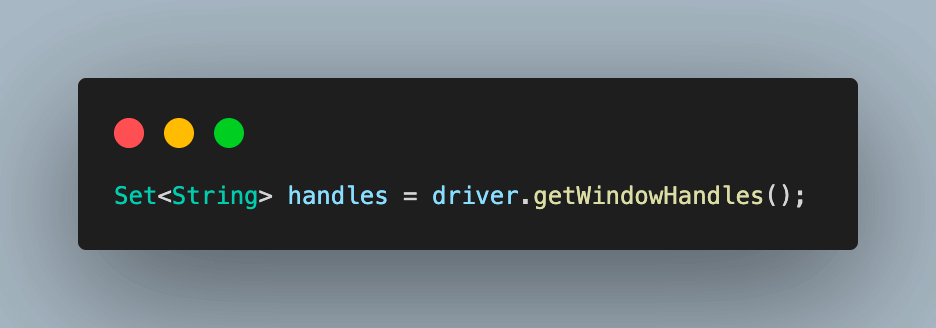
It is most important that we have a valid window handle to switch to the target window to perform the required action and avoid NoSuchWindowException in Selenium. For this, use the following method to get a list of window handles of all the open windows.
Additionally, with this, you can check the window title or some other attribute to judge which is the required window to be switched to. This will prevent unnecessary switches to all the available windows before reaching the required one.
Switching to the Correct Window
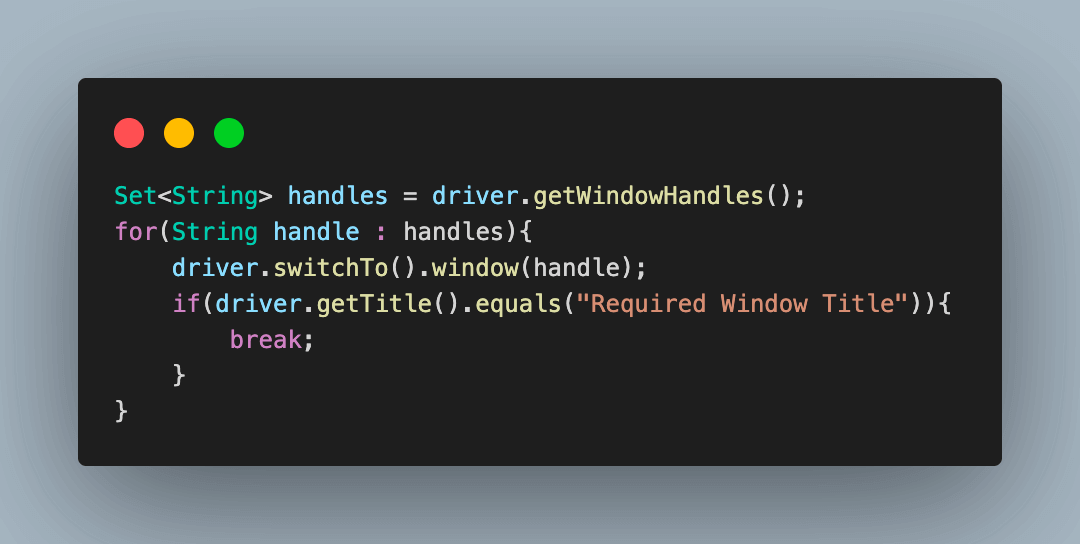
Another practice to prevent NoSuchWindowException in Selenium is to validate if you have switched to the correct required window once all the window handles are available.
One way of doing this is to switch to all the windows one by one. Do this until the title of that window matches the required window title.
Using a Try-Catch Block
You can also wrap your window handling code inside a try-catch block. By doing this, you can catch the NoSuchWindowException in Selenium if it occurs and then continue with the next steps as required and prevent abrupt behavior from the automation script.
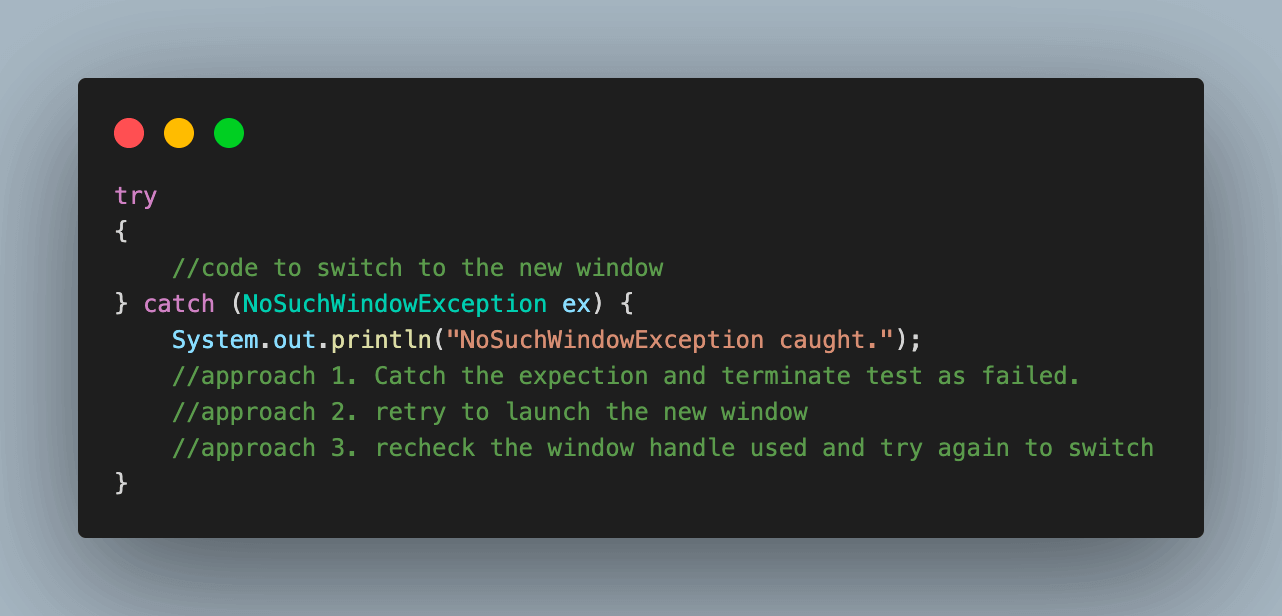
The next steps in this case, as per your requirements, could be to log an error message that the window is not found and mark the test as failed. Or you can also implement a retry and try to relaunch the new window by performing the previous action, which was expected to open the new window.
Keeping Track of Window Handles
Another important practice is to keep track of the window handles list. This is a must-do whenever a window is opened or closed. You can do the same by using the getWindowHandles() method repeatedly.
This is a highly recommended practice whenever you want to switch to a new window. It helps to remove the handles of old closed windows and update the list with new ones. This helps to lessen the chances of exception.
Conclusion
In conclusion, NoSuchWindowException is a common exception in Selenium that can occur when working with multiple windows or tabs. However, with the right knowledge of best practices to handle the same, we can make automation tests run smoothly and reliably. In this blog, we discussed the common reasons that can lead to NoSuchWindowException in Selenium. We also learned the best practices to handle the same and did some hands-on practice on how to add these approaches to your automation scripts. So, now it is for you to get started and, with a little attention to the powers of Selenium, prevent NoSuchWindowException in your scripts.
Published at DZone with permission of Vipul Gupta. See the original article here.
Opinions expressed by DZone contributors are their own.
Comments