

How to Mount USB Drives on VirtualBox
Sometimes you just need to access a USB drive from a VirtualBox VM! We take a look at how to make this happen in this post.
This is part three of a three-part series on VirtualBox. Parts one and two demonstrate how to install VirtualBox on a Debian host, and to build a FreeBSD virtual machine. This post shows you how to access, from your guest OS, a flash drive mounted on the Debian host.
Prerequisites
The VirtualBox extension pack must be installed on the VirtualBox host. See part 2 for instructions.
Configuring USB
Follow the steps below to configure the VirtualBox USB.
Add the user to the
vboxusersgroup. VirtualBox access to the host's USB drives is only granted to users of thevboxusersgroup. Asrooton the host, run the following command to add each VirtualBox user (e.g.,peter) to the group.# usermod -aG vboxusers peterPower off VM. VirtualBox defaults to using USB Controller 1.1 (OHCI). Modern hardware uses USB Controller 2.0 (EHCI) and USB Controller 3.0 (xHCI). Before you can change the USB controller protocol, the virtual machine must be powered off.
Open
VirtualBox Manager, clickSettings, and selectUSB.
Specify USB Controller.
Select either
Note that you can addUSB 2.0 (EHCI) ControllerorUSB 3.0 (xHCI) Controlleraccording to your actual hardware.USB Device Filtersto define the types of USB drives which will be automatically made visible to the guest OS. Be forewarned that the USB drive, once made visible to the guest OS, will no longer be available to the host. More on the use of device filters in the next section.

Accessing the USB Drive
Below is the step-by-step procedure to mount and access a flash drive.
Insert the flash drive into your host machine's USB port.
Unmount the flash drive (if it is auto-mounted on your host).
Making it available to the guest will automatically and instantly unmount it from the host. To avoid any data loss due to pending writes to the drive, it is a good practice to explicitly unmount the drive prior to handing control to the guest.Power on the FreeBSD guest.
Assign the USB drive to the guest OS.
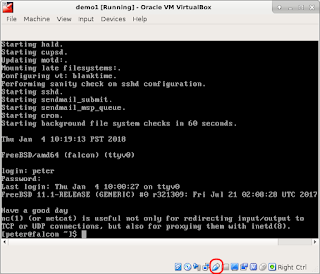
Open the virtual system console, and right click the
USB driveicon.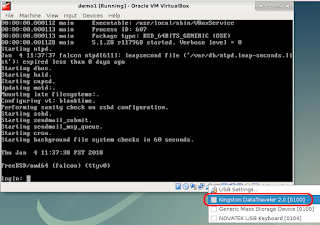
Click to select your USB drive.
Note, this is a one-time assignment only. Please see instructions at the end of the section on how to automatically assign this particular USB drive for all subsequent sessions.Login to FreeBSD, and mount the drive. You can mount an MS-DOS-based flash drive by running the following commands as root. Replace
/dev/da0s1with the proper device identifier for your USB drive (you can find out the exact device ID by first runningdmesgto identify the device name, e.g.da0, andfdiskto reveal the disk partition structure, e.g.,s1).# mkdir -p /media/usb # mount -t msdosfs /dev/da0s1 /media/usbTo unmount the drive,
# umount /media/usb
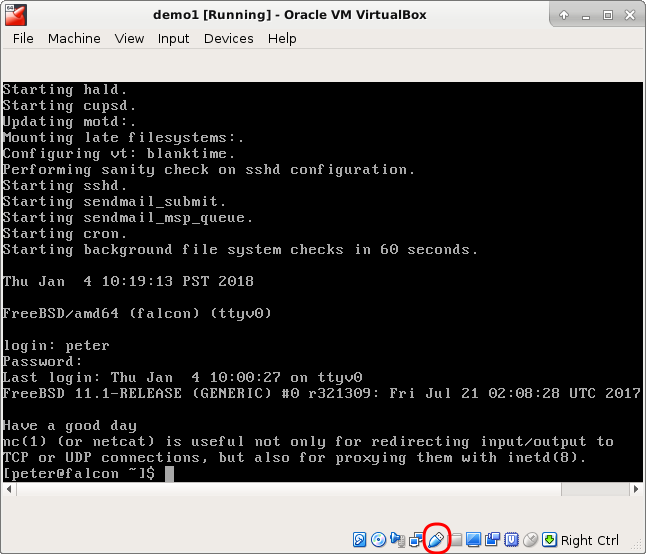

To always automatically assign a particular USB drive to the guest OS, open the VirtualBox Manager, click Settings, and then USB.
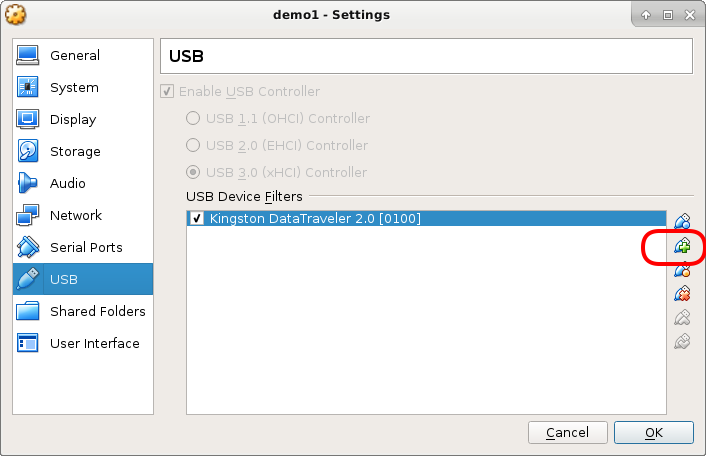
Finally, click the Add USB device filter (with the + sign) icon, and select the USB drive that is currently inserted into the host.
Published at DZone with permission of Peter Leung. See the original article here.
Opinions expressed by DZone contributors are their own.