

How To Repair Outlook PST File Using Inbox Repair Tool
To repair MS Outlook PST data files, use the Inbox Repair Tool. The tool examines the Outlook data files on your computer to determine their condition.
 CORE
·
CORE
·
Join the DZone community and get the full member experience.
Join For FreeA Personal Folders file (PST) is an Outlook database file created in earlier versions of the Outlook application (2002 and earlier). Such files are still in use today, and users must fix them in order to access the vital information contained within them because they are prone to corruption.
Backups can help manage and prevent disaster recovery. Users can avoid data loss situations by performing regular backups of important files and folders. When MS Outlook becomes corrupted, users are frequently confronted with the problem message “Cannot start Microsoft Office Outlook. Cannot open the Outlook Window.”
This could be because of corrupted or large PST files. When such problems or mistakes arise, the free Microsoft Outlook Inbox Repair Tool is your first line of defense. The Inbox Repair Utility, often known as ‘scanpst.exe,' is a free inbuild repair tool that comes with Outlook and for repairing corrupted PST files. Let’s start!
Most Common Causes of Damaged PST Files
The following are some of the most typical causes of a corrupt or damaged Outlook Personal Folder (PST) file:
- The maximum size of a PST file has been exceeded.
- When the PST file is open, Outlook closes abruptly.
- The Outlook Data File is saved on a hard drive that has developed faulty sectors.
- Errors occurred while transferring network-shared (.pst) files
When To Use The PST Repair Tool
To diagnose and cure corruption in a PST file, Microsoft provides a built-in repair application called the "Inbox Repair Tool" or "Scanpst.exe." The tool examines your computer's Outlook data files to see if they're in good health.
In the following instances, you might want to use the Inbox Repair tool:
- You get a message from Outlook that says it can't open your data file.
- When your Outlook data file has been corrupted.
- You get a notification indicating Outlook is unable to open a set of folders.
In 32-bit Windows, ‘Scanpst.exe' can be located in Program Files, and in 64-bit Windows, it can be found in Program Files (x86). The following is the precise path of scanPST.exe on the system drive:
For 32-Bit Windows
C:\Program Files\Microsoft Office\Office16\
For 64-Bit Windows
C:\Program Files (x86)\Microsoft Office\Office16\
The location listed above is for the Microsoft Outlook 2016 edition. Using the same path, you can locate scanPST.exe for various Outlook versions.
Repair PST File Using Inbox Repair Tool
Note: Close your Outlook application and make a backup of the Outlook Data File (.pst) you want to repair before running the Inbox Repair Tool.
To use the Inbox Repair Tool to repair a corrupt.pst file, follow these steps:
1. Go to any of the following locations:
Outlook 2019: C:\Program Files (x86)\Microsoft Office\root\Office16
Outlook 2016: C:\Program Files (x86)\Microsoft Office\root\Office16
2. Now, double-click scanpst.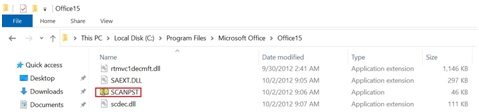 3. In the Microsoft Inbox Restore dialogue box, pick the PST you want to repair by clicking Browse.
Note: If you don't know where your Outlook PST file is, open File Explorer and type the command: %appdata%\Microsoft\Outlook.
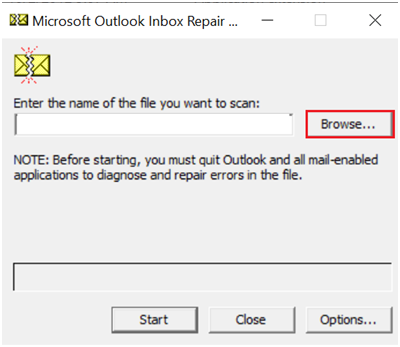 4. To begin the scan, click Start.
Note: Depending on the size of the PST file, the scanning procedure may take some time.
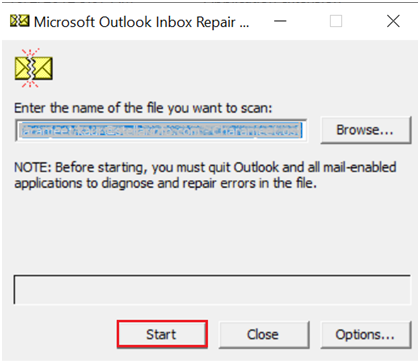
5. If the scan reveals any issues in the file, select Repair to correct them.
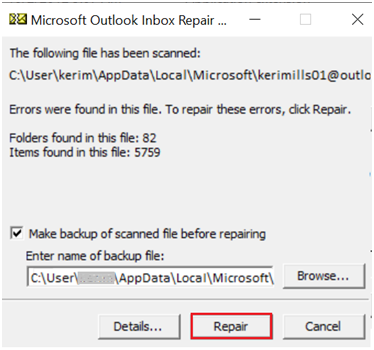
6. When the repair process is finished, click OK.
Limitations of PST Repair Tool
Scanpst.exe can fix broken PST files; however, it has a few disadvantages:
- Only repairs PST files up to 2GB in size.
- Doesn't function with Outlook PST files that are severely corrupted.
- It's difficult to find on the system because it's hidden sometimes.
- To fully repair high-level corrupted files, it must be run numerous times.
- There is no guarantee that the damage will be completely repaired and recovered.
- It is not possible to recover items that have been permanently erased.
- Possibilities of data loss during and after the repair
What Happens if the Inbox Repair Tool Is Unable To Recover My Corrupted PST File?
If the Inbox Repair Tool fails to repair or restore your PST file, you should consider utilizing a third-party tool, such as Aryson Outlook PST Repair. It is one of the most effective solutions for repairing Outlook files that are corrupted or encrypted. It can restore all objects in an Outlook user's mailbox, including emails, calendars, contacts, notes, journals, and more, without compromising data integrity.
This tool is intelligent enough to do the encrypted PST file recovery process before scanning the damaged Outlook PST file. It works with all types of Outlook PST files, including those with high encryption, compressible encryption, and no encryption. You can also download the tool's free demo version to gain hands-on experience with it.
Conclusion
The article discusses how to repair a Personal Folder File using the PST repair tool. The PST file can be repaired with the inbox repair tool; however, it does not guarantee full assurance. Therefore, it is recommended to use the Outlook PST Repair tool to repair or restore encrypted PST files entirely without any data loss.
Opinions expressed by DZone contributors are their own.
Comments