

How to Select Date From Datepicker in Selenium Webdriver Using Java
This article will explore a test case demonstrating how to select a date from a datepicker in Selenium Webdriver using Java.
Selenium is a widely used automation testing tool used to ensure the seamless working of web applications in accordance with predetermined technical and business requirements. Using Selenium is a great way to comply with the growing demands made upon developers and testers – faster and more efficient release of new and updated features, ideally within a few weeks.
Selenium Webdriver, a significant component of the Selenium Test Suite, is a web framework that runs automated tests on websites to ensure all UI elements are functioning exactly as expected.
Among different UI elements, the Date is essential for specific websites. For example, datepickers are often included as UI elements to websites in which the user has to select a date as an input value. This makes it an important feature that needs to be tested for correct functioning using Selenium.
This article will explore a test case demonstrating how to select a date from a datepicker in Selenium Webdriver using Java. The example uses the MakeMyTrip website to demonstrate this function. The date to be selected is “15-AUGUST-2020” on the departure datepicker displayed on the website home page.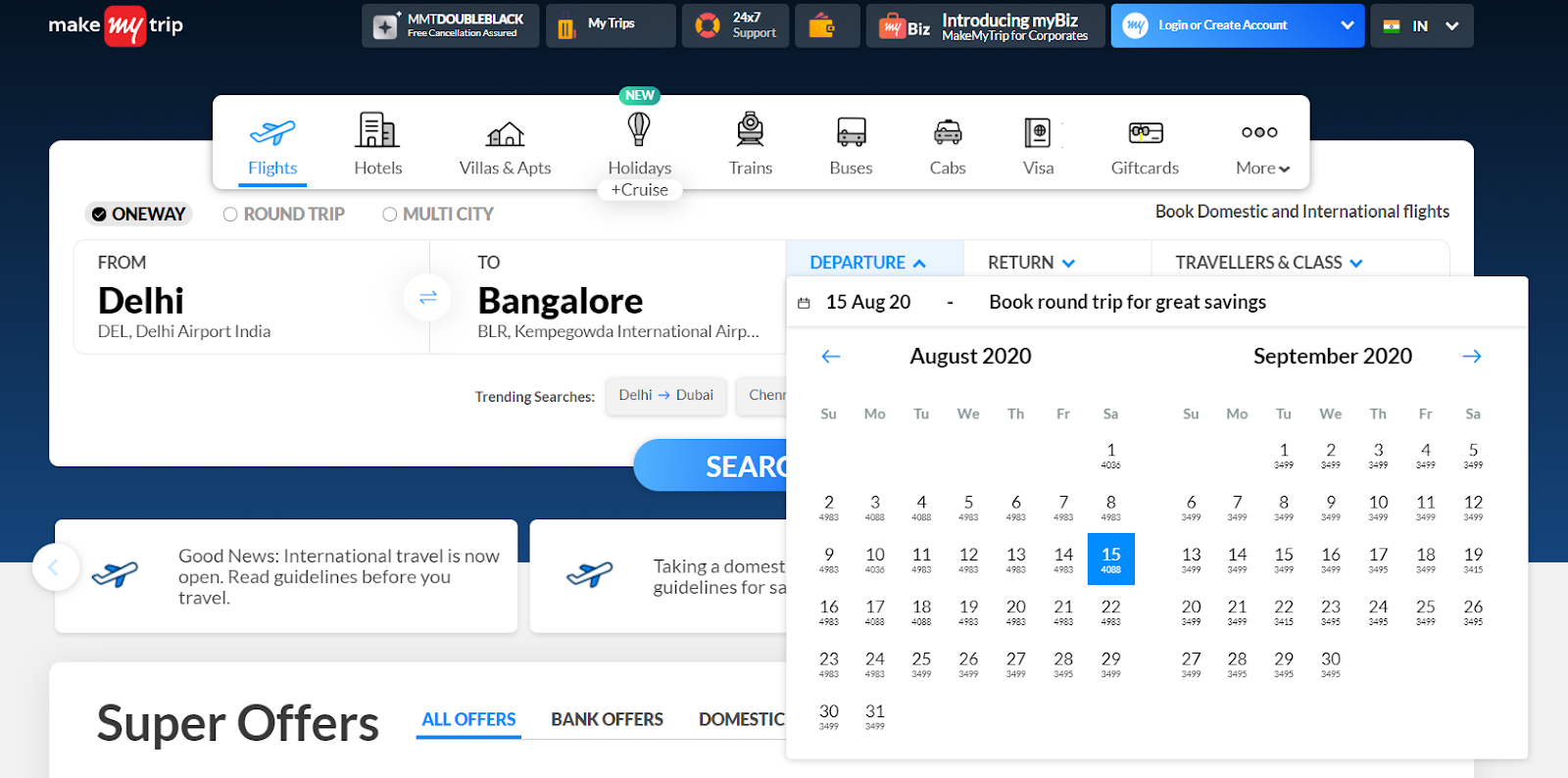
Steps to Select Date From Datepicker With Selenium and Java
- Find the XPath of the Datepicker element. For Chrome, right-click and inspect the given element to find its XPath.
- To find the XPath of a UI element in Firefox, right-click on the desired element, and go to “Inspect Element” to open the inspector, which will help identify the XPath of the desired element.

Code to Select a Given Date on the MakeMyTrip Website
//Opening Chrome Browser
package browser;

import org.openqa.selenium.WebDriver;
import org.openqa.selenium.chrome.ChromeDriver;

public class BrowserSelection
{
static WebDriver driver;

public static WebDriver usingChrome()
{
System.setProperty("webdriver.chrome.driver", "E:\\SeleniumLibs\\\\chromedriver_win32\\chromedriver.exe");
driver = new ChromeDriver();
driver.manage().window().maximize();
return driver;
}
}

//Test to select a desired date in the datepicker for departure

package makemytripdatepicker;

import java.awt.AWTException;
import java.awt.Robot;
import java.awt.event.KeyEvent;
import java.util.List;
import java.util.concurrent.TimeUnit;

import org.openqa.selenium.By;
import org.openqa.selenium.JavascriptExecutor;
import org.openqa.selenium.WebDriver;
import org.openqa.selenium.WebDriverException;
import org.openqa.selenium.WebElement;
import org.testng.annotations.AfterMethod;
import org.testng.annotations.BeforeMethod;
import org.testng.annotations.Test;

import browser.BrowserSelection;

public class MakeMyTripDateTest
{
WebDriver driver;

@BeforeMethod
public void openBrowser()
{

driver = BrowserSelection.usingChrome();
}

@Test
public void tripDetails() throws InterruptedException, AWTException
{

//Modify Wait time as per the Network Ability in the Thread Sleep method

driver.get("https://www.makemytrip.com/");
driver.manage().timeouts().implicitlyWait(10, TimeUnit.SECONDS);
Thread.sleep(5000);

try
{

driver.findElement(By.xpath("//input[@id='hp-widget__depart']")).click();
Thread.sleep(2000);

Date d = new Date(1);
SimpleDateFormat formatter = new SimpleDateFormat("dd-MMMM-yyyy");
String date = formatter.format(d);
String splitter[] = date.split("-");
String month_year = splitter[1];
String day = splitter[0];
System.out.println(month_year);
System.out.println(day);


selectDate(month_year,day);
Thread.sleep(3000);


public void selectDate(String month_year, String select_day) throws InterruptedException
{
List<WebElement> elements = driver.findElements(By.xpath("//div[@class='ui-datepicker-title']/span[1]"));

for (int i=0; i<elements.size();i++)
{
System.out.println(elements.get(i).getText());

//Selecting the month
if(elements.get(i).getText().equals(month_year))
{

//Selecting the date
List<WebElement> days = driver.findElements(By.xpath("//div[@class='ui-datepicker-inline ui-datepicker ui-widget ui-widget-content ui-helper-clearfix ui-corner-all ui-datepicker-multi ui-datepicker-multi-2']/div[2]/table/tbody/tr/td/a"));

for (WebElement d:days)
{
System.out.println(d.getText());
if(d.getText().equals(select_day))
{
d.click();
Thread.sleep(10000);
return;
}
}

}

}
driver.findElement(By.xpath("//div[@class='ui-datepicker-inline ui-datepicker ui-widget ui-widget-content ui-helper-clearfix ui-corner-all ui-datepicker-multi ui-datepicker-multi-2']/div[2]/div/a/span")).click();
selectDate(month_year,select_day);

}

@AfterMethod
public void closeBrowser()
{
driver.quit();
}

}
As demonstrated, selecting a date from a datepicker on a website is easy enough using Selenium and Java. Run the code, evaluate the results and start applying the same process to websites with this particular functionality. However, it is always recommended to run Selenium tests on real browsers and devices cloud for accurate results. Hence, using Cloud Selenium Grid is a great way to test your web application under real user conditions.
Published at DZone with permission of Garima Tiwari. See the original article here.
Opinions expressed by DZone contributors are their own.