

Understanding SHORTUSR/USRFIELDS in AUTHINFO to Meet 12-Character Identity Limits for MQ on Windows
Learn why IBM MQ on Windows hits a 12-character LDAP SHORTUSR limit and how to configure a different attribute for longer user IDs to work correctly.
 ·
·
Join the DZone community and get the full member experience.
Join For FreeIntroduction: Modern Directories Meet Legacy Constraints
As organisations strengthen security and centralise identity management, IBM MQ administrators increasingly integrate with enterprise LDAP directories such as Microsoft Active Directory or OpenLDAP. This enables authentication using corporate credentials and authorisation through LDAP users or their group membership, instead of relying on local OS users.
However, on Windows platforms, IBM MQ still enforces a long‑standing 12‑character limit on the user ID used for authorisation. This limitation does not come from LDAP; it originates from how MQ maps authenticated identities to Windows principals for Object Authority Manager (OAM) checks. IBM MQ’s Object Authority Manager was designed to work uniformly across Windows, UNIX (AIX/Linux), and z/OS, where OS usernames traditionally max out at 12 characters.
As a result, whilst LDAP directories comfortably support long and descriptive user IDs, MQ on Windows cannot directly use those long values for authorisation due to historical OAM rules. As a result, administrators often encounter authorisation failures such as AMQ4036, even though LDAP authentication itself succeeds.
This article details the error and the setup that causes it and covers how to resolve it cleanly using the USRFIELD and SHORTUSR attributes in AUTHINFO.
When the Issue Occurs: A Real-World Scenario
The following example shows the setup of:
- OpenLDAP running in a container
- A Windows queue manager configured for LDAP authentication
- Users stored under ou=People,dc=ibm,dc=com & couple of user accounts with similar givenNames and unique surNames
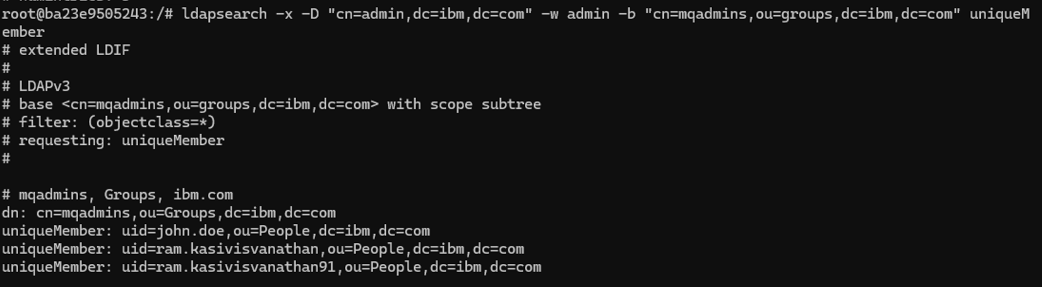
- Groups stored under ou=Groups,dc=ibm,dc=com
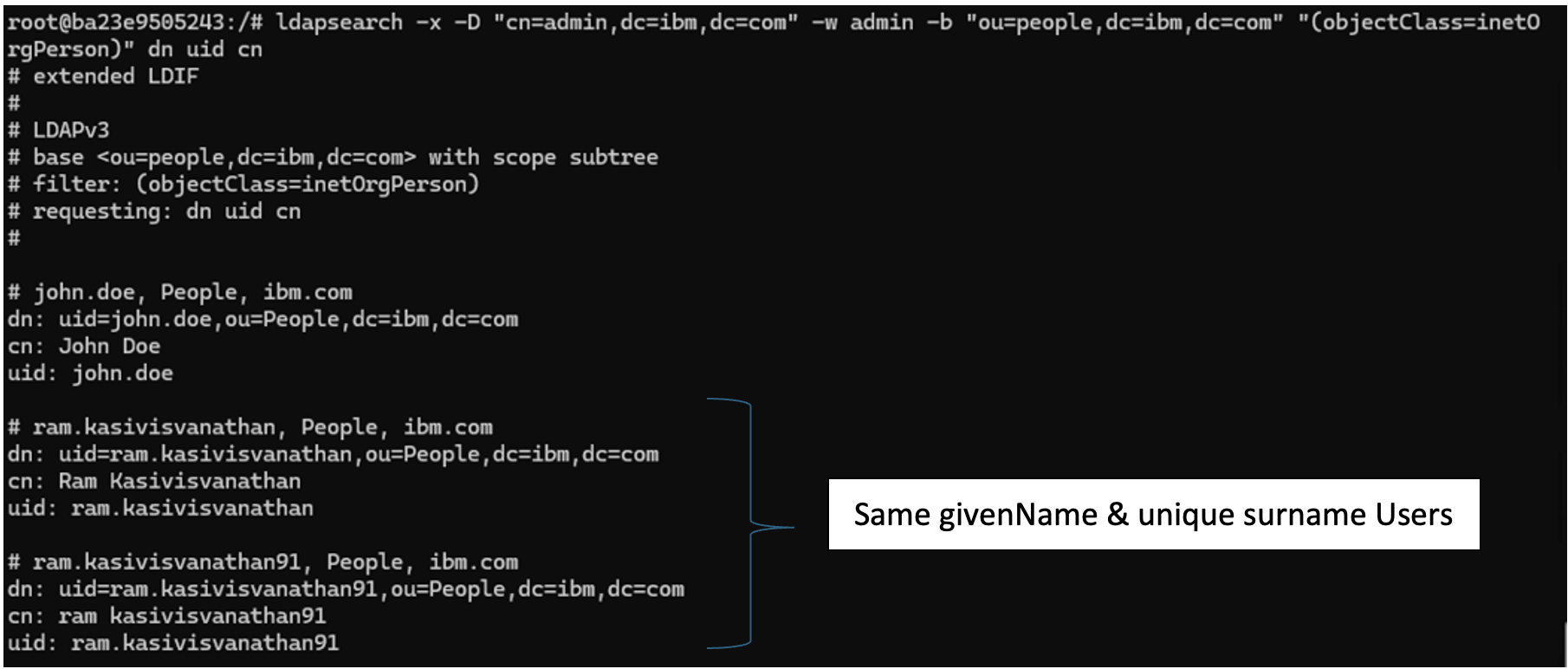
Let’s look at one of the user accounts in detail and list all attributes that are available for the user. Say uid=ram.kasivisvanathan91.
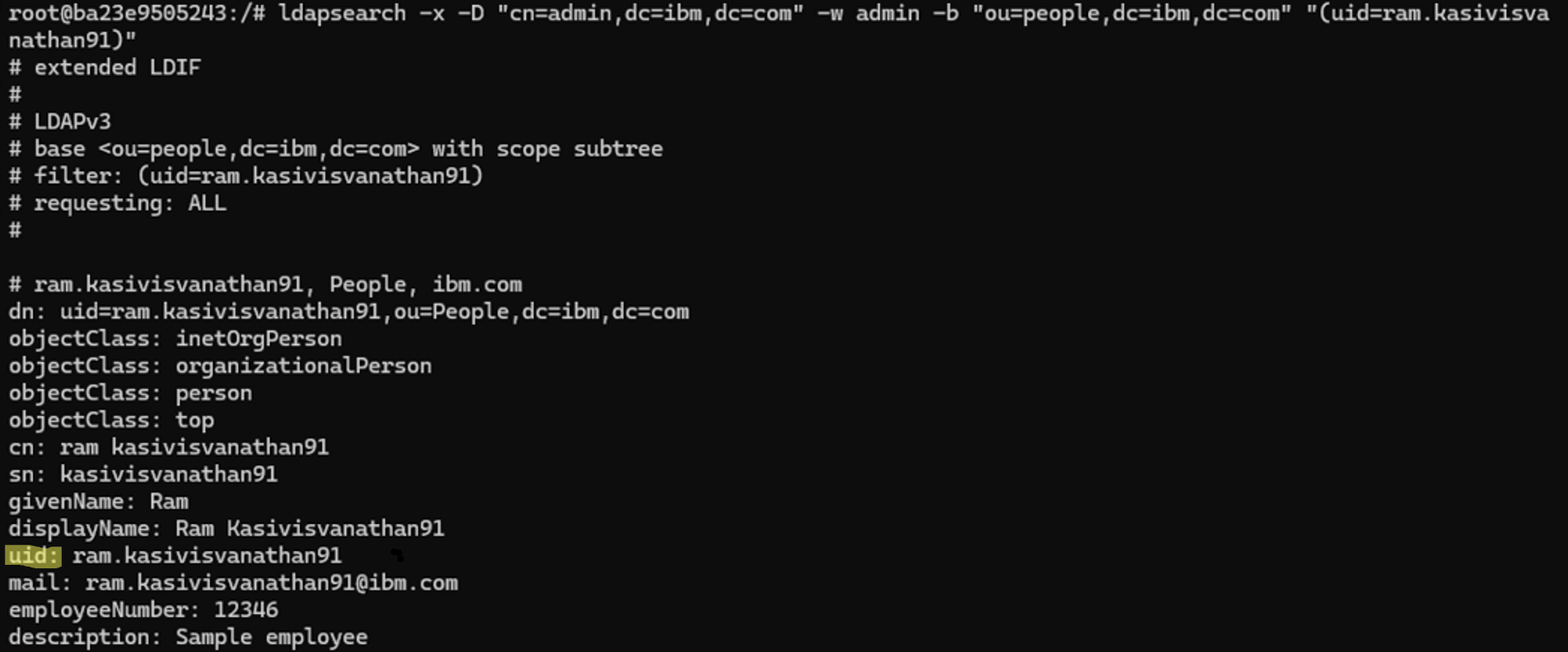
This user has attributes such as mail, employeeNumber, sn, and givenName populated — attributes that we can later use to configure the user and group mapping between LDAP and MQ. Each user is a member of an LDAP group named mqadmins, which is intended to grant MQ administrative access.
A typical approach would be to utilise the ‘uid’ in the AUTHINFO object within IBM MQ, connecting to the LDAP connection endpoint (localhost:389), the BASEDNU is users, and BASEDNG is the location in the LDAP directory where to search.
The LDAP user and password fields are the credentials used to connect to LDAP.
DEFINE AUTHINFO('LDAPTEST') +
   AUTHTYPE(IDPWLDAP) +
   ADOPTCTX(YES) +
   CONNAME('localhost:389') +
   CHCKCLNT(REQUIRED) +
   CHCKLOCL(OPTIONAL) +
   CLASSGRP('groupOfUniqueNames') +
   CLASSUSR('inetOrgPerson') +
   FINDGRP('uniqueMember') +
   BASEDNU('ou=People,dc=ibm,dc=com') +
   BASEDNG('ou=Groups,dc=ibm,dc=com') +
   LDAPUSER('cn=admin,dc=ibm,dc=com') +
   LDAPPWD(******) +
   USRFIELD('uid') +             /* Login Key */ +
   SHORTUSR('uid') +          /* Authorization key explicitly set to long character value i.e uid*/ +
   AUTHORMD(SEARCHGRP) +  REPLACE
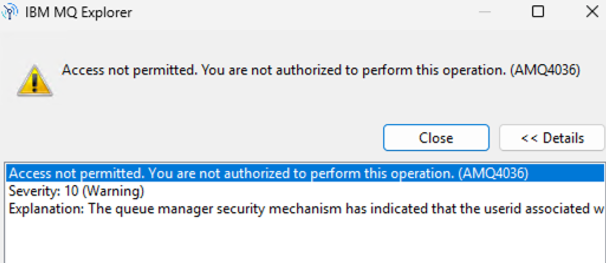
However, this produces an error when connecting from MQ Explorer with, for example, username ram.kasivisvanathan91, the connection fails with AMQ4036: Access not permitted error.
The queue manager error logs (AMQERR01.LOG) reveal the root cause:
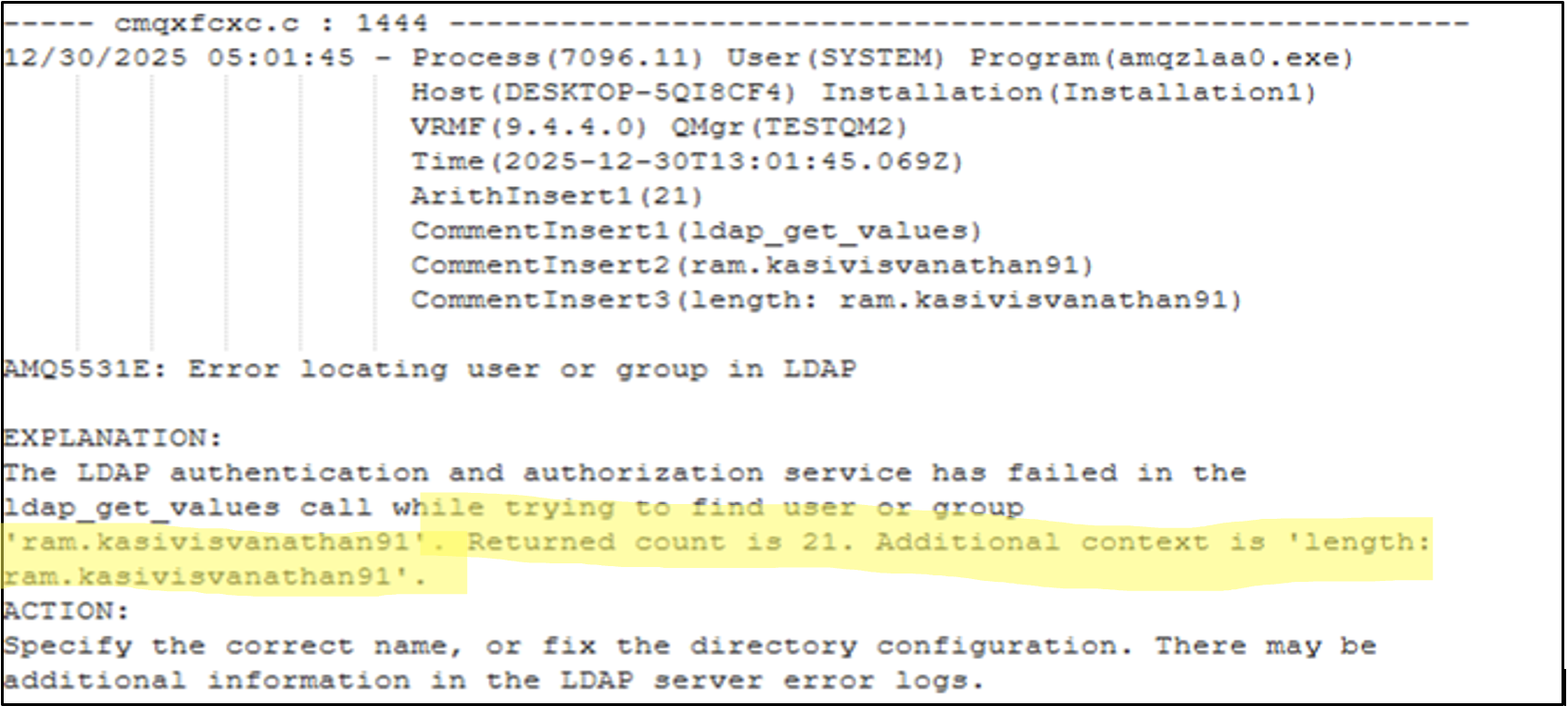
The "Returned count is 21" — the username has 21 characters, but MQ's authorization system on Windows can only handle usernames of 12 characters or less. The explanation section provides subtle hints about the user id being lengthy, and the length is 21 characters, but doesn’t explicitly give away which field in AUTHINFO needs fixing to resolve the error and get the LDAP authentication working.
Options for Resolving the Error
There are a couple of ways we can look to resolve this issue.
Option 1: Standardize Short LDAP Usernames (Ideal but Often Impractical)
Enforce a corporate policy that all LDAP usernames must be ≤12 characters. Example: Use 6-digit employee IDs (000001) or short network IDs (mtusrrk) as the uid attribute.
Where this might not work:
- Where existing enterprise naming standards are deeply entrenched
- Where email‑style usernames are widely reused across systems, for consistency and simplicity of user access is preferred
- Where changing usernames is organisationally and technically disruptive, e.g., because LDAP is shared
Option 2: Map SHORTUSR to a Short, Unique LDAP Attribute (Recommended Solution)
A better approach might be to decouple authentication from authorisation without having to make any LDAP schema (or) naming changes.
- Use a long attribute (e.g.
uid) for login - Use a short, immutable, unique attribute for MQ authorisation that is 12 characters or less.
Good candidates for SHORTUSR include:
- employeeNumber
- employeeID
- serialNumber
- Custom extension attributes like extensionattribute1, etc.
ALTER AUTHINFO('LDAPTEST') AUTHTYPE(IDPWLDAP) SHORTUSR('employeeNumber')How USRFIELD and SHORTUSR Work Together?
Let's trace the complete authentication and authorization flow to understand how these fields interact & look at the actual LDAP queries MQ generates based on those attributes.
Step 1: User Connection Attempt
The client sends the username and password using the MQCSP (MQ Connection Security Parameters) structure, which supports long user IDs.
- Username:
ram.kasivisvanathan91 - Password:
*****
Step 2: LDAP Authentication Phase (USRFIELD - Finding the User)
MQ searches LDAP using BASEDNU, CLASSUSR, and USRFIELD.
LDAP SEARCH base="ou=People,dc=ibm,dc=com" filter="(&(objectClass=inetOrgPerson)(uid=ram.kasivisvanathan91))"LDAP returns the full Distinguished Name (DN) and the attributes requested. MQ then validates the password against this DN, which, if successful, means the user is authenticated.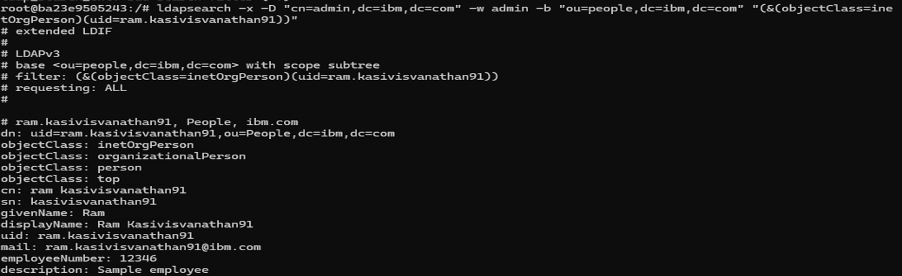
Step 3: Identity Adoption (SHORTUSR)
Once authenticated, MQ looks at the value returned for the attribute specified in the SHORTUSR field. In our initial example, the SHORTUSR field was set to uid. The value returned for uid ram.kasivisvanathan91 is 21 characters in length ; throws an MQ error AMQ5531E/AMQ5534E. This can be verified by running the entauth command against uid=ram.kasivisvanathan91

When we change the SHORTUSR to an attribute that is guaranteed to be 12 character or less – in our case employeeNumber, for the LDAP profile for uid=ram.kasivisvanathan91, we are logged in with no errors.
ALTER AUTHINFO('LDAPTEST') AUTHTYPE(IDPWLDAP) SHORTUSR('employeeNumber')
ALTER QMGR CONNAUTH(LDAPTEST)
REFRESH SECURITY TYPE(CONNAUTH)
Dissecting the Fix: User ID Transformation
When dealing with MQ client authentication/authorization in Windows, there are 3 user IDs that are of particular interest to us.
- Client user ID – the ID with which the client application is running. e.g., a user who started the MQ Explorer in a Windows environment.
- Supplied user ID – the ID that was supplied for connection authentication in the User Identifier Screen when connecting to a secured Queue manager.
- MCAUSER – This is the User ID that will be used for authorization checks and ultimately shown as the user for the connection in the object status.
MQ clients send user IDs and passwords for authentication using a data structure called MQCSP (MQ connection security parameters). Historically, IBM MQ used the MQCD (Channel Definition) structure to pass user IDs, which was strictly limited to 12 characters. The MQCSP structure was introduced (specifically enhanced in MQ v8.0) to support modern authentication standards, allowing applications to pass:
- Long user IDs (up to 1024 characters, like email addresses or UPNs).
- Long passwords (up to 256 characters).
When ADOPTCTX(YES) is enabled, the user identity transforms as it flows through MQ. Initially, the user supplies a user id ram.kasivisvanathan91 for login in MQCSP format. MQ queries LDAP using USRFIELD(uid) and extracts the DN associated with this user, and verifies the password. Post successful authentication, with ADOPTCTX(YES), MQ looks at the SHORTUSR (employeeNumber) attribute and finds 12346 as the user identity context. MQ now discards the long name and treats the user as 12346. The same is set as the MCAUSER on the channel that the client is connecting to. Any actions like creation/deletion of objects are now recorded as MCAUSER “12346.”
When ADOPTCTX(NO) is enabled, authentication will still be performed on the user ID and password supplied in the MQCSP structure, but the credentials will not be adopted for further use. Authorization will be performed using the User ID the application is running under, i.e., Client User ID. It is in this scenario where Channel AUTH USERMAP matching is required to allow client connections into MQ. Channel Authentication USERMAP is a broader topic and is outside the scope of this article.
Step 4: Group Membership Check (Authorization)
When determining the authorisation class to check against, the options are either user authorisation or group. To search the group of a user, we need additional fields in the AUTHINFO definition. With AUTHORMD(SEARCHGRP) enabled, MQ performs a second LDAP search to determine group membership using CLASSGRP, FINDGRP, and BASEDNG attributes.
- CLASSGRP: groupOfUniqueNames
- FINDGRP: uniqueMember
- BASEDNG: ou=Groups,dc=ibm,dc=com
MQ constructs a search query to find every group where our user's Full DN is listed as a member. The query looks like this:
LDAP SEARCH base="ou=Groups,dc=ibm,dc=com" > filter="(&(objectClass=groupOfUniqueNames)(uniqueMember=uid=ram.kasivisvanathan91,
ou=People,dc=ibm,dc=com))"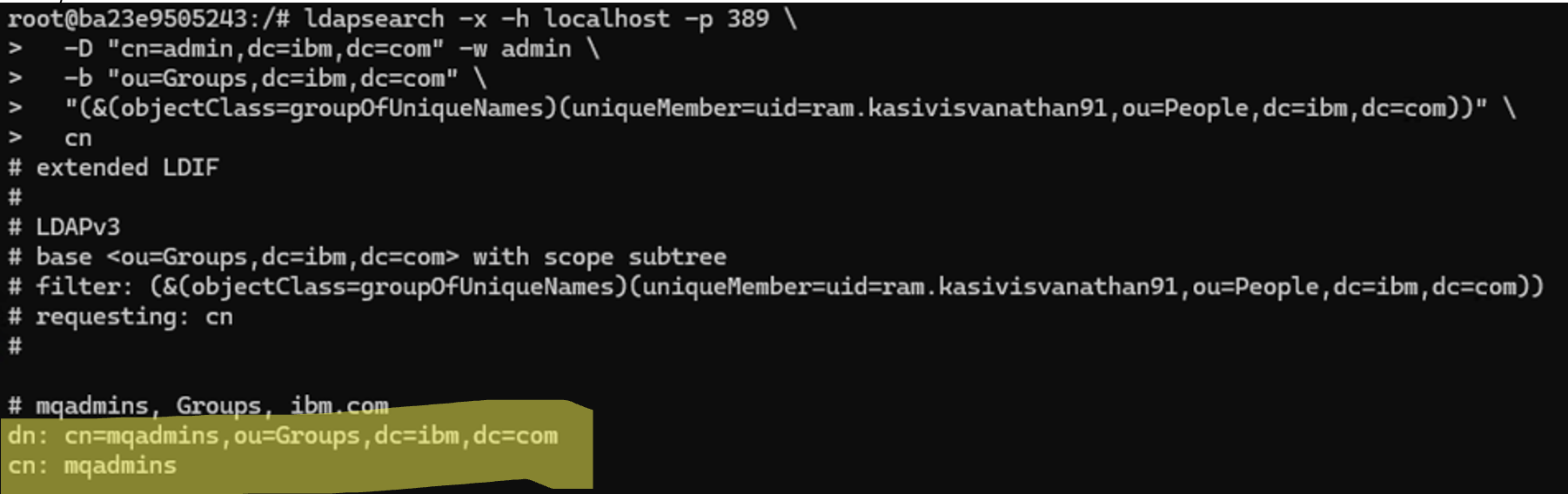
LDAP returns the group dn: cn=mqadmins,ou=Groups,dc=ibm,dc=com, and it is the user groups that MQ can use to perform OAM checks using the adopted identity. For example, the user group would pick up any permissions for those groups across the queue manager, e.g., queue manager connect and display permissions, etc.
Step 5: Authorization Check
Post authentication/user adoption, MQ checks if the new user identity has relevant AUTHREC/OAM (Object Authority Manager) permissions to connect/administer MQ. If the relevant permissions exist, the user is allowed to connect/view objects, if not MQ explorer and clients again return AMQ4036 error. This time AMQError log provides detailed information about missing OAM permissions to connect/administer MQ. The error below is recorded in our example.
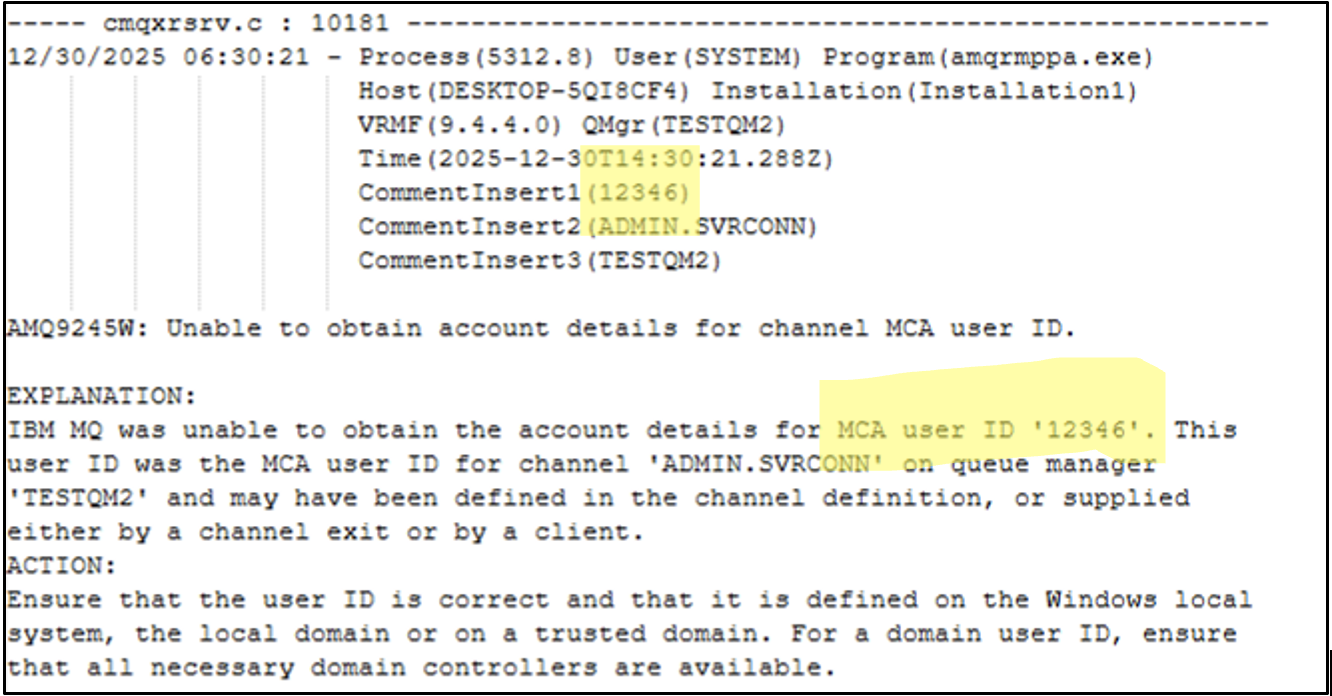
Notice the MCAUSER ID logged by MQ. As we have set ADOPTCTX(YES) in AUTHINFO and authentication has been successful, MQ has propagated the employee number as the User Context, i.e., 12346. Subsequent error logs suggest missing “connect” permissions for user/entity “12346.” You can also observe from logs that the client user “ram.kasivisvanathan91” is now represented as entity/user “12346.”
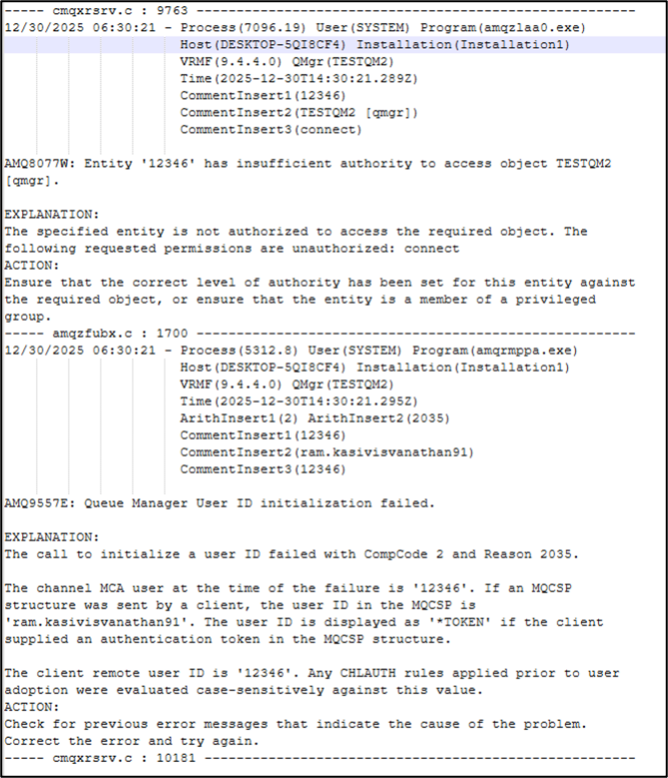
We can further verify if MQ successfully fetches the user “ram.kasivisvanathan91” by executing entauth command.
DISPLAY ENTAUTH PRINCIPAL('ram.kasivisvanathan91') OBJTYPE(QUEUE) OBJNAME(SYSTEM.DEAD.LETTER.QUEUE)
DISPLAY AUTHREC PRINCIPAL('ram.kasivisvanathan91') MATCH(MEMBERSHIP) OBJTYPE(QMGR)
Display ENTAUTH command output no longer returns “AMQ8871E: Entity, principal or group not known or is invalid”; instead, it returns the blank permissions set for the user. The above screen grab suggests that no permissions exist at the moment, both at the object level and at the QMGR level.
Step 6: Complete the LDAP Authorization Flow: Setting AUTHREC Permissions
When using ADOPTCTX(YES), you do not grant permissions on the long LDAP user ID but must instead grant them to the adopted identity or to the LDAP user group that the long user ID is a member of. Granting permissions at the group level allows any member of that authorized group to have administrative permissions over MQ rather than configuring permissions per user.
These permissions must be set per object within MQ via the MQ scripting language (mqsc) as per the example below:
SET AUTHREC OBJTYPE(QMGR) GROUP('cn=mqadmins,ou=Groups,dc=ibm,dc=com') AUTHADD(ALL)
SET AUTHREC OBJTYPE(QMGR) GROUP('cn=mqadmins,ou=Groups,dc=ibm,dc=com') AUTHADD(CRT)
Now, if you check the access permissions for user ram.kasivisvanathan91, the user should have CRT/ALL permissions.
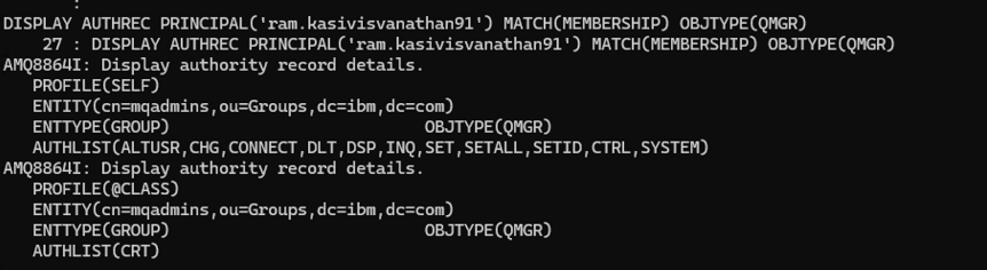
Run the SET AUTHREC wildcard profile command to allow permissions for any queues in the queue manager for group “mqadmins” or similar ‘catch all’ object permission configuration.
SET AUTHREC PROFILE(‘**’) OBJTYPE(QUEUE) GROUP('cn=mqadmins,ou=Groups,dc=ibm,dc=com') AUTHADD(ALL)Now repeating the same entauth command for checking permissions on SYSTEM.DEAD.LETTER.QUEUE results in ALL permissions over SYSTEM.** queue as a wildcard AUTHREC profile is set, allowing mqadmin group members to have full permissions over any queues in QM.

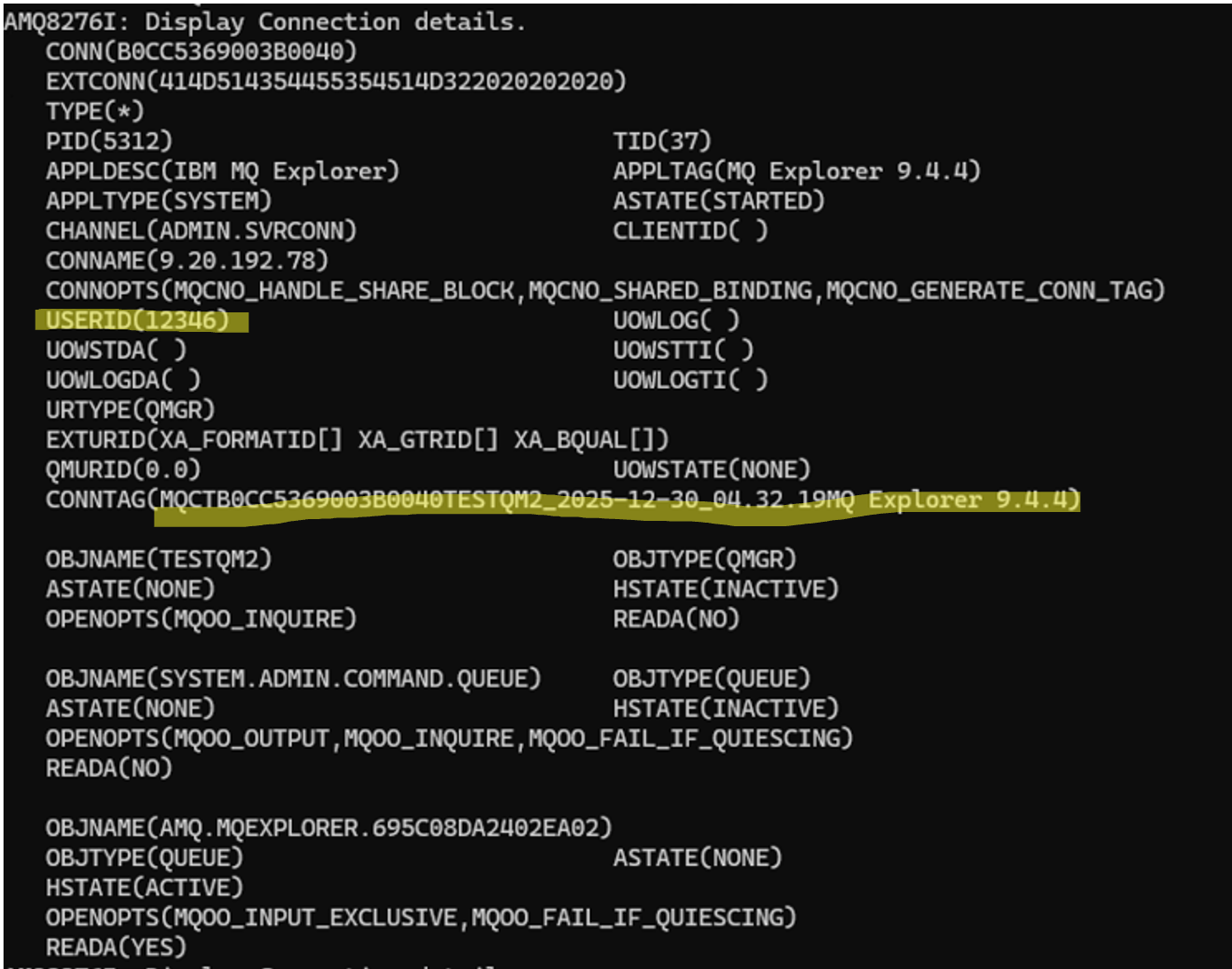
Now, login from an external system like MQ explorer is successful, and the user no longer encounters AMQ4036 error. The same can be verified via the DISPLAY CONN command. Notice the USERID connected for MQ explorer i.e 12346.
Auditability Tracking: Who Did What?
In a shared environment, simply knowing a "service account" connected isn't enough; auditors need to tie every MQ action back to a specific human being. By using ADOPTCTX(YES), the value fetched via SHORTUSR becomes the "Identity of Record" for the duration of the connection. This ID appears in:
- MQ console and explorer: Under the "User ID" column in Connection status.
- Accounting and statistics messages: (MQI data records).
- MQ error logs: Identifying which specific ID caused a security violation.
- MCAUSER ID in events and log messages
- Security exit logs: For third-party auditing tools.
IBM MQ provides a feature to emit configuration events whenever an object has been defined/altered/deleted in a Queue manager. This feature is particularly useful in tracking user actions and carrying out an audit trail on user actions in a queue manager. Executing ALTER QMGR CONFIGEV(ENABLED) enables the configuration events and publishes them to SYSTEM.ADMIN.CONFIG.EVENT queue.
Now, post successful login, if user ram.kasivisvanthan91 creates a queue “TESTQ.BY.RK91”; it is logged as “12346” user activity. Events are published to SYSTEM.ADMIN.CONFIG.EVENT and can be decoded using amqsevt.
amqsevt -m TESTQM2 -q SYSTEM.ADMIN.CONFIG.EVENT -w 1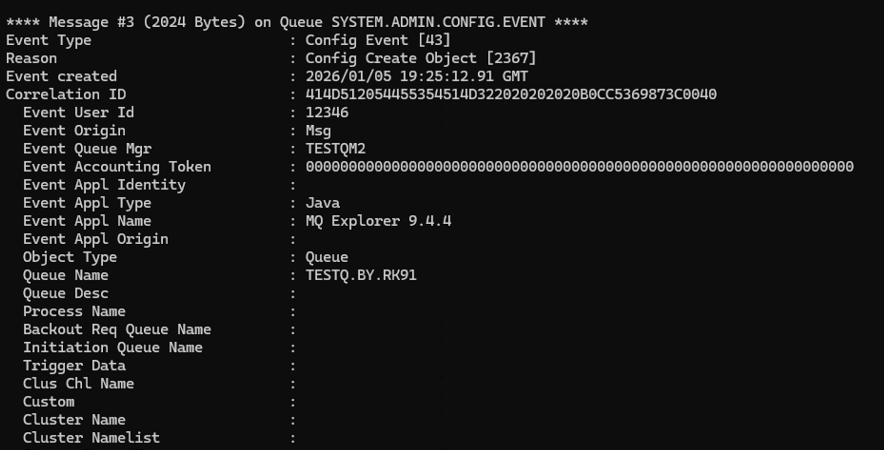
Risks When Setting Non-Unique SHORTUSR
When selecting an LDAP attribute for SHORTUSR, it is tempting to use something human-readable like givenName (e.g., "Ram"). However, this introduces a significant audit and security risk: identity collision.
Consider our lab scenario with two users in the mqadmins group:
- User A: ram.kasivisvanathan
- User B: ram.kasivisvanathan91
If SHORTUSR is mapped to givenName, both users will be adopted by MQ with the identity "ram," which exposes a significant risk:
- Audit ambiguity: If a message is deleted from a restricted queue, the logs will show the action was performed by user ram. You will have no way to distinguish whether it was User A or User B.
- Authorization oversight: If you intended to revoke access for User B only, you cannot do so at the MQ level without also revoking User A, because they share the same adopted identity.
- Initialisation failures: If both users are active, MQ's internal security cache may struggle to manage two distinct Distinguished Names (DNs) mapped to a single 12-character string.
Conclusion
It’s important to map SHORTUSR to something unique and immutable. Attributes like employeeNumber/serialNumber/custom extension attributes are preferred over givenames/surnames. The AMQ4036 error is simply a sign of an overflowing 12-character bucket. By using USRFIELD for flexible login, SHORTUSR for unique internal identity, and enabling CONFIGEV, you create a secure, searchable, and audit-compliant MQ environment.
To ensure your production/non-production environments stay healthy:
- Ensure every user has the attribute you've chosen for
SHORTUSRand that it is unique and under 12 characters. - Ensure your LDAP administrator has indexed the attribute used in
USRFIELD(e.g.,uidorsAMAccountName) to prevent slow login times. - Keep your GRPFIELD values short. If your corporate group names are long, consider using an "alias" attribute for the group name as well.
By understanding the "handshake" between these attributes, you turn a complex security requirement into a streamlined, automated identity solution.
Published at DZone with permission of Ram Kasivisvanathan. See the original article here.
Opinions expressed by DZone contributors are their own.
Comments