

Export Mulesoft Application Logs To Amazon Cloudwatch
This article shows how to export Mulesoft Application logs to monitoring operational metrics tools such as Amazon CloudWatch using the log4j2.xml file.
Join the DZone community and get the full member experience.
Join For FreeApplication logging plays an important role in any software development projects. As much as we’d like our software to be perfect, issues will always arise within a production environment. When they do, a good logging strategy is crucial because it contains information about application events, messages, errors, and warnings, along with a few other informational events.
This article will provide deep insight on how you can export your application logs to other monitoring & operational metrics tools such as Amazon CloudWatch. We will be using the popular Log4j2 library in this example.
What Is Amazon CloudWatch?
Amazon CloudWatch is mainly used to monitor, store, and access your log files. It enables you to centralize the logs from all of your systems, applications, and AWS services that you use, in a single, highly scalable service. You can then easily view them, search them for specific error codes or patterns, filter them based on specific fields, or archive them securely for future analysis.
Why CloudWatch?
With CloudWatch, you can collect and access all your performance and operational data in form of logs and metrics from a single platform. It has the following features:
- Query your log data
- Monitor logs from Amazon EC2 instances
- Monitor AWS CloudTrail logged events
- Log retention
- Archive log data
- Log Route 53 DNS queries
Getting Started
1. CloudWatch Configuration
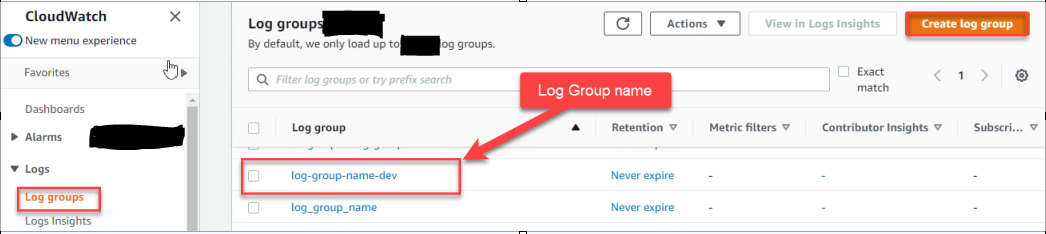
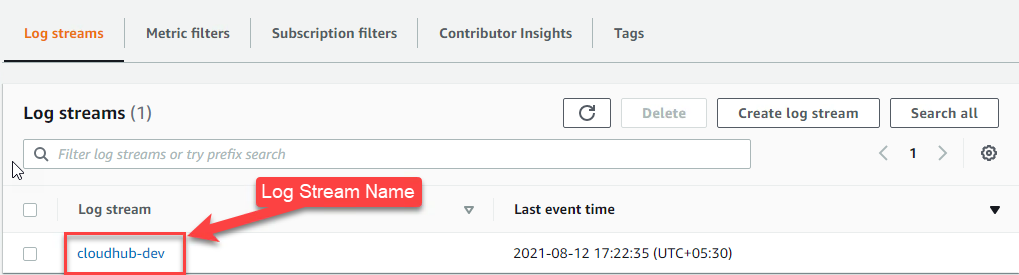
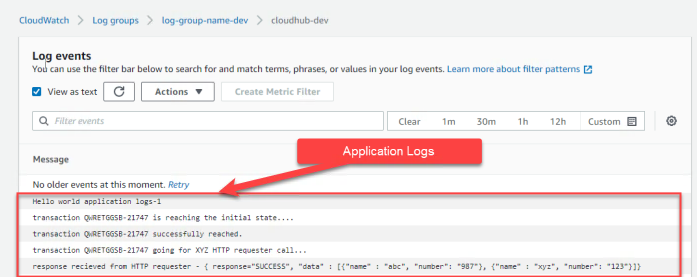
First of all, a group name needs to be created in CloudWatch where the stream resides (stream name created on the fly by application).
2. Application Configuration
POM.xml:
First, you will have to add the 2 dependencies below in your application POM file:
<dependencies>
	<dependency>
    		<groupId>com.kdgregory.logging</groupId>
    		<artifactId>log4j2-aws-appenders</artifactId>
    		<version>2.4.1</version>
	</dependency>
	<dependency>
		    <groupId>com.amazonaws</groupId>
    		<artifactId>aws-java-sdk-logs</artifactId>
    		<version>1.11.908</version>
	</dependency>
</dependencies>
log4j2.xml:
1. Add kdgregory configuration package
<Configuration packages="com.mulesoft.ch.logging.appender,com.kdgregory.log4j2.aws" status="debug">
2. Add CloudWatch Appender under <Appenders>
<CloudWatchAppender name="CLOUDWATCH">
   		<logGroup>${sys:log.group.name}</logGroup>
    	<logStream>${sys:log.stream.name}</logStream>
    	<dedicatedWriter>true</dedicatedWriter>
    	<PatternLayout pattern="%d{yyyy-MM-dd HH:mm:ss.SSS} [%t] %p - %c - %m" />
</CloudWatchAppender>
3. Reference it in <AsyncLogger>
<AsyncRoot level="INFO">
	<AppenderRef ref="CLOUDWATCH" />
</AsyncRoot>
Now, we just have to pass the following properties during runtime.
aws.accessKeyId=*********
aws.secretKey=********
aws.region=********
log.group.name=<application-group-name-where-log-resides> [example --> "bgname-domain-appname-apitype-env"]
log.stream.name=<application-logs-created-with-this-streamname> [example --> "cloudhub-dev", "cloudhub-test" etc...]
That's it, all done!
Now, All your Mulesoft application logs deployed to Cloudhub or on-premises environment will be sent to Amazon CloudWatch.
Additional Requirement (Project Specific)
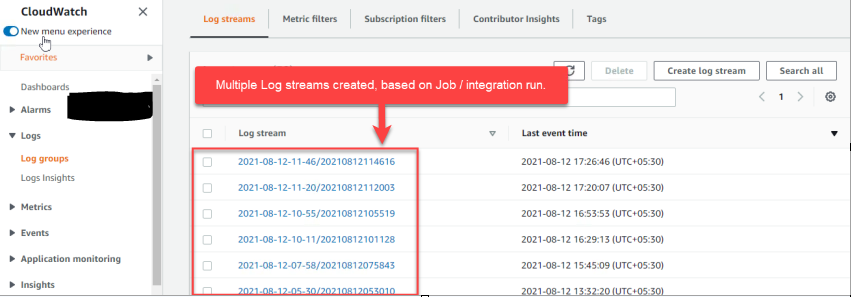
If your requirement is to create a separate stream under same group name for each integration run (in case of scheduler application), replace the existing <logStream> with below:
<logStream>$${date:yyyy-MM-dd-HH-mm}/{timestamp}</logStream>
Then, it should look like:
 <Log4J2CloudhubLogAppender name="CLOUDHUB"
                addressProvider="com.mulesoft.ch.logging.DefaultAggregatorAddressProvider"
                applicationContext="com.mulesoft.ch.logging.DefaultApplicationContext"
                appendRetryIntervalMs="${sys:logging.appendRetryInterval}"
                appendMaxAttempts="${sys:logging.appendMaxAttempts}"
                batchSendIntervalMs="${sys:logging.batchSendInterval}"
                batchMaxRecords="${sys:logging.batchMaxRecords}"
                memBufferMaxSize="${sys:logging.memBufferMaxSize}"
                journalMaxWriteBatchSize="${sys:logging.journalMaxBatchSize}"
                journalMaxFileSize="${sys:logging.journalMaxFileSize}"
                clientMaxPacketSize="${sys:logging.clientMaxPacketSize}"
                clientConnectTimeoutMs="${sys:logging.clientConnectTimeout}"
                clientSocketTimeoutMs="${sys:logging.clientSocketTimeout}"
                serverAddressPollIntervalMs="${sys:logging.serverAddressPollInterval}"
                serverHeartbeatSendIntervalMs="${sys:logging.serverHeartbeatSendIntervalMs}"
                statisticsPrintIntervalMs="${sys:logging.statisticsPrintIntervalMs}">
            <PatternLayout pattern="[%d{MM-dd HH:mm:ss}] %-5p %c{1} [%t]: %m%n"/>
</Log4J2CloudhubLogAppender>
Happy learning!
Opinions expressed by DZone contributors are their own.
Comments