

How to Verify Response Data in API Testing With Playwright TypeScript
Learn how to verify the response data, including structure checks, basic validations, and more, in API Testing with Playwright TypeScript
 CORE
·
CORE
·
One of the most important parts of API test automation is validating the response body to ensure data integrity. This step plays a key role in functional API testing, as it helps confirm that the API is returning the right data in the expected format.
Response body validation isn’t limited to a specific request type; it applies equally to POST, GET, PUT, and PATCH APIs. The same validation approach can be used for any API response to verify the data returned by the service.
Playwright offers multiple ways to validate response bodies. In this tutorial, I’ll walk you through these approaches to help you efficiently perform assertions on the response data using best practices.
Checkout the previous tutorial blog to learn about Installation, the demo application, and how to send GET API requests with Playwright.
How to Verify the Response Structure
Response structure checks ensure that an API consistently returns data in the expected format, protecting the contract between backend services and their consumers. They help catch breaking changes early, such as missing or renamed fields, even when the API still returns a successful status code.
test("GET Order details and perform structure check", async ({ request }) => {
  const response = await request.get("http://localhost:3004/getOrder/", {
    params: {
      user_id: "1",
    },
    failOnStatusCode: true,
  });

  const responseBody = await response.json();

  expect(responseBody).toHaveProperty("message");
  expect(responseBody).toHaveProperty("orders");
  expect(responseBody.orders[0]).toHaveProperty("id");
  expect(responseBody.orders[0]).toHaveProperty("product_name");
});
This test focuses on validating the structure of the API response. It validates that the response body contains the expected top-level keys and that each order object includes the required fields.
Basic Assertions
The basic assertions validate API success and data presence, making them a good first layer of verification before deeper structure or data-level checks.
test("Get order details and perform basic level verification", async ({
  request,
}) => {
  const response = await request.get("http://localhost:3004/getOrder/", {
    params: {
      user_id: 1,
    },
    failOnStatusCode: true,
  });

  const responseBody = await response.json();
  expect(responseBody.message).toBe("Order found!!");
  expect(Array.isArray(responseBody.orders)).toBeTruthy();
  expect(responseBody.orders.length).toBeGreaterThan(0);
});
This test performs a basic level check to confirm that the endpoint works as expected and returns the expected data in the response.
After parsing the response body, the assertions focus on the following essential basic-level checks:
expect(responseBody.message).toBe("Order found!!");The above line of code verifies that the API returns the expected message text in the response body.
expect(Array.isArray(responseBody.orders)).toBeTruthy();This line of code ensures that the orders field in the response is an array, validating the basic response format.
expect(responseBody.orders.length).toBeGreaterThan(0);This part of the test confirms that at least one order is returned in the orders array, ensuring the response contains required data.
How to Verify Response Data With Details
Validating the actual data returned in the response is essential to ensure that the API response contains the correct values.
test("Get order and verify order details", async ({ request }) => {
  const response = await request.get("http://localhost:3004/getOrder/", {
    params: {
      user_id: "1",
    },
    failOnStatusCode: true,
  });

  const responseBody = await response.json();

  const order = responseBody.orders[0];
  expect(order.id).not.toBeNull();
  expect(order.id).toBeDefined();
  expect(order.user_id).toEqual("1");
  expect(order.product_id).toEqual("79");
  expect(order.product_name).toEqual("5 star 10gm Chocobar");
});
The following code ensures that the response has a valid identifier and it is not missing or empty.
expect(order.id).not.toBeNull();
expect(order.id).toBeDefined();
This check is required because the API generates the order ID when a new order is created in the system. It ensures that the “id” field has a valid value generated and assigned to it, since this “id” is used to retrieve, update, or delete order data.
expect(order.user_id).toEqual("1");
expect(order.product_id).toEqual("79");
expect(order.product_name).toEqual("5 star 10gm Chocobar");
These statements assert that the order details are retrieved correctly for the respective request. The “user_id” - “1” was sent in the request, and verifying it in the response, along with the other order details such as “product_id” and “product_name,” ensures that the correct data is returned.
How to Verify Response Data by Matching Objects and Arrays
Playwright allows response data verification by matching objects and arrays partially within the API response. This approach is useful because it makes tests more flexible and confirms that the API returns the correct data structure and values.
test("Get order and verify matching object and array", async ({ request }) => {
  const response = await request.get("http://localhost:3004/getOrder/", {
    params: {
      user_id: 1,
    },
    failOnStatusCode: true,
  });

  const responseBody = await response.json();

  expect(responseBody).toMatchObject({
    message: "Order found!!",
    orders: expect.arrayContaining([
      expect.objectContaining({
        product_id: "79",
        product_name: "5 star 10gm Chocobar",
        product_amount: 5,
        qty: 1,
        tax_amt: 0.5,
        total_amt: 5.5,
      }),
    ]),
  });
});
In this test, the toMatchObject assertion verifies that the response contains a “message” with the expected value “Order found!!” and an orders array.
Within the array, "expect.arrayContaining" ensures that at least one order matches the expected data, while "expect.objectContaining" verifies only the values in the specified fields of that order.
Using Best Practices to Perform Assertions
Best practices create stable, maintainable API automation tests by combining basic checks with flexible data matching.
test("Get Order details API test with best practice", async ({ request }) => {
  const response = await request.get("http://localhost:3004/getOrder/", {
    params: {
      user_id: "1",
    },
    failOnStatusCode: true,
  });

  const responseBody = await response.json();

  expect(responseBody.message).toBe("Order found!!");
  expect(responseBody.orders.length).toBeGreaterThan(0);

  expect(responseBody.orders).toEqual(
    expect.arrayContaining([
      expect.objectContaining({
        id: 1,
        product_name: "5 star 10gm Chocobar",
      }),
    ])
  );
});
The test sends a GET request to fetch order details for “user_id”-“1". The use of failOnStatusCode: true ensures the test fails immediately if the API does not return a 2xx status code.
The response is then parsed into a JSON object for validation. The assertions are structured in layers:
expect(responseBody.message).toBe("Order found!!");This assertion verifies the message text, confirming that the API returns the correct message when an order is found.
expect(responseBody.orders.length).toBeGreaterThan(0);This statement ensures meaningful data is returned and avoids false positives when the array is empty.
expect(responseBody.orders).toEqual(
    expect.arrayContaining([
      expect.objectContaining({
        id: 1,
        product_name: "5 star 10gm Chocobar",
      }),
    ])
  );
The final part of the code performs the final assertion using arrayContaining and objectContaining to verify that at least one order has the expected “id” and “product_name”, without asserting every field.
These layered validations improve clarity by verifying structure, data presence, and key data values in sequence.
Extracting Data From the Response
Extracting data from the API response is a common and widely used pattern in API test automation. It is important in multiple ways, such as reusing the data in further tests for dynamic testing and end-to-end validation.
test('Get order details and extract the order id', async({request}) => {

  const response = await request.get("http://localhost:3004/getOrder/", {
    params: {
      id: 1,
    },
    failOnStatusCode: true,
  });

  const responseBody = await response.json();

  expect(responseBody.message).toBe("Order found!!");
  expect(responseBody.orders.length).toBeGreaterThan(0);

  expect(responseBody.orders).toEqual(
    expect.arrayContaining([
      expect.objectContaining({
        id: 1,
        product_name: "5 star 10gm Chocobar",
      }),
    ])
  );

  const order = responseBody.orders[0];
  expect(order.id).not.toBeNull();
  const order_id= order.id;
  console.log(order_id);

  const product_name = order.product_name
  console.log(product_name)
});
This test sends a GET API request and performs basic validations to ensure the API response is reliable.
const order = responseBody.orders[0];
expect(order.id).not.toBeNull();
const order_id= order.id;
console.log(order_id);
The code above extracts the “order_id” from the order object in the response. Before accessing it, an assertion is made to verify that the value is not null. Finally, the value of the order_id is printed in the console.
const product_name = order.product_name
console.log(product_name)
Similarly, other values, such as product_name, can also be extracted.
Attaching the Response Body to the Playwright Report
The Playwright report, by default, shows the steps executed, the number of tests run, pass/fail status, and time taken to run the tests. However, it does not attach the response body to the test report.
Attaching the response body to the report improves visibility and makes the test report more informative and transparent. The following code shows how to extract the required metadata and attach it to the Playwright report.
test("Get order details API and attach the response details to the report", async ({
  request,
}, testInfo) => {
  const response = await request.get("http://localhost:3004/getOrder/", {
    params: {
      user_id: "1",
    },
  });

  expect(response.status()).toBe(200);

  const status = response.status();
  const statusText = response.statusText();
  const headers = response.headers();
  const body = await response.json();

  const fullResponse = {
    status,
    statusText,
    headers,
    body,
  };

  await testInfo.attach("Full API Response", {
    body: JSON.stringify(fullResponse, null, 2),
    contentType: "application/json",
  });
});
The testInfo is a built-in Playwright fixture and provides utilities to manage and inspect test execution, such as attaching files to reports, updating test timeouts, and identifying the currently running test.
The following lines of code extract the response metadata, such as the status code, status text, headers, and response body.
const status = response.status();
const statusText = response.statusText();
const headers = response.headers();
const body = await response.json();
Next, let’s combine all response details and create a single object containing:
- Status code
- Status text
- Headers
- Response body
const fullResponse = {
    status,
    statusText,
    headers,
    body,
  };
Finally, let’s attach these details to the report using the testInfo.attach() method as shown below:
await testInfo.attach("Full API Response", {
    body: JSON.stringify(fullResponse, null, 2),
    contentType: "application/json",
  });
The testInfo.attach() adds an attachment to the Playwright report. The attach() method has 3 parameters:
- Name of the attachment: The first parameter is the name, “Full API Response”, that will be shown for the attachment.
- Body of the attachment: The second parameter is for the body of the attachment. The JSON.stringify(fullResponse, null, 2) has 3 arguments. The first argument converts the fullResponse object into a readable, pretty-formatted JSON. The second argument is the replacer, which is null. It ensures that all properties from the fullResponse object are included as they are, without modifying anything. The third argument controls pretty-printing. Here, “2” means indent nested JSON by 2 spaces.
- Content type: This parameter ensures that the report treats the attachment as JSON.
The following screenshot is generated after the tests are run:
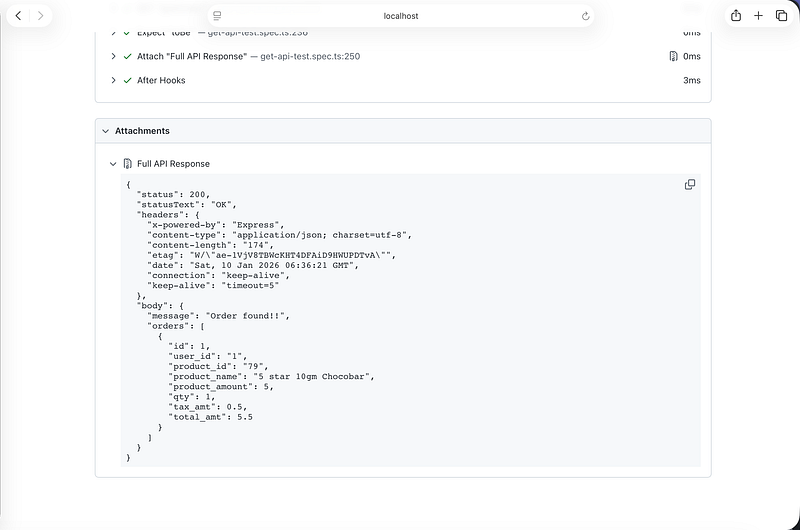
Test Execution
Running the tests in Playwright is simple and easy. We can run the following command from the terminal:
npx playwright testTo generate the report, the following command can be used:
npx playwright show-report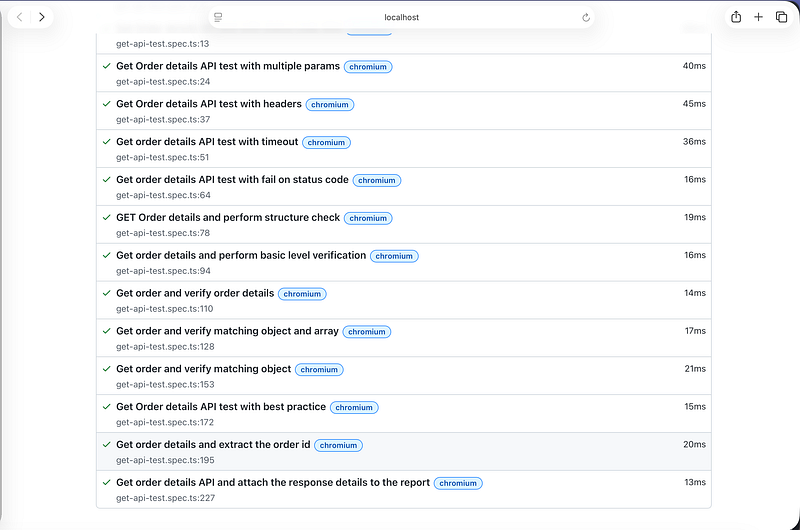
Summary
Playwright provides multiple approaches, including structure checks and matching objects and arrays for verifying response data. The right strategy should be chosen based on your project’s requirements.
Based on my experience, combining response structure checks with response data validation, including the matching object and array strategy, can be used as an effective approach for validating API responses.
Happy testing!
Published at DZone with permission of Faisal Khatri. See the original article here.
Opinions expressed by DZone contributors are their own.