

Running Ansible From Windows Using Virtualization
In this article, the reader will learn how to run Ansible playbooks virtually from Linux using the native Windows 10 Hypervisor.
Recently, I had to use Ansible to implement infrastructure as code. Initially, I used Windows Subsystem for Linux (WSL) to run the Ansible playbooks. The advantage of WSL is that it gives one a Linux shell on a Windows machine without any further ado. However, I found that WSL has this tendency to go haywire and use system resources such as CPU and RAM to the max. Although it did not lead to performance degradation in other running processes or applications, it did cause my notebook with 40GB of RAM to become very hot and use excessive electricity. Once WSL reaches this state, all new requests for a WSL prompt hang. Since the virtual memory processes used to enable WSL are protected and cannot be killed or restarted, the only recourse is a good old Windows reboot.
I considered installing Linux on an old notebook and running the Ansible playbooks from there. Unfortunately, the target servers are behind a VPN, so the Linux machine would have to receive special software to allow it to join the VPN. In order to sidestep corporate hassle, I went with running Linux virtually on Hyper-V, the native Windows 10 Hypervisor. The steps I followed will be documented next.
How To Break Free
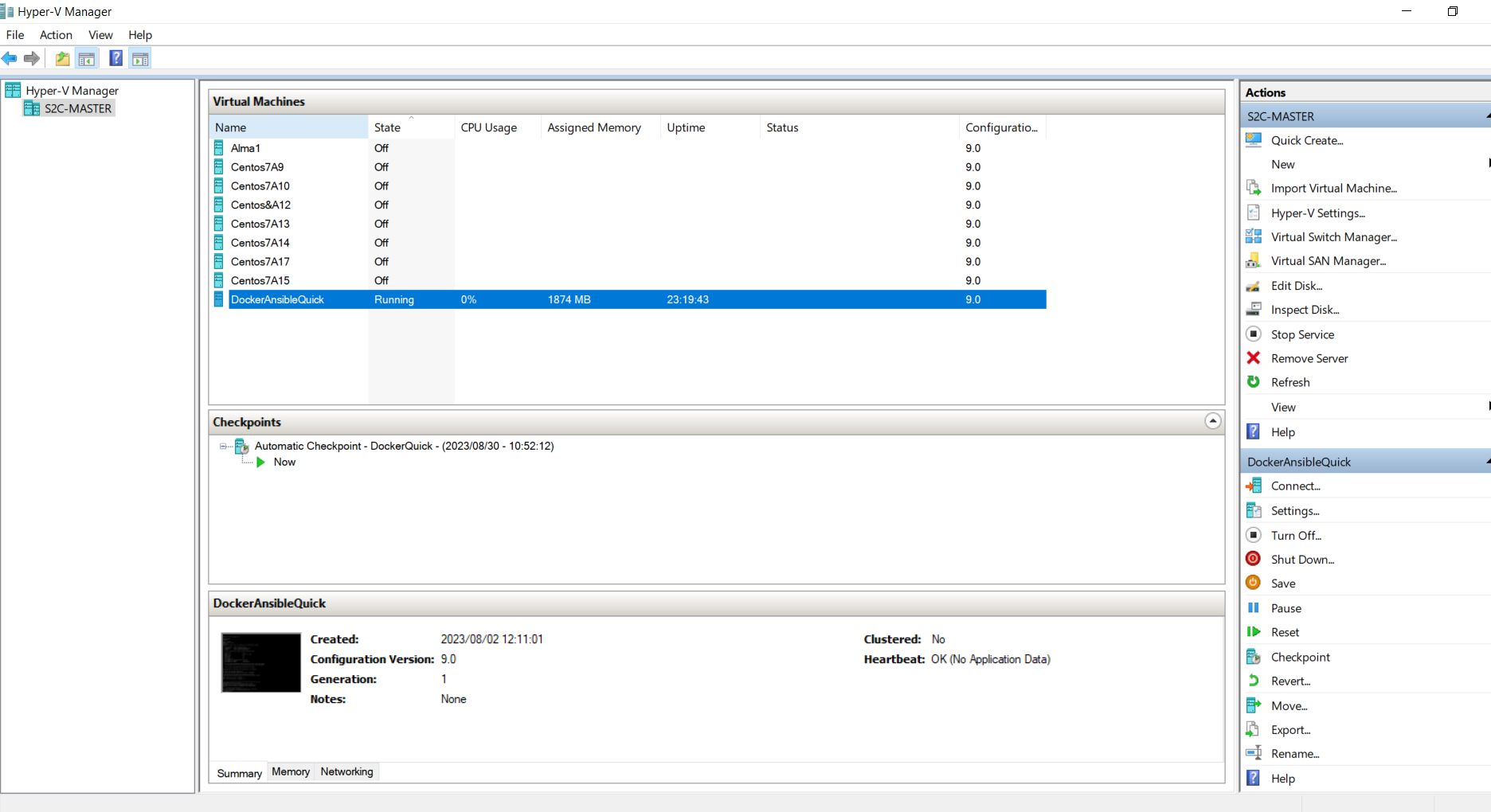
I started by opening Hyper-V:
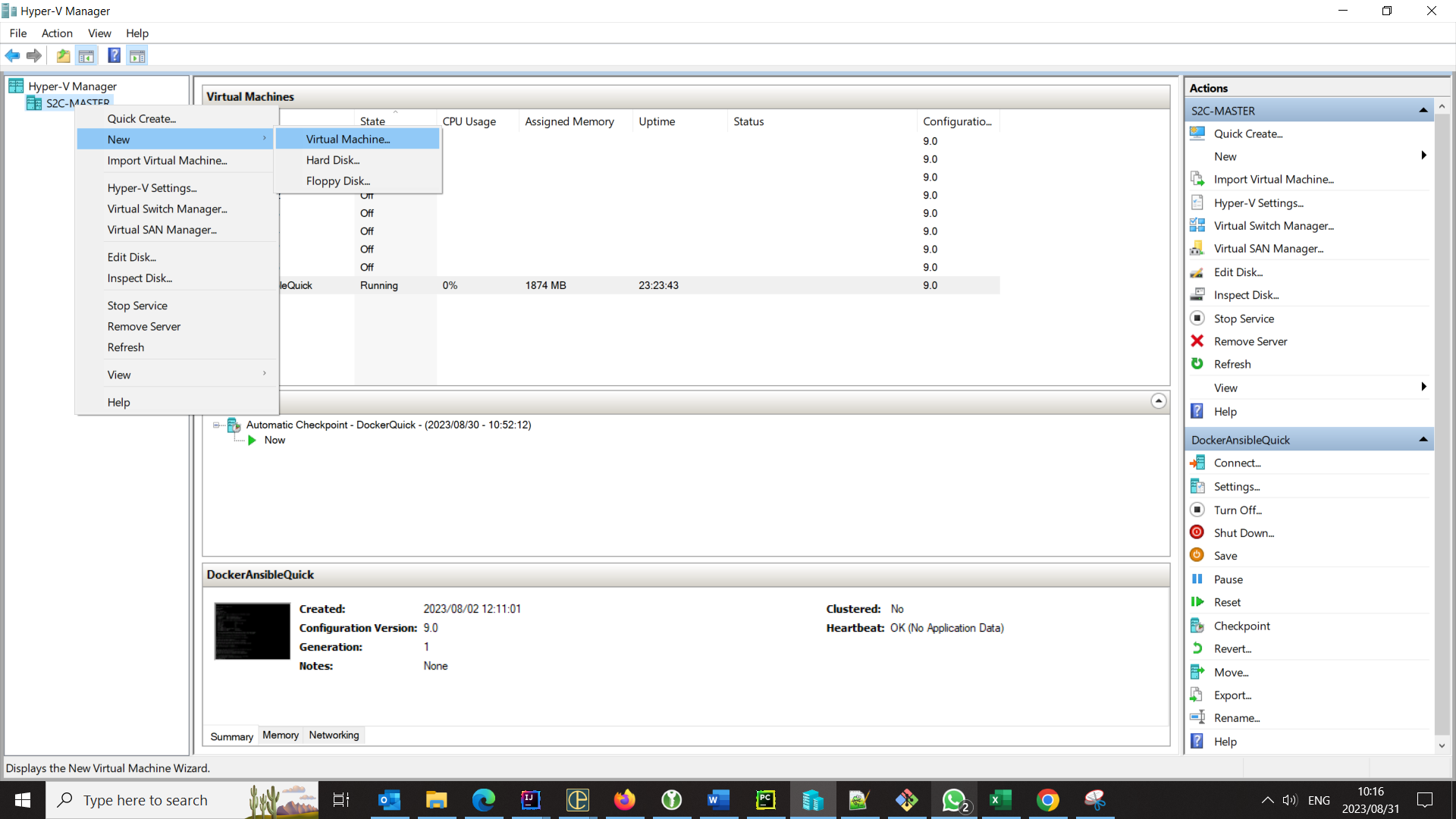
Right click on your machine name (S2C-MASTER for me) -> New -> Virtual Machine:
Give the new virtual machine a name:

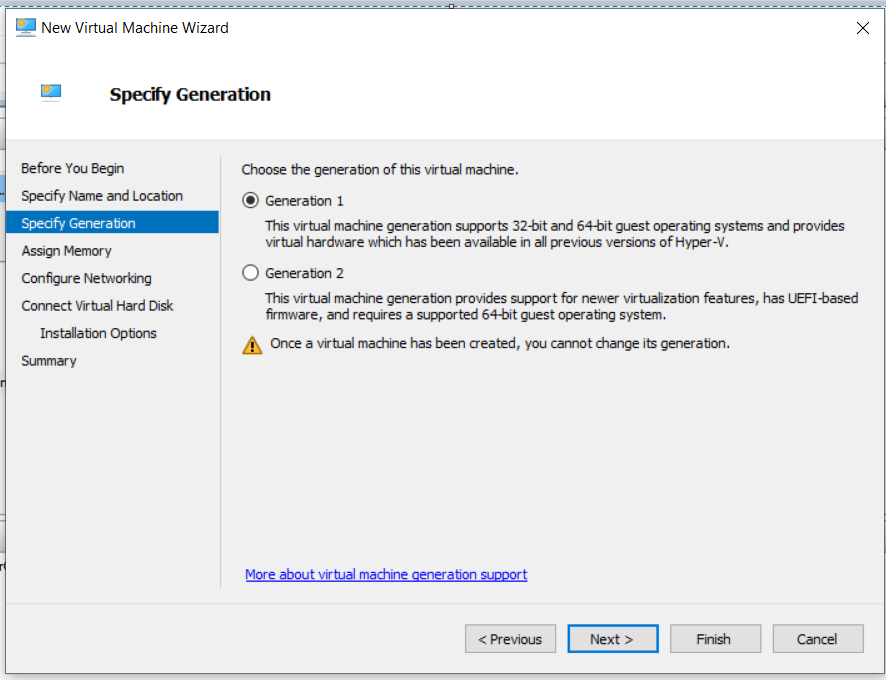
I selected "Generation 1":
I gave it 8000MB:

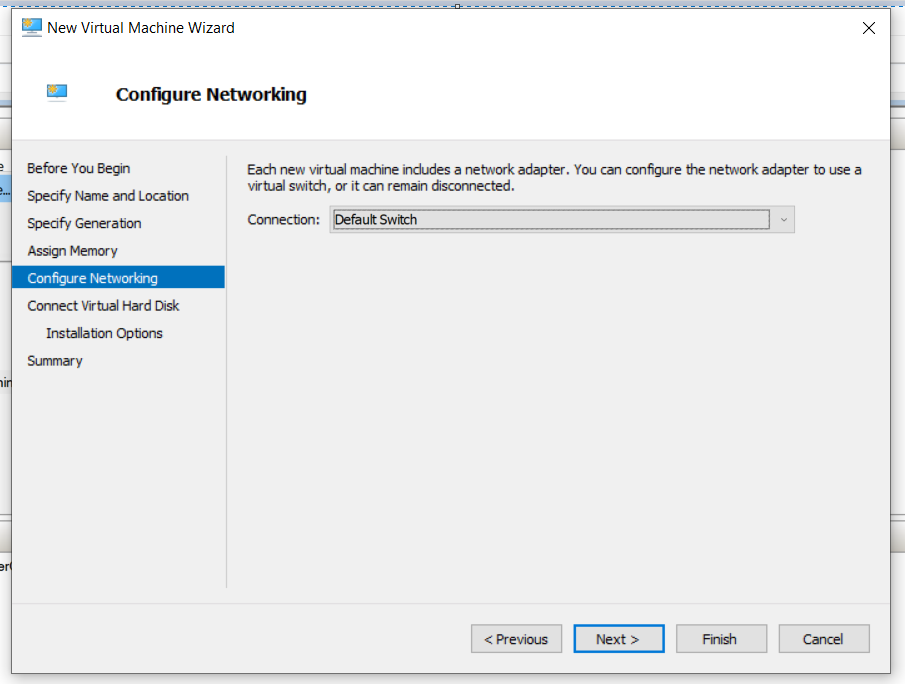
I selected the "Default Switch". This NAT-based switch allows the virtual machine to share the host machine's networking. The benefit of this is access to any VPN or other virtual machines the host adaptor can access. However, it comes with a slight performance penalty. Should your PC have a spare ethernet adaptor and VPN access is not required, it is also possible to configure a dedicated adaptor for the new virtual machine's exclusive use. This can be done from the "Virtual Switch" menu on the right panel of the Hyper-V GUI.
After selecting the default op to create a virtual hard disk, one has to specify the ISO Linux image to boot up. You can use your favorite distro, but it is advisable to use a server edition that ships without a front-end manager. Why use a GUI when a shell and vi will do?
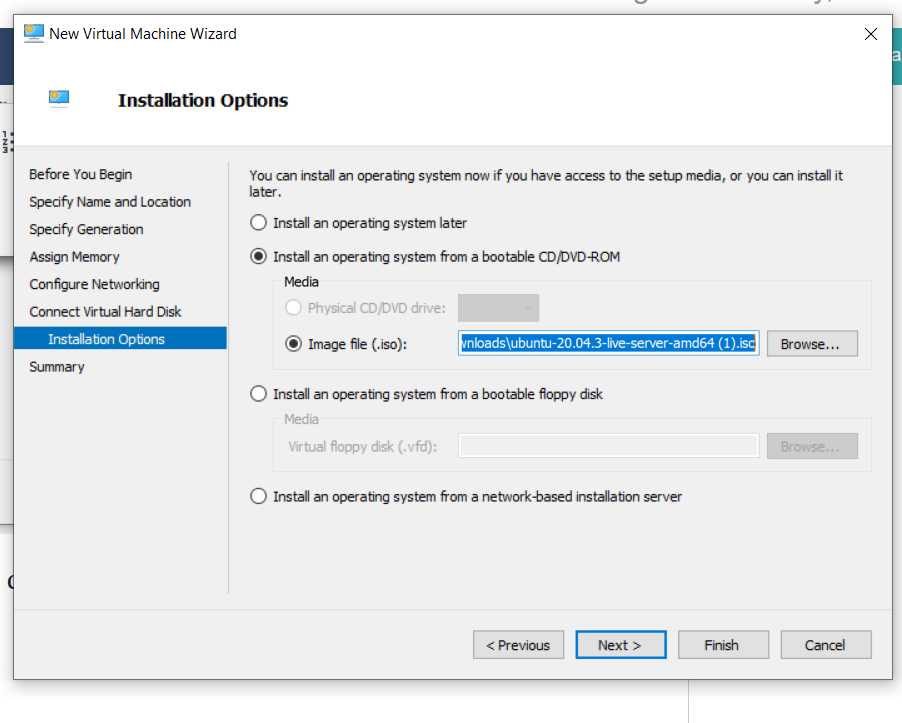
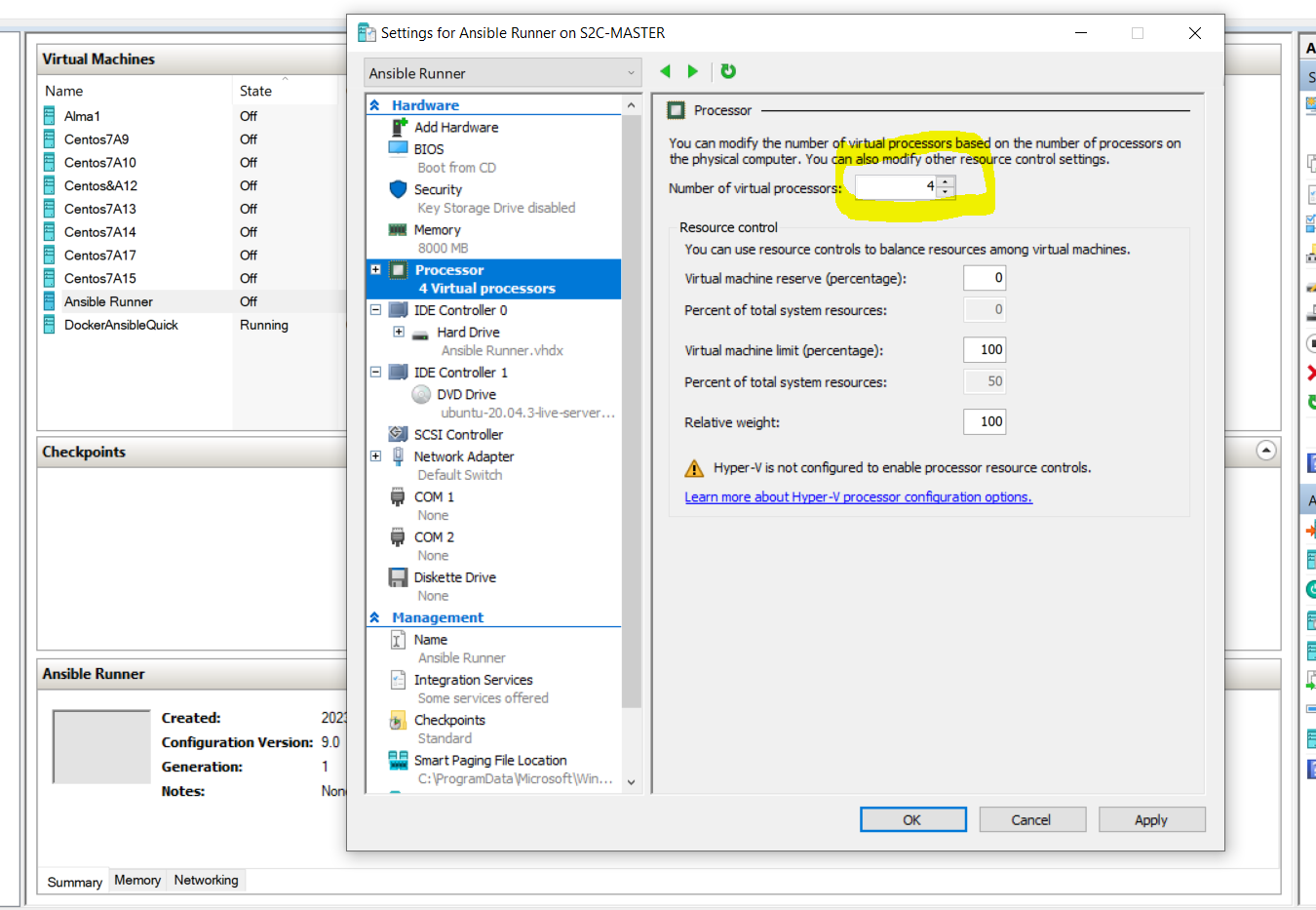
Click finish. Although the virtual machine will be created at this point, it is advisable to add more processors to it:
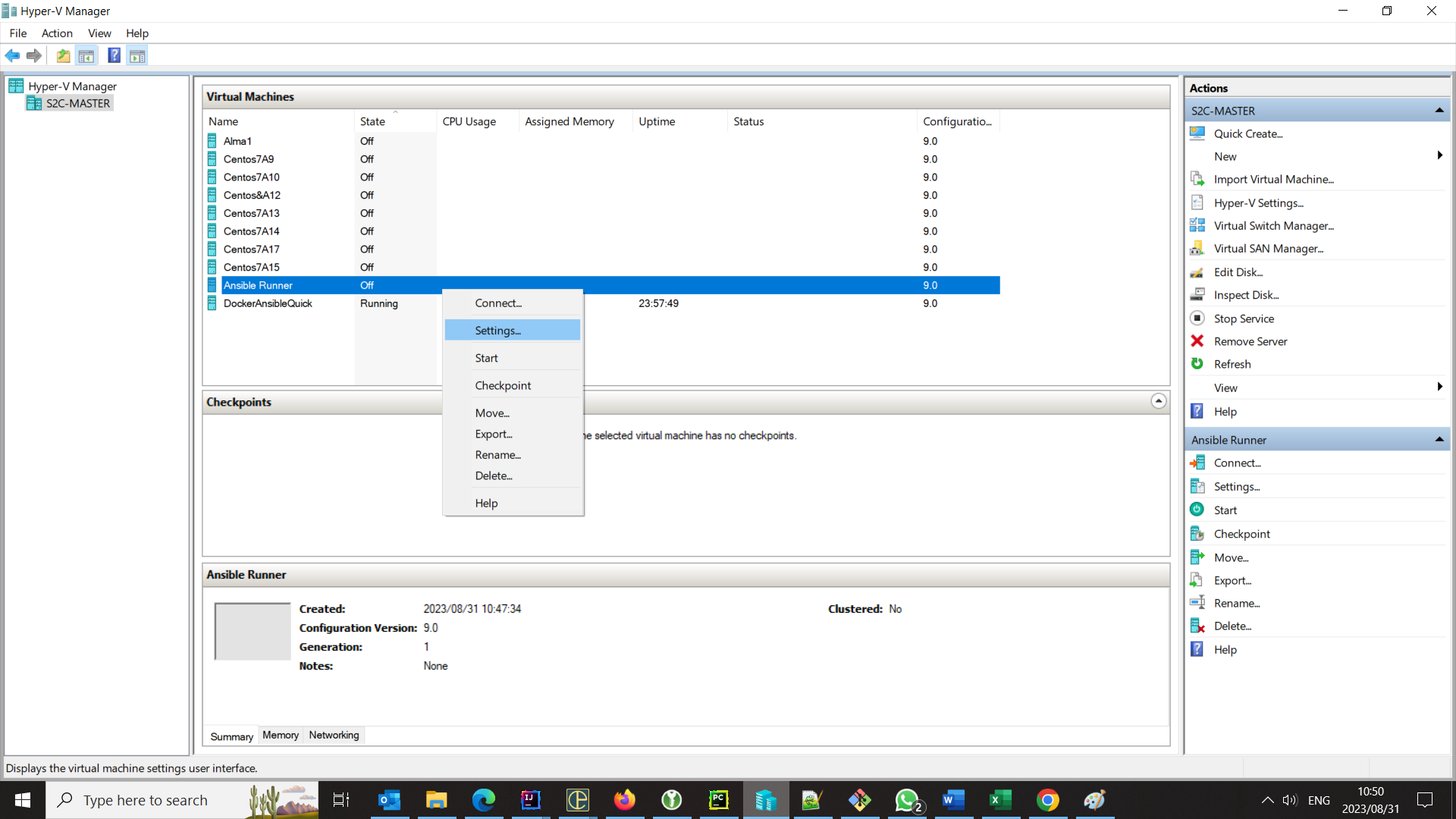
The virtual machine is ready for first-time boot. Right-click on the machine and then click on Connect:
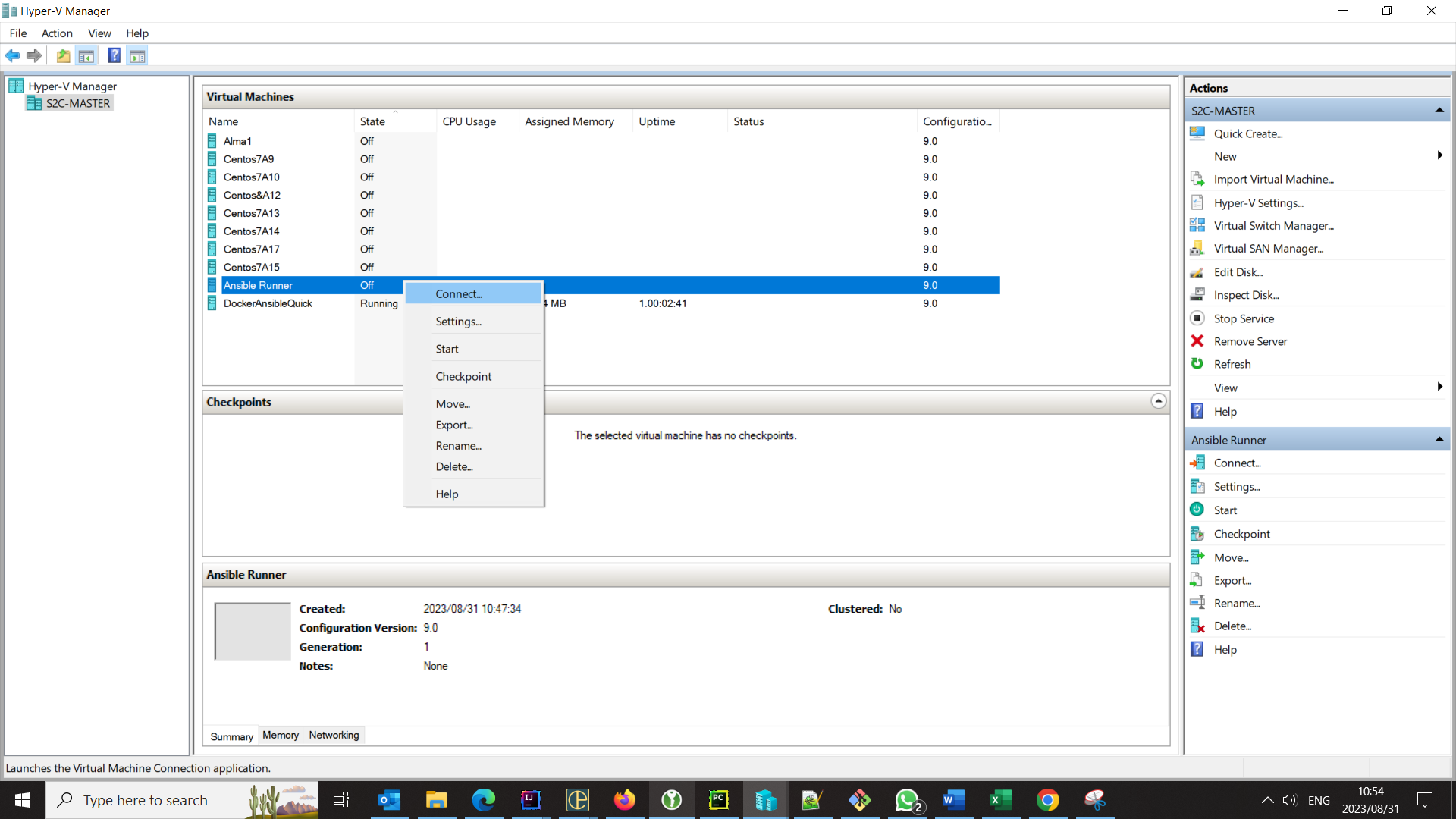
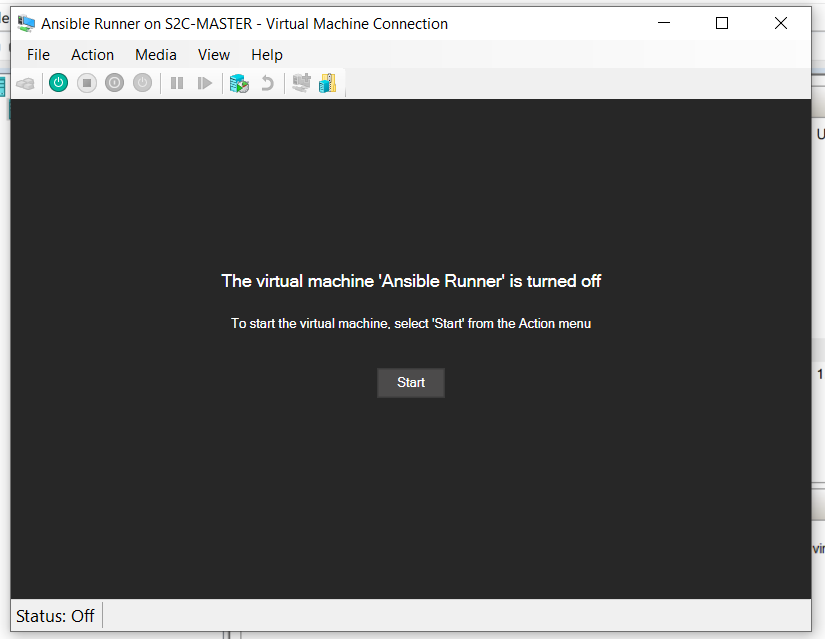
Click start, and you can configure your new Linux box that runs inside Windows:
All that remains is to install Ansible using your distro's package manager:
sudo apt install ansible
The Ansible-playbook command should now be available:
ansible-playbook install_private_k8s_cloud.yml
Conclusion
It works like a dream. I am free from using secondary machines, can access the corporate VPN, and can finally put my notebook's unused RAM to more efficient use far away from Windows. It is, after all, always more fun to Bash way instead of using clunky PowerShell or emaciated DOS.
In a follow-up posting, I will explain how this approach can be used to boot Kubernetes on one's own infrastructure.
Opinions expressed by DZone contributors are their own.