

Grounding Gemini With Google Search and Other Data Sources
Take advantage of Google Gemini's 1M token limit to send context. You can also combine this approach with the Grounding with Google Search feature.
Join the DZone community and get the full member experience.
Join For FreeWhen you only have a few data sources (e.g., PDFs, JSON) that are required in your generative AI application, building RAG might not be worth the time and effort.
In this article, I'll show how you can use Google Gemini to retrieve context from three data sources. I'll also show how you can combine the context and ground results using Google search. This enables the end user to combine real-time information from Google Search with their internal data sources.
Application Overview
I'll only cover the code needed for Gemini and getting the data rather than building the entire application. Please note that this code is for demonstration purposes only. If you want to implement it, follow best practices such as using a key management service for API keys, error handling, etc.
This application can answer any question related to events occurring in Philadelphia (I'm only using Philadelphia as an example because I found some good public data.) The data sources I used to send context to Gemini were a Looker report that has a few columns related to car crashes in Philadelphia for 2023, Ticketmaster events occurring for the following week, and weather for the following week.
Parts of the code below were generated using Gemini 1.5 Pro and Anthropic Claude Sonnet 3.5.
Data Sources
I have all my code in three different functions for the API calls to get data in a file called api_handlers. App.py imports from api_handlers and sends the data to Gemini. Let's break down the sources in more detail.
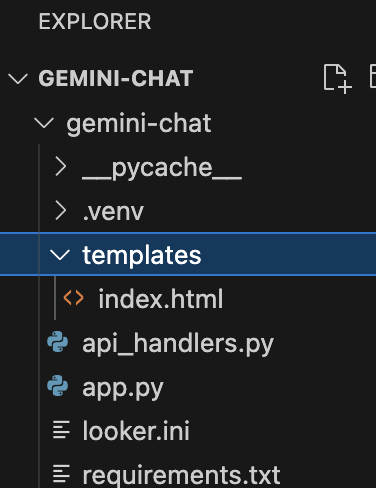
Application files
Looker
Looker is Google's enterprise BI capability. Looker is an API-first platform. Almost anything you can do in the UI can be achieved using the Looker SDK. In this example, I'm executing a Looker report and saving the results to JSON. Here's a screenshot of the report in Looker.
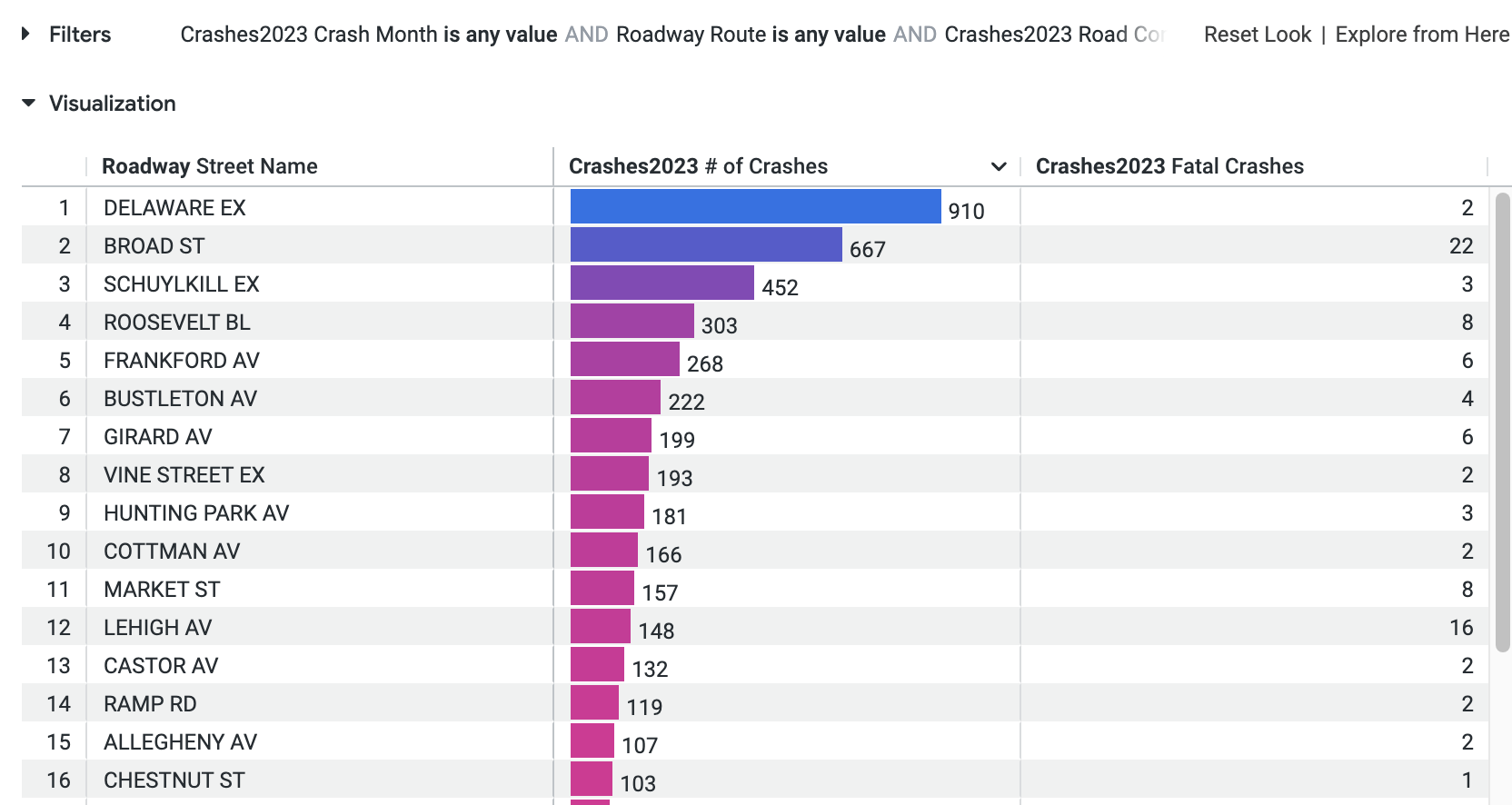
Looker report
Here's the code to get data from the report using the Looker SDK.
def get_crash_data():

    import looker_sdk
    from looker_sdk import models40 as models
    import os
    import json

    sdk = looker_sdk.init40("looker.ini")

    look_id = "Enter Look ID"

    try:
        response = sdk.run_look(look_id=look_id, result_format="json")
        print('looker done')
        return json.loads(response)

    except Exception as e:
        print(f"Error getting Looker data: {e}")
        return []
This code imports looker_sdk, which is required to interact with Looker reports, dashboards, and semantic models using the API. Looker.ini is a file where the Looker client ID and secret are stored.
This document shows how to get API credentials from Looker. You get the look_id from the Looker's Look URL. A Look in Looker is a report with a single visual. After that, the run_look command executes the report and saves the data to JSON. The response is returned when this function is called.
Ticketmaster
Here's the API call to get events coming from Ticketmaster.
def get_philly_events():
    import requests
    from datetime import datetime, timedelta

    base_url = "https://app.ticketmaster.com/discovery/v2/events"

    start_date = datetime.now()
    end_date = start_date + timedelta(days=7)

    params = {
        "apikey": "enter",
        "city": "Philadelphia",
        "stateCode": "PA",
        "startDateTime": start_date.strftime("%Y-%m-%dT%H:%M:%SZ"),
        "endDateTime": end_date.strftime("%Y-%m-%dT%H:%M:%SZ"),
        "size": 50,
        "sort": "date,asc"
    }

    try:
        response = requests.get(base_url, params=params)
        if response.status_code != 200:
            return []

        data = response.json()
        events = []

        for event in data.get("_embedded", {}).get("events", []):
            venue = event["_embedded"]["venues"][0]
            event_info = {
                "name": event["name"],
                "date": event["dates"]["start"].get("dateTime", "TBA"),
                "venue": event["_embedded"]["venues"][0]["name"],
                "street": venue.get("address", {}).get("line1", "")
            }
            events.append(event_info)

        return events

    except Exception as e:
        print(f"Error getting events data: {e}")
        return []
I'm using the Ticketmaster Discovery API to get the name, date, venue, and street details for the next 7 days. Since this is an HTTP GET request, you can use the requests library to make the GET request. If the result is successful, the response gets saved as JSON to the data variable. After that, the code loops through the data, and puts the information in a dictionary called events_info, which gets appended to the events list.
The final piece of data is weather. Weather data comes from NOAA weather API, which is also free to use.
def get_philly_weather_forecast():
    import requests
    from datetime import datetime, timedelta
    import json

    lat = "39.9526"
    lon = "-75.1652"
    url = f"https://api.weather.gov/points/{lat},{lon}"

    try:
        # Get API data
        response = requests.get(url, headers={'User-Agent': 'weatherapp/1.0'})
        response.raise_for_status()

        grid_data = response.json()
        forecast_url = grid_data['properties']['forecast']

        # Get forecast data
        forecast_response = requests.get(forecast_url)
        forecast_response.raise_for_status()
        forecast_data = forecast_response.json()

        weather_data = {
            "location": "Philadelphia, PA",
            "forecast_generated": datetime.now().strftime("%Y-%m-%d %H:%M:%S"),
            "data_source": "NOAA Weather API",
            "daily_forecasts": []
        }

        # Process forecast data - take 14 periods to get 7 full days
        periods = forecast_data['properties']['periods'][:14]  # Get 14 periods (7 days × 2 periods per day)

        # Group periods into days
        current_date = None
        daily_data = None

        for period in periods:
            period_date = period['startTime'][:10]  # Get just the date part of period
            is_daytime = period['isDaytime']

            # If we're starting a new day
            if period_date != current_date:
                # Save the previous day's data if it exists
                if daily_data is not None:
                    weather_data["daily_forecasts"].append(daily_data)

                # Start a new daily record
                current_date = period_date
                daily_data = {
                    "date": period_date,
                    "forecast": {
                        "day": None,
                        "night": None,
                        "high_temperature": None,
                        "low_temperature": None,
                        "conditions": None,
                        "detailed_forecast": None
                    }
                }

            # Update the daily data based on whether it's day or night
            period_data = {
                "temperature": {
                    "value": period['temperature'],
                    "unit": period['temperatureUnit']
                },
                "conditions": period['shortForecast'],
                "wind": {
                    "speed": period['windSpeed'],
                    "direction": period['windDirection']
                },
                "detailed_forecast": period['detailedForecast']
            }

            if is_daytime:
                daily_data["forecast"]["day"] = period_data
                daily_data["forecast"]["high_temperature"] = period_data["temperature"]
                daily_data["forecast"]["conditions"] = period_data["conditions"]
                daily_data["forecast"]["detailed_forecast"] = period_data["detailed_forecast"]
            else:
                daily_data["forecast"]["night"] = period_data
                daily_data["forecast"]["low_temperature"] = period_data["temperature"]

        # Append the last day's data
        if daily_data is not None:
            weather_data["daily_forecasts"].append(daily_data)

        # Keep only 7 days of forecast
        weather_data["daily_forecasts"] = weather_data["daily_forecasts"][:7]

        return json.dumps(weather_data, indent=2)

    except Exception as e:
        print(f"Error with NOAA API: {e}")
        return json.dumps({
            "error": str(e),
            "location": "Philadelphia, PA",
            "forecast_generated": datetime.now().strftime("%Y-%m-%d %H:%M:%S"),
            "daily_forecasts": []
        }, indent=2)
The API doesn't require a key but it does require latitude and longitude in the request. The API request is made and saved as JSON in forecast_data.
The weather data is broken out by two periods in a day: day and night. The code loops through 14 times times and keeps only 7 days of forecast. I'm interested in temperature, forecast details, and wind speed. It also gets the high and low temperatures.
Bringing It All Together
Now that we have the necessary code to get our data, we will have to execute those functions and send them to Gemini as the initial context. You can get the Gemini API key from Google AI Studio. The code below adds the data to Gemini's chat history.
from flask import Flask, render_template, request, jsonify
import os
from google import genai
from google.genai import types
from api_handlers import get_philly_events, get_crash_data, get_philly_weather_forecast
from dotenv import load_dotenv

# Load environment variables
load_dotenv()

app = Flask(__name__)

# Initialize Gemini client
client = genai.Client(
    api_key='Enter Key Here',
)

# Global chat history
chat_history = []

def initialize_context():

    try:
        # Get API data
        events = get_philly_events()
        looker_data = get_crash_data()
        weather_data = get_philly_weather_forecast()

        # Format events data
        events_formatted = "\n".join([
            f"- {event['name']} at {event['venue']} {event['street']} on {event['date']}"
            for event in events
        ])

        # Create system context
        system_context = f"""You are a helpful AI assistant focused on Philadelphia.
You have access to the following data that was loaded when you started:

Current Philadelphia Events (Next 7 Days):
{events_formatted}

Crash Analysis Data:
{looker_data}

Instructions:
1. Use this event and crash data when answering relevant questions
2. For questions about events, reference the specific events listed above
3. For questions about crash data, use the analysis provided
4. For other questions about Philadelphia, you can provide general knowledge
5. Always maintain a natural, conversational tone
6. Use Google Search when needed for current information not in the provided data

Remember: Your events and crash data is from system initialization and represents that point in time."""

        # Add context to chat history
        chat_history.append(types.Content(
            role="user",
            parts=[types.Part.from_text(text=system_context)]
        ))

        print("Context initialized successfully")
        return True

    except Exception as e:
        print(f"Error initializing context: {e}")
        return False
The final step is to get the message from the user and call Gemini's Flash 2.0 model. Notice how the model also takes a parameter called tools=[types.Tool(google_search=types.GoogleSearch())]. This is the parameter that uses Google search to ground results. If the answer isn't in one of the data sources provided, Gemini will do a Google search to find the answer.
This is useful if you had information, such as events that weren't in Ticketmaster, but you wanted to know about them. I used Gemini to help get a better prompt to give during the initial context initialization.
from flask import Flask, render_template, request, jsonify
import os
from google import genai
from google.genai import types
from api_handlers import get_philly_events, get_crash_data, get_philly_weather_forecast
from dotenv import load_dotenv

# Load environment variables
load_dotenv()

app = Flask(__name__)

# Initialize Gemini client
client = genai.Client(
    api_key='Enter Key Here',
)

# Global chat history
chat_history = []

def initialize_context():
    """Initialize context with events and Looker data"""
    try:
        # Get initial data
        events = get_philly_events()
        looker_data = get_crash_data()
        weather_data = get_philly_weather_forecast()

        # Format events data to present better
        events_formatted = "\n".join([
            f"- {event['name']} at {event['venue']} {event['street']} on {event['date']}"
            for event in events
        ])

        # Create system context
        system_context = f"""You are a helpful AI assistant focused on Philadelphia.
You have access to the following data that was loaded when you started:

Philadelphia Events for the next 7 Days:
{events_formatted}

Weather forecast for Philadelphia:
{weather_data}

Crash Analysis Data:
{looker_data}

Instructions:
1. Use this events, weather, and crash data when answering relevant questions
2. For questions about events, reference the specific events listed above
3. For questions about crash data, use the analysis provided
4. For questions about weather, use the data provided
5. For other questions about Philadelphia, you can provide general knowledge
6. Use Google Search when needed for current information not in the provided data

Remember: Your events and crash data is from system initialization and represents that point in time."""

        # Add context to chat history
        chat_history.append(types.Content(
            role="user",
            parts=[types.Part.from_text(text=system_context)]
        ))

        print("Context initialized successfully")
        return True

    except Exception as e:
        print(f"Error initializing context: {e}")
        return False

@app.route('/')
def home():
    return render_template('index.html')

@app.route('/chat', methods=['POST'])
def chat():
    try:
        user_message = request.json.get('message', '')
        if not user_message:
            return jsonify({'error': 'Message required'}), 400

        # Add user message to history
        chat_history.append(types.Content(
            role="user",
            parts=[types.Part.from_text(text=user_message)]
        ))

        # Configure generation settings
        generate_content_config = types.GenerateContentConfig(
            temperature=0.9,
            top_p=0.95,
            top_k=40,
            max_output_tokens=8192,
            tools=[types.Tool(google_search=types.GoogleSearch())],
        )

        # Generate response using full chat history
        response = client.models.generate_content(
            model="gemini-2.0-flash",
            contents=chat_history,
            config=generate_content_config,
        )

        # Add assistant response to history
        chat_history.append(types.Content(
            role="assistant",
            parts=[types.Part.from_text(text=response.text)]
        ))

        return jsonify({'response': response.text})

    except Exception as e:
        print(f"Error in chat endpoint: {e}")
        return jsonify({'error': str(e)}), 500

if __name__ == '__main__':
    # Initialize context before starting
    print("Initializing context...")
    if initialize_context():
        app.run(debug=True)
    else:
        print("Failed to initialize context")
        exit(1)
Final Words
I'm sure there are other ways to initialize context rather than using RAG. This is just one approach that also grounds Gemini using Google search.
Opinions expressed by DZone contributors are their own.
Comments