

DZone
Thanks for visiting DZone today,
Edit Profile
  • Manage Email Subscriptions
  • How to Post to DZone
  • Article Submission Guidelines
Sign Out View Profile
  • Post an Article
  • Manage My Drafts
Over 2 million developers have joined DZone.
Log In / Join
Refcards Trend Reports
Events Video Library
Refcards
Trend Reports

Events

View Events Video Library

Related

  • From 13,000 to 20,000+ Endpoints: Architecting Forensics for the Remote Workforce
  • Supercharge AI Workflows on Azure: Remote MCP Tool Triggers + Your First TypeScript MCP Server
  • Remote Android Management: A Step-by-Step Guide
  • The Impact of Asynchronous Work on Engineering Innovation

Trending

  • Every Cache Miss Is a Tiny Tax on Your Performance
  • Building a Zero-Cost Approval Workflow With AWS Lambda Durable Functions
  • AI Agents in Java: Architecting Intelligent Health Data Systems
  • Feature Flag Debt: Performance Impact in Enterprise Applications
  1. DZone
  2. Coding
  3. Languages
  4. Running Apache Tomcat as a Windows Service for Remote Debugging [Snippet]

Running Apache Tomcat as a Windows Service for Remote Debugging [Snippet]

In this quick tutorial, we go over using this popular open source solution and to configure it to do some remote debugging.

By 
Sameera Nelson user avatar
Sameera Nelson
·
Updated Aug. 21, 18 · Code Snippet
Likes (1)
Comment
Save
Tweet
Share
18.3K Views

Join the DZone community and get the full member experience.

Join For Free

Download Apache Tomcat

  • Go directly to the Apache Tomcat Site, select the version you prefer for download. 
  • However, it is always advised to use the latest version unless you have a constraint or a specific reason.
  • Select the 32-bit/64-bit Windows Service Installer version
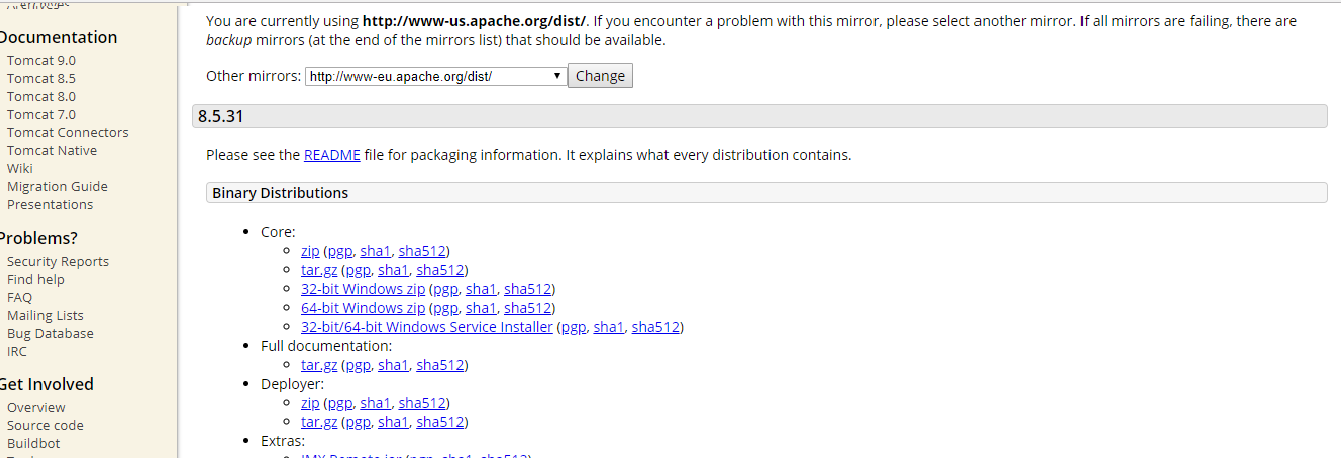
  • Execute the install as a regular installation.
  • Go the installed file location -> bin and run Tomcat8w.
    • The Tomcat executable will start a Tomcat instance instead of the service management window.
  • The Tomcat Service Window will appear:

Here you can start stop the Tomcat service and manage the properties. Moreover, you can set the start-up type of the Tomcat server to either Manual or Automatic depending on where the service will start when your system starts up.

Apache Tomcat Configuration for Debugging

  • Go to the Java tab:

  • Add the following under the Java options area:
    • Xdebug
    • Xrunjdwp:transport=dt_socket,address=8000,server=y,suspend=n

Here you can even set the environment related variable for Java as well.

Restart the Tomcat server and then it will be ready for remote debugging through port 8000.

Note: Here it seems the jpda run is not working as expected when it is set under the startup tab.

Apache Tomcat remote

Published at DZone with permission of Sameera Nelson. See the original article here.

Opinions expressed by DZone contributors are their own.

Related

  • From 13,000 to 20,000+ Endpoints: Architecting Forensics for the Remote Workforce
  • Supercharge AI Workflows on Azure: Remote MCP Tool Triggers + Your First TypeScript MCP Server
  • Remote Android Management: A Step-by-Step Guide
  • The Impact of Asynchronous Work on Engineering Innovation

Partner Resources

×

Comments

The likes didn't load as expected. Please refresh the page and try again.

  • RSS
  • X
  • Facebook

ABOUT US

  • About DZone
  • Support and feedback
  • Community research

ADVERTISE

  • Advertise with DZone

CONTRIBUTE ON DZONE

  • Article Submission Guidelines
  • Become a Contributor
  • Core Program
  • Visit the Writers' Zone

LEGAL

  • Terms of Service
  • Privacy Policy

CONTACT US

  • 3343 Perimeter Hill Drive
  • Suite 215
  • Nashville, TN 37211
  • [email protected]

Let's be friends:

  • RSS
  • X
  • Facebook