

VS Code Timeline Restores Lost Work That Git Can’t
VS Code Timeline can take snapshots of different save points of a file. This can help you save lost work that Git may not be able to.
 CORE
·
CORE
·
Join the DZone community and get the full member experience.
Join For FreeIf you’ve been working in web development for a while, you may run into scenarios where you make some changes or delete some files, and somehow lose work and a lot of time as a result.
Today I wanna show you some tips in VS Code to prevent that from happening.
The first thing you want to do when you need to modify a file is to copy and paste it, then rename the new file to “V2”. If you need more versions, you keep copy/pasting until you get to “V3”, “V4”, “V_final”, then “V_finalfinal”, and then “_-this-time-for-real-final_version_V7”.
Just kidding :)
If you’ve been in the field a while and that brought up some deeply rooted trauma, I know a great therapist.
But technology has advanced enough that we don’t need to rely on that sort of format. We have tools like Git, which has been around for a while and hopefully you’ve heard of it.
VS Code has some really nice Git integrations that they have well documented. It allows you to:
- Take a snapshot of the current state of the project
- Shows you side by side comparison to see each change
- See changes from within a file
- Compare and revert changes in bulk or one at a time
All of that is really nice, but that’s not what I wanted to show you.
In almost every single project that I’ve worked on, I’ve hit a point where I’ve committed some code and then actually wanted to go back and change some things about that commit.
Maybe I included files that should not have been there, or I forgot to include some changes that should have been in there.
I’ve always had to look up how you undo the most recent commit:
git reset --hard HEAD~1I can never remember that, but the good news is I don’t have to.
VS Code has it built in. You can go to the source control tab, then in the little kebab menu, go to the “Commit” section and there’s an option to “Undo Last Commit”.
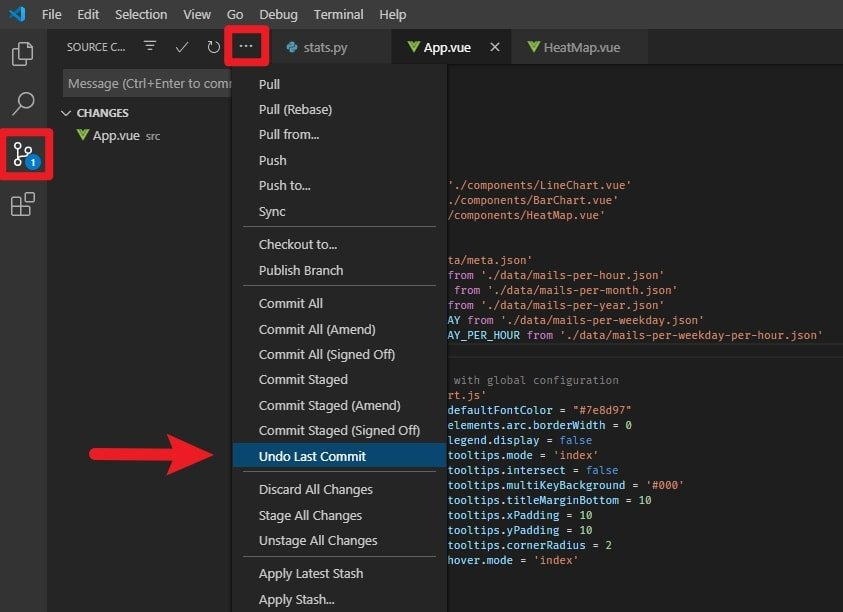
That’s handy, but for the folks that prefer keyboard shortcuts, you can actually open up the command pallet with ctrl+shift+P (Windows) and search for “Undo Last Commit”. I usually just type “undo” and press “enter”. It’s really quick once you’re used to it.
Also pretty handy, but even that isn’t the coolest trick, because there are scenarios where Git is not actually going to help you.
Say, for example, that we actually added a .gitignore file to our project and we included a file we wanted to work on. That would exclude the file from version control. This means we can’t make changes and then revert. This is really common practice with something like ENV variables.
Now, if you accidentally delete this file, you better hope you have a backup.
You might be able to find it in the trash bin, but in my case, it actually goes straight to being deleted from the disc. So it doesn’t exist in the trash bin. So how am I gonna get this back?
Fortunately, VS Code has this Timeline view, which is really, really cool because it will actually show you changes made to a file in between commits. You can think of it sort of like atomic version control.
It will show me the state of the file every time I hit save. It makes it really easy to go back and forth between versions.
And one of the coolest features here is if I delete a file, I can just create a new file with the same name and it will restore the timeline.
That feature has saved my butt a bunch of times (if you watch any of my live streams, you know what I’m talking about).
That’s all I got. Now you can go out there and be as reckless with your code as you want.
Thank you so much for reading. If you liked this article, please share it. It's one of the best ways to support me. You can also follow me on Twitter if you want to know when new articles are published.
Published at DZone with permission of Austin Gil. See the original article here.
Opinions expressed by DZone contributors are their own.
Comments