

Working With Long Lines From the Shell With Cut
Learn how to use the ''cut'' Shell command when working with long lines in Linux
Join the DZone community and get the full member experience.
Join For Free
cut Shell command when working with long lines in Linux
Suppose you have a data file with obnoxiously long lines, and you'd like to preview it from the command line. For example, the other day, I downloaded some data from the American Community Survey and wanted to see what the files contained. I ran something like:
head data.csv... to look at the first few lines of the file and got this back:
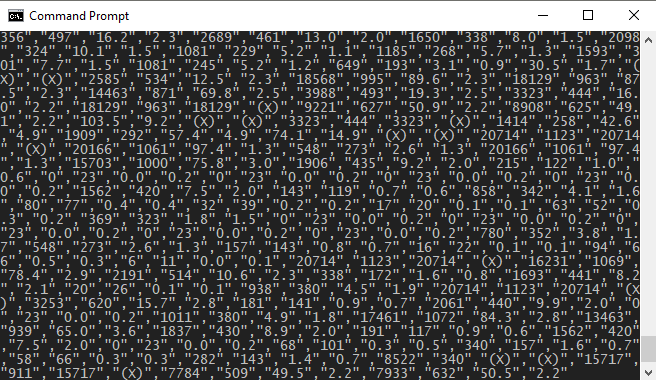
That was not at all helpful. The part I was interested was at the beginning, but that part scrolled off the screen quickly. To see just how wide the lines are, I ran the following:
head -n 1 data.csv | wc
I found that the first line of the file is 4822 characters long.
How can you see just the first part of long lines? Use the cut command. It comes with Linux systems and you can download it for Windows as part of GOW.
You can see the first 30 characters of the first few lines by piping the output of head to cut.
head data.csv | cut -c -30This shows:
"GEO_ID","NAME","DP05_0001E","
"id","Geographic Area Name","E
"8600000US01379","ZCTA5 01379"
"8600000US01440","ZCTA5 01440"
"8600000US01505","ZCTA5 01505"
"8600000US01524","ZCTA5 01524"
"8600000US01529","ZCTA5 01529"
"8600000US01583","ZCTA5 01583"
"8600000US01588","ZCTA5 01588"
"8600000US01609","ZCTA5 01609"
This is much more useful. The syntax -30 says to show up to the 30th character. You could do the opposite with 30- to show everything starting with the 30th character. And you can show a range, such as 20-30 to show the 20th through 30th characters.
You can also use cut to pick out fields with the -f option. The default delimiter is tab, but our file is delimited with commas so we need to add -d, to tell it to split fields on commas.
We could see just the second column of data, for example, with:
head data.csv | cut -d, -f 2This produces:
"NAME"
"Geographic Area Name"
"ZCTA5 01379"
"ZCTA5 01440"
"ZCTA5 01505"
"ZCTA5 01524"
"ZCTA5 01529"
"ZCTA5 01583"
"ZCTA5 01588"
"ZCTA5 01609"
You can also specify a range of fields, say by replacing 2 with 3-4 to see the third and fourth columns.
The humble cut command is a good one to have in your toolbox.
Further Reading
Published at DZone with permission of John Cook. See the original article here.
Opinions expressed by DZone contributors are their own.
Comments