

From Laptop to Cloud: Building and Scaling AI Agents With Docker Compose and Offload
AI agents need more than one service. Docker Compose keeps them simple to run, and Docker Offload shifts workloads to cloud GPUs.
 ·
·
Join the DZone community and get the full member experience.
Join For FreeRunning AI agents locally feels simple until you try it: dependencies break, configs drift, and your laptop slows to a crawl. An agent isn’t one process — it’s usually a mix of a language model, a database, and a frontend. Managing these by hand means juggling installs, versions, and ports.
Docker Compose changes that. You can now define these services in a single YAML file and run them together as one app. Compose even supports declaring AI models directly with the models element. With one command — docker compose up — your full agent stack runs locally.
But local machines hit limits fast. Small models like DistilGPT-2 run on CPUs, but bigger ones like LLaMA-2 need GPUs. Most laptops don’t have that kind of power. Docker Offload bridges this gap. It runs the same stack in the cloud on GPU-backed hosts, using the same YAML file and the same commands.
This tutorial walks through:
- Defining an AI agent with Compose
- Running it locally for fast iteration
- Offloading the same setup to cloud GPUs for scale
The result: local iteration, cloud execution — without rewriting configs.
Why Agents + Docker
AI agents aren’t monoliths. They’re composite apps that bundle services such as:
- Language model (LLM or fine-tuned API)
- Vector database for long-term memory and embeddings
- Frontend/UI for user interaction
- Optional monitoring, cache, or file storage
Traditionally, you’d set these up manually: Postgres installed locally, Python for the LLM, Node.js for the UI. Each piece required configs, version checks, and separate commands. When one broke, the whole system failed.
Docker Compose fixes this. Instead of manual installs, you describe services in a single YAML file. Compose launches containers, wires them together, and keeps your stack reproducible.
There are also options such as Kubernetes, HashiCorp Nomad, or even raw Docker commands, but all options have a trade-off. Kubernetes can scale to support large-scale production applications, providing sophisticated scheduling, autoscaling, and service discovery capabilities. Nomad is a more basic alternative to Kubernetes that is very friendly to multi-cloud deployments. Raw Docker commands provide a level of control that is hard to manage when managing more than a few services. Conversely, Docker Compose targets developers expressing the need to iterate fast and have a lightweight orchestration. It balances the requirements of just containers with full Kubernetes, and thus it is suitable for local development and early prototyping.
Still, laptops have limits. CPUs can handle small models but not the heavier workloads. That’s where Docker Offload enters. It extends the same Compose workflow into the cloud, moving the heavy lifting to GPU servers.
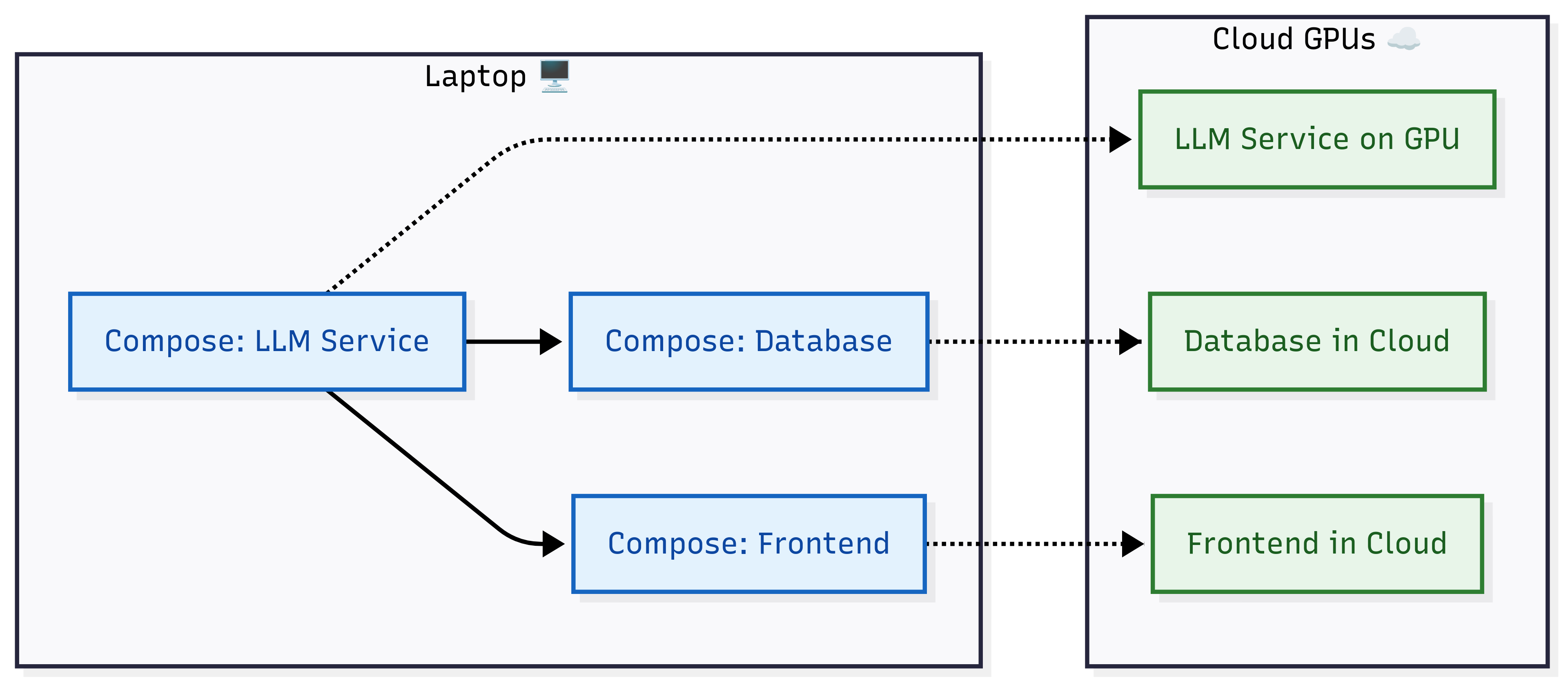
AI agent services (LLM, database, frontend) run locally with Docker Compose. With docker offload up, the same services move to GPU-backed cloud servers, using the same YAML file.
Define the Agent With Compose
Step 1: Create a compose.yaml File
services:
  llm:
    image: ghcr.io/langchain/langgraph:latest
    ports:
      - "8080:8080"
  db:
    image: postgres:15
    environment:
      POSTGRES_PASSWORD: secret
  ui:
    build: ./frontend
    ports:
      - "3000:3000"
This file describes three services:
- llm: Runs a language model server on port 8080. You could replace this with another image, such as Hugging Face’s text-generation-inference.
- db: Runs Postgres 15 with an environment variable for the password. Using environment variables avoids hardcoding sensitive data.
- ui: Builds a custom frontend from your local ./frontend directory. It exposes port 3000 for web access.
For more advanced setups, your compose.yaml can include features like multi-stage builds, health checks, or GPU requirements. Here’s an example:
services:
  llm:
    build:
      context: ./llm-service
      dockerfile: Dockerfile
    deploy:
      resources:
        reservations:
          devices:
            - driver: nvidia
              count: 1
              capabilities: [gpu]
    ports:
      - "8080:8080"
    healthcheck:
      test: ["CMD", "curl", "-f", "http://localhost:8080/health"]
      interval: 30s
      retries: 3
  db:
    image: postgres:15
    environment:
      POSTGRES_PASSWORD: ${POSTGRES_PASSWORD}
  ui:
    build: ./frontend
    ports:
      - "3000:3000"
In this configuration:
- Multi-stage builds reduce image size by separating build tools from the final runtime.
- GPU requirements ensure the service runs on a node with NVIDIA GPUs when offloaded.
- Health checks allow Docker (and Offload) to detect when a service is ready.
Step 2: Run the Stack
docker compose upCompose builds and starts all three services. Containers are networked together automatically.
Expected output from docker compose ps:
NAME          IMAGE                             PORTS
agent-llm     ghcr.io/langchain/langgraph       0.0.0.0:8080->8080/tcp
agent-db      postgres:15                       5432/tcp
agent-ui      frontend:latest                   0.0.0.0:3000->3000/tcp
Now open http://localhost:3000 to see the UI talking to the LLM and database.
You can use docker compose ps to check running services and Docker Compose logs to see real-time logs for debugging.
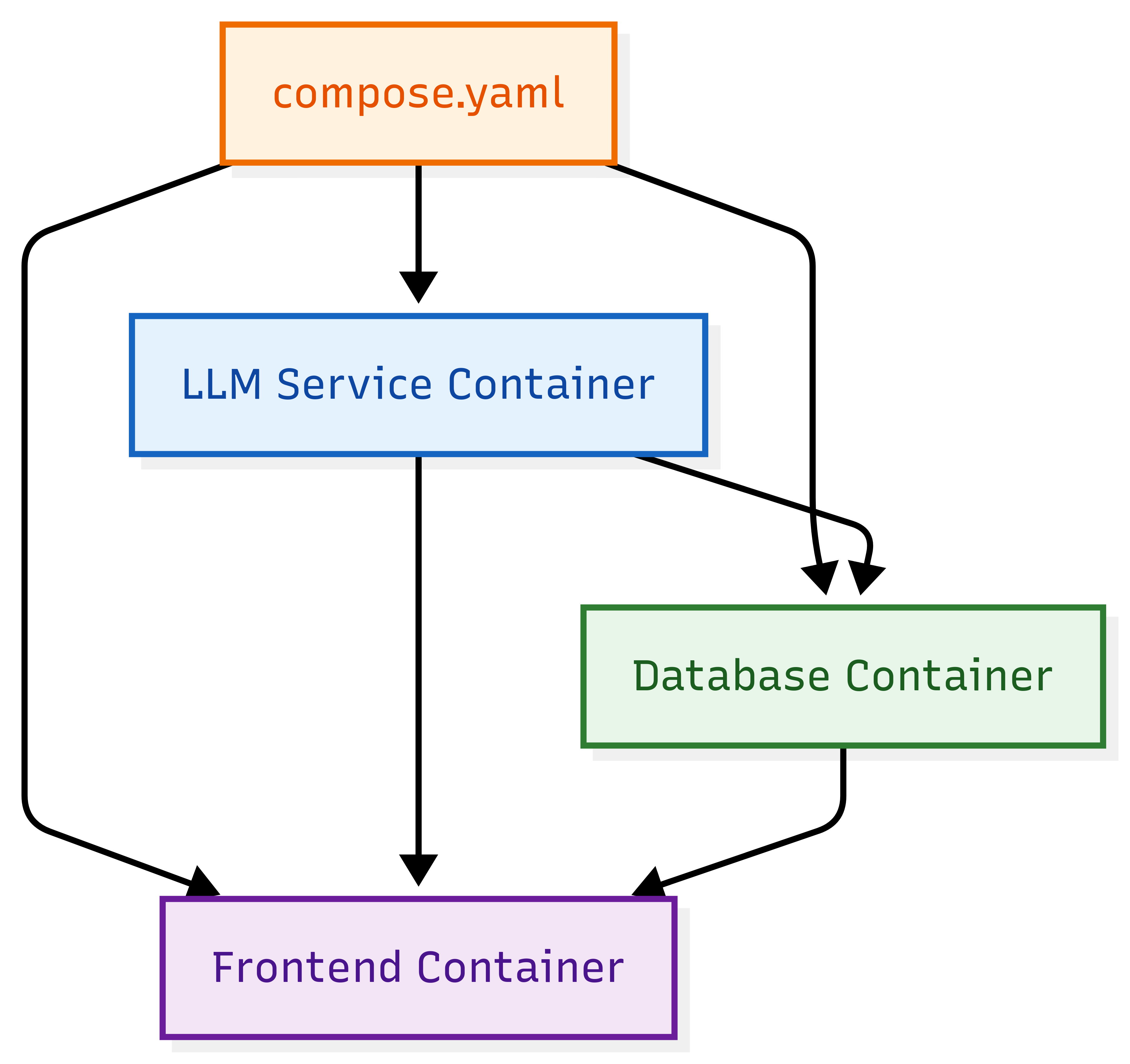
A compose.yaml defines all agent components: LLM, database, and frontend. Docker Compose connects them automatically, making the stack reproducible across laptops and the cloud.
Offload to the Cloud
Once your local laptop hits its limit, shift to the cloud with Docker Offload.
Step 1: Install the Extension
docker extension install offloadStep 2: Start the Stack in the Cloud
docker offload upThat’s it. Your YAML doesn’t change. Your commands don’t change. Only the runtime location does.
Step 3: Verify
docker offload psThis shows which services are running remotely. Meanwhile, your local terminal still streams logs so you can debug without switching tools.
Other useful commands:
docker offload status– Check if your deployment is healthy.docker offload stop– Shut down cloud containers when done.docker offload logs <service>– View logs for a specific container.
You can use .dockerignore to reduce build context, especially when sending files to the cloud.
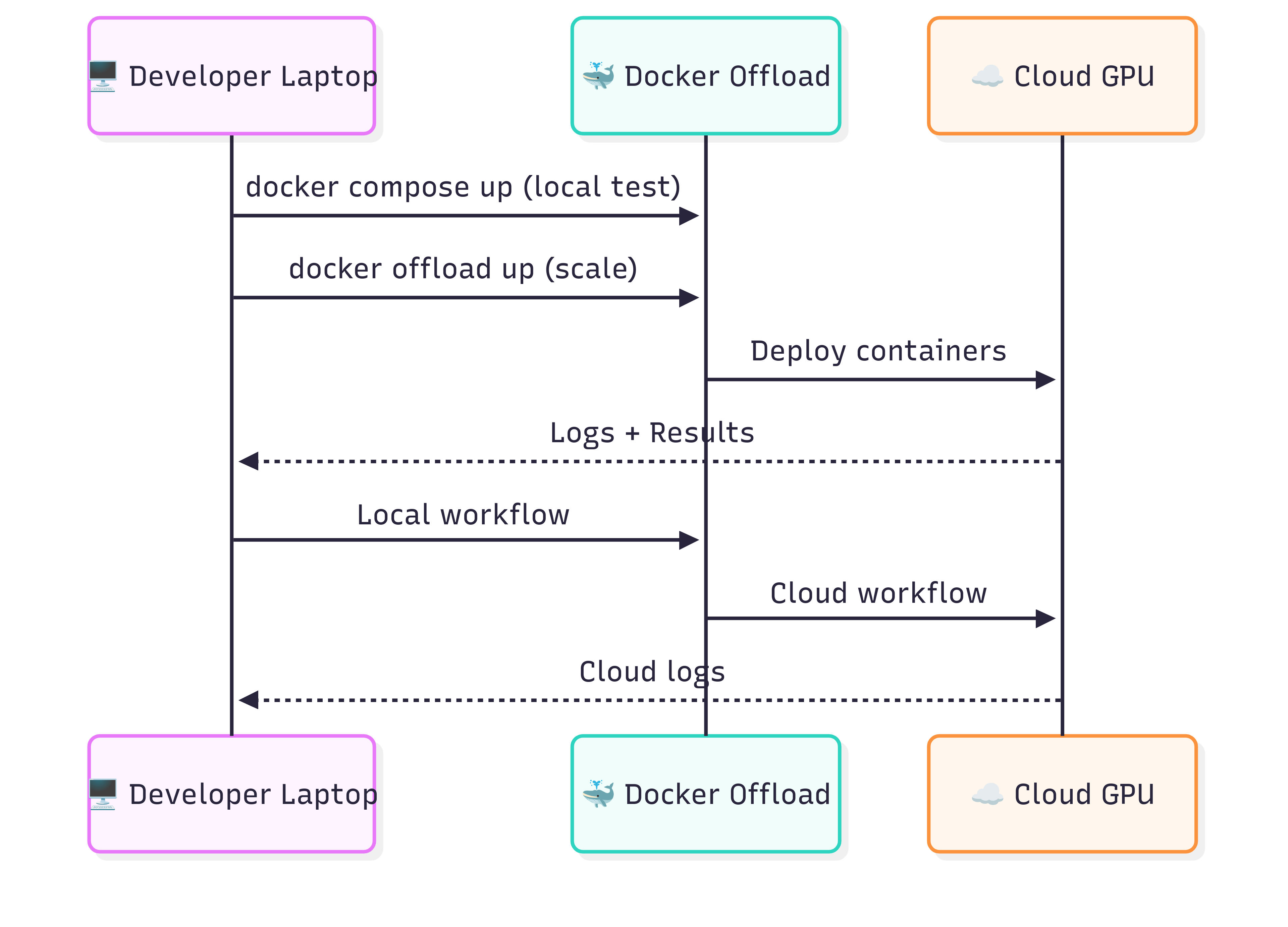
The workflow for scaling AI agents is straightforward. A developer tests locally with docker compose up. When more power is needed, docker offload up sends the same stack to the cloud. Containers run remotely on GPUs, but logs and results stream back to the local machine for debugging.
Real-World Scaling Example
Let’s say you’re building a research assistant chatbot.
- Local testing:
- Model: DistilGPT-2 (lightweight, CPU-friendly)
- Database: Postgres
- UI: simple React app
- Run with docker compose up
This setup is fine for testing flows, building the frontend, and validating prompts.
- Scaling to cloud:
- Replace the model service with LLaMA-2-13B or Falcon for better answers.
- Add a vector database like Weaviate or Chroma for semantic memory.
- Run with
docker offload up
Now your agent can handle larger queries and store context efficiently. The frontend doesn’t care if the model is local or cloud-based — it just connects to the same service port.
This workflow matches how most teams build: fast iteration locally, scale in the cloud when ready for heavier testing or deployment.
Advantages and Trade-Offs
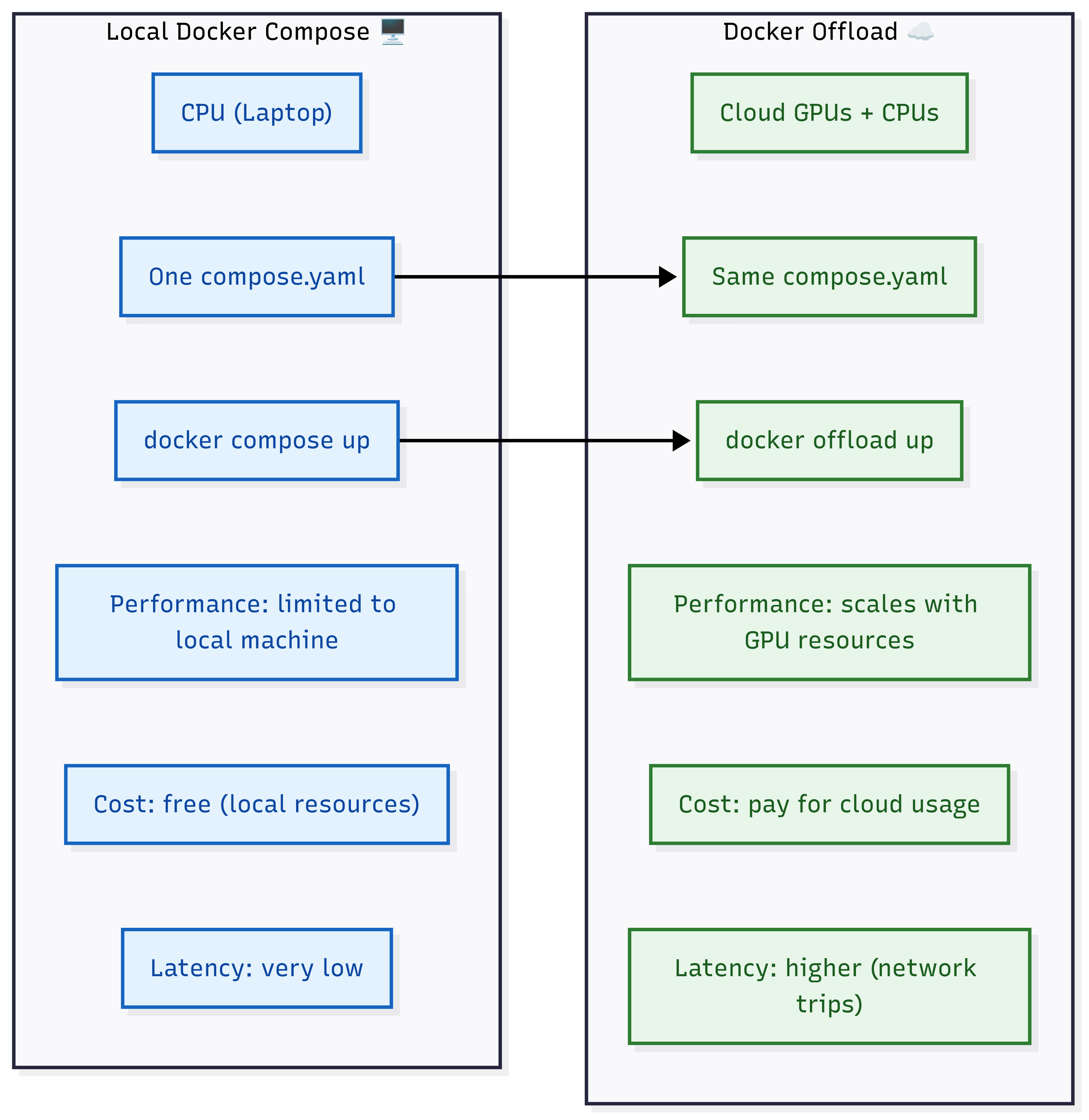
The same compose.yaml defines both environments. Locally, agents run on CPUs with minimal cost and latency. With Offload, the same config shifts to GPU-backed cloud servers, enabling scale but adding cost and latency.
Advantages
- One config: Same YAML works everywhere
- Simple commands:
docker compose upvs.docker offload up - Cloud GPUs: Access powerful hardware without setting up infra
- Unified debugging: Logs stream to the local terminal for easy monitoring
Trade-Offs
- Latency: Cloud adds round trips. A 50ms local API call may take 150–200ms remotely, depending on network conditions. This matters for latency-sensitive apps like chatbots.
- Cost: GPU time is expensive. A standard AWS P4d.24xlarge (8×A100) costs about $32.77/hour, or $4.10 per GPU/hour. On GCP, an A100-80 GB instance is approximately $6.25/hour, while high-end H100-equipped VMs can reach $88.49/hour. Spot instances, when available, can offer 60–91% discounts, cutting costs significantly for batch jobs or CI pipelines.
- Coverage: Offload supports limited backends today, though integrations are expanding. Enterprises should check which providers are supported.
- Security implications: Offloading workloads implies that your model, data, and configs execute on remote infrastructure. Businesses must consider transit (TLS), data at rest, and access controls. Other industries might also be subject to HIPAA, PCI DSS, or GDPR compliance prior to the offloading of workloads.
- Network and firewall settings: Offload requires outbound access to Docker’s cloud endpoints. In enterprises with restricted egress policies or firewalls, security teams may need to open specific ports or allowlist Offload domains.
Best Practices
To get the most out of Compose + Offload:
- Properly manage secrets: To use hardcoded sensitive values in compose.yaml, use core secrets with .env files or Docker secrets. This prevents inadvertent leaks in version control.
- Pin image versions: Avoid using
:latesttags, as they can pull unexpected updates. Pin versions like:1.2.0for stability and reproducibility. - Scan images for vulnerabilities: Use
docker scout cvesto scan images before offloading. Catching issues early helps avoid deploying insecure builds. - Optimize builds with multi-stage: Multi-stage builds and .dockerignore files keep images slim, saving both storage and bandwidth during cloud offload.
- Add health checks: Health checks let Docker and Offload know when a service is ready, improving resilience in larger stacks.
PowerShell
healthcheck: test: ["CMD", "curl", "-f", "http://localhost:8080/health"] interval: 30s retries: 3 - Monitor usage: Use Docker offload status and logs to track GPU consumption and stop idle workloads to avoid unnecessary costs.
- Version control your YAML: Commit your Compose files to Git so the entire team runs the same stack consistently.
These practices reduce surprises and make scaling smoother.
Conclusion
AI agents are multi-service apps. Running them locally works for small tests, but scaling requires more power. Docker Compose defines the stack once. Docker Offload runs the same setup on GPUs in the cloud.
This workflow — local iteration, cloud execution — means you can build and test quickly, then scale up without friction.
As Docker expands AI features, Compose and Offload are becoming the natural choice for developers building AI-native apps.
If you’re experimenting with agents, start with Compose on your laptop, then offload when you need more processing power. The change is smooth, and the payoff is quicker, and it builds with fewer iterations.
Opinions expressed by DZone contributors are their own.
Comments