

Ansible Vault
See why Ansible could be the answer to your encryption needs.

Introduction
Ansible Vault is a feature of Ansible that allows you to keep sensitive data, such as passwords or keys in encrypted files, rather than as plaintext in playbooks or roles. These vault files can then be distributed or placed in source control.
To enable this feature, a command-line tool — ansible-vault — is used to edit files, and a command-line flag (--ask-vault-pass or --vault-password-file) is used. Alternately, you may specify the location of a password file or command Ansible to always prompt for the password in your ansible.cfg file. These options require no command line flag usage.
What Can Be Encrypted With Vault?
Ansible Vault can encrypt any structured data file used by Ansible. Ansible Vault can also encrypt arbitrary files, even binary files. If a vault-encrypted file is given as the src argument to the copy, template, unarchive, script, or assemble modules, the file will be placed at the destination on the target host decrypted (assuming a valid vault password is supplied when running the play).
You may also like: 10 Easy-to-Use Modules in Ansible.
Creating Encrypted Files
To create a new encrypted data file, run the following command
$ansible-vault create <file name>First, you will be prompted for a password. After providing a password, the tool will launch default editor (vi). Once you are done with the editor session, the file will be saved as encrypted data. The default cipher is AES.
Editing Encrypted Files
To edit an encrypted file in place, use the ansible-vault edit command. This command will decrypt the file to a temporary file and allow you to edit the file, saving it back when done and removing the temporary file:
$ ansible-vault edit <file name>Rekeying Encrypted Files
Should you wish to change your password on a vault-encrypted file or files, you can do so with the rekey command:
$ ansible-vault rekey <file1> <file2> <file3>This command can rekey multiple data files at once and will ask for the original password and the new password.
Encrypting Unencrypted Files
If you have existing files that you wish to encrypt, use the ansible-vault encrypt command. This command can operate on multiple files at once:
$ansible_vault encrypt <file1> <file2> <file3>Decrypting Encrypted Files
If you have existing files that you no longer want to keep encrypted, you can permanently decrypt them by running the ansible-vault decrypt command. This command will save them unencrypted to the disk, so be sure you do not want ansible-vault edit instead:
$ ansible_vault decrypt <file1> <file2> <file3>Viewing Encrypted Files
If you want to view the contents of an encrypted file without editing it, you can use the ansible-vault view command:
$ ansible_vault view <file1> <file2> <file3>Steps to Use ANSIBLE_VAULT
Our Ansible directory structure should be:
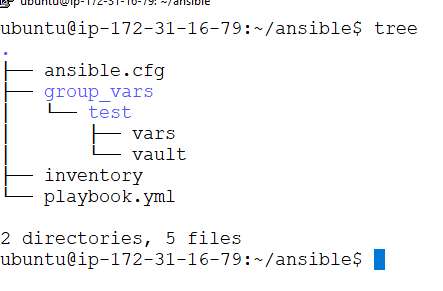
1. First, create a local ansible configuration file by using vi ansible.cfg command.
[defaults]
host_key_checking=false
inventory=inventory
2. To create an inventory file, use vi inventory command.
[test]
104.121.190.123
3. Create group_vars directory
$ mkdir group_vars4. Name of the group we declared in the inventory file.
$ mkdir testTo start with a group_vars/ subdirectory named after the group. Inside of this subdirectory, create two files named vars and vault.
Inside of the vars file, define all of the variables needed, including any sensitive ones. Next, copy all of the sensitive variables over to the vault file and prefix these variables with vault_.
5. To create a vars file, use the vi vars command.
ansible_ssh_pass: "{{ vault_ansible_ssh_pass }}"6. Create a vault file by using the vi vault command.
vault_ansible_ssh_pass: Ashpassword1237. To create an encrypted file, use the ansible-vault encrypt command and pass in the filename.
$ ansible-vault encrypt vault You’ll be prompted to create a password and then confirm it by re-typing it.

Once your password is confirmed, the vault file will be encrypted.
8. To see the encrypted data use cat vault command.
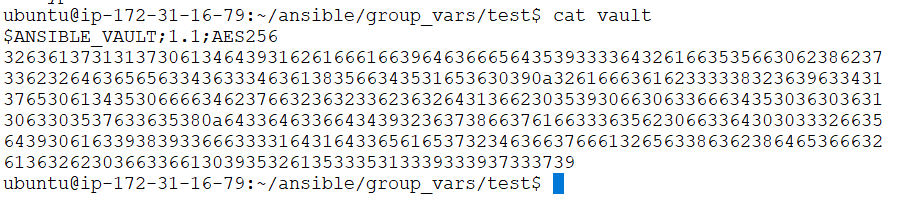
9. To view an encrypted file, use the ansible-vault viewcommand.

10. For testing vault, run the ping command.
$ ansible all -i inventory -m ping -u ashuser --ask-vault-pass
11. To create a playbook use the vi playbook.yml command.
---
  - hosts: test
    tasks:
      - name:
        shell: hostname
12. To run a playbook with vault, run the following command:
$ ansible-playbook -i inventory playbook.yml -u ashuser --ask-vault-pass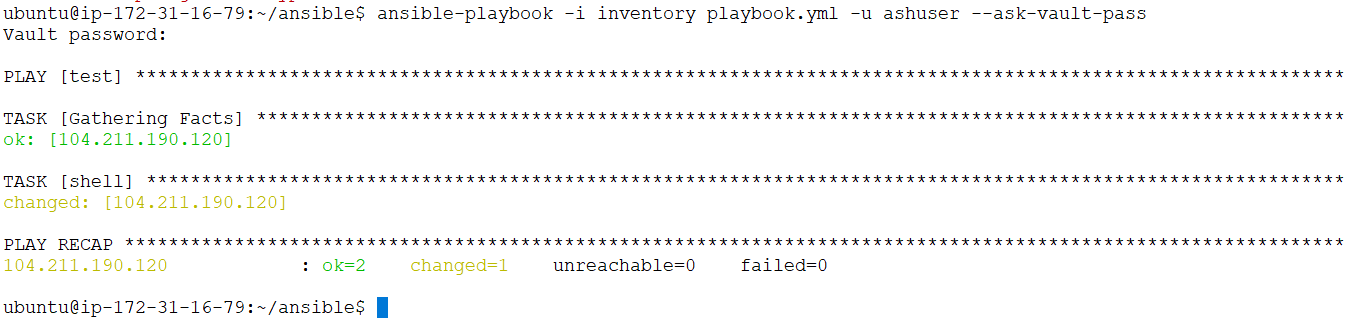
Reading the Password File Automatically
If you don't want to type in the Vault password each and every time executing a task, you can add your Vault password to a file and reference the file during execution.
To make Ansible aware of the password file location across sessions, you can edit your ansible.cfg file. Open the local vi ansible.cfg file we created earlier.
[defaults]
host_key_checking=false
inventory=inventory
vault_password_file = /home/ubuntu/junk
In the [defaults] section, set the vault_password_file setting. Point to the location of your password file. This can be a relative or absolute path, depending on which is most useful for you.
For example, you could put your password in a junk file like this:
echo 12345 >> junkTo run a ping command without passing ansible-vault password, use the following command:
ansible all -I inventory -m ping -u ashuser
To run a playbook without passing ansible_vault password, use the following command.
ansible-playbook -I inventory playbook.yml -u ashuser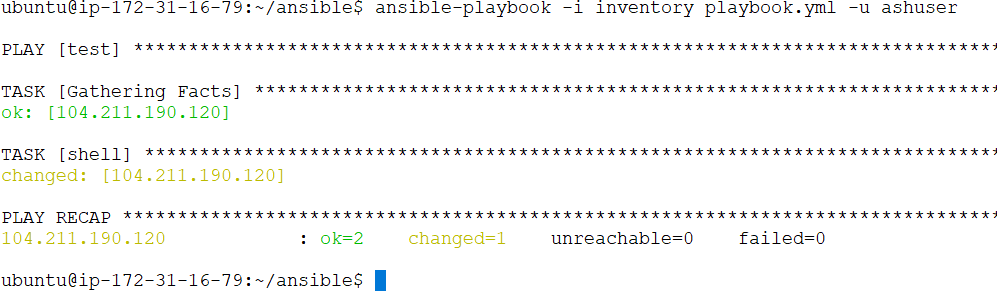
Further Reading
Opinions expressed by DZone contributors are their own.