

Automating IBM MQ Console (MQ Web Server) Startup Post-Server Reboot
This article provides simple steps to configure the IBM MQ Web Server for automatic startup as a system service on both Windows and Linux.
 ·
·
Join the DZone community and get the full member experience.
Join For FreeIn dynamic IT environments, server reboots due to patching, maintenance, or planned outages are a regular occurrence. For IBM MQ administrators, ensuring that critical management tools, such as the IBM MQ Console (which runs on the IBM MQ Web Server), are automatically available after such events is paramount. Manual intervention to restart the MQ Console after every server reboot can introduce unnecessary administrative overhead.
This article provides simple steps to configure the IBM MQ Web Server for automatic startup as a system service on both Windows and Linux.
Understanding MQ Web Server and Its Scope
The MQ Web Server is an essential component, built upon a WebSphere Liberty profile, that provides the web-based IBM MQ Console and is typically started via the strmqweb command. The management scope of an MQ Web Console instance is limited to local queue managers that belong to the same installation as the MQ Web Server, and to remote queue managers deployed elsewhere on a different physical/virtual host.
Conversely, if multiple MQ installations exist on the same host as the MQ Web Server, then a particular MQ Web Console instance (Say Installation1) cannot manage queue managers belonging to other local installations (Say Installation2). Each distinct MQ installation requiring web-based management will require its own dedicated MQ Web Server instance. With this operational scope clearly defined, let's address its startup behaviour.
Unlike IBM MQ queue managers, which can be configured as native OS services (e.g., using a Windows service), the MQ Web Server does not automatically register itself as a system service during installation. Therefore, manual configuration is required to ensure its automatic startup after a system reboot. This article does not cover advanced scenarios, such as high-availability configurations for multi-instance queue managers, nor does it detail the setup for managing multiple distinct MQ installations on the same host, each requiring its own MQ Web Server instance.
Prerequisites
- The IBM MQ Web Server component must be installed within your MQ environment (Web administrative feature for Windows, or MQSeriesWeb component install for Linux) and validated to operate correctly when initiated manually via strmqweb. This includes successful access to the MQ Console in a web browser.
- Local Administrative privileges on the Windows server to create and configure Task schedulers.
- Root/Sudo privileges on the Linux servers to set up systemd services.
Automating MQ Web Server Startup on Windows Using Task Scheduler
Leveraging Windows Task Scheduler is a direct and often consistently reliable method for initiating applications like the MQ Web Server at system boot.
Step 1
Create a simple batch (.bat) file containing the command to start the MQ web server. This file will serve as the execution target for your scheduled task.
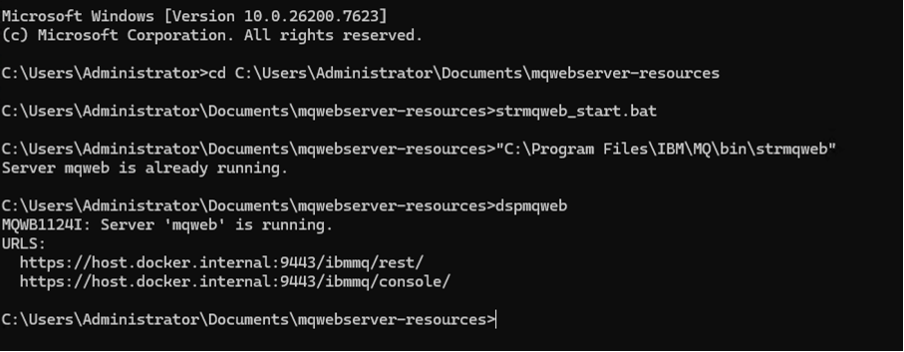
Create strmqweb_start.bat in the directory (Say C:\Users\Administrator\Documents\mqwebserver-resources) with the following contents.
"C:\Program Files\IBM\MQ\bin\strmqweb"
Remember to update the MQ Installation path to reflect your MQ setup. Run the batch file once to ensure that the script executes successfully.
Step 2
Create a Windows Scheduler Task and configure it to run the batch script created in step 1 upon server restart.
schtasks /create /tn "Start MQ Web" /tr "C:\Users\Administrator\Documents\mqwebserver-resources\strmqweb_start.bat" /sc onstart /ru SYSTEMschtasks /create: Initiates the creation of a new scheduled task./tn "Start MQ Web”: Specifies the Task Name. Use a descriptive name, potentially including the MQ Installation name for clarity in multi-installation environments./tr "C:\Users\Administrator\Documents\mqwebserver-resources\strmqweb_start.bat": Defines the Task Run command, which is the full path to your startup batch file. Ensure this path is correct./sc onstart: Sets the Schedule Type to run the task "on startup" of the computer./ru SYSTEM: Specifies the Run as User account. Using SYSTEM ensures the task runs with elevated privileges and does not require a user to be logged on. This is robust for system services. (Alternatively, you could also use a specific service account, e.g., /ru <Domain\User>, in which case you'd also need /rp <Password> for the password).
Upon successful execution, you should receive the following message.
SUCCESS: The scheduled task "Start MQ Web" has been successfully created.

Step 3
Stop the IBM MQ Web Server (if it's already running). Run taskschd.msc to verify the Scheduled Task creation and run it to perform an immediate functional test.
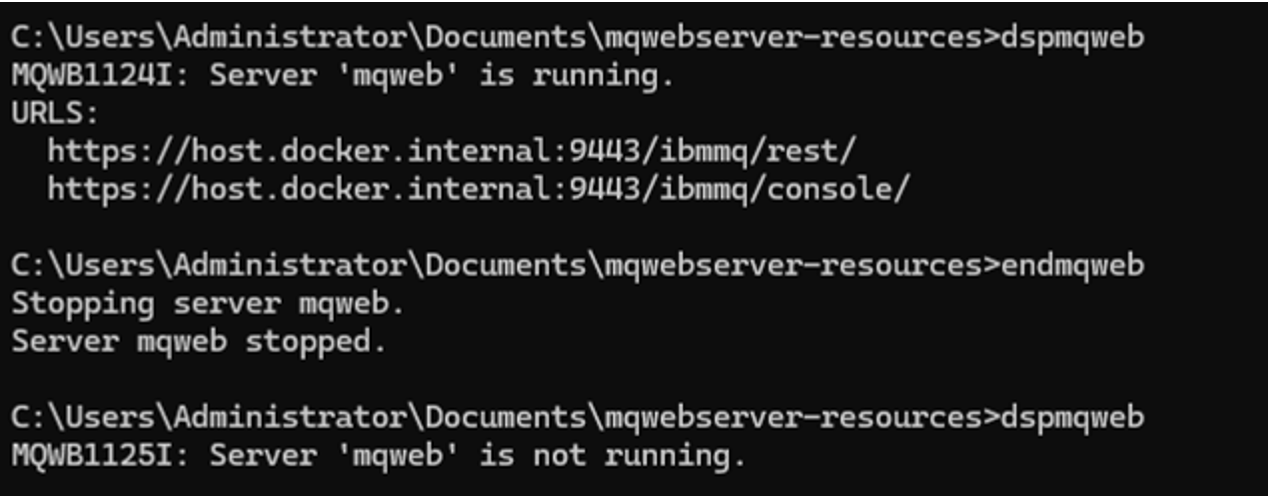
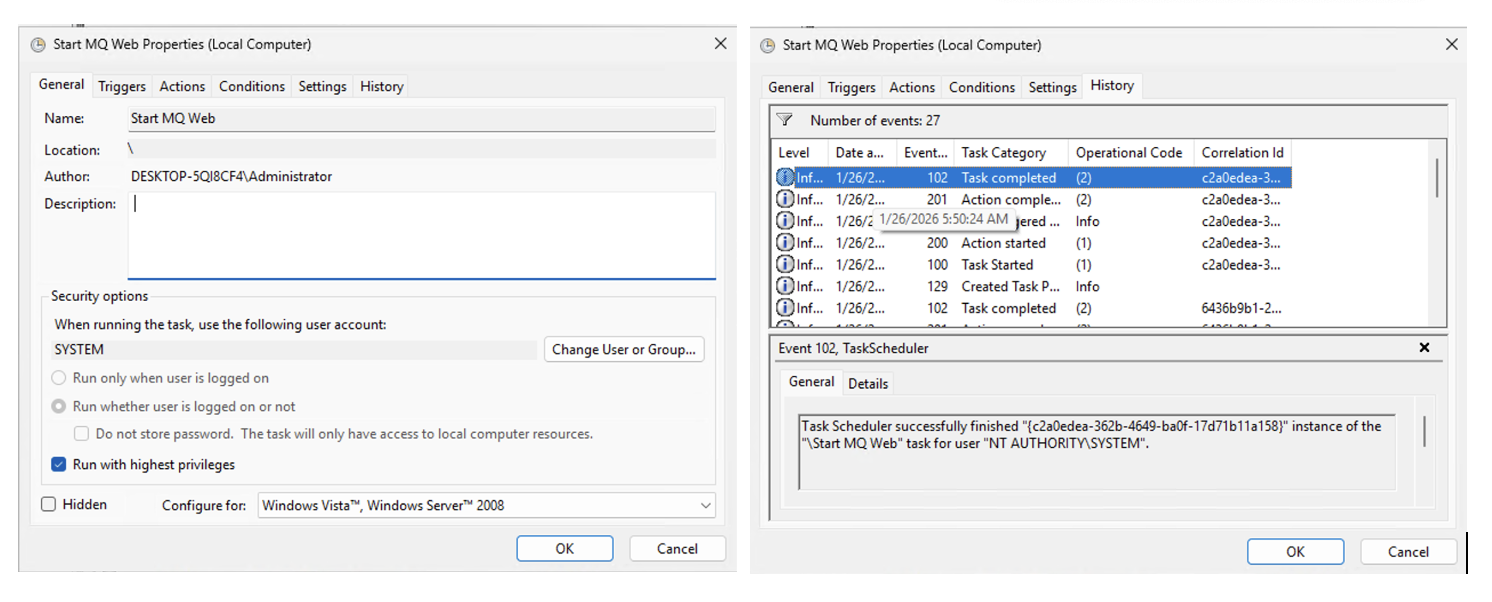
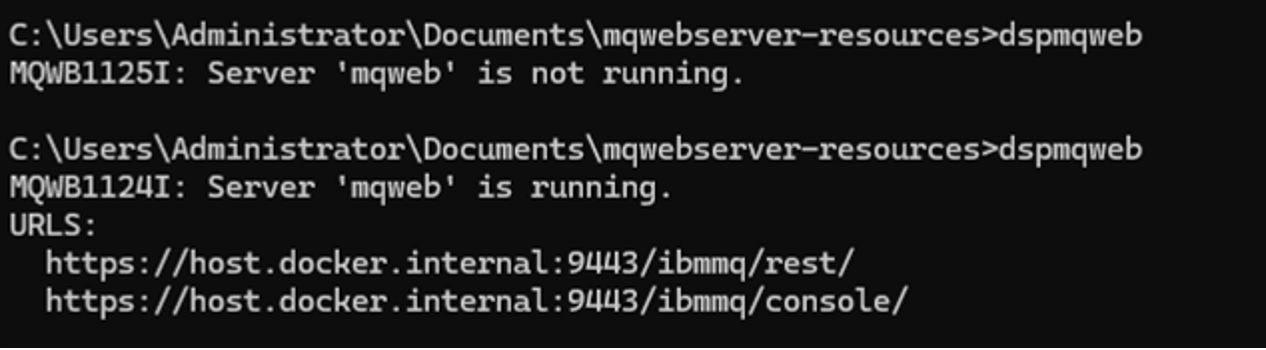
You can also stop the IBM MQ Web Server and reboot the Windows host server. Post-reboot, IBM MQ Web Server should be up and running and accessible via browser.
Note: The auto start-up task is executed only during server reboot. Post-reboot, if the MQ Web Server was stopped manually for applying fixes/upgrades, then the MQ Web Server will have to be restarted manually.
Automating MQ Web Server Startup on Linux Using Systemd
For Linux environments, systemd represents the standardized and robust framework for service management across modern distributions.
Step 1
Create a system service unit file (mqweb.service) within the /etc/systemd/system/ directory.
file: /etc/systemd/system/mqweb.service.
[Unit]
   Description=IBM MQ Web Server Auto Start Service
   After=network.target multi-user.target

   [Service]
   Type=forking
   # The service must execute under a user/group context possessing the necessary
   # permissions for MQ resource interaction (typically 'mqm').
   User=mqm
   Group=mqm
   WorkingDirectory=/var/mqm
   ExecStart=/opt/mqm/bin/strmqweb
   ExecStop=/opt/mqm/bin/endmqweb
   TimeoutStopSec=60
   # Automated restart mechanism: If the service terminates unexpectedly,
   # systemd will attempt to restart it after a brief delay.
   Restart=on-failure
   RestartSec=5
   KillMode=none
   LimitNOFILE=10240
   LimitNPROC=4096

   [Install]
WantedBy=multi-user.targetAfter: This tells systemd when to start this service. It will start MQ web server after the network is up (network.target) and after the system reaches the multi-user runlevel (multi-user.target), which is basically when the system is ready for most normal services.Type=forking:The service script will start a process and then fork (run in the background). This is typical for daemons. Systemd will consider the service "started" once the original process exits.User=mqm / Group=mqm: The service will run under the mqm user and group, which must have the necessary permissions to access MQ resources.WorkingDirectory=/var/mqm: This sets the current working directory for the service when it starts.ExecStart: The command or script to start the service. Here, it points to /opt/mqm/bin/strmqweb binary.ExecStop: The command to stop the service gracefully, here /opt/mqm/bin/endmqweb binary.TimeoutStopSec=60: Systemd will wait up to 60 seconds for the service to stop before forcefully killing it.Restart=on-failure: If the service crashes or fails, systemd will automatically restart it.RestartSec=5: If restarting is needed, systemd waits 5 seconds before attempting to start it again.KillMode=noneprevents systemd from force-killing MQ processesLimitNOFILEandLimitNPROCraise OS limits so MQ can handle high connection and process loads safely.
Step 2
Reload the systemd daemon and enable the service.
systemctl daemon-reload

systemctl enable mqweb.service

systemctl start mqweb.service
Step 3
Verify Service Operational status by executing the command below.
systemctl status mqweb.serviceExecuting dspmqweb should display the latest status of the IBM MQ Web Server on the Linux Host system.
Conclusion
Automating the startup of the IBM MQ Web Server represents a fundamental enhancement to the operational efficiency of any IBM MQ environment. By systematically implementing these OS-native startup configurations — utilizing Windows Task Scheduler or Linux systemd — administrators can ensure the consistent availability of the IBM MQ Console for administrative activities.
Published at DZone with permission of Ram Kasivisvanathan. See the original article here.
Opinions expressed by DZone contributors are their own.
Comments