

Building a Windows App for a Resilient SSH SOCKS Proxy and Selective Browser Routing
Route selected browser sites through a resilient local SSH SOCKS proxy on Windows using FoxyProxy. A tray app monitors the tunnel and restores dropped connections.
A full VPN is not always necessary. In addition, VPN connections may be unavailable because of restrictions imposed by a local or national internet provider. For the same reasons, a direct connection to an external SOCKS proxy may not work. Sometimes an alternative network route is needed not for the entire system, or even the entire browser, but only for specific addresses: an external API, an admin panel, documentation, a registry, a test environment, or another resource that is unavailable through the usual route.
In this article, we’ll look at a narrower approach to solving this problem:
- To route traffic at the Chrome level, we use an extension suited to the task. In this case, we use FoxyProxy;
- Chrome sends only traffic for domains specified in FoxyProxy rules through the proxy;
- A local SOCKS5 endpoint runs on
127.0.0.1:1080; - The endpoint is created using SSH dynamic forwarding;
- A PowerShell controller starts
ssh.exe, monitors its state, and reconnects after a disconnection; - An icon in the Windows notification area shows whether a local listener exists at the configured address and port;
- Launching the launcher again does not create a second controller or a second tray icon.
I could not find an available tool that met my needs: one that provided this functionality, started quickly, was simple to use, and made its status easy to see. Existing solutions either have unnecessary settings or have complicated, unfriendly interfaces that require lengthy configuration before they can be used for this task. So, to create a local SSH tunnel on Windows, I developed my own PowerShell controller, launched through a VBS script. It displays a system tray icon, lets the user restart the tunnel, and automatically restores the connection when it drops.
The complete source code for the PowerShell controller and VBS launcher, along with a sample configuration and installation instructions, is available in the repository:
https://github.com/dtiumentsev/socks-via-ssh-tunnel-tray
The controller is free to use under the MIT license.
When Selective Routing Beats a Full VPN
Suppose a developer needs access to a single API:
api.example.dev
Other websites, corporate services, local resources, and applications should continue to use the usual route. We also assume that outbound SOCKS traffic or VPN protocols may be unavailable.
In this scenario, FoxyProxy matches a URL or domain to a proxy profile defined in its settings, while the proxy itself runs only locally:
127.0.0.1:1080
The goal is to manage the local tunnel as a tray application and be able to check its status at any time without extra steps.
A local SOCKS5 proxy created through SSH dynamic forwarding is available at this address. Chrome connects to the local SOCKS5 endpoint, SSH encrypts the connection and carries it to the SSH host, and the remote side establishes a connection to the requested web resource.
The setup looks like this:
Chrome
  │
  ├── Regular domains ──────────────────────────────► Direct connection
  │
  └── api.example.dev
          │
          ▼
     FoxyProxy rule
          │
          ▼
     SOCKS5: 127.0.0.1:1080
          │
          ▼
     ssh.exe with dynamic forwarding (-D)
          │
          ▼
     VPS / SSH host
          │
          ▼
     api.example.dev
The advantage of this approach is its limited scope. The tunnel does not change Windows’ system-wide routing and does not affect applications that are not configured to use this SOCKS5 proxy.
Prerequisites
This article assumes that a VPS or other SSH host already exists and that the reader has legitimate key-based access to it. Preparing a VPS, installing sshd, and configuring server-side authentication are outside the scope of this article.
The minimum requirements are:
- Windows 10 or Windows 11;
- The OpenSSH Client component installed;
- PowerShell 5.1 or later;
- A VPS or another SSH host accessible with a key;
- A private key corresponding to a public key authorized on the server;
- Google Chrome, Chromium, or another compatible browser;
- The FoxyProxy extension;
- Permission to use the SSH host and access the target resources.
To check whether the built-in OpenSSH Client is present, run:
Test-Path "$env:WINDIR\System32\OpenSSH\ssh.exe"
A result of True means the path to ssh.exe exists.
To check whether the private key is available, run:
Test-Path "$env:USERPROFILE\.ssh\id_rsa"
All environment-specific parameters are kept in a separate config.ps1 file.
Here is an example configuration:
$SshTunnelConfig = @{
    SshPath     = "$env:WINDIR\System32\OpenSSH\ssh.exe"
    KeyPath     = "$env:USERPROFILE\.ssh\id_rsa"
    SshHost     = "[email protected]"
    RemotePort  = 22
    BindAddress = "127.0.0.1"
    LocalPort   = 1080
}
The main script loads config.ps1 from its own directory using $PSScriptRoot. The repository contains config.example.ps1; the working config.ps1 contains the actual local settings.
SSH Dynamic Forwarding as a Local SOCKS5 Proxy
The solution is based on SSH dynamic forwarding, an OpenSSH client mode enabled with the -D option.
A simplified command looks like this:
ssh.exe `
  -i "$env:USERPROFILE\.ssh\id_rsa" `
  -p 22 `
  -D 127.0.0.1:1080 `
  -N `
  [email protected]
After a successful connection, the SSH client begins listening on a local TCP port 1080 at 127.0.0.1. Any application that supports SOCKS5 can use this endpoint.
Importantly, the listener is bound to the loopback address:
127.0.0.1:1080
rather than:
0.0.0.0:1080
The first option is accessible only from the local machine. The second would make the SOCKS proxy accessible to other devices on the network, which is unnecessary for this scenario and increases the risk of unauthorized use.
SSH Options
The controller uses the following arguments:
$arguments = "-4 -i `"$keyPath`" -p $remotePort -D ${bindAddress}:$port -N " +
             "-o ExitOnForwardFailure=yes " +
             "-o ServerAliveInterval=15 " +
             "-o ServerAliveCountMax=3 " +
             "-o ConnectTimeout=10 " +
             "-o StrictHostKeyChecking=accept-new " +
             "-o IdentitiesOnly=yes " +
             $sshHost
Here is what the main options do:
| Option | Purpose |
|---|---|
-4 |
Forces IPv4 for the connection to the SSH host |
-i <key> |
Specifies a particular private key |
-p <port> |
Sets the server’s SSH port |
-D 127.0.0.1:1080 |
Creates a local SOCKS5 listener on the loopback interface |
-N |
Does not open an interactive shell session or execute a remote command |
ExitOnForwardFailure=yes |
Exits SSH if dynamic forwarding cannot be established |
ServerAliveInterval=15 |
Sends SSH-level keepalive packets every 15 seconds of inactivity |
ServerAliveCountMax=3 |
Closes SSH after three unanswered keepalive messages |
ConnectTimeout=10 |
Limits the time allowed for a TCP connection attempt to the SSH host |
StrictHostKeyChecking=accept-new |
Adds a new server’s key to known_hosts but does not silently accept a change to a previously known key |
IdentitiesOnly=yes |
Uses the specified key rather than trying every identity available through ssh-agent |
ExitOnForwardFailure=yes is especially important for automation. If the local listener cannot be created, SSH should not keep running as though the tunnel were available. This option makes the client exit when it cannot establish dynamic, local, remote, or tunnel forwarding.
StrictHostKeyChecking=accept-new is a practical compromise for the first connection to a new SSH host. It does not disable checking a previously known host key: if the server’s key changes unexpectedly, the client should terminate the connection rather than silently trust the new key. Host key verification remains part of SSH’s security model.
Why Starting SSH Once Is Not Enough
Running ssh.exe -D solves only the initial problem: it creates a SOCKS listener. In practice, long-lived connections regularly encounter unstable conditions:
- A laptop goes to sleep and wakes up;
- The device switches between Wi-Fi, Ethernet, and mobile internet;
- The external IP address changes;
- A home router restarts;
- The SSH host becomes temporarily unavailable;
- The TCP session’s network state becomes stale;
- The
ssh.exeprocess exits because of an authentication error, timeout, or network interruption.
If SSH was started manually in a separate window, the user has to notice the interruption, determine that the listener is gone, and run the command again. That is inconvenient for a background tool.
A small controller can handle four tasks:
- Start
ssh.exein the background. - Check whether the local SOCKS port is listening.
- Wait for a specified interval after SSH exits, then try to reconnect.
- Show the current state through a system tray icon.
The PowerShell Controller
The complete script is in the repository, but its logic is fairly straightforward.
The controller keeps a reference to the SSH process:
$script:sshProcess = $null
It also sets a reconnect delay:
$reconnectDelaySeconds = 5
After starting ssh.exe, the controller does not immediately declare the tunnel operational. It checks for a local listener using Get-NetTCPConnection:
Get-NetTCPConnection `
    -LocalAddress $bindAddress `
    -LocalPort $port `
    -State Listen `
    -ErrorAction SilentlyContinue
This is better than relying only on the PID returned by Start-Process. A process starting successfully does not mean SSH has authenticated, established a session, and opened the local SOCKS listener.
A simplified version of the check looks like this:
function Is-Port-Listening {
    $listener = Get-NetTCPConnection `
        -LocalAddress $bindAddress `
        -LocalPort $port `
        -State Listen `
        -ErrorAction SilentlyContinue

    return ($null -ne $listener)
}
When the controller detects a TCP listener at the configured address and port, it shows a green icon. If the listener disappears, the icon turns red.
Why Use a WinForms Timer?
To keep the tray icon working, the PowerShell script runs a WinForms message loop:
[System.Windows.Forms.Application]::Run()
If the script exits, the icon disappears. The tray interface also stops responding to clicks and context-menu actions.
The tunnel is checked periodically using System.Windows.Forms.Timer:
$timer = New-Object System.Windows.Forms.Timer
$timer.Interval = $checkIntervalMs
In the current version, the check runs every five seconds. This reduces how often the port is polled; the exact time of the next connection attempt depends on when the timer fires after the reconnect delay expires.
NotifyIcon is the standard Windows Forms component for displaying an icon in the Windows notification area. It works well for a small background controller with a minimal interface.
How Reconnection Works
The recovery logic is intentionally simple:
ssh.exe exits
   ↓
The controller clears the saved PID
   ↓
It waits five seconds
   ↓
It starts another attempt if the port is free
Here is the part that detects when SSH has exited:
if ($script:sshProcess -and $script:sshProcess.HasExited) {
    $script:sshProcess = $null
    $script:nextStartTime = (Get-Date).AddSeconds($reconnectDelaySeconds)
}
Then, once the wait is over:
if (
    -not $script:sshProcess -and
    -not (Is-Port-Occupied) -and
    (Get-Date) -ge $script:nextStartTime
) {
    Start-Ssh
}
Before starting a new process, the controller checks whether the configured local port is free. It does not terminate a process that may have occupied the port: in the event of a conflict, the user must free the port manually or choose another LocalPort in config.ps1.
Reconnection cannot begin until the SSH client realizes that the connection is no longer working. The following SSH keepalive settings help with that:
ServerAliveInterval=15
ServerAliveCountMax=3
With ServerAliveInterval=15 and ServerAliveCountMax=3, SSH may detect an unresponsive server after approximately 45 seconds (15 × 3).
The controller then waits another five seconds before attempting to reconnect.
This is not a strict recovery-time guarantee. The actual result depends on the TCP connection’s state, the type of interruption, network latency, and the behavior of the SSH host. Still, this mechanism is much more reliable than passively waiting for the system’s TCP timeout.
The System Tray Icon
Keeping a PowerShell window open for a background tunnel is inconvenient. An icon in the notification area provides a simple interface:
- A green icon means a local TCP listener was detected at the configured
${BindAddress}:${LocalPort}; in the example configuration, that is127.0.0.1:1080;
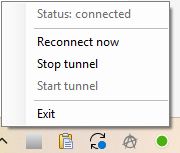
- A red icon means the listener is absent or the tunnel has been stopped;
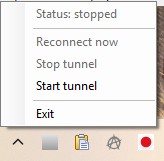
- A context menu provides manual control over the connection lifecycle.
Version 1 provides the following commands:
| Menu item | Action |
|---|---|
Reconnect now |
Terminates the current managed SSH process and initiates another connection attempt |
Stop tunnel |
Stops SSH and disables automatic reconnection |
Start tunnel |
Resumes the controller and starts another connection attempt |
Exit |
Stops SSH, removes the tray icon, and exits the PowerShell controller |
A manual stop is fundamentally different from a network failure. After Stop tunnel, the controller sets an internal stopped state and does not start SSH again. Otherwise, the script would restore the tunnel five seconds after the user stopped it.
Why the Icon Is Not Updated on Every Timer Tick
I do not consider reassigning NotifyIcon.Icon on every timer tick a good approach. Even when the state has not changed, Windows has to redraw the icon, which may look like flickering.
In version 1, the port state is stored:
$script:lastPortState = $null
The icon changes only when the state changes:
if ($alive -eq $script:lastPortState) {
    return
}
This is a small detail, but it matters for the normal behavior of a background tool.
Preventing Duplicate Launches
It is easy to launch a tray application again—for example, by double-clicking the launcher a second time. Without protection, this could produce two tray icons and multiple PowerShell controllers trying to manage the same local port.
A named mutex prevents that:
$mutexName = "Local\Denis_SocksTunnelTray_v1"
$createdNew = $false

$mutex = New-Object System.Threading.Mutex(
    $true,
    $mutexName,
    [ref]$createdNew
)

if (-not $createdNew) {
    $mutex.Dispose()
    exit 0
}
The first instance creates the mutex and owns it for as long as it runs. When launched again, the second instance detects the existing mutex and exits immediately. It does not create a second SSH process or add another tray icon.
The Local\ prefix limits the mutex’s scope to the current Windows user session. That is sufficient for a desktop tool running in a normal interactive session.
Launching Without a Black Console Window
Launching a .ps1 file through a .cmd file opens a cmd.exe window. Even if the PowerShell process is minimized or hidden, the console launcher can still be visible briefly.
A minimal VBS launcher is more convenient for users. It starts PowerShell in hidden mode and then exits.
The Start-SocksTunnelTray.vbs file sits next to the PowerShell script:
Option Explicit

Dim fso, shell, folder, ps1, command

Set fso = CreateObject("Scripting.FileSystemObject")
Set shell = CreateObject("WScript.Shell")

folder = fso.GetParentFolderName(WScript.ScriptFullName)
ps1 = folder & "\Start-SocksTunnelTray.ps1"

command = "powershell.exe -NoLogo -NoProfile -STA -WindowStyle Hidden -ExecutionPolicy Bypass -File """ & ps1 & """"

shell.Run command, 0, False
Here:
-NoLogoremoves the PowerShell startup banner;-NoProfileprevents the user’s PowerShell profile from affecting the process;-STAstarts PowerShell in a single-threaded apartment model suitable for Windows Forms;-WindowStyle Hiddenhides the PowerShell window;-ExecutionPolicy Bypassapplies only to this process and does not change the system’s execution policy;shell.Run command, 0, Falsestarts the process without displaying a window and does not wait for it to exit.
The user double-clicks the VBS file and sees only the tray icon.
Configuring FoxyProxy
Once the tunnel is running, the browser needs to know which requests to send through the local SOCKS5 proxy.
In FoxyProxy, create a proxy profile with these settings:
Proxy type: SOCKS5
Host/IP address: 127.0.0.1
Port: 1080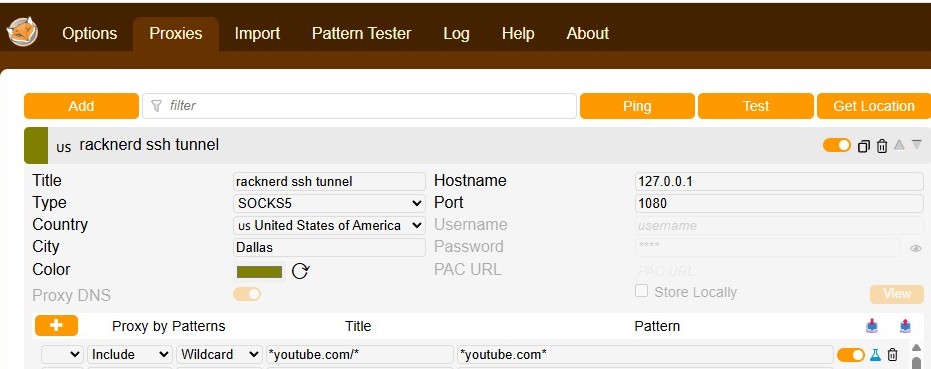
Next, add a rule that applies the profile only to the required domain. For example:
https://api.example.dev/*
Or, if subdomains are needed:
https://*.example.dev/*

The key is not to enable proxying for all URLs when the goal is selective routing. The narrower the rule, the easier it is to control its effects and troubleshoot problems.
DNS Through SOCKS
If the extension offers a “DNS resolution through SOCKS5” setting, it makes sense to enable it for domains that should use the proxy route.
The practical reason is simple: a standard SOCKS5 profile may forward the TCP connection, but the browser or operating system may resolve the hostname locally before opening that connection. Depending on the configuration, this means some network information does not follow the selected route.
To test from the command line, you can use:
curl.exe --proxy socks5h://127.0.0.1:1080 https://api.example.dev/
The h in socks5h indicates that the proxy, rather than the local system, should resolve the hostname.
Verifying the Tunnel
First, make sure Windows sees the listener:
Get-NetTCPConnection -State Listen -LocalPort 1080 |
    Select-Object LocalAddress, LocalPort, OwningProcess
Expected output looks like this:
LocalAddress LocalPort OwningProcess
------------ --------- -------------
127.0.0.1         1080         12345

Next, you can test proxying through an external service that reports the IP address of the outgoing connection:
curl.exe --proxy socks5h://127.0.0.1:1080 https://api.ipify.org
If the command returns the address of your external proxy host, the traffic is passing through the local SOCKS5 endpoint and the remote route.
Diagnosing an Occupied Local Port
If the tray icon remains in the reconnecting state, check which process is listening on the local port. The repository includes a separate diagnostic script for this:
.\scripts\Check-SocksPort.ps1
The script checks the fixed TCP port 1080 and displays the LocalAddress, LocalPort, state, owning PID, and process name. If config.ps1 specifies a different LocalPort, change $port = 1080 in scripts/Check-SocksPort.ps1 to the required port. The script does not terminate processes or change the configuration.
If an old ssh.exe process occupies the port, exit the old controller using Exit, or stop the process in a Windows session with the same privileges under which it was started. If another program occupies the port, do not terminate it automatically: change LocalPort in config.ps1 and in the FoxyProxy profile, for example, from 1080 to 1081.
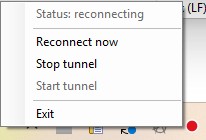
Testing Recovery After a Failure
A minimal test:
- Start the controller using
Start-SocksTunnelTray.vbs. - Wait for the green icon.
- Open Task Manager.
- Find the
ssh.exeprocess started by the controller. - End the process.
- Confirm that the tray icon changes to the unavailable state.
- Wait for several check cycles.
- Check that a new
ssh.exeprocess appears. - Confirm that the listener at
127.0.0.1:1080is available again.
You can also test the following scenarios:
| Scenario | Expected behavior |
|---|---|
| Temporarily disconnect from the network | SSH detects the lost connection through keepalives, exits, and the controller begins reconnect attempts |
Click Stop tunnel |
SSH exits, the listener disappears, and no reconnection occurs |
Click Start tunnel |
The controller starts SSH again |
Click Reconnect now |
The current SSH process exits, followed by another connection attempt |
| Launch the VBS launcher a second time | The second instance exits silently because of the mutex |
Have another program occupy port 1080 |
SSH cannot establish forwarding; the conflict must be resolved or another port selected |
| Check a regular site without a FoxyProxy rule | Traffic should go directly rather than through the SOCKS profile |
Check api.example.dev with a rule |
The request should use the local SOCKS5 profile |
The Indicator Checks the Local Port
A green icon means there is a TCP listener at the configured address and port. The controller does not check whether the listener belongs to the ssh.exe process it started, nor does it confirm that the target site is reachable. If an old SSH process or another program occupies the port, check its owner using scripts/Check-SocksPort.ps1. The controller does not automatically terminate that process.
SOCKS Dynamic Forwarding Is Primarily for TCP
SSH dynamic forwarding works as a SOCKS proxy and is primarily intended for TCP connections. It is not a universal way to route every protocol on the system. If you need to proxy UDP, the entire network stack, or multiple applications without built-in proxy support, you will need a different type of solution.
Security Recommendations
A few useful practices:
- Bind the SOCKS listener to
127.0.0.1, not0.0.0.0. - Use a passphrase-protected SSH key if your workflow supports
ssh-agent. - Verify the SSH host’s fingerprint before connecting for the first time.
- Do not disable host key checking globally with
StrictHostKeyChecking=no. - Keep the list of FoxyProxy domains short and explicit.
Repository Structure
The socks-via-ssh-tunnel-tray repository is organized as follows:
socks-via-ssh-tunnel-tray/
├── CHANGELOG.md
├── CONTRIBUTING.md
├── LICENSE
├── README.md
├── SECURITY.md
├── Start-SocksTunnelTray.ps1
├── Start-SocksTunnelTray.vbs
├── config.example.ps1
├── icons/
│   ├── down.ico
│   └── up.ico
└── scripts/
    └── Check-SocksPort.ps1
config.example.ps1 contains only a template:
$SshTunnelConfig = @{
    SshPath     = "$env:WINDIR\System32\OpenSSH\ssh.exe"
    KeyPath     = "$env:USERPROFILE\.ssh\id_rsa"
    SshHost     = "[email protected]"
    RemotePort  = 22
    BindAddress = "127.0.0.1"
    LocalPort   = 1080
}
The user copies it to config.ps1 and fills in their own settings. The repository’s code is distributed under the MIT license.
Conclusion
An application using SSH dynamic forwarding provides a local SOCKS5 endpoint without requiring a separate proxy service on the client machine. Combined with FoxyProxy, it becomes a selective routing tool: the browser uses an alternative route only for explicitly selected domains, while the rest of the system continues to work as usual.
This PowerShell controller handles the operational side of the task:
- It starts
ssh.exein the background; - It shows the listener’s status through a tray icon;
- It restores the connection after the SSH tunnel drops;
- It distinguishes a manual stop from a network failure;
- It prevents duplicate instances when launched again;
- It does not leave a console window open.
For a developer or infrastructure engineer, this is a simple, functional alternative to a system-wide tunnel when a managed route is needed for only a few resources rather than changing the routing of the entire computer, including in situations involving restrictions imposed by internet providers.
Opinions expressed by DZone contributors are their own.