DZone
Thanks for visiting DZone today,
Edit Profile
  • Manage Email Subscriptions
  • How to Post to DZone
  • Article Submission Guidelines
Sign Out View Profile
  • Post an Article
  • Manage My Drafts
Over 2 million developers have joined DZone.
Log In / Join
Refcards Trend Reports
Events Video Library
Refcards
Trend Reports

Events

View Events Video Library

Related

  • MuleSoft MCP and A2A in Production: What 17 Recipes Reveal
  • MuleSoft IDP: Enhancing Efficiency and Accuracy in Data Extraction
  • From AI Chaos to Control: Building Enterprise-Grade LLM Gateways With MuleSoft Anypoint
  • Revolutionizing Scaled Agile Frameworks with AI, MuleSoft, and AWS: An Insider’s Perspective

Trending

  • AI Agents in Java: Architecting Intelligent Health Data Systems
  • S3 Vectors: How to Build a RAG Without a Vector Database
  • Solving the Mystery: Why Java RSS Grows in Docker on M1 Macs
  • Bringing Intelligence Closer to the Source: Why Real-Time Processing is the Heart of Edge AI
  1. DZone
  2. Software Design and Architecture
  3. Integration
  4. Connecting Salesforce With MuleSoft

Connecting Salesforce With MuleSoft

Learn how you can fetch and view all chosen accounts objects from Salesforce in MuleSoft with this quick integration tutorial.

By 
dharani vp user avatar
dharani vp
·
Jun. 30, 17 · Tutorial
Likes (3)
Comment
Save
Tweet
Share
21.7K Views

Join the DZone community and get the full member experience.

Join For Free

As most of you know, Salesforce is a leader in CRM (Customer Relationship Management). Let's see how to connect to Salesforce from MuleSoft.

Use Case

To fetch all accounts objects from Salesforce in MuleSoft.

Steps

  1.  Create a new project in Mulesoft (File->New->Mule Project) and give the project a name. Click Finish.  
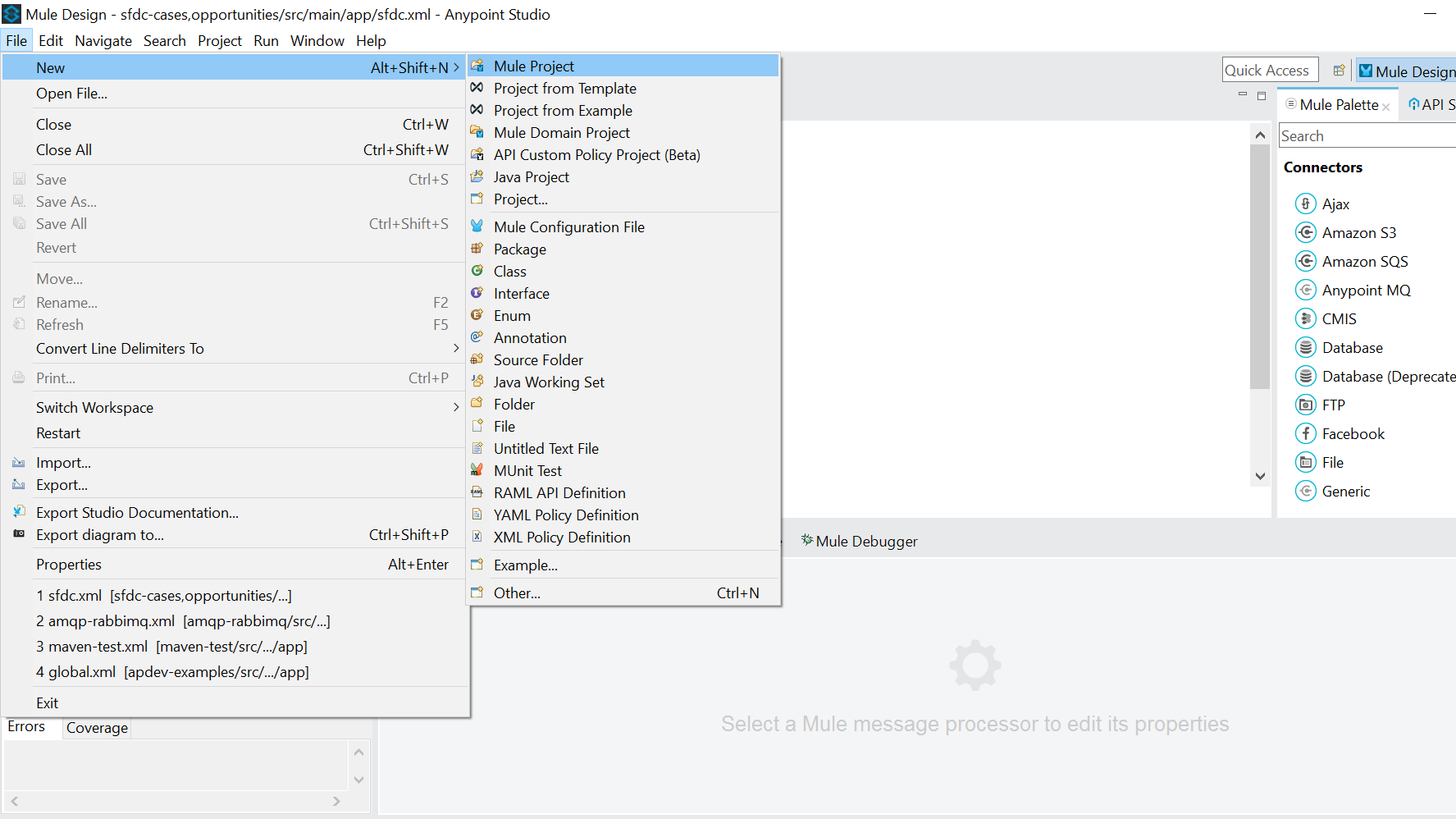
    Image title

  2. Create an account on developers.salesforce.com. After sign-in, in the home page top right corner under your name, go to My Settings. Image title
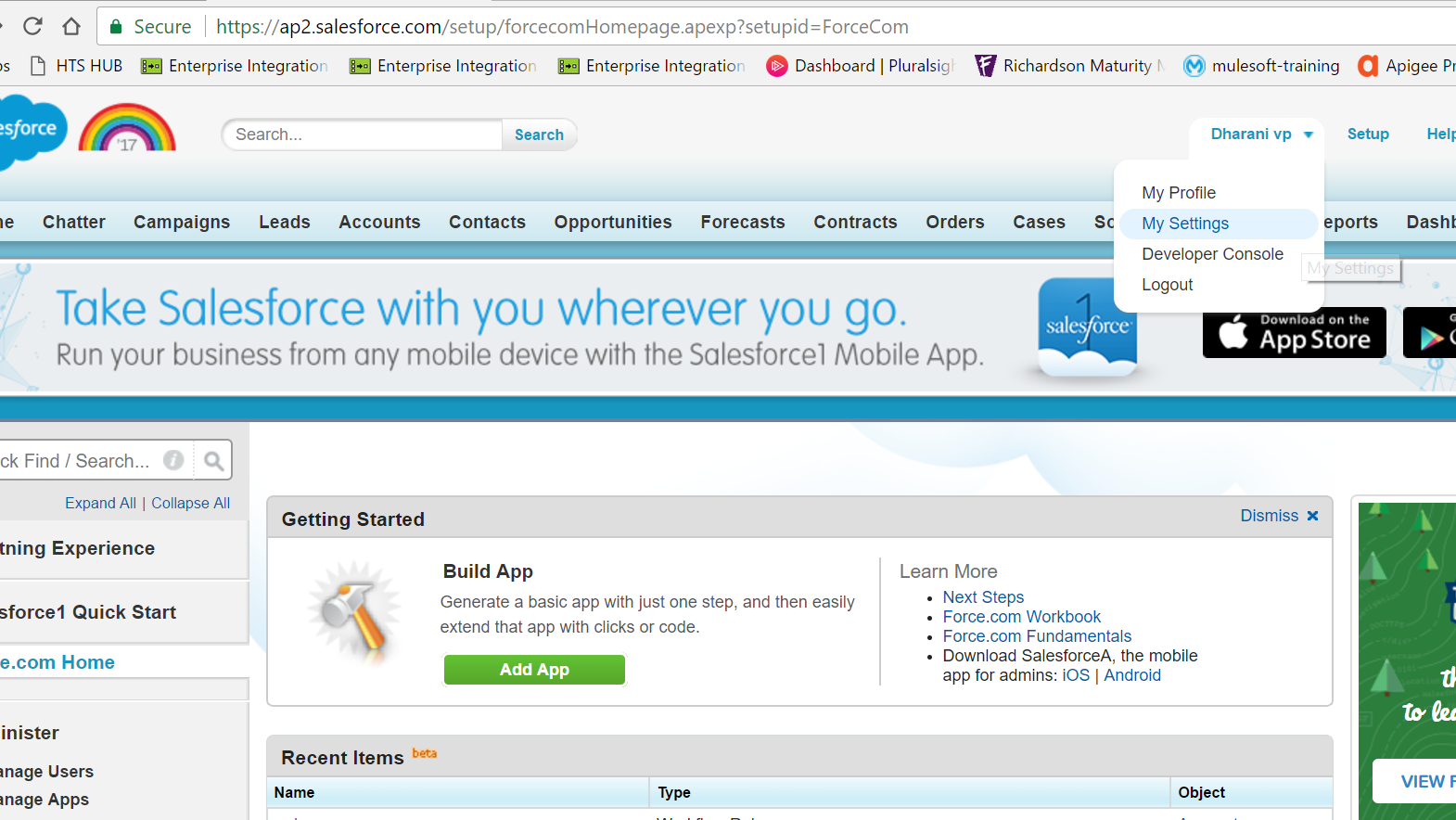
  3. Go to Personal Tab and select "Reset My Security Token." You will get the security token in the registered mail id.

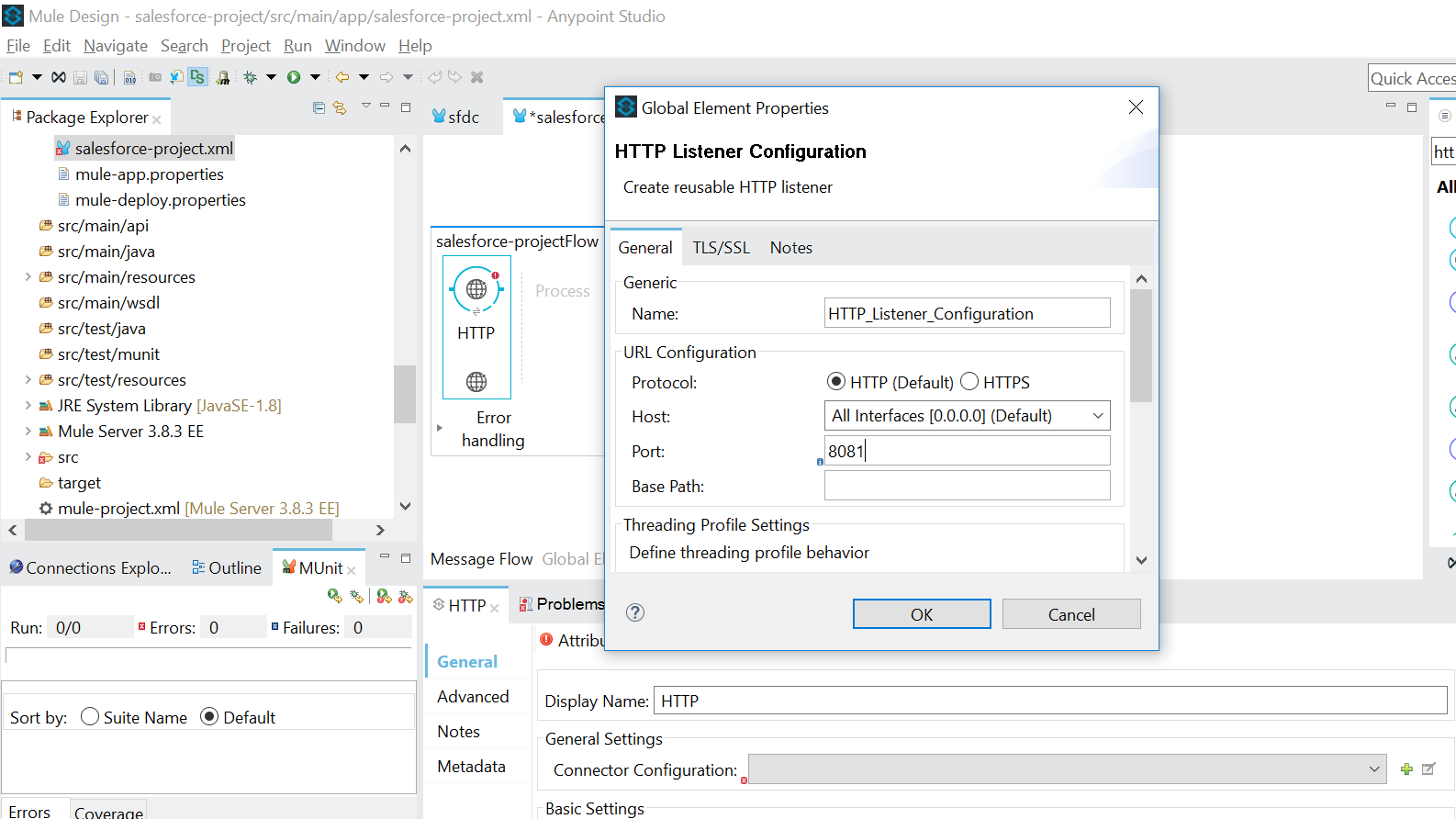
  4. In Anypoint Studio, drag the HTTP component and configure the connector configuration. Select the host and enter the port number. Click OK.Image title

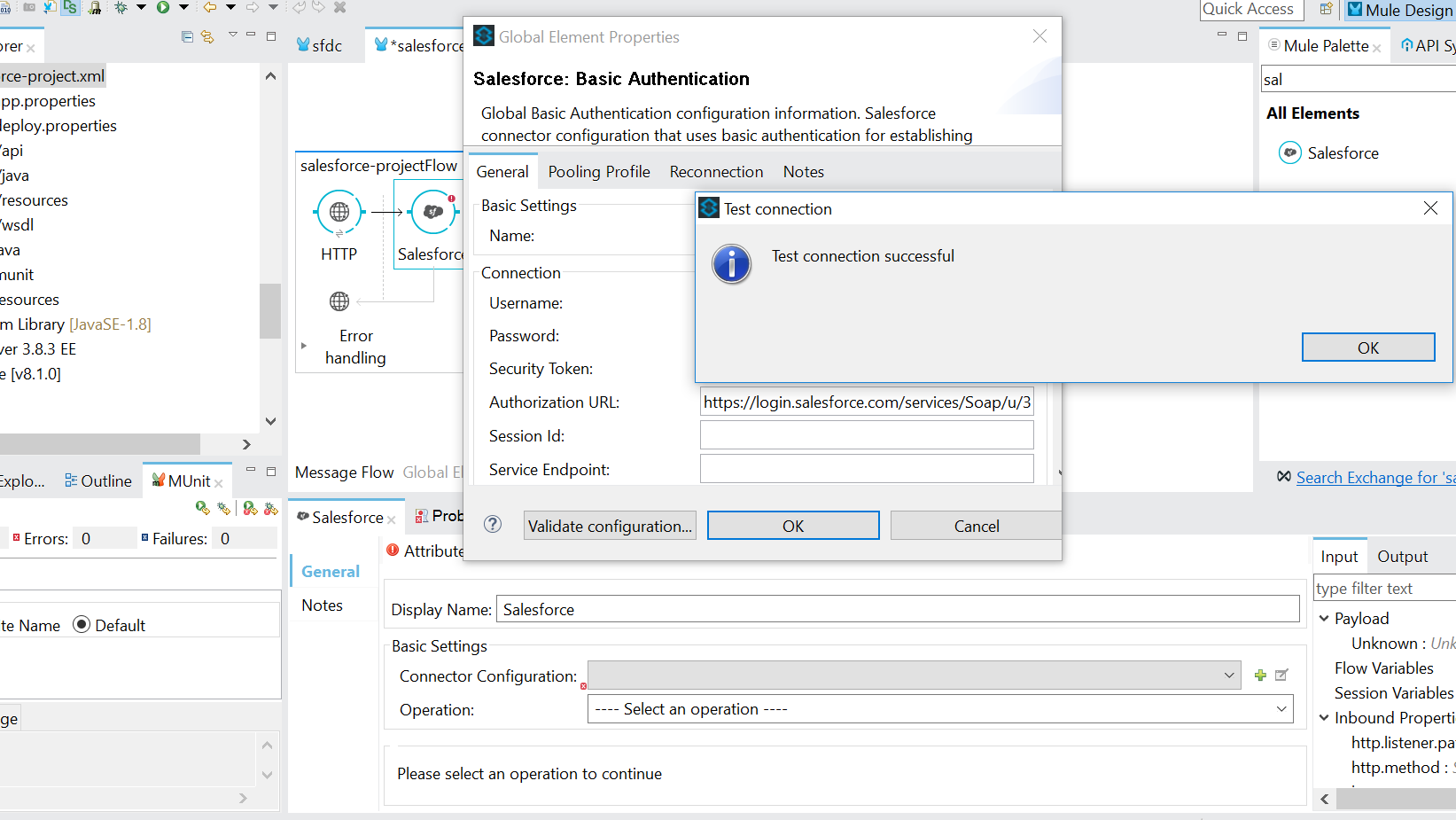
  5. Drag the Salesforce connector from the Mule Palette. Add a connector configuration and select Salesforce: Basic Authentication. Image title
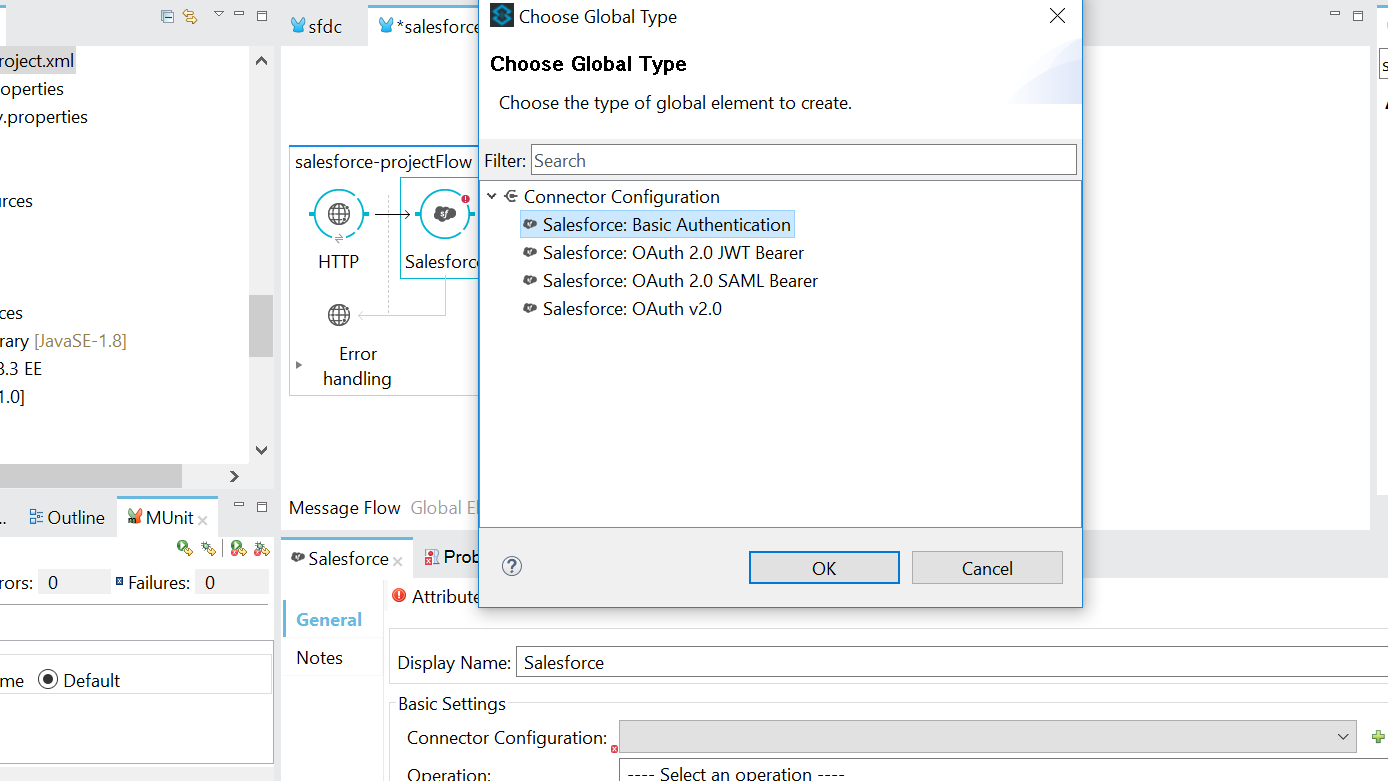
  6. Provide your username, password, and security token. Click on Validate Configuration and check whether the test connection is successful.Image title

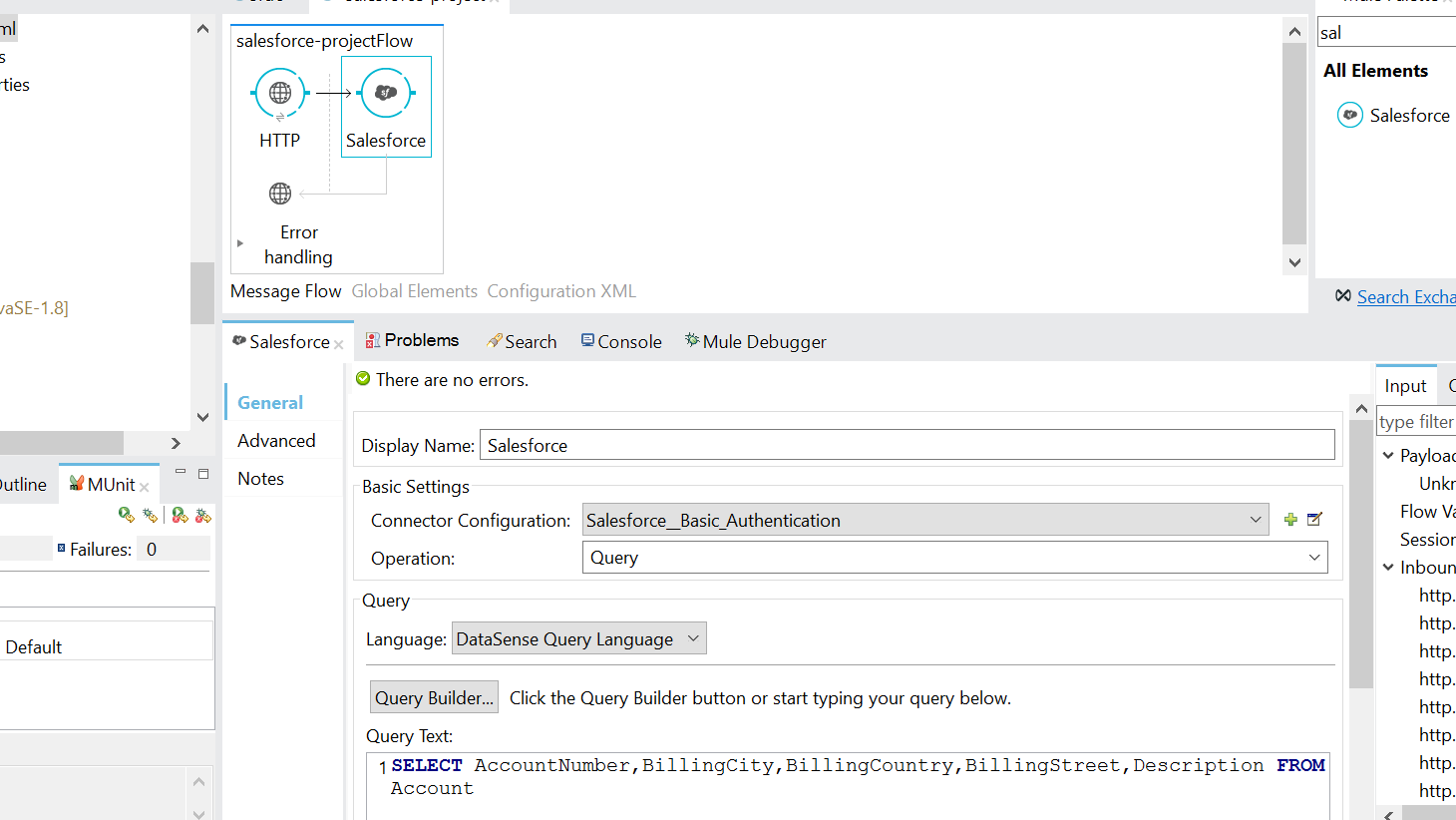
  7. Select the "Query" operation andset the Language as "DataSense Query Language." Click on Query Builder. Select Accounts Object and the necessary columns (in my case: AccountNumber, BillingCity, BillingCountry, BillingStreet, and Description) and click OK. The query is automatically generated, as below:Image title

  8. The outcome of the query operation in Salesforce is a consumerIterator object. In order to view the output in a readable form (like JSON), use the object to JSON transformer.

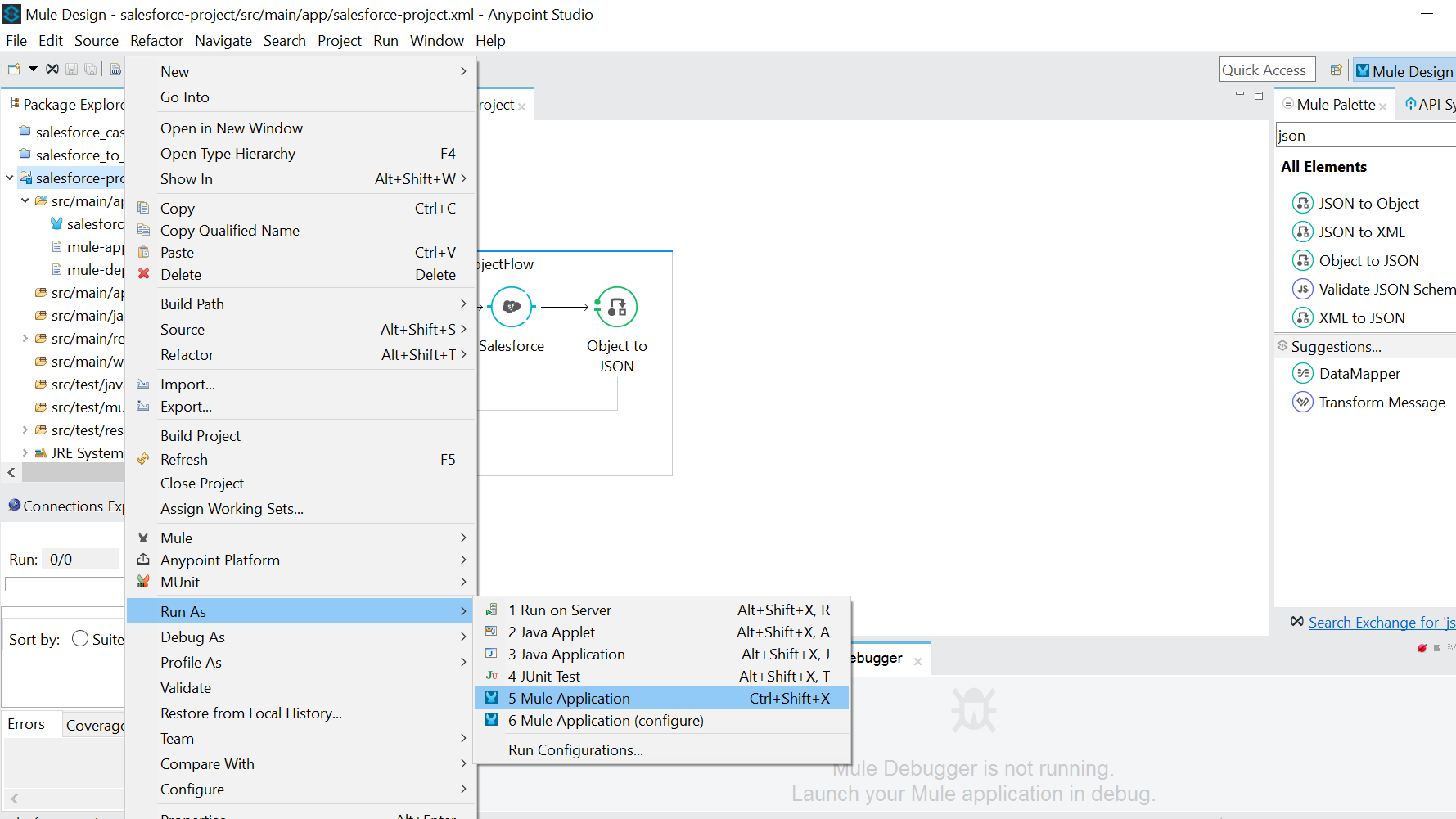
  9. Save the project and right click the project folder in the project explorer->Run As->Mule Application.Image title

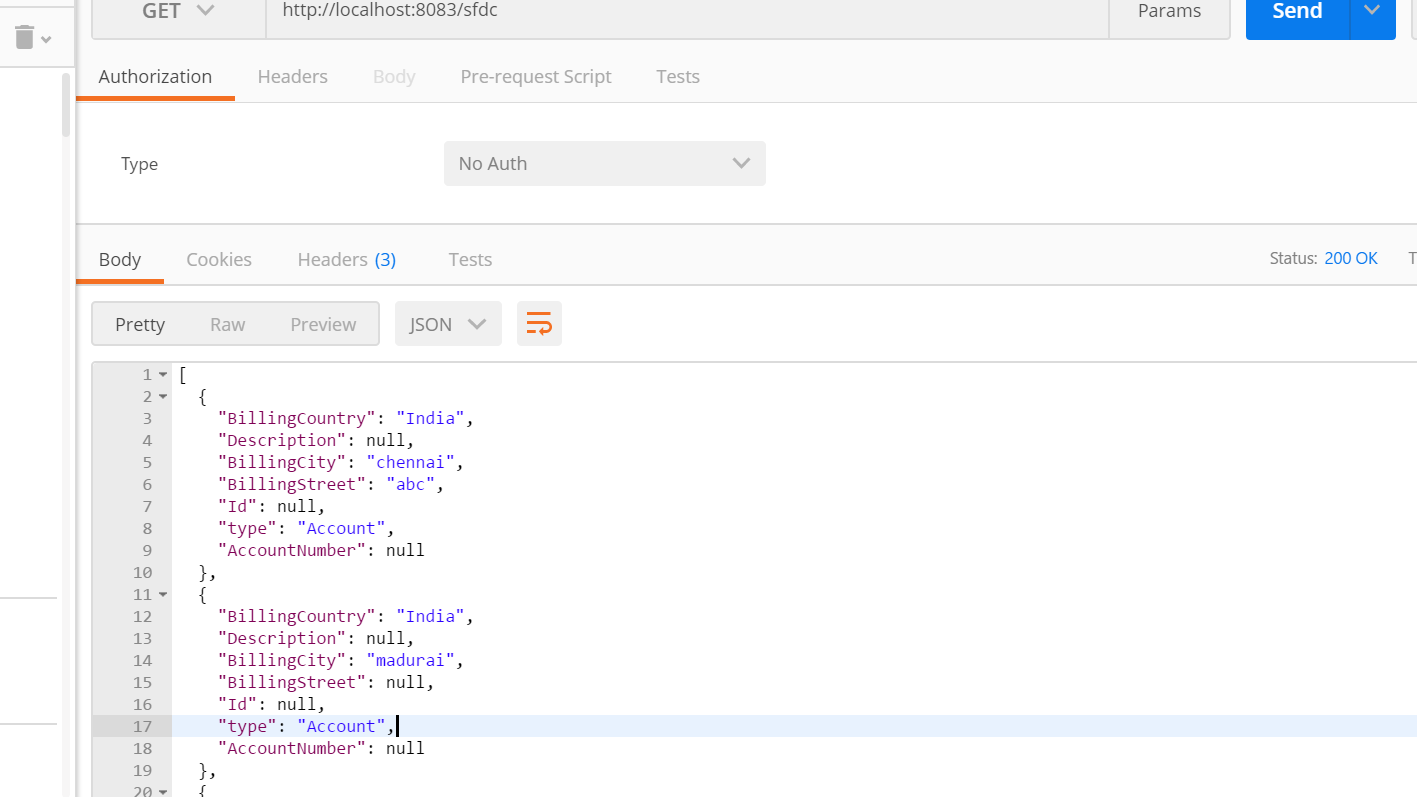
  10. In the console, the status of the application can be seen as "DEPLOYED." Go to the browser (or Postman) and hit the endpoint (http://localhost:8081). The selected fields from the Account object are displayed.Image title

MuleSoft

Opinions expressed by DZone contributors are their own.

Related

  • MuleSoft MCP and A2A in Production: What 17 Recipes Reveal
  • MuleSoft IDP: Enhancing Efficiency and Accuracy in Data Extraction
  • From AI Chaos to Control: Building Enterprise-Grade LLM Gateways With MuleSoft Anypoint
  • Revolutionizing Scaled Agile Frameworks with AI, MuleSoft, and AWS: An Insider’s Perspective

Partner Resources

×

Comments

The likes didn't load as expected. Please refresh the page and try again.

  • RSS
  • X
  • Facebook

ABOUT US

  • About DZone
  • Support and feedback
  • Community research

ADVERTISE

  • Advertise with DZone

CONTRIBUTE ON DZONE

  • Article Submission Guidelines
  • Become a Contributor
  • Core Program
  • Visit the Writers' Zone

LEGAL

  • Terms of Service
  • Privacy Policy

CONTACT US

  • 3343 Perimeter Hill Drive
  • Suite 215
  • Nashville, TN 37211
  • [email protected]

Let's be friends:

  • RSS
  • X
  • Facebook