

Data-Driven API Testing in Java With REST Assured and TestNG: Part 4
Learn how to perform data-driven API automation testing with Rest-Assured using JSON Files and TestNG's @DataProvider annotation.
 CORE
·
CORE
·
Join the DZone community and get the full member experience.
Join For FreeAPIs are at the heart of almost every application, and even small issues can have a big impact. Data-driven API testing with JSON files using REST Assured and TestNG makes it easier to validate multiple scenarios without rewriting the same tests again and again. By separating test logic from test data, we can build cleaner, flexible, and more scalable automation suites.
In this article, we’ll walk through a practical, beginner-friendly approach to writing API automation tests with REST Assured and TestNG using JSON files as the data provider.
Data-Driven API Testing With JSON files and TestNG’s @DataProvider
The setup and configuration remain the same as discussed in the earlier tutorial. Additionally, the following dependency for the Google-gson library should be added to the pom.xml to handle the JSON files.
<dependency>
    <groupId>com.google.code.gson</groupId>
    <artifactId>gson</artifactId>
    <version>2.13.2</version>
    <scope>compile</scope>
</dependency>
For this demonstration, we will use the POST /addOrder API from the RESTful e-commerce demo application. The API schema is shown below for reference:
[
  {
    "user_id": "string",
    "product_id": "string",
    "product_name": "string",
    "product_amount": 0,
    "qty": 0,
    "tax_amt": 0,
    "total_amt": 0
  }
]
The following are two approaches for handling the JSON file as a data provider:
- POJO-based (Object-Mapping) approach
- Map-based (Dynamic Parsing) approach
POJO-Based (Object-Mapping) Approach
In the POJO-based approach, JSON data is mapped directly to custom Java classes that represent the structure of the API request or response. Each field in the JSON corresponds to a variable in the POJO, making the data easy to read, access, and maintain. This approach is useful for stable APIs where the data format does not change frequently.
Creating the POJO Class
The following POJO class should be created to map the JSON file fields to the data provider:
@Getter
@Setter
@AllArgsConstructor
@ToString
public class Order {
    private String user_id;
    private String product_id;
    private String product_name;
    private double product_amount;
    private int    qty;
    private double tax_amt;
    private double total_amt;
}
The Order class maps each field of the JSON file to the request body of the POST /addOrder API. The annotations @Getter and @Setter provided by the Lombok library automatically generate getter and setter methods for all fields at compile time, helping in reducing boilerplate code.
The @AllArgsConstructor annotation generates a constructor that accepts all class fields as parameters, making it easy to create a fully initialized order object. Each variable in the class corresponds to a field in the JSON data, such as user_id, product_id, product_name, product_amount, and so on. The JSON data can be automatically mapped to this class using the Google Gson library.
The @ToString annotation automatically generates a toString() method. This is required so that the values provided in the Order object are printed correctly after test execution.
Creating a Utility to Read JSON Files
We need to create a utility method that reads and parses the JSON file, and finally returns the required data for testing.
public class JsonReader {

    public static List<Order> getOrderData (String fileName) {
        InputStream inputStream = JsonReader.class.getClassLoader ()
            .getResourceAsStream (fileName);

        if (inputStream == null) {
            throw new RuntimeException ("File not found: " + fileName);
        }
        try (
            Reader reader = new InputStreamReader (inputStream)) {

            Type listType = new TypeToken<List<Order>> () {
            }.getType ();
            return new Gson ().fromJson (reader, listType);

        } catch (IOException e) {
            throw new RuntimeException ("File not found: " + fileName);
        }
    }
Code Walkthrough
The getOrderData() is a utility method that accepts the filename as a parameter. It searches for the specified file in the src\test\resources folder. If the file is not found, it throws a RunTimeException with the human-readable message “File not found.”
The file is initially loaded as an InputStream and then converted into a Reader using try-with-resources to read the data. The try-with-resources ensures that the Reader is automatically closed after use.
The Google Gson library needs type information to convert JSON into generic objects. It is done using the TypeToken class that tells Google Gson that the target type is List<Order>. Finally, the fromJson() method reads the JSON data from the file, converts it into a List<Order>, and returns it.
Creating a DataProvider Method
The following data provider method returns the test data from the JSON file as Iterator<Object[]>, which is further consumed by the test.
@DataProvider (name = "orderData")
    public Iterator<Object[]> getOrderData () {
        List<Order> orderList = JsonReader.getOrderData ("orders_data.json");
        List<Object[]> data = new ArrayList<> ();
        for (Order order : orderList) {
            data.add (new Object[] { order });
        }
        return data.iterator ();
    }
Code Walkthrough
A TestNG @DataProvider named “orderData” is defined using this code that supplies test data to test methods. It reads a list of Order objects from the “orders_data.json” file using the JsonReader.getOrderData() method.
Each Order is wrapped inside an Object[] and added to a list. Finally, it returns an Iterator<Object[]> so that each test execution receives one Order object at a time.
JSON File With Test Data
The following JSON file is used for testing the POST /addOrder API:
[
  {
    "user_id": "1",
    "product_id": "1",
    "product_name": "iPhone",
    "product_amount": 500.00,
    "qty": 1,
    "tax_amt": 5.99,
    "total_amt": 505.99
  },
  {
    "user_id": "1",
    "product_id": "2",
    "product_name": "iPad",
    "product_amount": 699.00,
    "qty": 1,
    "tax_amt": 7.99,
    "total_amt": 706.99
  },
  {
    "user_id": "2",
    "product_id": "2",
    "product_name": "iPhone 15 PRO",
    "product_amount": 999.00,
    "qty": 2,
    "tax_amt": 9.99,
    "total_amt": 1088.99
  },
  {
    "user_id": "3",
    "product_id": "3",
    "product_name": "Samsung S24 Ultra",
    "product_amount": 4300.00,
    "qty": 1,
    "tax_amt": 5.99,
    "total_amt": 4305.99
  }
]
Writing the API Automation Test
Let’s write the test for the POST /addOrder API that creates orders using the test data supplied from the JSON files using the data provider:
@Test (dataProvider = "orderData")
    public void testCreateOrder (Order order) {
        List<Order> orderData = List.of (order);
        given ().contentType (ContentType.JSON)
            .when ()
            .log ()
            .all ()
            .body (orderData)
            .post ("http://localhost:3004/addOrder")
            .then ()
            .log ()
            .all ()
            .statusCode (201)
            .assertThat ()
            .body ("message", equalTo ("Orders added successfully!"));
   }
Code Walkthrough
The testCreateOrder() method uses the orderData DataProvider to run the test repeatedly, using a different Order object from the JSON file each time.
Before sending the POST request, each order is wrapped in a list with List.of(Order) because the POST /addOrder API expects a list of orders in the request body. The test then checks the response by ensuring the status code is 201 and that the success message “Orders added successfully” is returned.
Test Execution
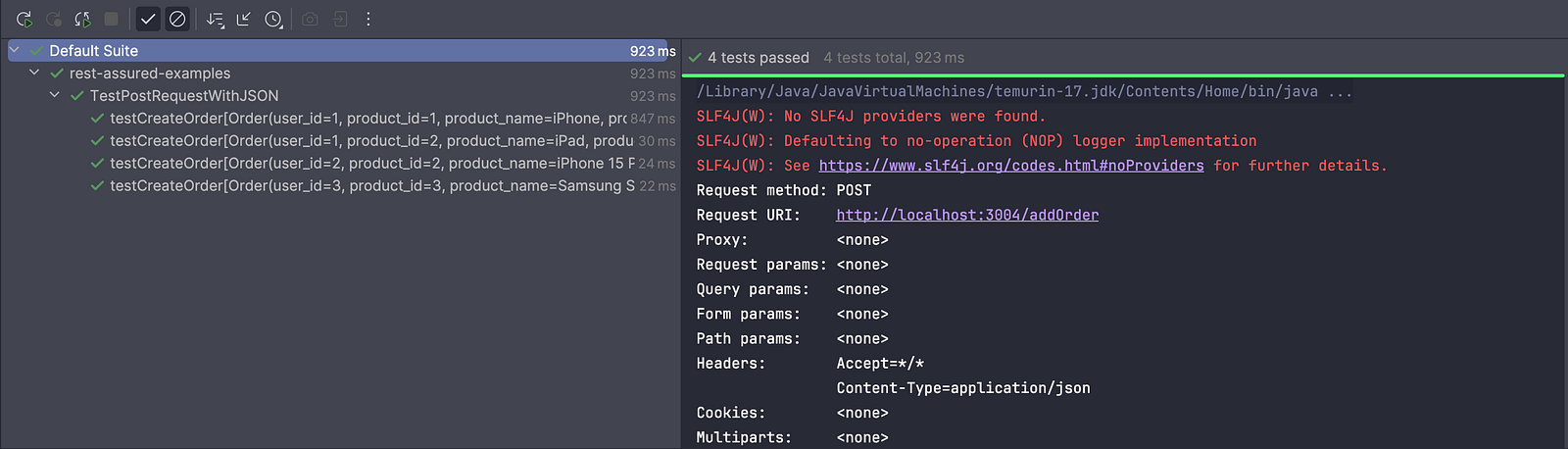
When the test runs, TestNG automatically runs the testCreateOrder() method multiple times, each time using a different set of data pulled from the JSON file via the orderData DataProvider.
Java Map-Based (Dynamic Parsing) Approach
The POJO-based approach is good when the JSON is stable and well-defined. However, it requires continuous updates and maintenance whenever the JSON structure changes, which increases maintenance time and effort. This makes it less suitable for dynamic or frequently evolving JSON files, where even minor changes can break parsing and tests.
In such situations, the Map-based approach comes in handy, where we do not need to maintain POJOs for the JSON. It can handle changing or unknown fields dynamically without requiring code changes.
Creating the JSON Reader Utility With Java Map
Let’s create a new utility method to parse the JSON files dynamically using a Java Map.
public static List<Map<String, Object>> getOrderData (String fileName) {
        InputStream inputStream = JsonReader.class.getClassLoader ()
            .getResourceAsStream (fileName);

        if (inputStream == null) {
            throw new RuntimeException ("File not found: " + fileName);
        }
        try (
            Reader reader = new InputStreamReader (inputStream)) {

            Type listType = new TypeToken<List<Map<String, Object>>> () {
            }.getType ();
            return new Gson ().fromJson (reader, listType);

        } catch (IOException e) {
            throw new RuntimeException ("Error reading the file: " + fileName);
        }
    }
Code Walkthrough
The getOrderData() method reads a JSON file and converts it to a list of maps using the Google Gson library.
Return type: It returns a List of Map<String, Object>, where:
- Each Map represents one JSON object.
- Keys are JSON field names.
- Values are their corresponding values.
Loading the JSON file: The file is read from the src\test\resources folder and returns an InputStream. If the file is not found, the inputStream object will be null. In that case, the program throws a RuntimeException with the message “File not found.”
Parsing the JSON file: A try-with-resources block is used to safely read the JSON file using a Java Reader, ensuring the stream is closed automatically. It defines the target type as List<Map<String, Object>> using TypeToken and then uses the fromJson() method of the Google Gson library to convert the JSON data into this dynamic structure. If any file-reading error occurs, it throws a runtime exception with a message “Error reading the file” with the file name.
JSON File With Test Data
The following JSON file is used for testing the POST /addOrder API:
[
  {
    "user_id": "1",
    "product_id": "1",
    "product_name": "iPhone",
    "product_amount": 500.00,
    "qty": 1,
    "tax_amt": 5.99,
    "total_amt": 505.99
  },
  {
    "user_id": "1",
    "product_id": "2",
    "product_name": "iPad",
    "product_amount": 699.00,
    "qty": 1,
    "tax_amt": 7.99,
    "total_amt": 706.99
  },
  {
    "user_id": "2",
    "product_id": "2",
    "product_name": "iPhone 15 PRO",
    "product_amount": 999.00,
    "qty": 2,
    "tax_amt": 9.99,
    "total_amt": 1088.99
  },
  {
    "user_id": "3",
    "product_id": "3",
    "product_name": "Samsung S24 Ultra",
    "product_amount": 4300.00,
    "qty": 1,
    "tax_amt": 5.99,
    "total_amt": 4305.99
  }
]
Creating a DataProvider Method
The following data provider method retrieves test data from the JSON file in Iterator <Object[]> format, which is then used by the test method for execution.
@DataProvider (name = "orderData")
    public Iterator<Object[]> getOrderData () {
        List<Map<String, Object>> orderList = JsonReader.getOrderData ("orders_data.json");
        List<Object[]> data = new ArrayList<> ();
        for (Map<String, Object> order : orderList) {
            data.add (new Object[] { order });
        }
        return data.iterator ();
    }
Code Walkthrough
The getOrderData() DataProvider method reads order data from a JSON file and stores it as a List<Map<String, Object>>. It then converts each map into an Object[] and adds it to a list, which is returned as an iterator. This allows TestNG to run the test multiple times using a different set of order data supplied from the JSON file.
Writing the API Automation Test
Let’s write a test for the POST /addOrder API that creates orders using the test data from the JSON files through the data provider.
@Test (dataProvider = "orderData")
    public void testCreateOrder (Map<String, Object> order) {
        List<Map<String, Object>> orderData = List.of (order);
        given ().contentType (ContentType.JSON)
            .when ()
            .log ()
            .all ()
            .body (orderData)
            .post ("http://localhost:3004/addOrder")
            .then ()
            .log ()
            .all ()
            .statusCode (201)
            .assertThat ()
            .body ("message", equalTo ("Orders added successfully!"));
    }
Code Walkthrough
The Map<String, Object> order parameter to the testCreateOrder() method represents a single order read dynamically from the JSON file. It is wrapped inside a List<Map<String, Object>> as the API expects an array of orders in the request body, not just a single object. This approach allows the test to stay flexible and work with dynamic JSON data without relying on fixed POJO classes.
The test then logs the request and response, verifies that the status code is 201, and verifies the response message confirming that the order was created successfully.
Test Execution
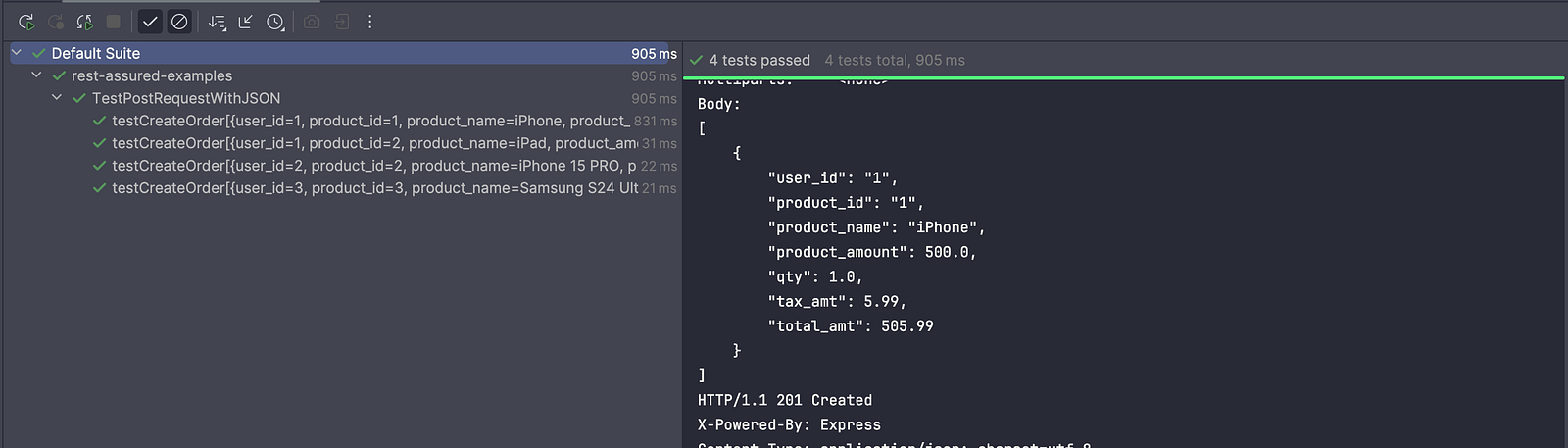
The following is a screenshot of the test executed using IntelliJ IDE. It shows that the same test was run multiple times using the test data from a JSON file. It can be noted that when we ran the tests using a POJO-based approach, the test data appeared with the POJO name: testCreateOrder[Order(userId…)}.
However, using the Map-based dynamic approach, the test data appears directly with the field names as provided in the JSON file.
Summary
Data-driven API testing with JSON files, REST Assured, and TestNG allows running the same test multiple times using JSON files as input, making tests more reusable and comprehensive.
When parsing JSON, POJO-based approaches provide type safety and clear structure but require frequent updates whenever the JSON changes, making them less flexible. In contrast, Map-based (dynamic) parsing is more flexible and low-maintenance, as it can handle unknown or changing fields without modifying code, though it offers less type safety.
Choosing between them depends on the API’s stability: use POJOs for fixed structures and Maps for dynamic or evolving JSON data.
Happy testing!
Published at DZone with permission of Faisal Khatri. See the original article here.
Opinions expressed by DZone contributors are their own.
Comments