

Event Storming Big Picture: How to Enforce the Timeline
The "Enforcing Timeline" phase orders chaotic events chronologically on a horizontal timeline to clarify process flows and dependencies.
Join the DZone community and get the full member experience.
Join For FreeWe have completed the first step of our workshop. The chaotic exploration and following discussion allowed us to visualize a wealth of information: events, hot spots, and opportunities. We are starting to align our understanding of concepts and terminology.
Before moving to the next step — enforcing the timeline — let’s briefly revisit what we have produced so far:
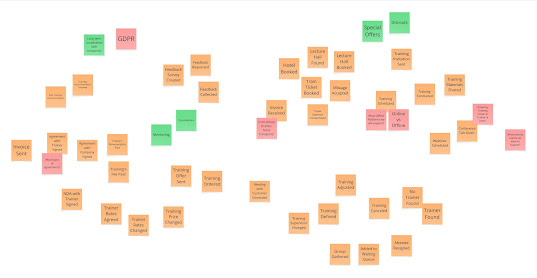
You may also want to remind yourself of the high-level requirements.
Now that we know where we stand, let’s see how we can use the outcome from the previous sessions.
What does “Enforce Timeline” mean?
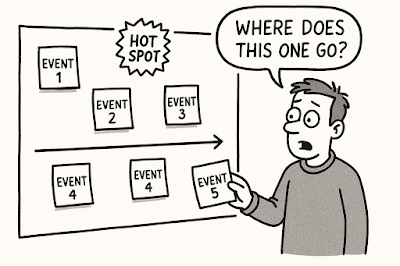
Currently, all the information we discovered is scattered without order on the whiteboard. It’s difficult to see any links between events, understand what happens first, or determine which events belong to the same or different processes.
Introducing a timeline changes that. In this phase, we sequence the events chronologically along a horizontal axis. This gives us a deeper understanding of the domain, as we see interactions and dependencies — or the lack of them. All of this supports better management and architectural decisions in later stages.
However, at this stage (the Big Picture), the timeline won’t be perfect or fully detailed — and that’s fine. It should give us enough information to make informed decisions later.
The amount of information may change
Regardless of how the wall looks now, remember the number of events, hot spots, and opportunities may change. When enforcing the timeline, more conversations — and even arguments — will happen, often leading to new events. That’s great! This is the collaboration we want. But as a facilitator, you must ensure discussions don’t derail the main goal: arranging events in chronological order.
Guide the discussion. If a conversation drags on (remember the The 5-Minute Rule), remind everyone that understanding the whole domain is more important than clarifying details about a few events. Create a hot spot to capture concerns and assure the group it won’t be forgotten.
What do we need to start?
If you use a virtual board, duplicate all the information gathered last time. This allows you to go back and see how it looked before starting this step.
Next, create the timeline:

It’s a horizontal line from left to right. Time flows left to right. Events that happen earlier will be placed to the left, later ones to the right.
Where do you put the first event?
Once we pick the first event, we need to decide where to place it. One option is to discuss whether it should be closer to the beginning or the end. But this takes time, and you may still be wrong. The broader the scope, the higher the chance of misplacing it.
I recommend placing the first event roughly in the middle. This gives space to adjust on both sides.
This is especially important for onsite workshops, where extending the timeline physically is not as easy as on a virtual board.
We chose “Training Defined” as our first event and placed it in the middle.

Given the large number of events to sort, I usually don’t encourage adding new events at this point. Instead, I ask the group to validate the placement. However, if new information arises, I don’t ignore it. In our case, someone asked what “Training” really means. Every such question deserves a hot spot, so I captured it.

Before moving on, the group recognized events representing variations of training: “Training Program Accepted,” “Training Offer Shared,” and “Training Template Defined.” Someone also noticed a sticky note labeled “Training Scheduled” from the first phase and suggested it better reflects the business context than “Training Defined.”
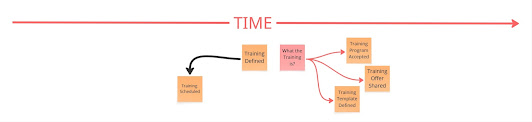
We listed all related terms under the timeline to avoid forgetting different facets:
-
Training: A specific session delivered to participants.
-
Training Program: A structured plan outlining topics and goals.
-
Training Template: A predefined plan with suggested price and trainer.
-
Training Offer: A scheduled training with fixed price, trainer, date, time, and location.
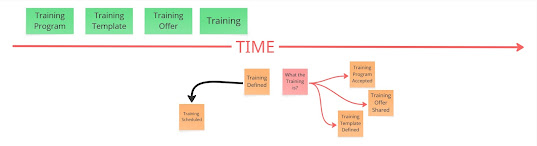
I crumpled the sticky note “Training Defined.” It always amazes me how often a note that sparks great discussion ends up in the trash once we clarify it.
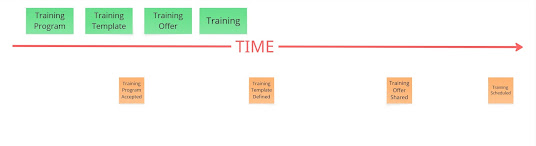
Next, we added “Training Offer Price Changed,” which can only happen after “Training Offer was Shared.”
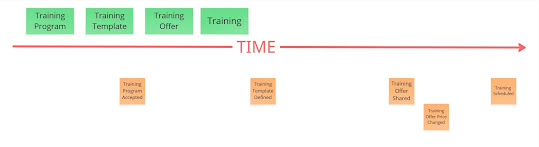
I didn’t place it in the same line as the others. The first four events are necessary to end up with “Training Scheduled” (based on our current understanding). In contrast, “Training Offer Price Changed” is optional and not tightly coupled to scheduling. It may happen or not, even after scheduling or canceling. That’s why I placed it slightly below — to emphasize its optional nature.
The group asked about its consequences and timing. As no one had a clear answer, we left these as hot spots and moved on.
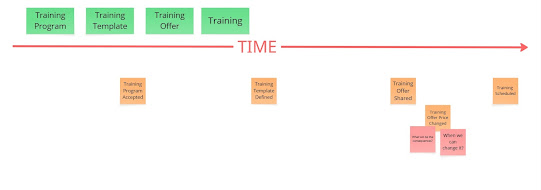
We added more events and created many hot spots. Given the time constraints and number of events, we focused on asking questions rather than answering them immediately.
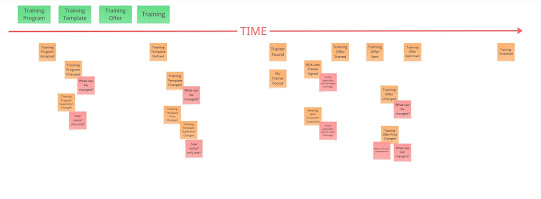
How do you visualize time when events don’t occur sequentially?
There is no single linear path. We can’t place all events in one line because they may be optional or part of different processes.
First, build a straight line with the core events needed to reach the main outcome(s).
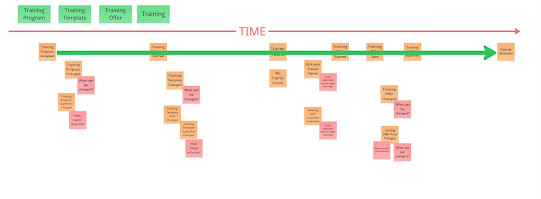
Place variations or optional events at the correct time points but slightly below. This way, your timeline shows both the main flow and complexity, including branches and alternative endings.
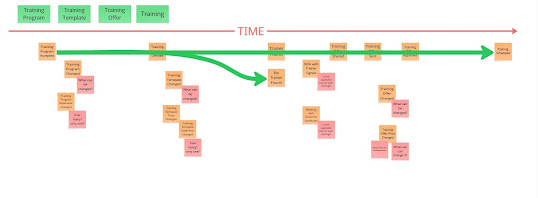
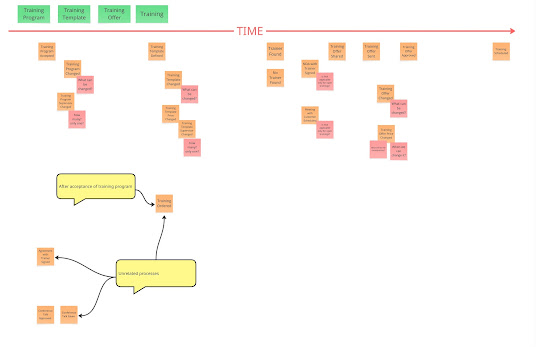
If the next event is unrelated, place it below the main timeline and start from the correct moment. As shown next, some events are placed at the beginning because they are not related to what we discussed so far. “Training Ordered” is slightly later, as it requires a Training Program first.
Actors
An actor is someone who triggers an action leading to an event. It can be a person, group, department, or even a placeholder name.
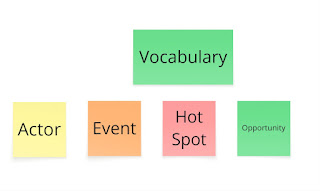
Adding actors
I treat this step as optional and prefer adding actors whenever they are mentioned naturally during discussions.
We have three scenarios:
-
One actor : Only one persona can cause the event.
-
Multiple actors: More than one persona can trigger it (e.g., “Training Program Supervisor Changed”).
-
No actor: The action is an automatic reaction, like “Training Offer Sent” triggered by the system.
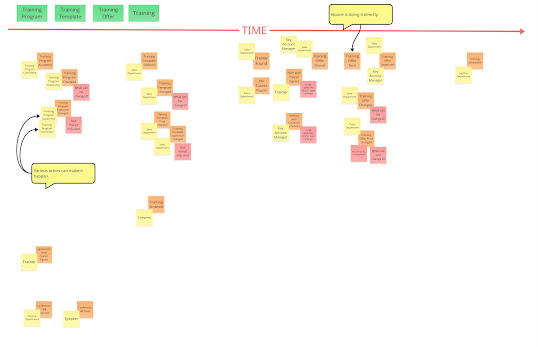
What can actors reveal?
When all actors are visible, we can observe patterns:
-
Multiple events triggered by the same actor can help define boundaries and responsibilities.
-
Events triggered by many actors may indicate that multiple actors can perform the same activity, suggest issues related to unclear or poorly defined responsibilities, highlight that the step is part of various business processes, or perhaps imply that we should have separate events with the same name for each actor, since the same phrase does not necessarily represent the same behavior.
-
Events with no actor may point to automation potential or areas needing exploration.
External systems
An external system is a system we assume (or know) we will use to fulfill requirements. It could be an existing system, a new system, or an in-house solution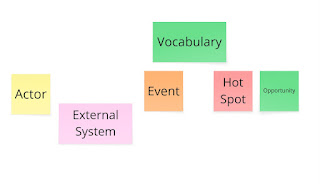
Adding external systems
Similar to actors, I prefer adding external systems when they naturally come up in discussions.
We may have:
-
No external system: There is no need or possibility to delegate the work further.
-
One external system: Work can be delegated.
-
Multiple external systems: Several systems may be involved to complete the work, or different systems can handle the same task.
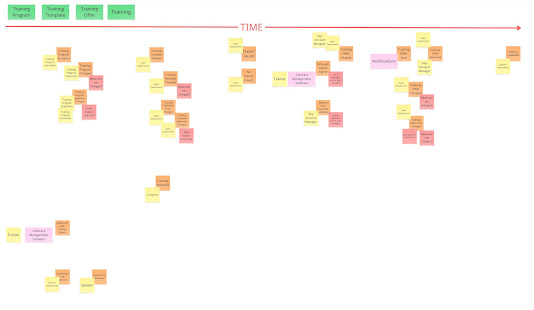
What can external systems reveal?
-
One external system suggests the event may not belong to the core domain and could be fully delegated.
-
Multiple external systems — if systems can be used interchangeably, it might mean we haven't finalized which system to use, don't fully understand requirements, or need an abstraction layer. If all systems are required together, it may signal complex logic needing further analysis. If fault tolerance is crucial, this scenario may suggest using a saga pattern.
Swimlanes
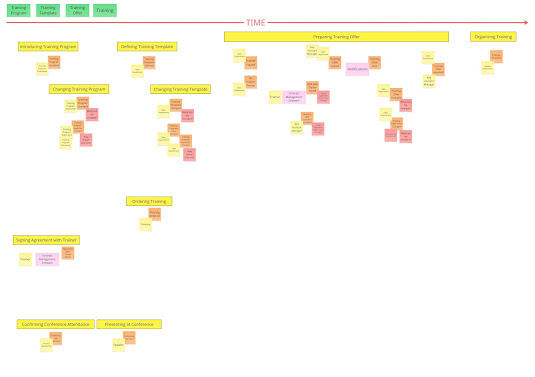
When many events appear, the timeline can feel crowded. You may notice some events are closely related, forming part of the same process. Introducing swimlanes simplifies navigation and groups related events.
A swimlane is a horizontal band labeled with the process it represents. Group events under it, ideally keeping the same actor together.
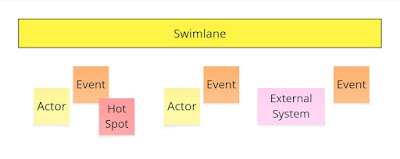
Add swimlanes when useful, not as a separate phase. Focus on meaningful groupings rather than trivial ones.
What can swimlanes reveal?
-
Swimlanes define boundaries, supporting design discussions.
-
Many events under one swimlane may indicate deep understanding, complexity, or the need to split further.
-
Multiple actors under a swimlane might suggest that responsibilities have not been clearly or effectively divided.
-
Multiple external systems under a swimlane can be a sign that the swimlane is too broad and lacks proper separation of concerns if this is a situation where work is fully delegated to these system and each one is responsible for different task.
-
Same actors or systems across swimlanes — these should be revisited during the design phase, as they may be a good candidates to be placed within the boundaries of the same component.
Finding pivotal events
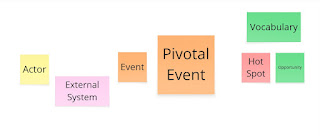
Pivotal events are the most important events on our boards. Their occurrence usually represents a significant milestone or achievement, and it is essential for enabling us to move forward in the process. In many cases, multiple people across different roles are particularly interested in when these events happen.
We use larger sticky notes to mark pivotal events so they stand out. If larger notes aren't available, highlight them another way.
You can identify pivotal events in various ways: letting individuals mark them, making decisions by quorum, or agreeing as a group. My default approach is letting participants mark them independently and then validating together.
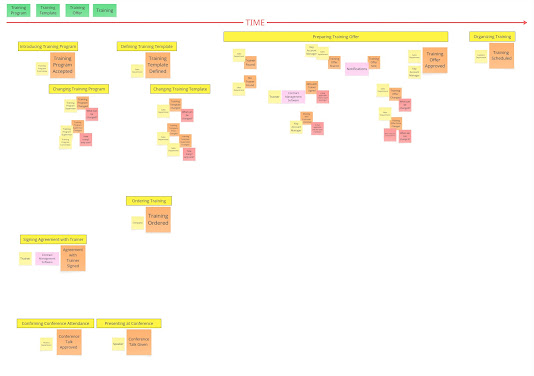
Event vs. pivotal event
How do we decide which event is pivotal?
Consider this example: A trainer proposes a training program. The Training Program Committee (TPC) reviews it, requests adjustments, and after several iterations, finally accepts it. Once accepted, it is published on the training center page.
Many events happen, but “Training Program Accepted” is the key milestone that introduces a new program. Other events are steps leading to it.
Pivotal events allow us to ask: "Is there a cheaper, faster, or easier way to achieve this?"
Swimlanes and pivotal events
Once swimlanes and pivotal events are identified, we gain further insights:
-
A swimlane without a pivotal event may need merging or the identification of a pivotal event.
-
A swimlane with multiple pivotal events is fine if they represent alternative outcomes (e.g., “Training Program Accepted” vs. “Training Program Rejected”). If all pivotal events can occur in one scenario, consider splitting the swimlane.
Interactions between swimlanes and pivotal events
We can also observe interactions between pivotal events and swimlanes.
For instance, two distinct pivotal events may lead to the same swimlane:
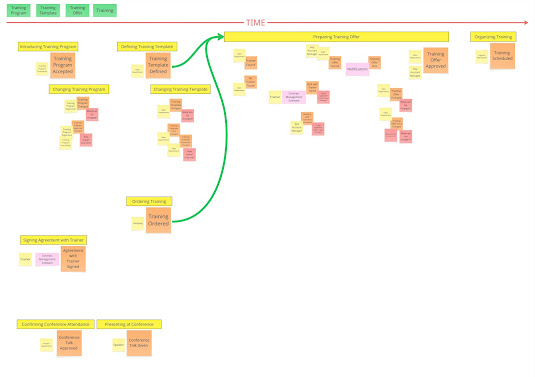
In our example, after defining the training template or receiving a training order, we can start preparing the offer. The first case applies to public training; the second to company-ordered training.
Or, one pivotal event may trigger multiple activities:
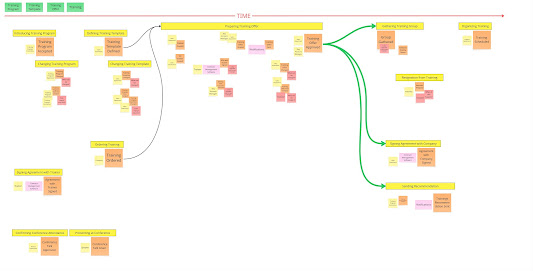
For example, after “Training Offer Approved,” we can start:
-
Gathering the training group.
-
Signing an agreement with a company (if ordered by a third party).
-
Sending recommendations to interested customers.
Highlighting these interactions improves our understanding of process dynamics and supports better service boundary design at later stages.
What about unplaced items?
Remember, we also created opportunities and stand-alone hot spots not tied to specific events.
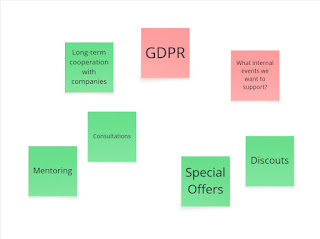
Move them above the timeline. We don’t want to lose them, even if they don’t have a defined place yet.
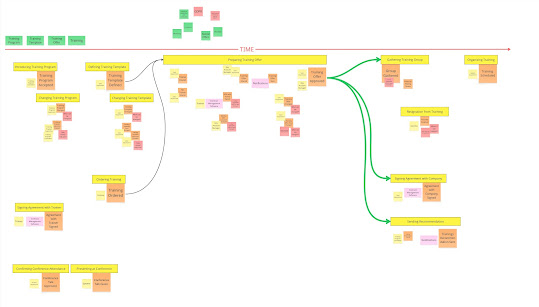
Are we done?
Compare the beginning:
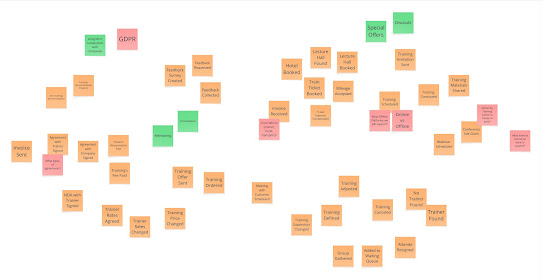
...with where we are now:
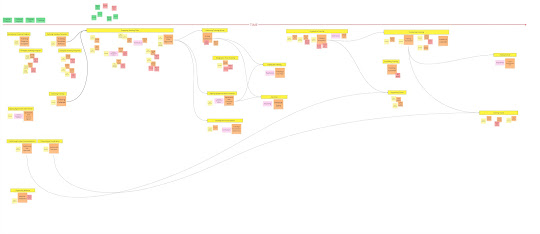
We gained deeper understanding and improved information quality. This was a productive session with valuable discussions. But remember: sticky notes are just the beginning. With a clearer domain understanding, the next steps will be much easier and less risky.
Published at DZone with permission of Sebastian Malaca. See the original article here.
Opinions expressed by DZone contributors are their own.
Comments