

Scanning a TSQL Project With SonarQube
Learn how to scan TSQL code using SonarQube and receive reports on metrics to detect and locate performance issues.
daIn this article, I will demonstrate how to get TSQL code scanned and reported in SonarQube with the open-source sonar-tsql-plugin so you can track
- Code metrics
- Static code issues found by SQL Code Guard and Microsoft
- Code coverage results reported by tSQLt and SQLCover
- Code duplications
I will use an example project which can be found at tsql-example-project.zip. It contains scripts of a database with two tables, scalar function, and two tSQLt tests checking if a function works correctly.
I will use a Windows operating system and PowerShell scripts to configure the dependencies. However, some of the plugin’s features can run on Linux OS as well. In this article, a locally running SonarQube instance will be used. If you want to run all example scripts on your machine, you will need to have at least msbuild and SQL Server Data Tools installed. If you don't, then you will be able to use only a subset of the features discussed here.
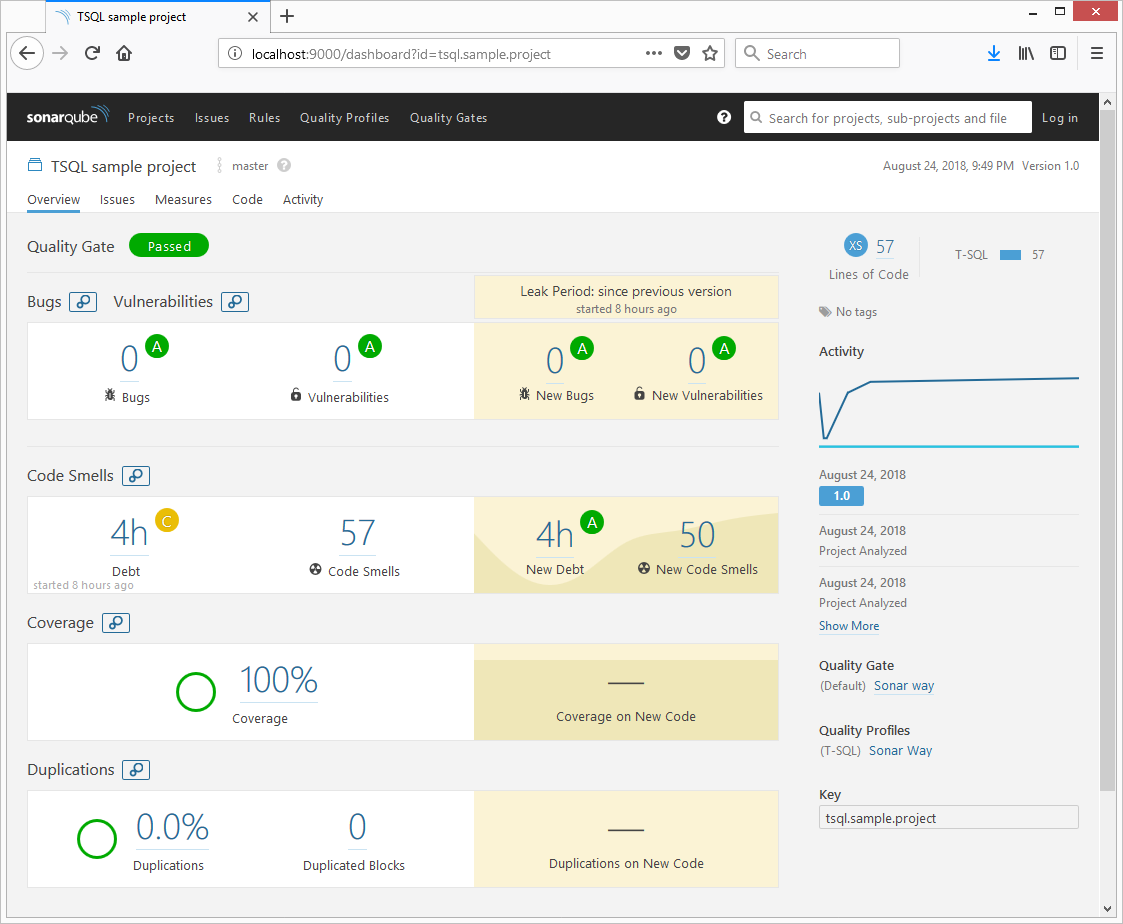
After finishing all the steps described below, you will see a number of issues found, code coverage achieved, and other metrics in your SonarQube dashboard. The final result could look like as depicted in the figure below.
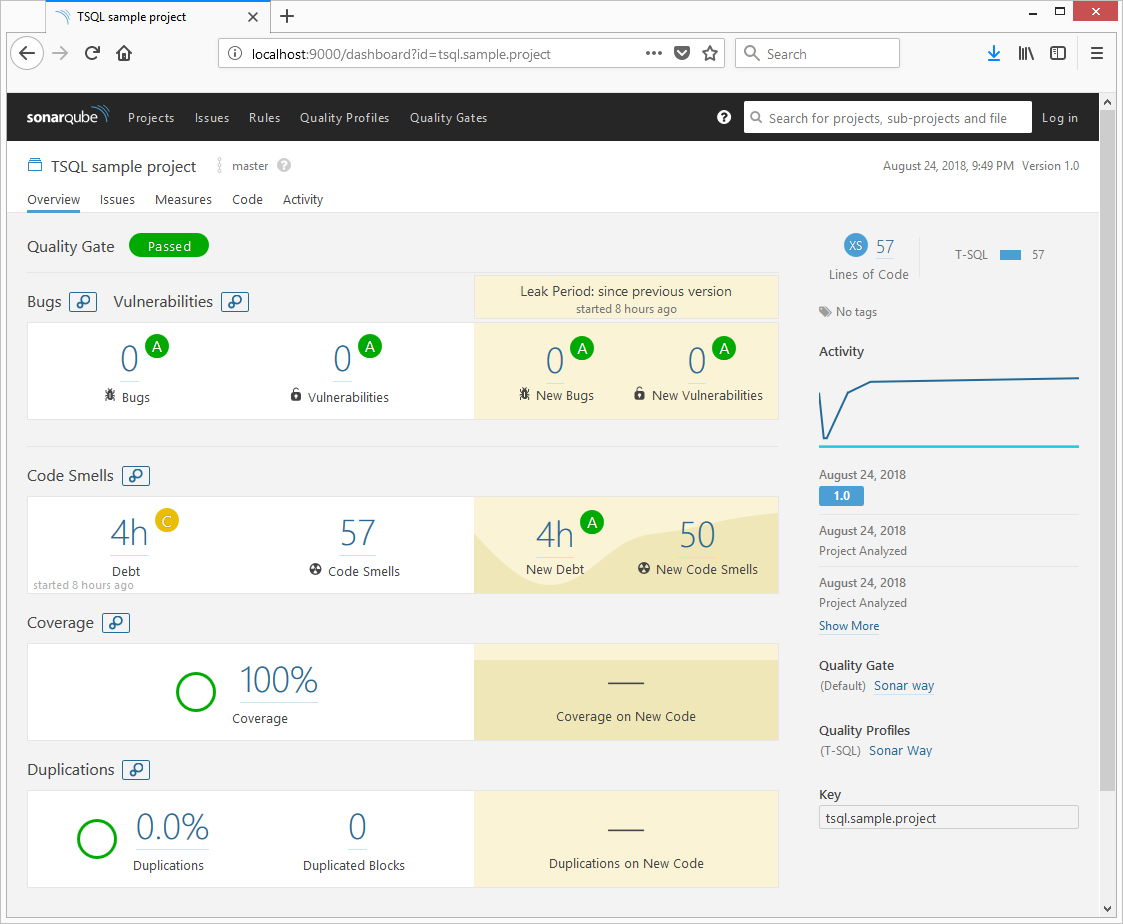
In order to achieve this, follow the steps below on the SonarQube server side and on the machine from which you are going run sonar-scanner.
SonarQube's Server-Side Changes
In order to get TSQL code analyzed, you will need to install the plugin on the SonarQube server. If you don't have the server yet, you can download it from their site. The steps below describe how to install a plugin on the SonarQube server.
Step 1: Download and install the latest version of sonar-tsql-plugin.jar from GitHub.
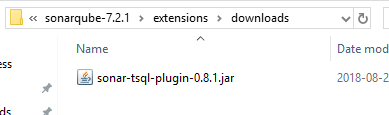
Step 2: Copy the JAR file into your SonarQube's extensions/downloads folder, as displayed in the image below.
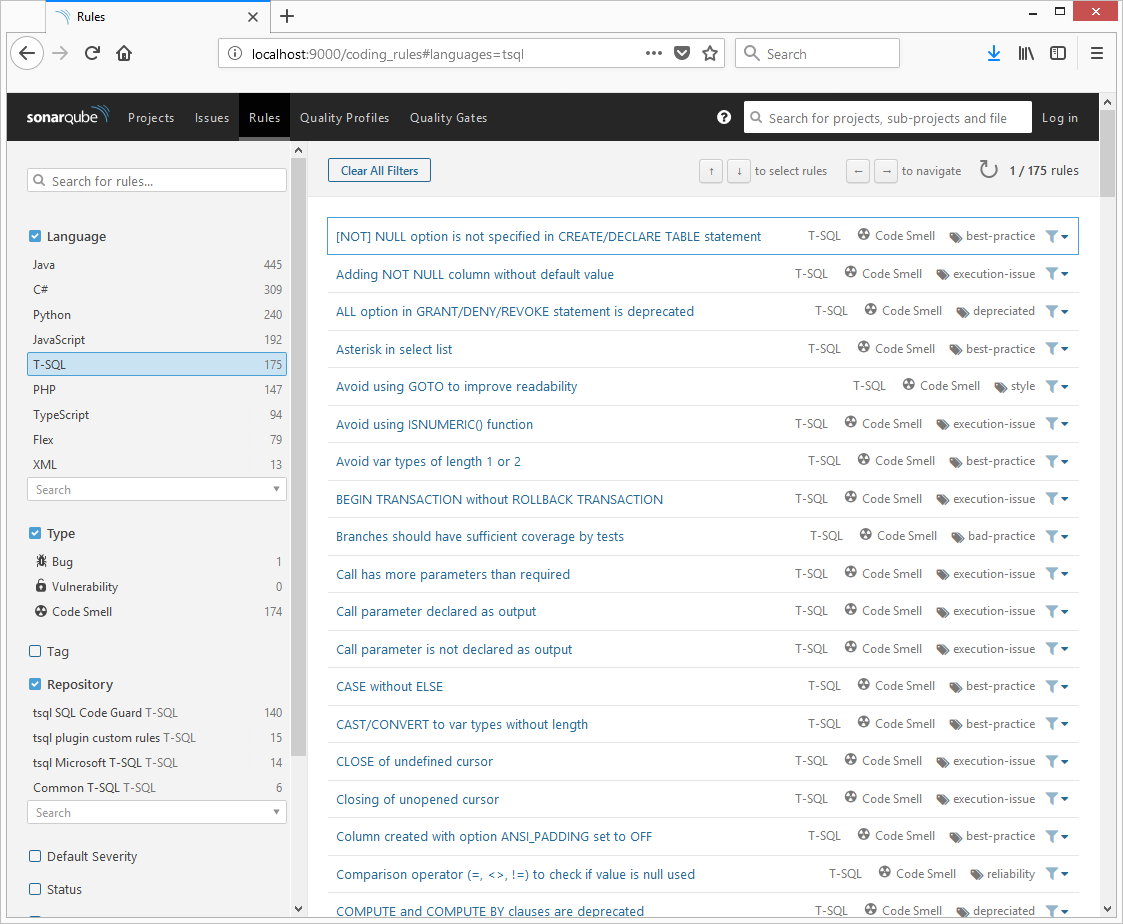
Step 3: Restart your SonarQube instance. After this, if you navigate to the SonarQube web interface in the Rules section, you should see the TSQL language with a few rules repositories.
That's all for the server-side changes. Now, let's check out the build machine changes from which you are going to execute sonar-scanner to get the results into SonarQube.
Build Machine Changes
In order to get SQLCodeGuard, SSDT code analysis, and SQLCover findings reported to SonarQube, you need to install the following on the build machine from which you are going to run sonar-scanner:
- MSBuild
- SSDT
- SQLCodeGuard
- SQLCover
The installation of some of these prerequisites is discussed in Step 1.
In addition to this, if you are going to use the tSQLt framework for tests, you will need to deploy and publish a database. This is described in steps 2 and 3.
If you already have the aforementioned prerequisites and tSQLt sorted or you don't want to use them, you can go straight to Step 4.
If you have not yet downloaded the example project, you need to download it from GitHub and extract it into your file system. It contains a few scripts facilitating changes which are discussed below. The project's structure is as follows:
- src – example database source code
- 00-installTools.ps1- Powershell script to download and extract SQLCodeGuard, SQLCover, and sonar-scanner to example project's tools directory
- 01-executeDBChanges.ps1 – Powershell script to sort tSQLt onto MSSQL database
- 02-runSonar.ps1 – Powershell script which builds sample database code, runs tSQLt tests and executes sonar-scanner from example project's tools directory installed by the 00-installTools.ps1 script
Let's review the steps to get the TSQL example project scanned. Please note that all the scripts can be replaced with any other means, like a build step on a TFS Build, a plugin in Jenkins, or any other way. The scripts used in this article just illustrate what needs to happen.
Step 1: Setting Up Tools for Scanning
sonar-tsql-plugin supports executing (if the correct path is specified via properties) and reporting issues found by SQLCodeGuard. As we are going to run SQLCover to report coverage, we need that configured as well. Finally, to submit results to SonarQube, we need sonar-scanner or other means to submit reports from the build machine. You can run the script 00-installTools.ps1 from the example project’s directory to download the required files, as depicted below, or do that manually.
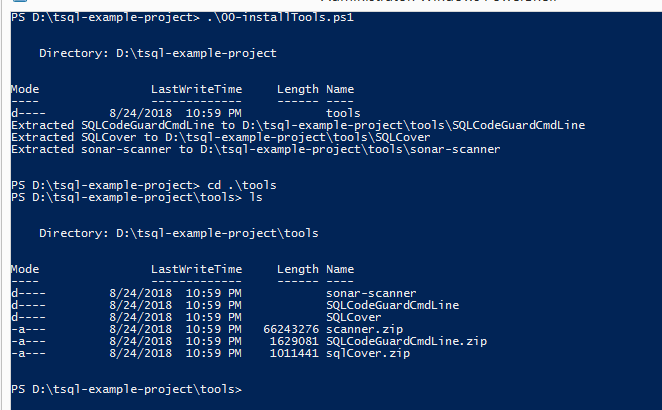
Now we have SQLCode guard, SQLCover, and sonar-scanner on the build machine, which will be required in step 4 so that sonar-scanner can be run. Let's try running sonar-scanner in the example project's directory to see what happens.
$sonarScanner = "./tools/sonar-scanner/sonar-scanner-3.2.0.1227-windows/bin/sonar-scanner.bat";
$sonarArgs = @(
"-Dsonar.projectKey=tsql.sample.project",
"-Dsonar.projectName=TSQL sample project",
"-Dsonar.projectVersion=1.0",
"-Dsonar.sources=src",
"-Dsonar.host.url=http://localhost:9000"
"-Dsonar.exclusions=**/bin/**/*.*,**/obj/**/*.*,**/*.sqlproj"
);
&$sonarScanner $sonarArgs;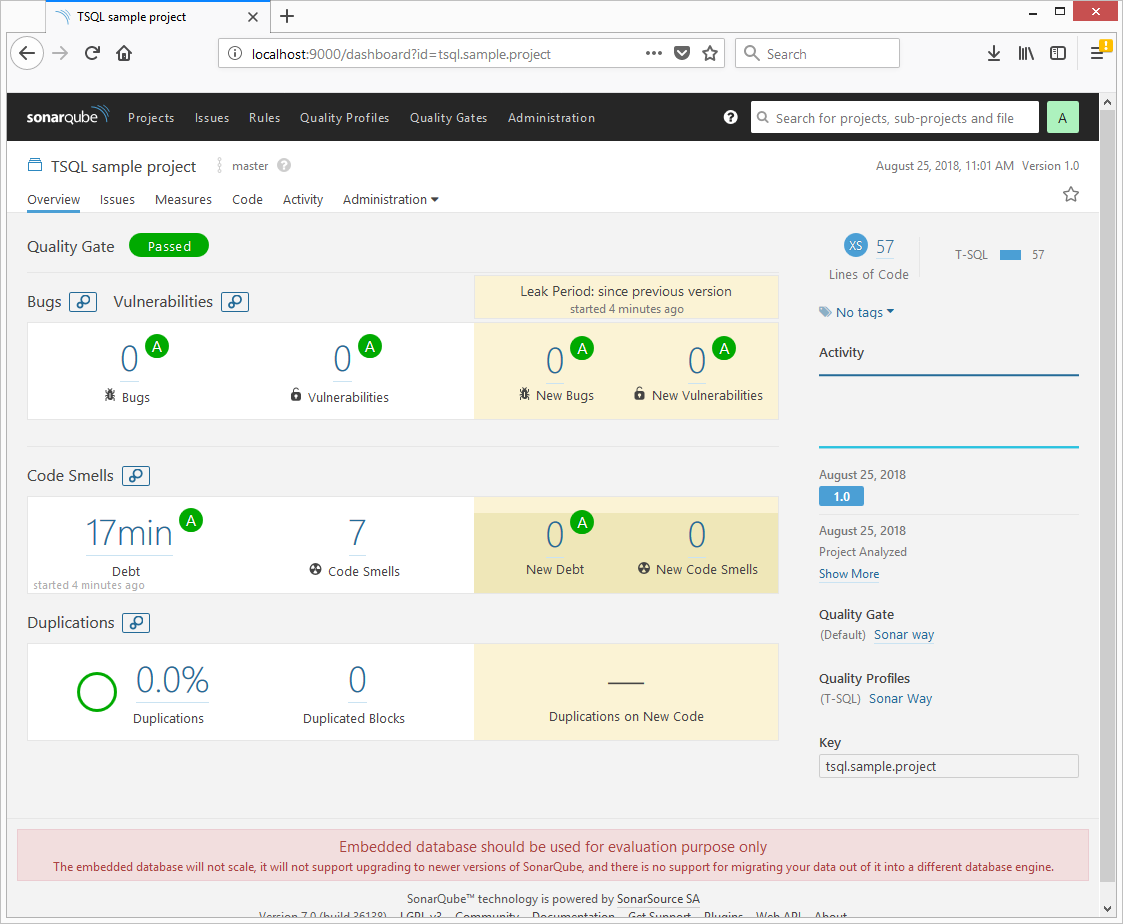
We can see a few issues, but we don't have results from the other tools as we haven't run them, including SQLCodeGuard and SQLCover.
Step 2: Sorting Out the Database for tSQLt
In this article, the tSQLt framework is used. In order for the example tests to be run, this framework will be installed onto the database. Again, you can do that manually or run the script 01-executeDBChanges.ps1 to download the tSQLt framework, create ExampleDatabase, and configure it.
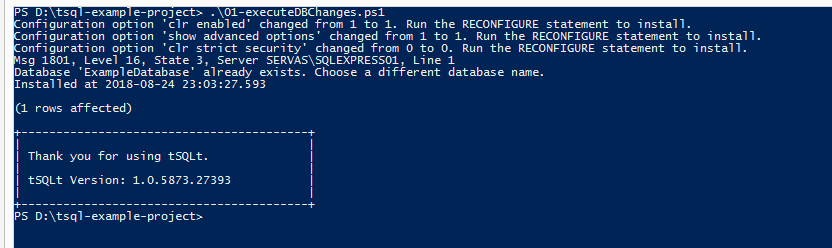
Now, on MSSQL server, we will publish the ExampleDatabasedatabase with tSQLt installed exits.
Step 3: Publish ExampleDatabase
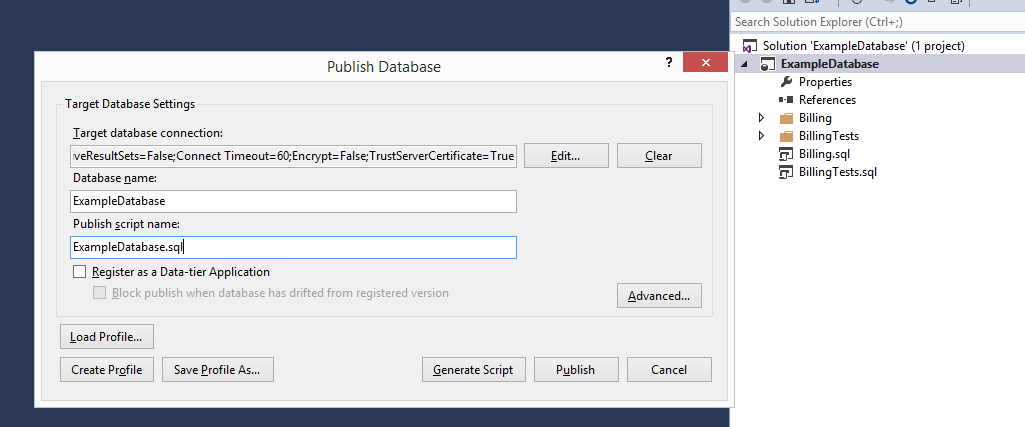
In order to publish ExampleDatabase, you can just open the ./src/ExampleDatabase/ExampleDatabase.sln solution with Visual Studio from the example project's directory and publish it.
Step 4: Running Analysis Tools and sonar-scanner
After running the previous steps, it is time to actually run the analysis using tools configured above. The steps below were already set up in the 02-runSonar.ps1 script. You can run that script instead by modifying the values as you need. All steps are optional and can be replaced with any other means.
1. SQLCover (Optional)
I used example code found at [1]. This can be replaced by other means, but when running sonar-scanner, you will need to specify the path to the coverage report by setting the sonar.tsql.sqlcover.report property. I will use the script below to run tSQLt and store the results to the ./build/sqlcoverresults folder.
## Run tests with SQLCover
$baseDir = "D:\tsql-example-project"
$database = "ExampleDatabase"
$server = ".\SQLEXPRESS01"
$cloverDir = "$baseDir\tools\SQLCover"
$coverageOutputDir = "$baseDir\build\sqlcoverresults"

. "$cloverDir\SQLCover.ps1"
$results = Get-CoverTSql  "$cloverDir\SQLCover.dll"  "server=$server;initial catalog=$database;integrated security=sspi;" "$database " "exec tSQLt.RunAll"
New-Item -ItemType Directory -Force -Path $coverageOutputDir
Export-OpenXml $results "$coverageOutputDir"
2. Running msbuild Code Analysis (Optional)
This command just builds a database project and runs SQL code analysis against the rules by Microsoft. The Sonar plugin by default will try to find files in the project's folder ending with StaticCodeAnalysis.Results.xml. You can also specify the absolute path to the report using the sonar.tsql.ms.report property.
## Build and run code analysis
$baseDir = "D:\tsql-example-project"
$dbProject = "$baseDir\src\ExampleDatabase\ExampleDatabase.sln"
$msbuildpath = Resolve-Path "C:\Program Files*\MSBuild\*\Bin\*\MSBuild.exe" | select -ExpandProperty Path -First 1
&$msbuildpath "$dbProject" /t:build /p:RunSqlCodeAnalysis=True
3. Running SQLCodeGuard (Optional)
Running SQLCodeGuard before sonar-scanner is optional, as if you specify the sonar.tsql.cg.path to the SQLCodeGuard executable, in my case (D:\tsql-example-project\tools\SQLCodeGuardCmdLine\SqlCodeGuard30.Cmd.exe), the plugin will try to run that. If that's not the intended case, you can run SQLCodeGuard before sonar-scanner and specify the path to the report using the sonar.tsql.cg.report property.
## Run SQLCodeGuard if needed manually
$baseDir = "D:\tsql-example-project"
$sqlCodeGuard = "$baseDir\tools\SQLCodeGuardCmdLine\SqlCodeGuard30.Cmd.exe"
$sqlCodeGuardResults = "$baseDir\build\cgtestresults.xml"
$sqlCodeGuardArgs = @(
"-source",
"$baseDir\src",
"-out",
"$sqlCodeGuardResults",
"/include:all"
)
&$sqlCodeGuard  $sqlCodeGuardArgs
4. Running sonar-scanner
After having run all the previous steps, I will execute sonar-scanner again so that the findings of those tools will be reported to SonarQube.
$baseDir = "D:\tsql-example-project"
$sqlCodeGuard = "$baseDir\tools\SQLCodeGuardCmdLine\SqlCodeGuard30.Cmd.exe"
$sonarScanner = "$baseDir\tools\sonar-scanner\sonar-scanner-3.2.0.1227-windows\bin\sonar-scanner.bat"
$coverageOutputDir = "$baseDir\build\sqlcoverresults"
$sonarArgs = @(
"-Dsonar.projectKey=tsql.sample.project",
"-Dsonar.projectName=TSQL sample project",
"-Dsonar.projectVersion=1.0",
"-Dsonar.sources=src",
"-Dsonar.host.url=http://localhost:9000",
"-Dsonar.projectBaseDir=$baseDir", # skip this if runnning from same directory
"-Dsonar.exclusions=**/bin/**/*.*,**/obj/**/*.*,**/*.sqlproj", # skip build files from analysis

# it is possible to specify absolute path to the SQLCover report or directory where file matching *Coverage.opencoverxml resides, by default plugin will try to find it in the base directory's subdirectories
"-Dsonar.tsql.sqlcover.report=$coverageOutputDir\Coverage.opencoverxml",

# it is possible to either specify path to sqlcodeguard executable and plugin will try to run it or you can specify actual path to report's xml
# or directory where file matching  *cgresults.xml resides by setting sonar.tsql.cg.report property
"-Dsonar.tsql.cg.path=$sqlCodeGuard"
#"-Dsonar.tsql.cg.report=$sqlCodeGuardResults",

# it is possible to specify absolute path to the MSBuild code analysis report or directory where file matching *StaticCodeAnalysis.Results.xml resides, by default plugin will try to find it in the base directory's subdirectories
#"-Dsonar.tsql.ms.report=$baseDir\src\ExampleDatabase\ExampleDatabase\bin\Debug"

);
&$sonarScanner $sonarArgs
After completing this, in SonarQube, you should be able to see he project with the issues found and coverage, and can start fixing the issues.
Opinions expressed by DZone contributors are their own.