

How To Connect a Heroku Java App to a Cloud-Native Database
In this post, continue the journey to create a geo-distributed messenger in Java by looking at several connectivity options for Heroku and YugabyteDB Managed.
 CORE
·
CORE
·
Join the DZone community and get the full member experience.
Join For FreeAhoy, matey! I'm back from a short vacation and ready to continue my pet project: geo-distributed messenger in Java!
If you’re interested in how my dev journey began (and is going), check out the previous articles in this series:
- Geo What? A Quick Introduction to Geo-Distributed Apps
- What Makes the Architecture of Geo-Distributed Apps Different?
- How to Build a Multi-Zone Java App in Days With Vaadin, YugabyteDB, and Heroku
In the last article, I launched the first version of my app, which runs in Heroku and uses YugabyteDB Managed as a cloud-native distributed database. I now feel confident that the geo-messenger can tolerate zone-level outages. Today, I’ll look at several connectivity options for Heroku and YugabyteDB Managed.
You might ask, "What's wrong with the connectivity between those two SaaS products?"
First, your YugabyteDB Managed instance won't be visible to the whole internet once deployed. You must provide the IP addresses of apps, services, VMs, etc. to connect to the database. This is a common and reasonable requirement for cloud-native databases. It's true for MongoDB Atlas, Amazon Aurora, and for any other cloud-native database that treats security seriously.
By default, the YugabyteDB Managed IPs allow list is empty. This means that my geo-messenger's requests will be rejected.
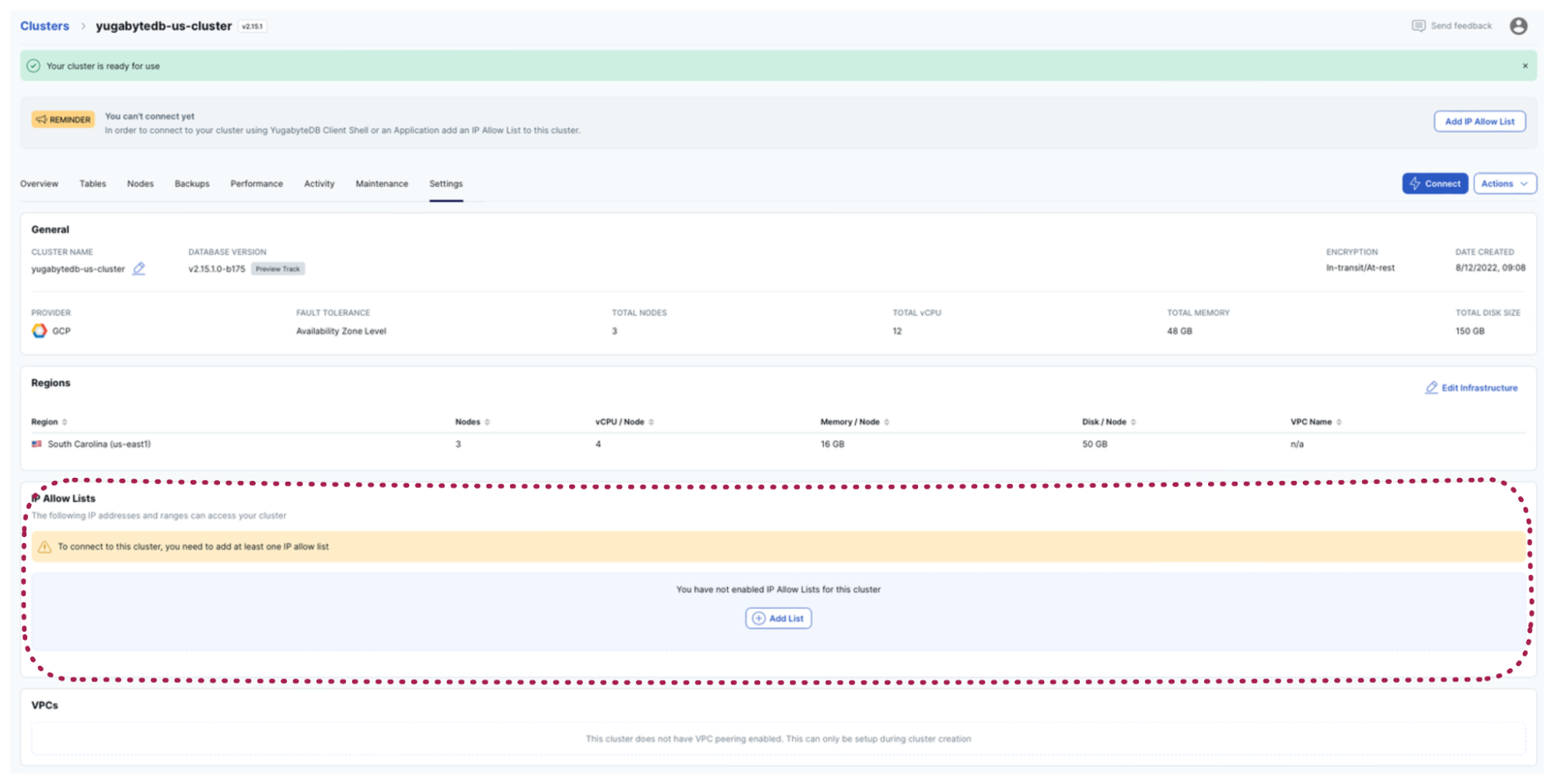
You might smile and say, “Come on, Denis, just find the static IP address of your app in Heroku and add it to YugabyteDB!”
This was my exact thinking, matey! However, Heroku does not provide static IP addresses in the Common Runtime Environment. So I either need to switch to an enterprise plan that includes private spaces or find another option. Being cost-conscious (ie: cheap), I selected the latter.
So if you’re still with me on this journey, then, as the pirates used to say, “All Hand Hoy!” which means, “Everyone on deck!” Let’s review the various connectivity options that I validated with my app.
Allow All Connections
A brute-force solution is to allow all connections to my YugabyteDB Managed instance. I did that by adding the 0.0.0.0/0 address to the IP allow list.
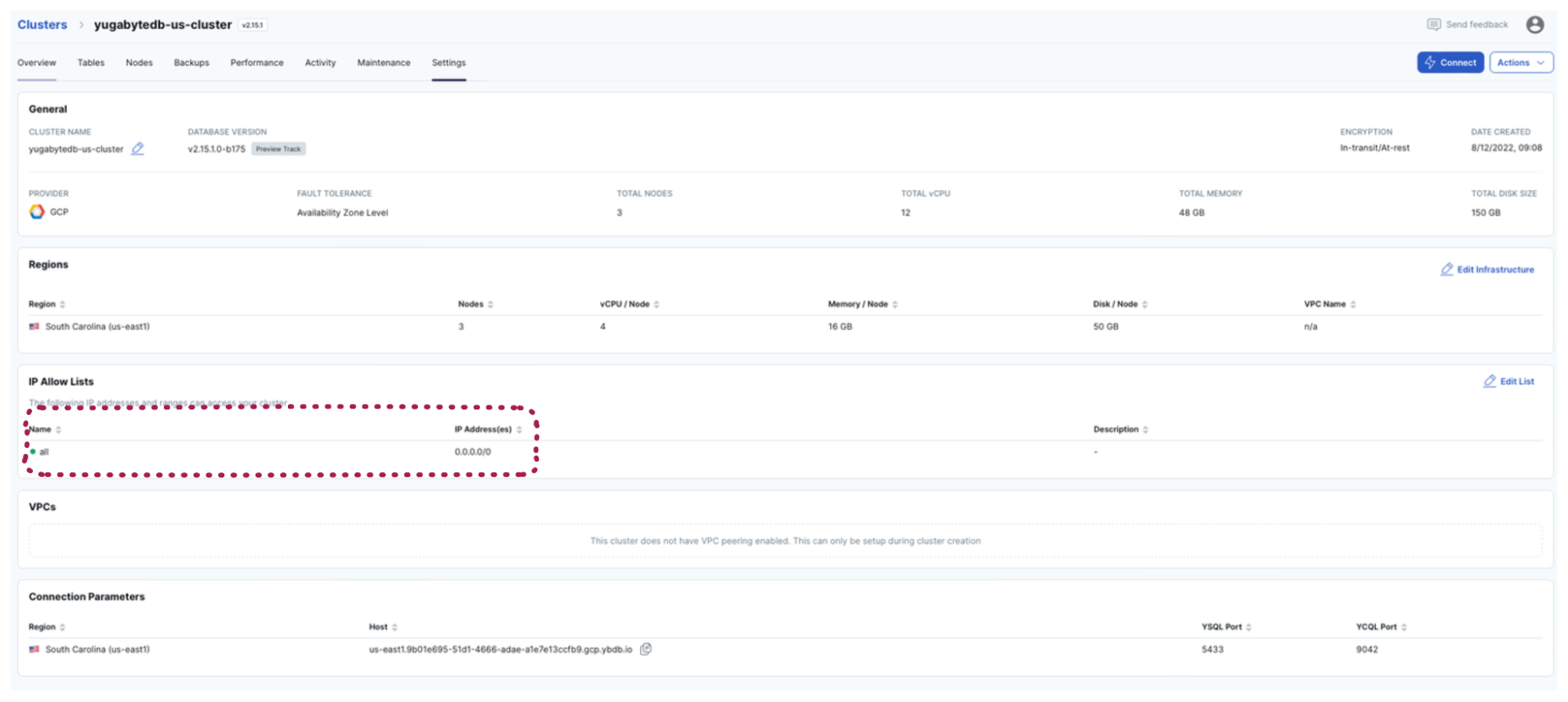
I recommend this option if you’re in early development (and want to focus on coding rather than infrastructure setup) or if you are deploying the complete solution in a VPC network. I was coding nonstop and didn’t want to be distracted, so I used the 0.0.0.0/0 solution as a shortcut.
Use SOCK5 Proxy
Once my coding slowed down, I decided to find a more elegant solution to the Heroku and YugabyteDB Managed connectivity issue. Obviously, I didn’t want my database instance to remain open to the entire internet.
What was my next step? Well, as an experienced engineer with nearly 20 years in the tech industry I knew exactly what to do: I opened a browser and Googled “heroku static ip address java.”
I soon realized that this problem is so widespread that the Heroku marketplace is full of add-ons that can proxy Heroku requests via static IP addresses. (Btw, a good business opportunity if you want to offer your proxy: how about founding a startup?)
I then wasted an hour trying out different proxies. Nothing worked. YugabyteDB rejected the requests from my geo-messenger. I scratched my head, then scratched it again. Before scratching my head for the third time, I realized that all those proxy add-ons work for HTTP traffic only: REST, GraphQL, and other protocols that rely on HTTP. My app uses a JDBC driver that opens a direct socket connection to the database and exchanges messages in the PostgreSQL wire-level protocol.
What was my next step? I’m sure you’ve guessed! I turned to Google again, this time searching for “heroku socks5 proxy for postgres," and finally came across the Fixie Socks add-on that worked for me.
The step-by-step instructions are as follows:
- I installed the Fixie Socks add-on
heroku addons:create fixie-socks:handlebar -a geo-distributed-messenger. You can swap out “handlebar” for another tier. This one costs me $9 a month for 2,000 requests. There is also a free option for 100 requests a month called “grip.” - I found my static IPs on the dashboard that you can launch with this command:
heroku addons:open fixie-socks. - I added those IPs to the YugabyteDB Managed IP allow lists.
- Then I introduced the custom environment variable
USE_FIXIE_SOCKSwhich instructs my app to either use or bypass the proxyheroku config:set USE_FIXIE_SOCKS=true -a geo-distributed-messenger.
When USE_FIXIE_SOCKS is set to true, the app configures two JVM-level properties (socksProxyHost and socksProxyPort) asking Java to send all network requests through the proxy:
 if (System.getenv("USE_FIXIE_SOCKS") != null) {
 	boolean useFixie = Boolean.valueOf(System.getenv("USE_FIXIE_SOCKS"));

   if (useFixie) {
     System.out.println("Setting up Fixie Socks Proxy");

     // The FIXIE_SOCKS_HOST variable is added by the add-on to the environment
     String[] fixieData = System.getenv("FIXIE_SOCKS_HOST").split("@");
     String[] fixieCredentials = fixieData[0].split(":");
     String[] fixieUrl = fixieData[1].split(":");

     String fixieHost = fixieUrl[0];
     String fixiePort = fixieUrl[1];
     String fixieUser = fixieCredentials[0];
     String fixiePassword = fixieCredentials[1];

     System.setProperty("socksProxyHost", fixieHost);
     System.setProperty("socksProxyPort", fixiePort);

     System.out.println("Enabled Fixie Socks Proxy:" + fixieHost);

     Authenticator.setDefault(new ProxyAuthenticator(fixieUser, fixiePassword));
   }
 }
After restarting the app in Heroku, I could connect to YugabyteDB Managed and see application workspaces, channels, and messages.

Use Proxy for YugabyteDB Connections Only
Even though the SOCKS5 proxy method worked, I still was not fully satisfied with my implementation. What’s wrong? Just look at these two lines:
System.setProperty("socksProxyHost", fixieHost);
System.setProperty("socksProxyPort", fixiePort);
Those are JVM-related settings that require every TCP/IP connection to go through my proxy. That’s overkill. I only need the proxy for socket connections to YugabyteDB Managed.
Luckily, this task is easy to solve in Java. You just need to provide an implementation of a custom ProxySelector. This is what I did by introducing my own DatabaseProxySelector class:
public class DatabaseProxySelector extends ProxySelector {

    private String proxyHost;
    private int proxyPort;

    public DatabaseProxySelector(String proxyHost, int proxyPort) {
        this.proxyHost = proxyHost;
        this.proxyPort = proxyPort;
    }

    @Override
    public List<Proxy> select(URI uri) {
        // YugabyteDB Managed host always ends with `ybdb.io`
        if (uri.toString().contains("ybdb.io")) {
            System.out.println("Using the proxy for YugabyteDB Managed: " + uri);

            final InetSocketAddress proxyAddress = InetSocketAddress
                    .createUnresolved(proxyHost, proxyPort);
            return Collections.singletonList(new Proxy(Type.SOCKS, proxyAddress));
        }

        return Collections.singletonList(Proxy.NO_PROXY);
    }

    @Override
    public void connectFailed(URI uri, SocketAddress sa, IOException ioe) {
        new IOException("Failed to connect to the proxy", ioe).printStackTrace();
    }

}
As you can see, the DatabaseProxySelector enables the Fixie Socks proxy only for YugabyteDB Managed URIs. Finally, the selector instance is created on an application startup:
if (System.getenv("USE_FIXIE_SOCKS") != null) {
  boolean useFixie = Boolean.valueOf(System.getenv("USE_FIXIE_SOCKS"));

  if (useFixie) {
    System.out.println("Setting up Fixie Socks Proxy");

    String[] fixieData = System.getenv("FIXIE_SOCKS_HOST").split("@");
    String[] fixieCredentials = fixieData[0].split(":");
    String[] fixieUrl = fixieData[1].split(":");

    String fixieHost = fixieUrl[0];
    String fixiePort = fixieUrl[1];
    String fixieUser = fixieCredentials[0];
    String fixiePassword = fixieCredentials[1];

    DatabaseProxySelector proxySelector = new DatabaseProxySelector(fixieHost, Integer.parseInt(fixiePort));
    ProxySelector.setDefault(proxySelector);

    Authenticator.setDefault(new ProxyAuthenticator(fixieUser, fixiePassword));

    System.out.println("Enabled Fixie Socks Proxy:" + fixieHost);
  }
}
Explore Private Spaces
At the start, I mentioned that the Heroku Private Spaces feature should also work (if to believe Heroku’s technical documentation). For the sake of completeness, I’ve added this option to the article. Theoretically, you can set up those private spaces in Heroku and peer the spaces with a YugabyteDB Managed VPC network, but I’ll let you validate that!
What’s on the Horizon?
Alright, matey. This article concludes my thoughts on the current app version running in a single cloud region. Now, let me take a short break before I move on to the next milestone: next, I need the geo-messenger to function across several cloud regions. I’ll be looking at Google Cloud tools to automate the deployment. I’ll keep you posted!
Opinions expressed by DZone contributors are their own.
Comments