

How to Use EFS With AWS Lambda
How to utilize the old/new feature with Lambda to empower your Serverless application/architecture.
 ·
·
Join the DZone community and get the full member experience.
Join For Free
AWS recently launched a new feature that lets the customer make an EFS (Elastic File System) that works with Lambda. This is really cool! But, Why EFS?
EFS is a storage unit that lives independently inside a machine. This file can be attached to other services like EC2 and can be accessed from multiple instances at once. Files that are inside this storage unit are accessible from any connected instance or Lambda.
Why do we need something like this to work with Lambda? Extra complicated step?
Actually, this feature is amazing if you looked at it from different angles. Let’s start with some of them:
Consistency
If you need multiple Lambdas to use (read and write) BIG files, you’ll need them to be in a place that doesn’t delay the function to get the resources, which leads to less computing power and time -> less money.
More Space
When you’re working with files from S3, you’re limited to the max storage size of 512 MiB. This is not enough is some cases. Plus, you might need to work with this file in different processes stages, like cleaning, segmenting, processing, and exporting readable reports/formats of this file. Imagine the amount of code involved in this scenario.
More Space 2
Using layers will share the resources between the functions, but Layers sometimes can’t handle the size of the resources and binaries you called to run this function. Using EFS will give you more room to store these resources and call when is needed.
I can list more points. But, you get the idea. Let’s dive into how to use it with lambda.
Creating EFS
1. Open AWS console and search for “EFS”
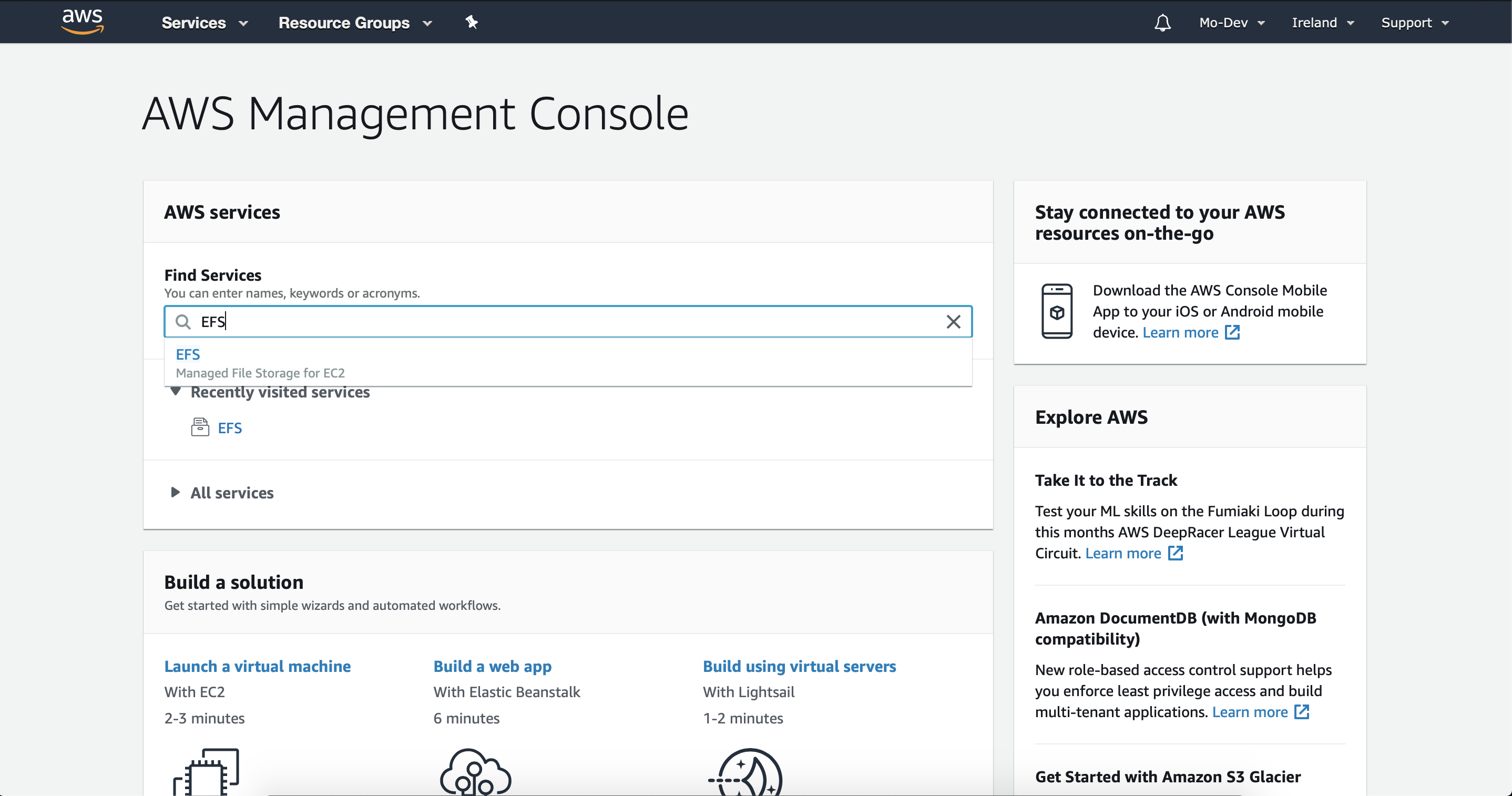
2. Click on “Create file system”
3. At step 1, select your VPC. If your lambda is configured within a VPC, choose it, if not, remember when VPC you’ve selected.
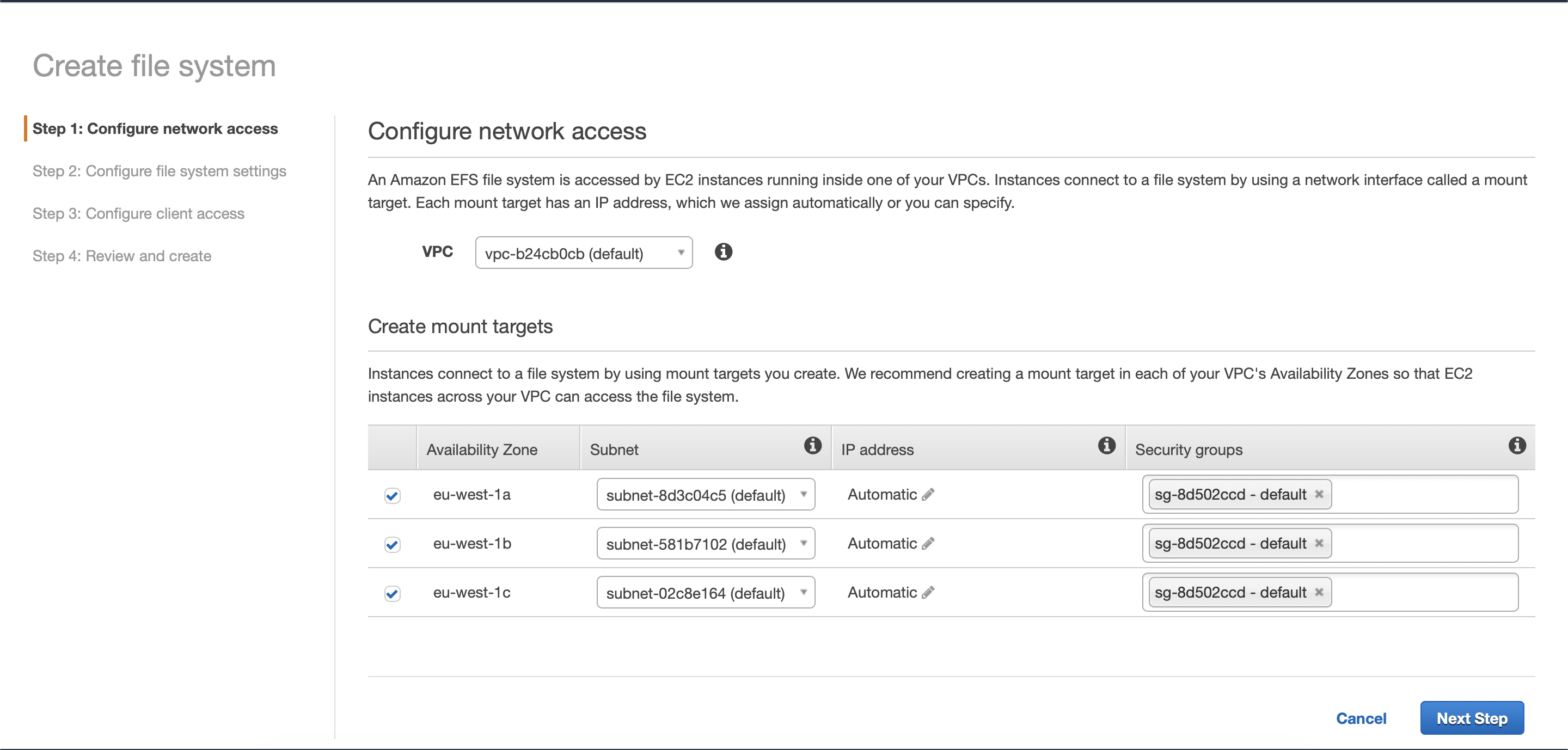
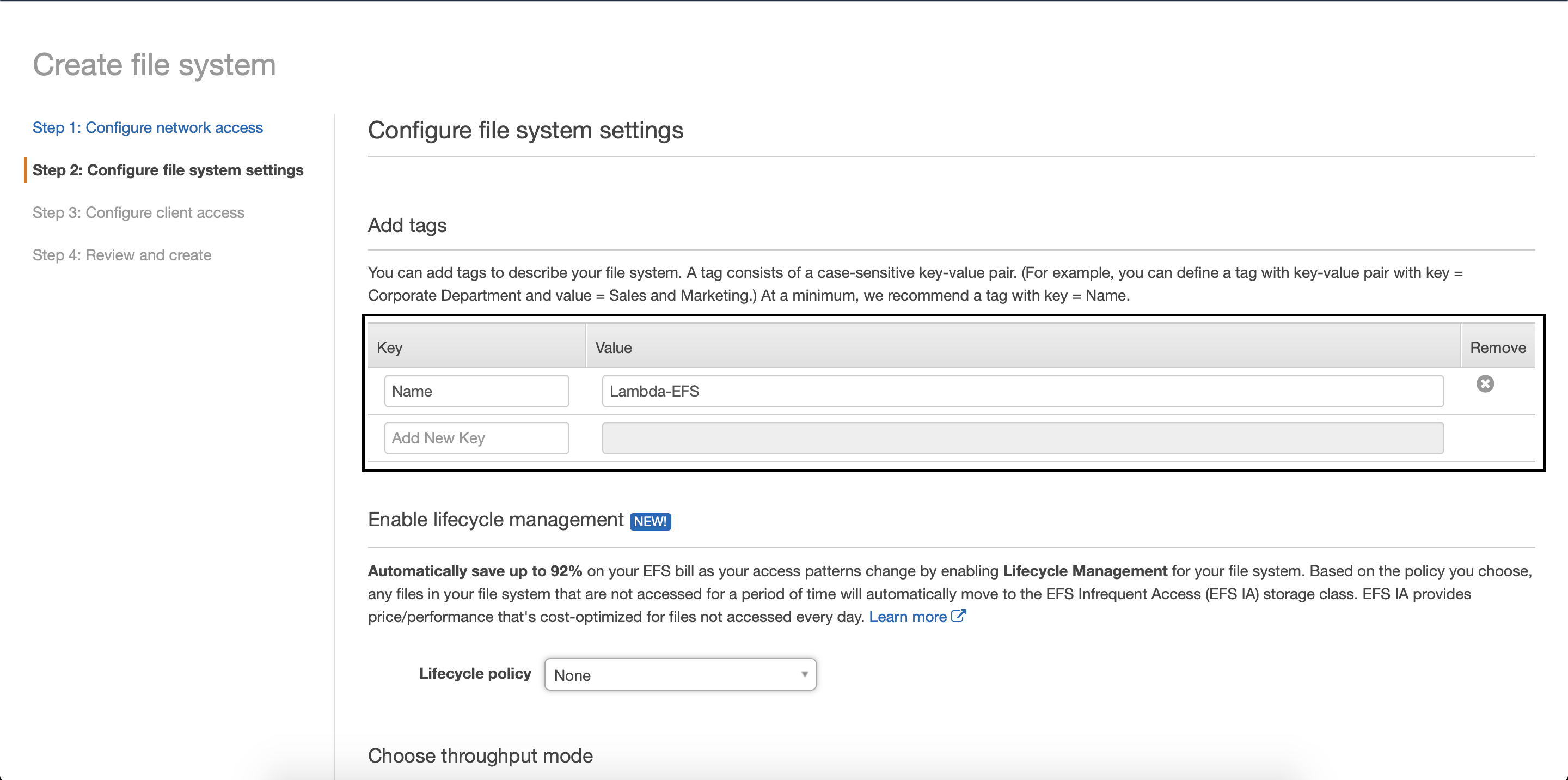
4. Add a descriptive name for your file system. Then, click the next step.
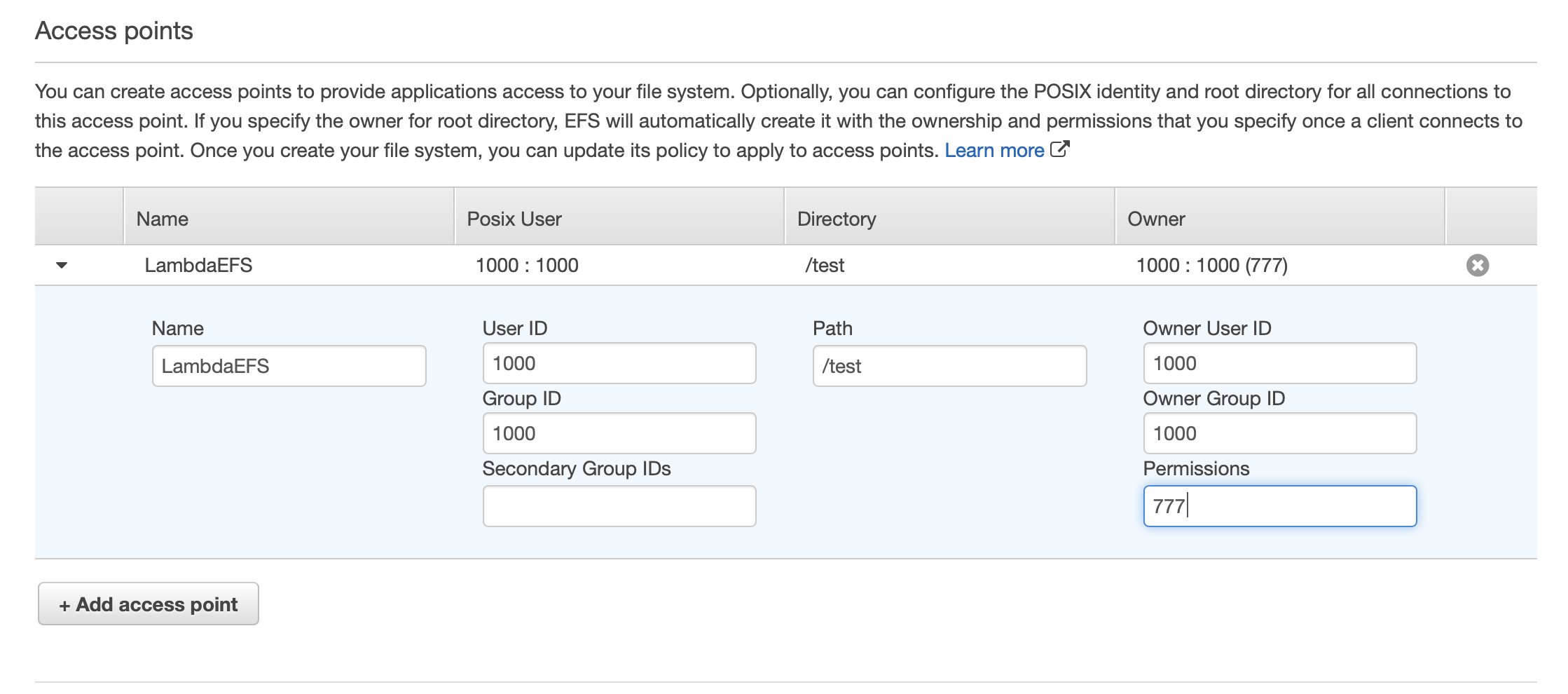
5. Go down and click on “Add access point”. Then, fill it with what’s in the image.
6. Review the configuration. Then, click “Create file system”.
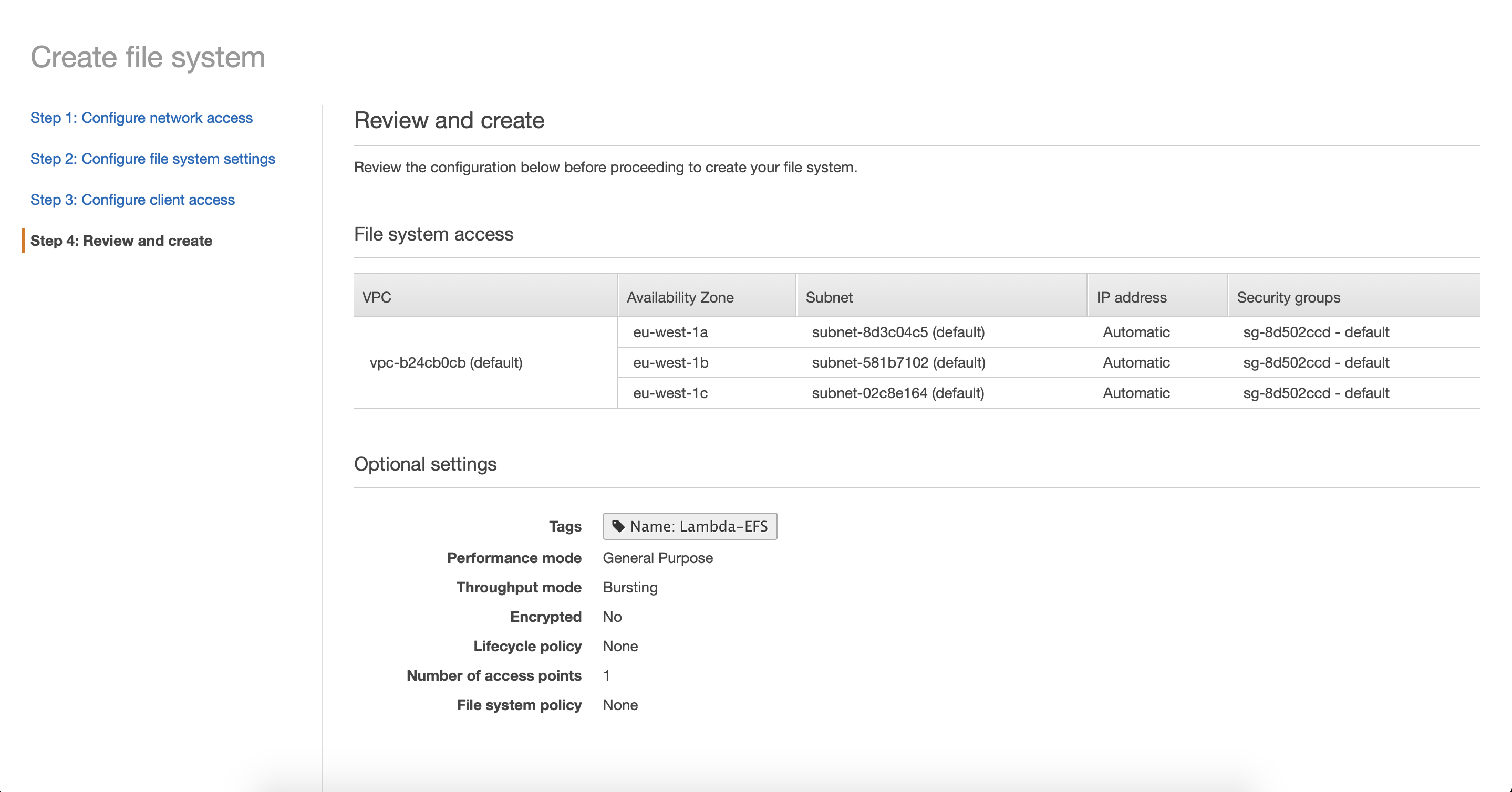
7. Done! Wait for a few seconds, and your EFS will be active.
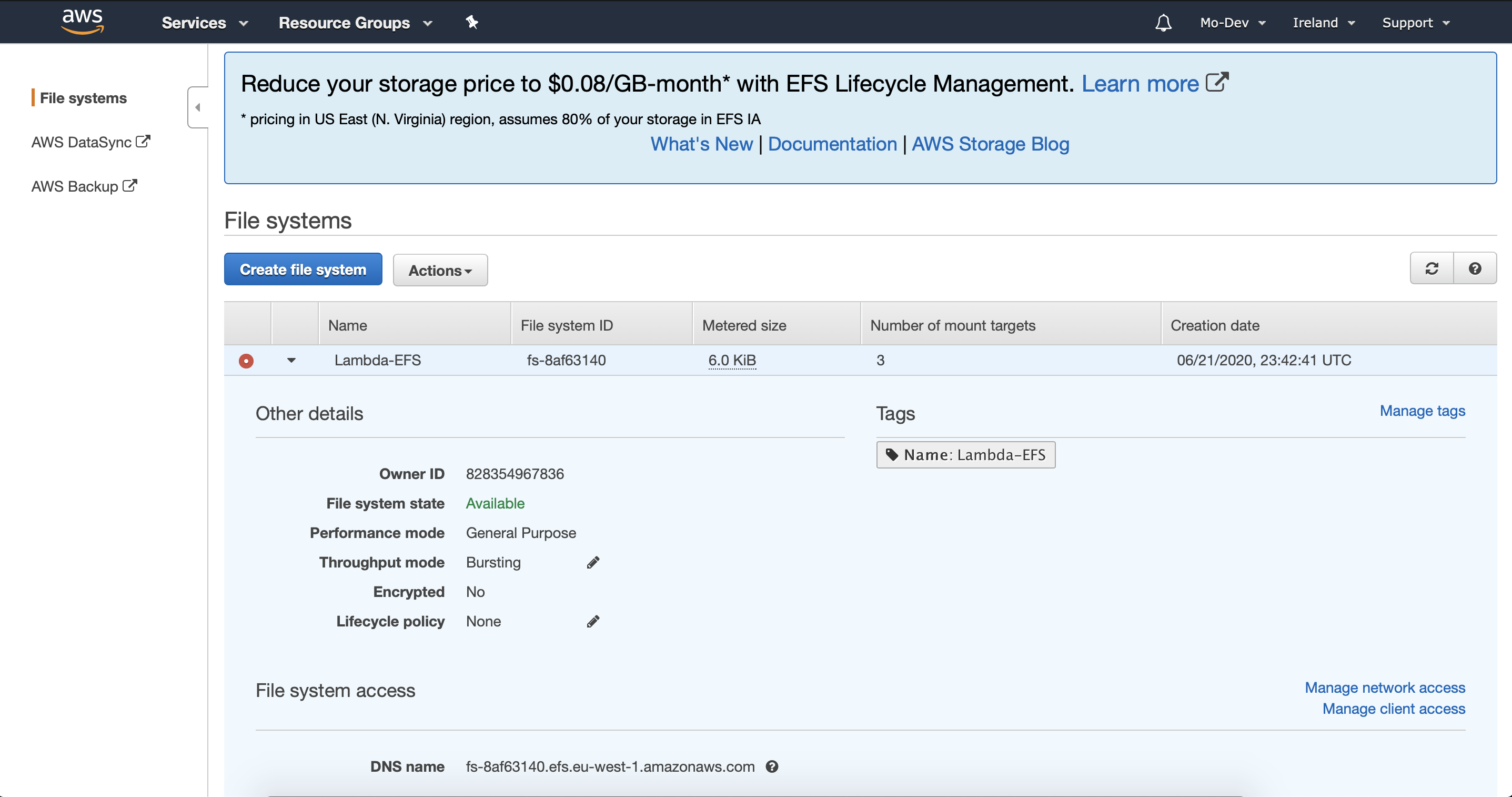
Connect it With Lambda
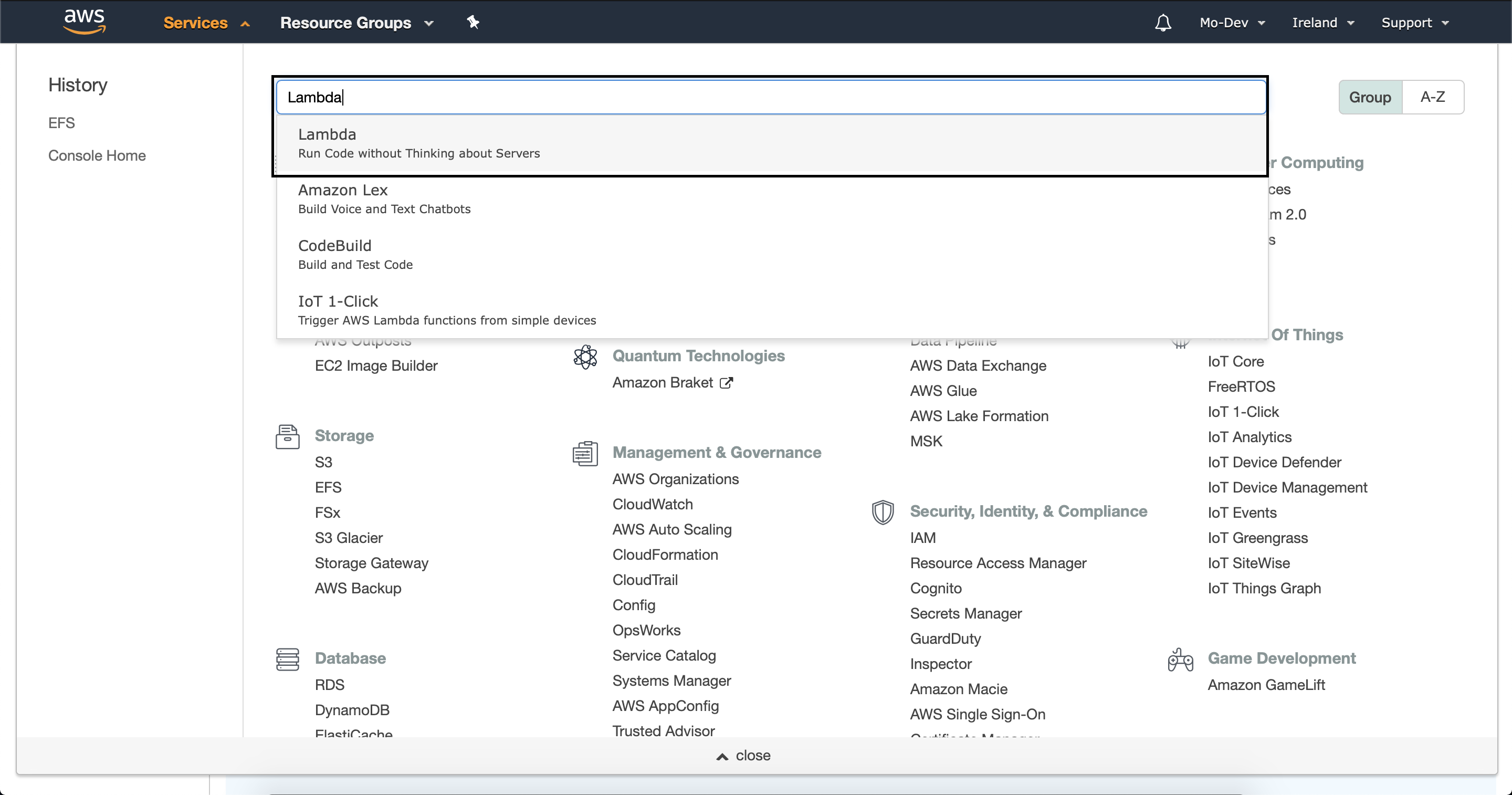
1. Click on Service and search for “Lambda”.
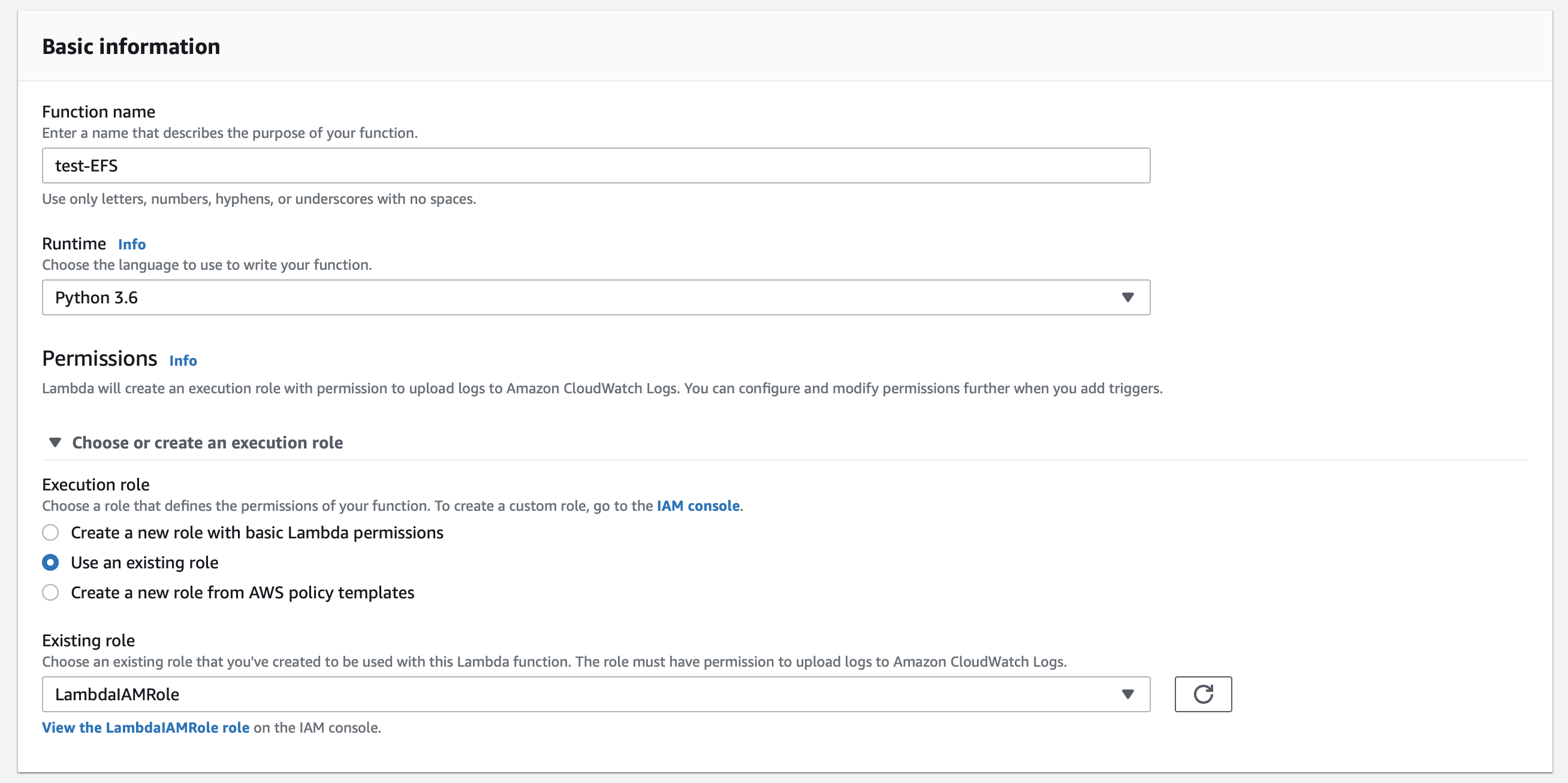
2. Create a new function and choose your preferred runtime language. In this article, I’ll use Python.
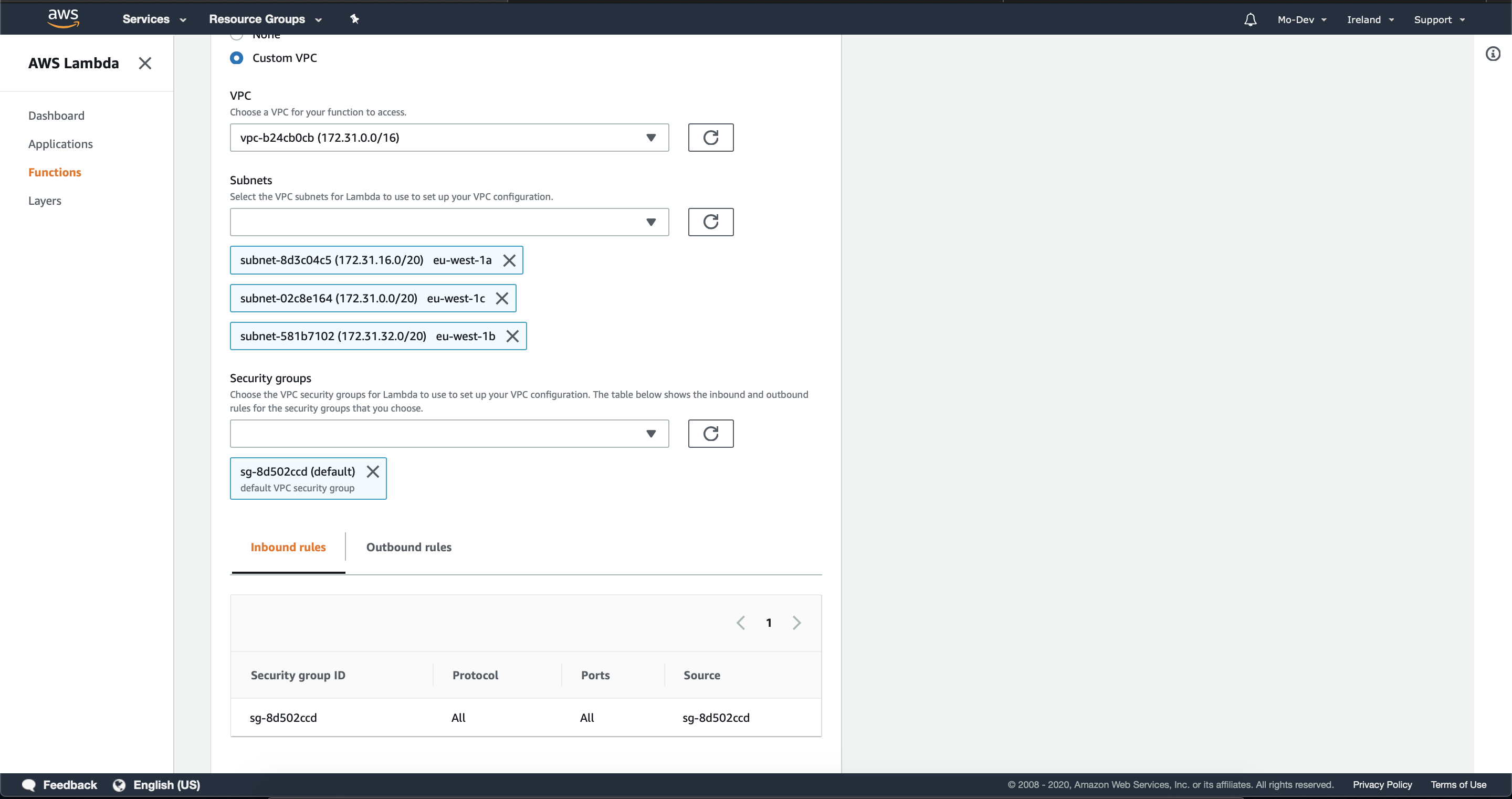
3. Go down a little bit, and you’ll see a section called “VPC”. Click on “Edit”.

4. Select your VPC, and choose the Subnets and the security group. Then save.
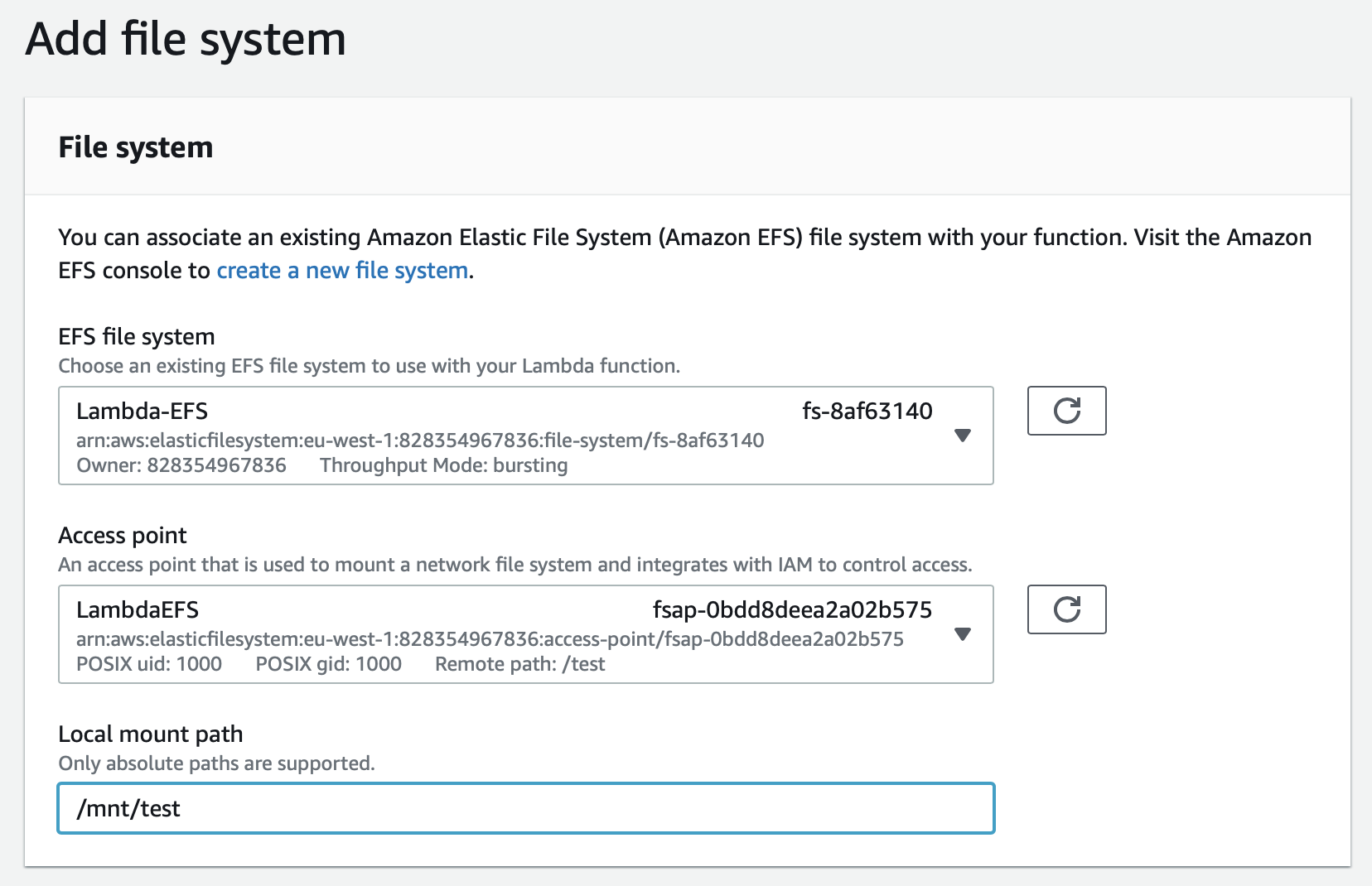
5. Under the VPC section, click on “Add file system” from “file System” section.

6. Select the EFS File System we made, remember that we gave it a descriptive name. Then choose the Access point that is associated with the Access Point and finally, give it a path.
Note: "This path needs to start with ‘/mnt/‘. You can keep it as it is, or if you want to have a custom folder, you can."
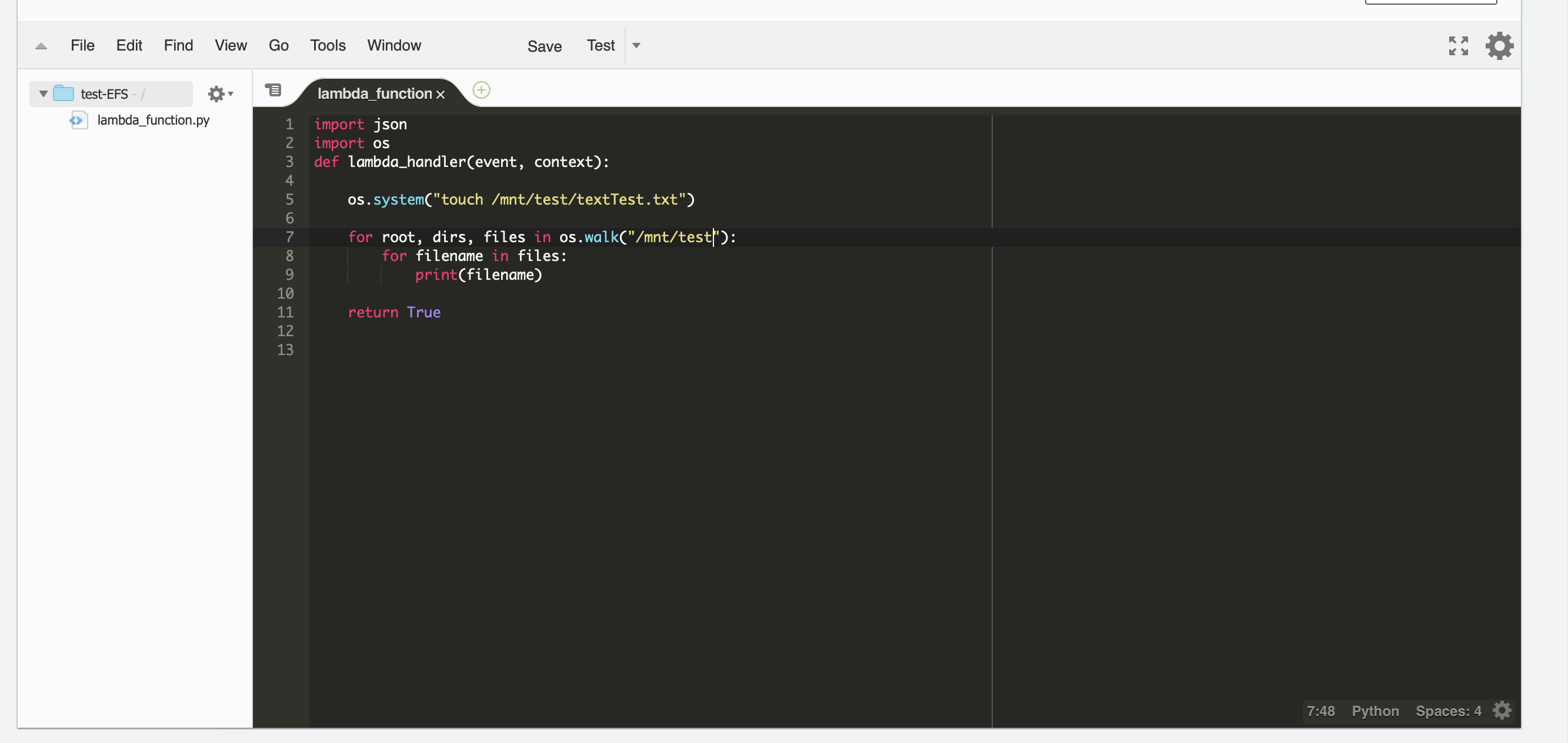
7. A small piece of code to test if the file system is attached to the function.
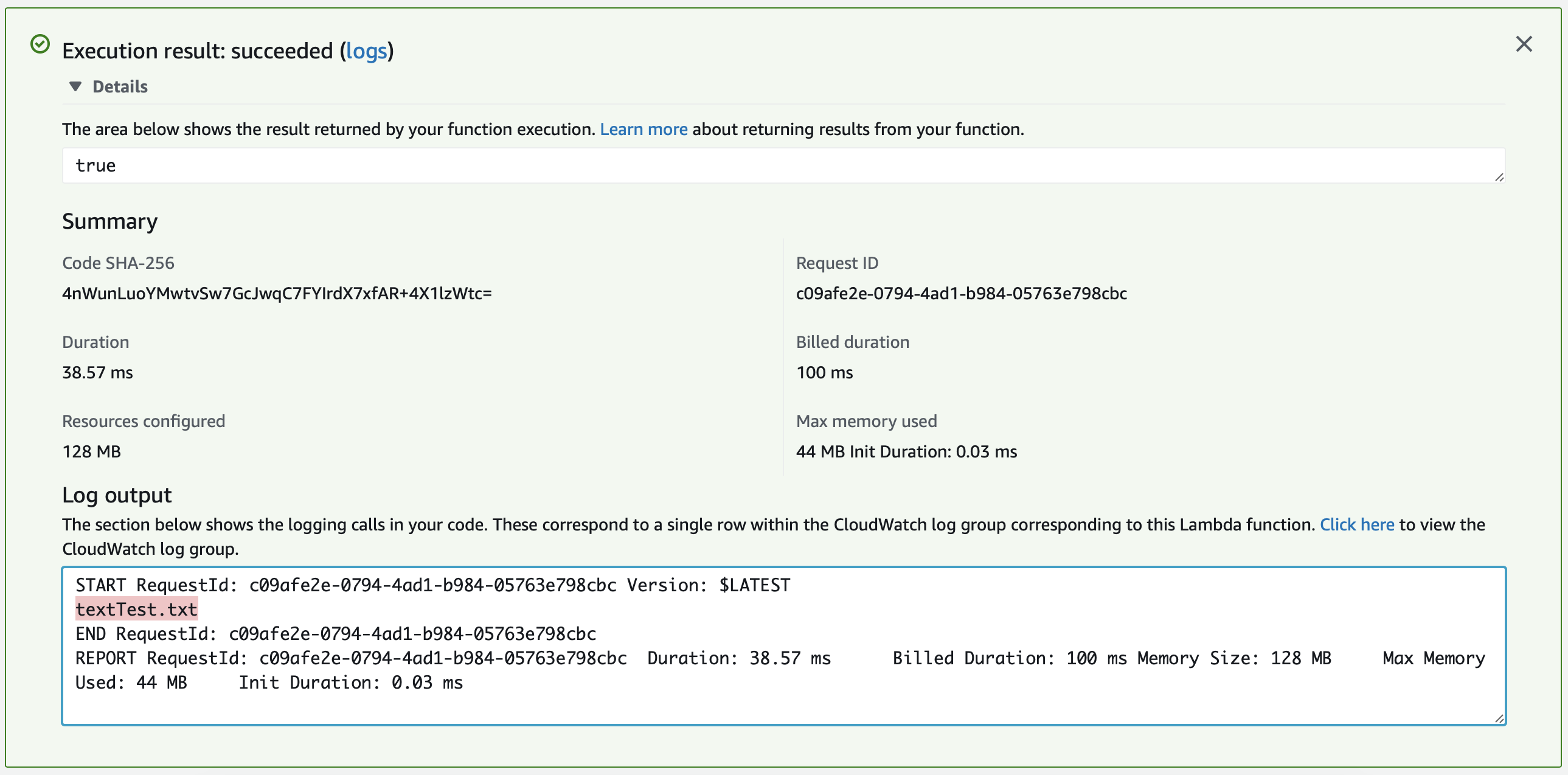
8. Bingo!! We made it!
Conclusion
Adding EFS to Lambda is a huge new milestone in The Serverless architecture. You can have new use-cases that will be doable and before were a nightmare to accomplish. Easy steps with the cheap price make Lambda an option that can battle EC2 in some new modern use-cases.
Opinions expressed by DZone contributors are their own.
Comments