

Building a Local RAG App With a UI, No Vector DB Required
A step-by-step guide to building a complete retrieval-augmented generation (RAG) application with FAISS, LangChain, and Streamlit that runs 100% locally.
Join the DZone community and get the full member experience.
Join For FreeGenerative AI, LLMs, and RAG have been at the forefront of technological innovation and discussion. Retrieval-augmented generation (RAG) has emerged as a powerful pattern for building LLM applications that can reason over your data, reducing hallucinations and providing up-to-date, contextually relevant answers.
Most of the time, I found the RAG tutorials involve a dedicated vector database like Pinecone, Weaviate, or Chroma. These are fantastic for production systems, but what should I use for local development, rapid prototyping, or smaller-scale applications? The overhead of setting up, managing, and paying for a database service is not a better choice when you just want to build something.
In this article, we'll build a complete RAG pipeline from scratch, running entirely on a local machine but getting all the power of semantic search without the database. We will ditch the dedicated database and instead use FAISS, a powerful similarity search library, to create an in-memory vector index. Then, we will build an interactive web interface for it using Streamlit. The Streamlit web app will let a user upload a PDF file and start asking questions about it immediately.
A Quick Refresher: What Is RAG?
Think of RAG as giving the large language model an open-book exam. Instead of relying solely on its training data, you give it a specific set of documents to reference before it answers your question.
The typical RAG flow looks like this:
- Indexing: Your documents are loaded, split into chunks, and converted into numerical representations called embeddings. These embeddings are stored in a searchable index (usually a vector database).
- Retrieval: When a user asks a question, the question is also converted into an embedding. The system then searches the index for the document chunks with the most similar embeddings.
- Generation: The original question and the retrieved document chunks are passed as context to the LLM, which then generates a well-informed answer.
The bottleneck for local development often lies in that indexing step, mostly due to the database.
The Solution: FAISS for Lightweight Vector Search
This is where FAISS (Facebook AI Similarity Search) comes in. FAISS is not a database. It is a library that provides highly efficient algorithms for searching through high-dimensional vectors.
By using FAISS, we can create our vector index directly in memory or save it to a single file on our local disk. This gives us the core functionality of a vector database, fast and accurate similarity search, without any operational overhead.
Building the All-in-One RAG App
We will build our simple all-in-one RAG application in Python. We'll use
- LangChain (langchain) orchestrates the pipeline
- PyPDF (pypdf) for loading documents
- Sentence Transformers (sentence-transformers) for embeddings
- FAISS (faiss-cpu) for our local vector store
- Streamlit (streamlit) for the UI
Step 1: Install the Dependencies
First, let's install all the necessary libraries.
pip install langchain pypdf sentence-transformers faiss-cpu streamlitStep 2: The Single App Script
Create a Python file named app.py. This file will contain all the logic for the UI, file processing, and the RAG chain.
# app.py
import streamlit as st
import tempfile
import os
from langchain_community.document_loaders import PyPDFLoader
from langchain.text_splitter import RecursiveCharacterTextSplitter
from langchain_community.embeddings import HuggingFaceEmbeddings
from langchain_community.vectorstores import FAISS
from langchain.chains import RetrievalQA
from langchain.prompts import PromptTemplate
from langchain_community.llms import Ollama

# --- Caching the Embedding Model ---
# This decorator ensures the model is loaded only once, improving performance.
@st.cache_resource
def load_embeddings():
    """Load the HuggingFace embeddings model."""
    model_name = "all-MiniLM-L6-v2"
    model_kwargs = {'device': 'cpu'}
    return HuggingFaceEmbeddings(model_name=model_name, model_kwargs=model_kwargs)

# --- Core RAG Chain Creation Function ---
def create_rag_chain(pdf_file, embeddings):
    """
    Takes an uploaded PDF file, processes it, and returns a RAG chain.
    """
    # PyPDFLoader needs a file path, so we save the uploaded file to a temporary location.
    with tempfile.NamedTemporaryFile(delete=False, suffix=".pdf") as tmp_file:
        tmp_file.write(pdf_file.getvalue())
        tmp_file_path = tmp_file.name

    # 1. Load the document
    loader = PyPDFLoader(tmp_file_path)
    documents = loader.load()

    # Clean up the temporary file
    os.remove(tmp_file_path)

    # 2. Split the document into chunks
    text_splitter = RecursiveCharacterTextSplitter(chunk_size=1000, chunk_overlap=150)
    docs = text_splitter.split_documents(documents)

    # 3. Create an in-memory FAISS vector store from the chunks
    vector_store = FAISS.from_documents(docs, embeddings)

    # 4. Create the retriever
    retriever = vector_store.as_retriever()

    # 5. Define the prompt template for the LLM
    template = """
    Use the following context to answer the question.
    If you don't know the answer, just say you don't know.
    Keep the answer concise.

    Context: {context}
    Question: {question}
    Helpful Answer:"""
    QA_CHAIN_PROMPT = PromptTemplate.from_template(template)

    # 6. Initialize the LLM (using a local Ollama model like Llama 3)
    # Make sure Ollama is running: ollama serve
    llm = Ollama(model="llama3")

    # 7. Create the RAG chain
    qa_chain = RetrievalQA.from_chain_type(
        llm,
        retriever=retriever,
        chain_type_kwargs={"prompt": QA_CHAIN_PROMPT},
        return_source_documents=True
    )
    return qa_chain


# --- Streamlit Application UI ---
st.set_page_config(page_title="Chat with Your PDF")
st.title("Chat With Your PDF (Locally!)")

# Load embeddings once at the start
embeddings = load_embeddings()

# Use session state to store the RAG chain across reruns
if "rag_chain" not in st.session_state:
    st.session_state.rag_chain = None

# Sidebar for file uploading and processing
with st.sidebar:
    st.header("Upload Your Document")
    uploaded_file = st.file_uploader("Choose a PDF file", type="pdf")

    if st.button("Process Document"):
        if uploaded_file is not None:
            with st.spinner("Processing your document... This may take a moment."):
                # Create the RAG chain and store it in the session state
                st.session_state.rag_chain = create_rag_chain(uploaded_file, embeddings)
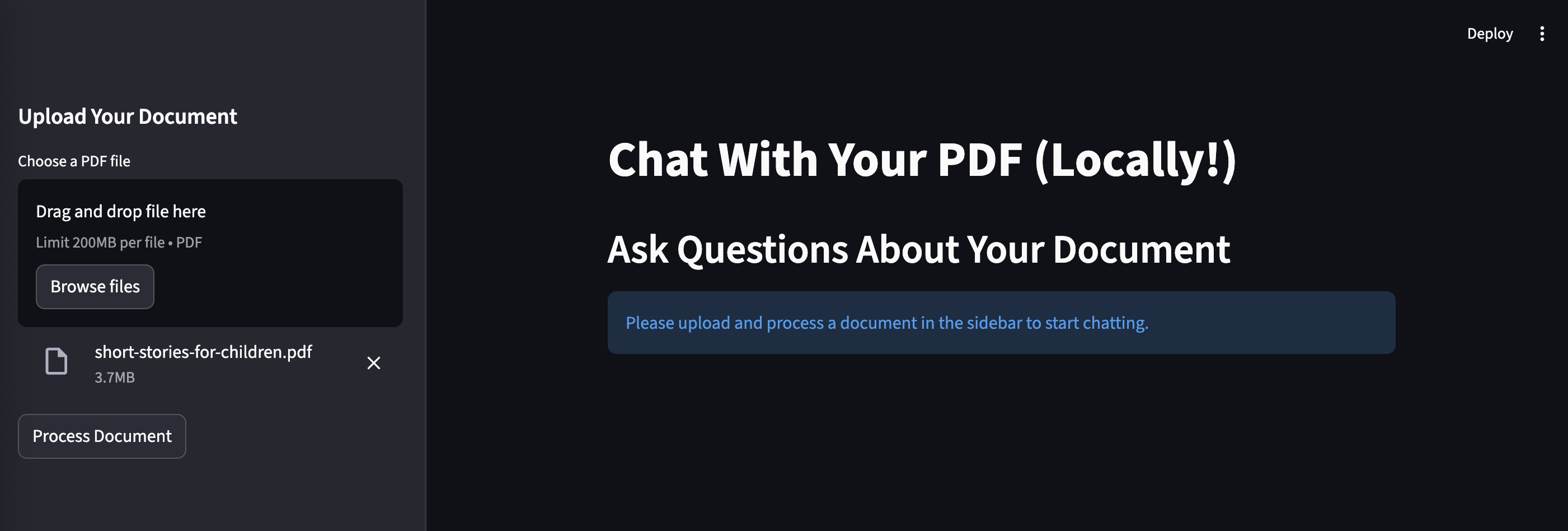
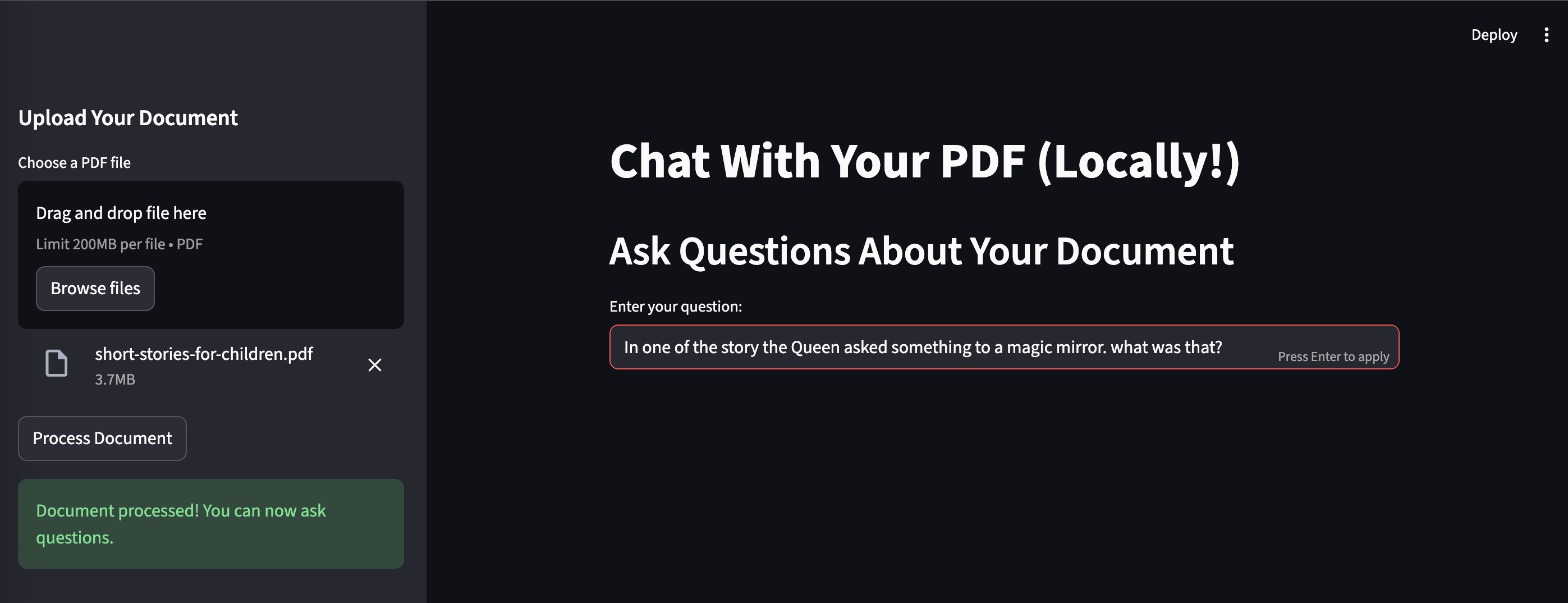
            st.success("Document processed! You can now ask questions.")
        else:
            st.warning("Please upload a PDF file first.")

# Main chat interface
st.header("Ask Questions About Your Document")

if st.session_state.rag_chain is None:
    st.info("Please upload and process a document in the sidebar to start chatting.")
else:
    question = st.text_input("Enter your question:")
    if question:
        with st.spinner("Thinking..."):
            result = st.session_state.rag_chain.invoke({"query": question})

            # Display the answer
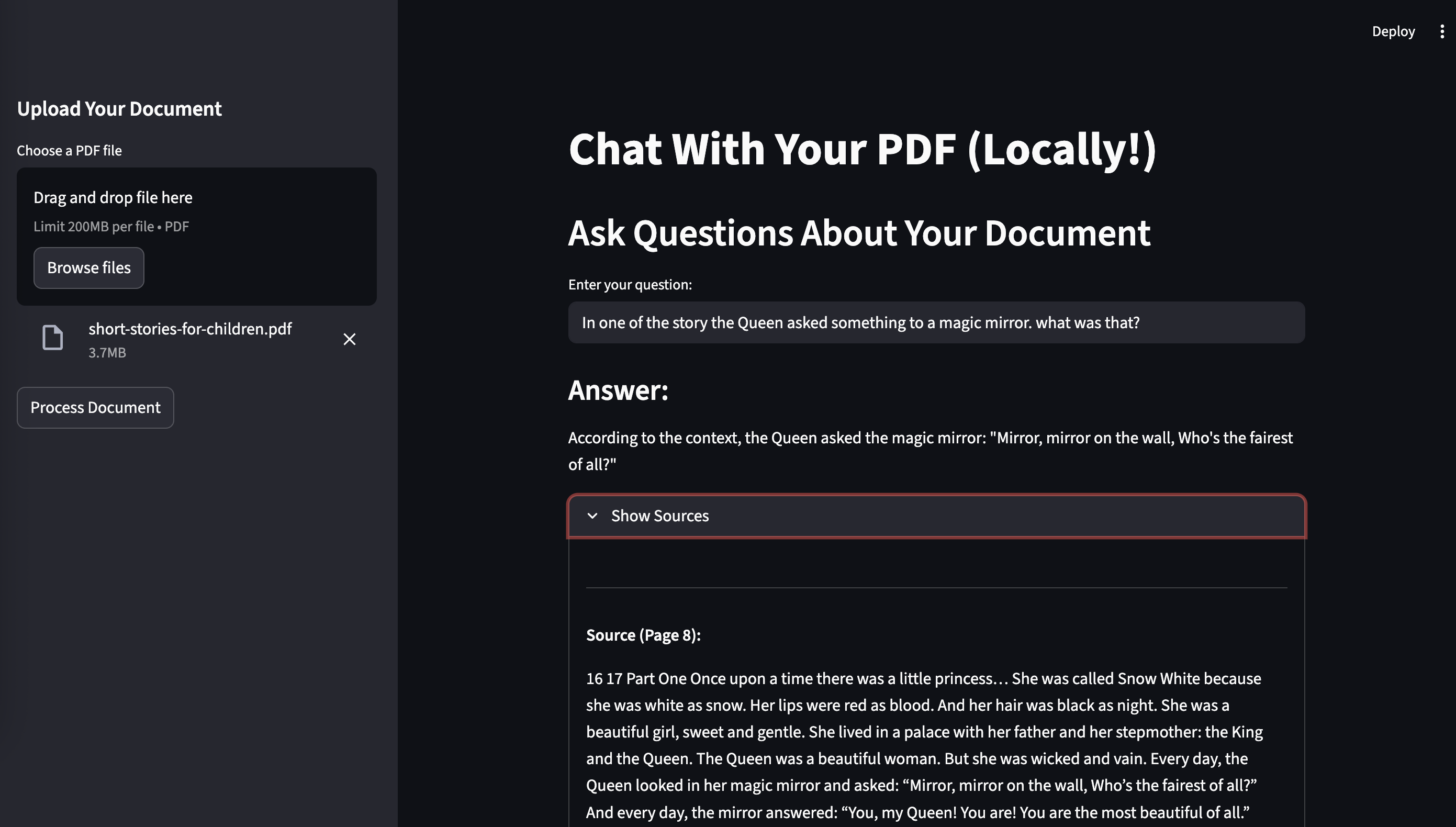
            st.subheader("Answer:")
            st.write(result["result"])

            # (Optional) Display source documents for verification
            with st.expander("Show Sources"):
                for doc in result["source_documents"]:
                    st.write("---")
                    st.write(f"**Source (Page {doc.metadata.get('page', 'N/A')}):**")
                    st.write(doc.page_content)
A Few Key Concepts on How It Works
st.file_uploader: This Streamlit widget creates the "Choose a PDF file" button and handles the file upload in the browser.
On-the-Fly Processing: When the user clicks "Process Document," create_rag_chain function runs. It loads the PDF, splits it, and builds the FAISS vector store entirely in memory. Nothing is saved to disk except for a temporary file that is immediately deleted.
st.cache_resource: This powerful decorator is used on our load_embeddings function. The embedding model is large and slow to load, so this ensures it's loaded into memory only once when the app first starts, not every time a button is clicked.
st.session_state: This is the magic that makes the app stateful. We store the created rag_chain in st.session_state. The UI checks if this chain exists to decide whether to show the chat input or the "please upload a document" message. This prevents the app from having to re-process the PDF every time you ask a new question.
Step 3: Run the App
We are using Ollama for local LLM. Install and run the ollama in a terminal if it is not running by ollama serve command.
Run the Streamlit command from another terminal in the directory where app.py is saved.
streamlit run app.pyThe browser will open a new tab with your fully interactive application. You can now upload any PDF and start a conversation with it instantly.
I have uploaded a children's storybook PDF to the application and asked questions from the book. The app answered the question correctly and also displayed the source of the response. I have built a local RAG application for myself!!!
Conclusion
We don't need a complex, multi-service stack to start building powerful, interactive RAG applications. By combining the simplicity of Streamlit with the efficiency of FAISS, you can create and rapidly prototype amazing AI tools on your local machine. This single-file, "upload-and-chat" model is perfect for building internal tools, personal knowledge bases, or just experimenting with the power of LLMs on your own data.
Opinions expressed by DZone contributors are their own.
Comments