

DZone
Thanks for visiting DZone today,
Edit Profile
  • Manage Email Subscriptions
  • How to Post to DZone
  • Article Submission Guidelines
Sign Out View Profile
  • Post an Article
  • Manage My Drafts
Over 2 million developers have joined DZone.
Log In / Join
Refcards Trend Reports
Events Video Library
Refcards
Trend Reports

Events

View Events Video Library

Related

  • MuleSoft MCP and A2A in Production: What 17 Recipes Reveal
  • MuleSoft IDP: Enhancing Efficiency and Accuracy in Data Extraction
  • From AI Chaos to Control: Building Enterprise-Grade LLM Gateways With MuleSoft Anypoint
  • Revolutionizing Scaled Agile Frameworks with AI, MuleSoft, and AWS: An Insider’s Perspective

Trending

  • Event-Driven Pipelines With Apache Pulsar and Go
  • Persistent Memory for AI Agents Using LangChain's Deep Agents
  • Pragmatica Aether: Let Java Be Java
  • Jakarta EE 12: Entering the Data Age of Enterprise Java
  1. DZone
  2. Software Design and Architecture
  3. Integration
  4. How to Send WhatsApp Message to Email Using Vonage APIs and MuleSoft

How to Send WhatsApp Message to Email Using Vonage APIs and MuleSoft

Learn how to send a WhatsApp message to your email using Vonage Messages API and MuleSoft in this short and simple tutorial.

By 
Gaurav Dubey user avatar
Gaurav Dubey
·
Updated Jan. 26, 21 · Tutorial
Likes (5)
Comment
Save
Tweet
Share
8.9K Views

Join the DZone community and get the full member experience.

Join For Free

In this short and simple tutorial, we will be sending a WhatsApp message to our email using Vonage Messages API and MuleSoft.

I would like to thank Rohit Sikhwal for this idea.

In the first step, we will create an account on nexmo.com and login to it. After login, we can go to the Messages API (https://dashboard.nexmo.com/messages/sandbox). Here, we will scan the QR code in our WhatsApp or send an invite email or save the number in your mobile and message the text shown in below image to that number.

In the second step, we will create a simple application in MuleSoft which will send the payload to an email provided by us.

Deploy the application to Cloudhub. Copy the Cloudhub URL and get back to the Messages API (https://dashboard.nexmo.com/messages/sandbox). Paste the Cloudhub URL in the Inbound Webhooks as shown in the below image and save webhooks.

Now, send a Whatsapp message to the number you saved in the first step.
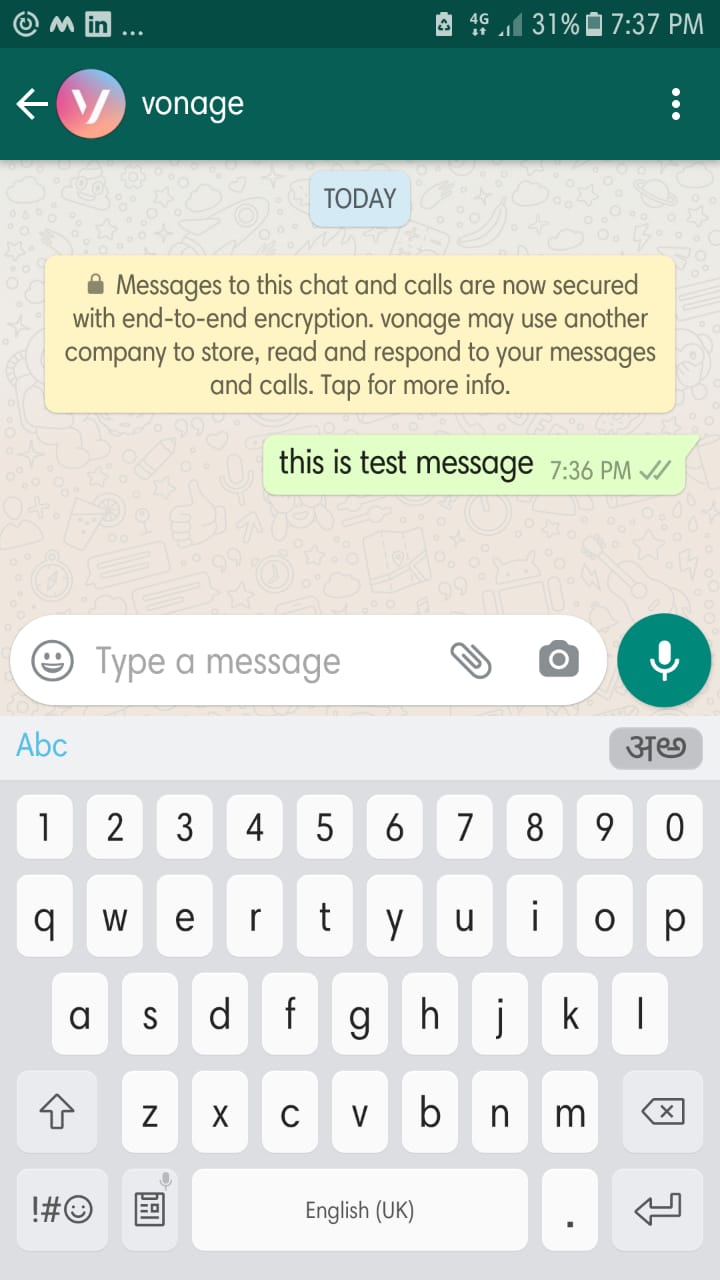
Now check your email.

You will see the payload like this in the email.

Thanks for reading.

Please read this article to know about send email using Gmail.

MuleSoft

Opinions expressed by DZone contributors are their own.

Related

  • MuleSoft MCP and A2A in Production: What 17 Recipes Reveal
  • MuleSoft IDP: Enhancing Efficiency and Accuracy in Data Extraction
  • From AI Chaos to Control: Building Enterprise-Grade LLM Gateways With MuleSoft Anypoint
  • Revolutionizing Scaled Agile Frameworks with AI, MuleSoft, and AWS: An Insider’s Perspective

Partner Resources

×

Comments

The likes didn't load as expected. Please refresh the page and try again.

  • RSS
  • X
  • Facebook

ABOUT US

  • About DZone
  • Support and feedback
  • Community research

ADVERTISE

  • Advertise with DZone

CONTRIBUTE ON DZONE

  • Article Submission Guidelines
  • Become a Contributor
  • Core Program
  • Visit the Writers' Zone

LEGAL

  • Terms of Service
  • Privacy Policy

CONTACT US

  • 3343 Perimeter Hill Drive
  • Suite 215
  • Nashville, TN 37211
  • [email protected]

Let's be friends:

  • RSS
  • X
  • Facebook