

Talk to Your BigQuery Data Using Claude Desktop
Build an MCP server that lets Claude's desktop connect to your BigQuery data and converse with your data in natural language.
 CORE
·
CORE
·
Join the DZone community and get the full member experience.
Join For FreeHave you ever thought about talking to your data in Google Cloud BigQuery using natural language queries? If I told you a year ago that it was possible, you might think that I am out of my mind. But with MCP (Model Context Protocol), it is now totally possible.
Before we get into the nitty-gritty details of how it is done, let us first look at a simple diagram explaining how we can connect and talk to our BigQuery data using natural language via MCP. We will then talk about each of the components and how they are set up, and then we will look at how the whole thing works.
In principle, think of MCP as a client-server architecture where you have the LLM residing in a host application acting as the client, and it connects to the target tool using an MCP server.
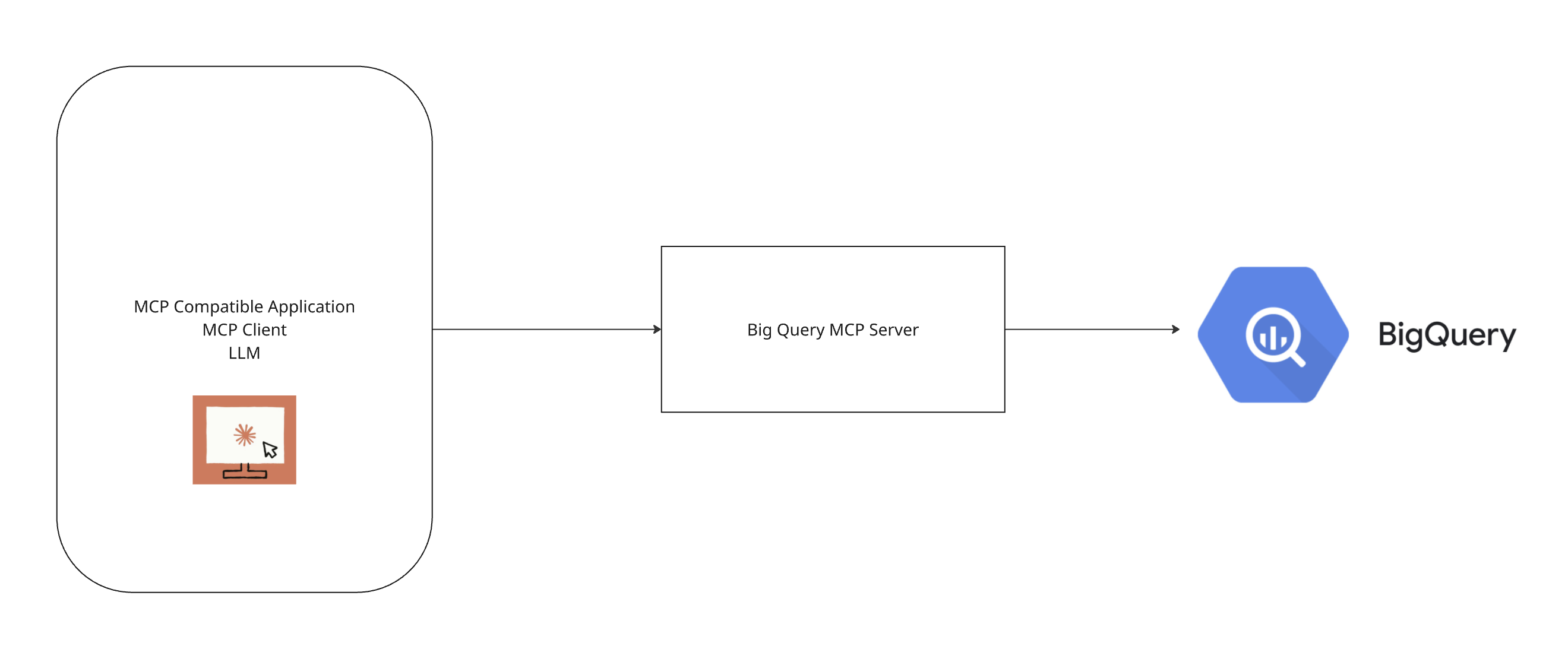
The above diagram has 3 components:
- MCP Compatible Application: This application acts as a client, and in our example here, we have Claude desktop hosting the Claude family of models and acting as the host or client application. The host can connect to multiple MCP servers at the same time and will let us connect to all the features the servers can offer. Think of this as being able to naturally converse with your proprietary data using an LLM-based application.
- Big Query MCP server: A specific server built for BigQuery, which lets us connect to our BigQuery data using the LLM host application (Claude desktop in this case).
- Big Query dataset: Actual data residing in a Big Query dataset in a Google Cloud project to which we will connect via our MCP host and MCP server.
With the above simple setup, we should be able to naturally converse with our data residing in a BigQuery dataset. We will get that set up going in a bit and see the magic.
Big Query MCP Setup
1. MCP Host: We will be using the Claude desktop app as our MCP host, so have that downloaded and handy.
2. Local vs Remote MCP servers: Before we get into setting up the big query MCP server, I have chosen to set it up locally for the following reasons outlined in the table below, and this is just my opinion. There are a lot of trusted remote MCP servers as well, which you can very well choose to use.
This is not the complete list, but only the factors that made me choose a local MCP server.
| Security Aspect | Local MCP Server | Remote MCP Server |
|---|---|---|
| Data Transit | Data always resides in your local Environment | Data is sent over the internet, making it vulnerable to attacks |
| Attack Surface | Minimal, as it is only accessible locally | High, as it is exposed to internet-based attacks |
| Authentication | Full control over the authentication, as it is local | Dependent on the remote server's authentication implementation |
| Creds Management | BigQuery credentials remain on the local machine | Credentials may need to be stored on remote servers |
| Access Control | Direct control over who can access the MCP server | Might be shared responsibility with less control over access |
3. Local MCP Server Setup: Now that we have made a decision to use a local MCP server, let us set up the MCP server using the following code.
Pro Tip: When setting up MCP servers, write the functions or tools in a way that empowers the LLM to solve things on its own.
For example, our MCP server here is for assisting us to converse with our BigQuery data using natural language, so we should have at a minimum a function or tool that lets the LLM list the tables, describe the tables, and execute a query.
In this way, the LLM will figure out a way to answer our questions based on the tools available at its disposal.
The following is the Python code for setting up the BigQuery MCP server:
import json, asyncio, argparse
from google.cloud import bigquery
from google.oauth2 import service_account
from mcp.server.fastmcp import FastMCP

def make_bq_client(key_file: str, project: str, location: str) -> bigquery.Client:
    creds = service_account.Credentials.from_service_account_file(key_file)
    return bigquery.Client(credentials=creds, project=project, location=location)

def main():
    parser = argparse.ArgumentParser("Generic BigQuery MCP Server")
    parser.add_argument("--key-file", default="./bq-key.json",
                        help="Path to your service account JSON key")
    parser.add_argument("--project",  required=True,
                        help="GCP project ID (e.g. my-GCP-project-id)")
    parser.add_argument("--location", default="US",
                        help="BigQuery location (e.g. US)")
    parser.add_argument("--dataset",  required=True,
                        help="Default BigQuery dataset (e.g. my-bq-dataset)")
    args = parser.parse_args()

    client = make_bq_client(args.key_file, args.project, args.location)
    full_dataset = f"{args.project}.{args.dataset}"

    # Create the MCP server
    mcp = FastMCP("bigquery-MCP-server")

    @mcp.tool()
    def list_tables(dataset: str | None = None) -> list[str]:
        """List all tables in the given dataset."""
        ds = dataset or args.dataset
        tables = [
            f"{t.project}.{t.dataset_id}.{t.table_id}"
            for t in client.list_tables(f"{args.project}.{ds}")
        ]
        return tables

    @mcp.tool()
    def describe_table(table: str) -> dict:
        """Return the schema of a table (table can be 'dataset.table' or full path)."""
        if "." not in table:
            table = f"{full_dataset}.{table}"
        tbl = client.get_table(table)
        return {f.name: f.field_type for f in tbl.schema}

    @mcp.tool()
    def execute_query(sql: str) -> list[dict]:
        """Run an arbitrary SQL SELECT and return rows as JSON."""
        job = client.query(sql)
        return [dict(row) for row in job.result()]

    # Run over stdio
    mcp.run()

if __name__ == "__main__":
    main()
As you can see, I have kept it really simple. It requires a JSON file to access the BigQuery data. It has three tools: one for listing tables, one for describing tables, and another to execute queries. This will enable the LLM or the MCP host to utilize the tools when needed to help you with your natural language query.
Download the BigQuery access key as a JSON file from the Google Cloud Console (the instructions are easily accessible online). Then, save the JSON file in the same location as your code.
4. Configure Claude Desktop to access the BigQuery MCP Server: Open the Claude desktop app, go to settings > developer > click on edit config and add the following to the config file:
{
  "mcpServers": {
    "bigquery": {
      "command": path to your python if using virtual environment,
      "args": [
        "path to your .py file for the MCP server",
        "--project", "GCP project id",
        "--dataset", "BigQuery dataset",
        "--key-file", "path to keyfile json"
      ]
    }
  }
}
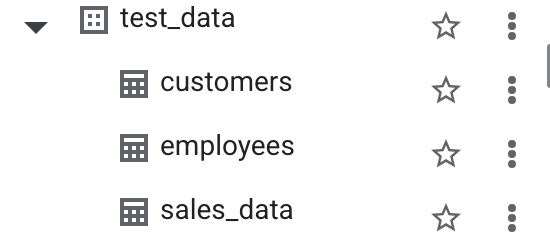
5. BigQuery Data: Now, set up a BigQuery dataset to test the working solution. I have set up the following:
BigQuery MCP in action
Now, let us see the big query MCP server in action. I am going to paste screenshots of the various use cases we can knock off based on this connection.
1. Ask Natural Language Queries on Your Data
Talk to your data in natural language. For example, if you want to know all of the customers from California, you can do so as follows
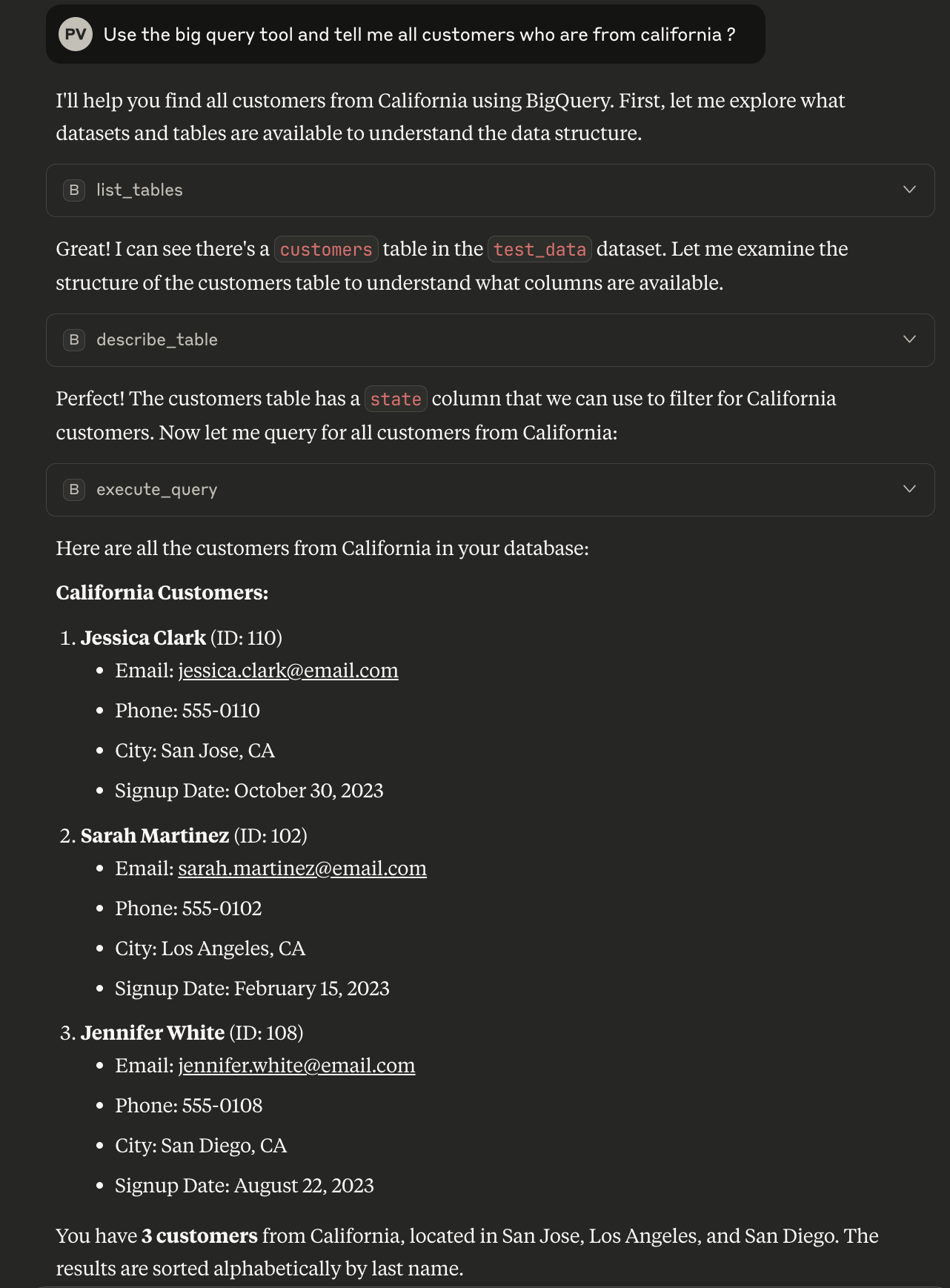
In this example, Claude has used all three tools available to answer our question.
2. Perform Analysis on Your Data With Ease
If we have to analyze data by aggregating information from multiple tables, we would be writing a lot of queries in the traditional way. But with MCP, it is fairly easy. Let's say we want to find out which customer has made the maximum sale. I will show you how simple it will be with MCP integration.
Here are the customer table and the sales table snapshots for your reference:
Sales Data
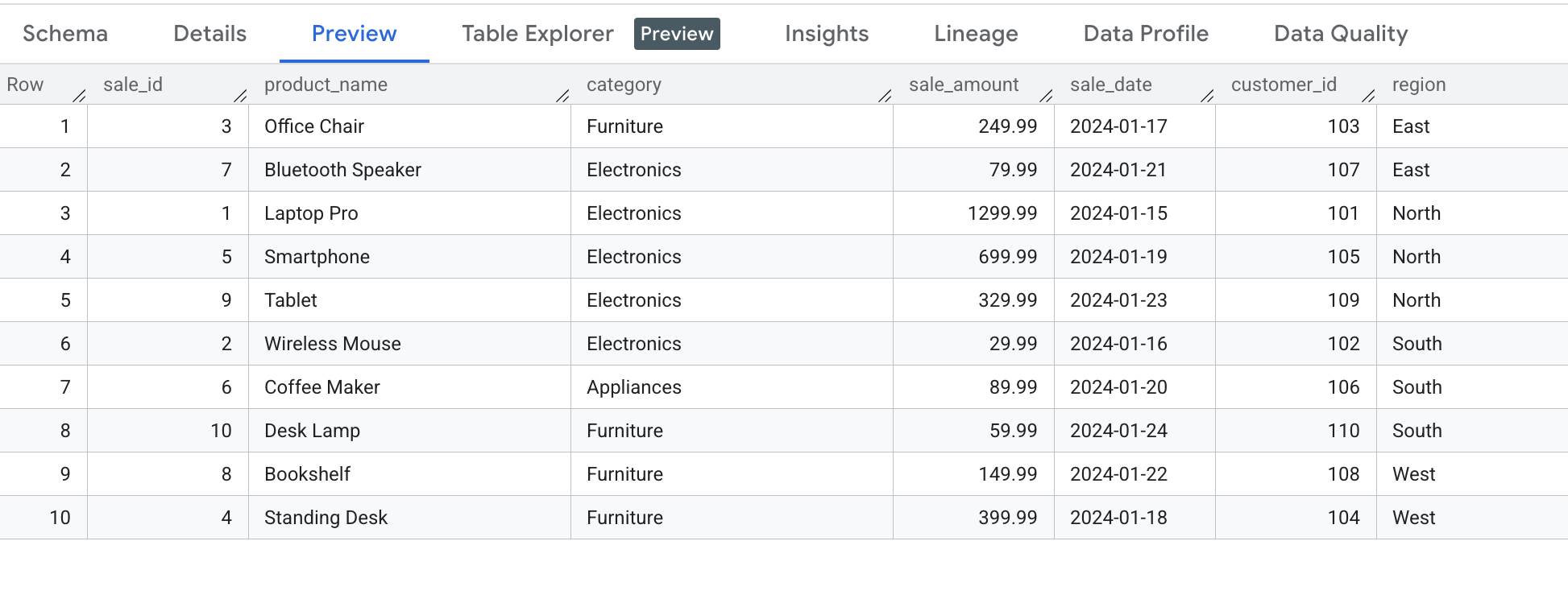
Customer Data
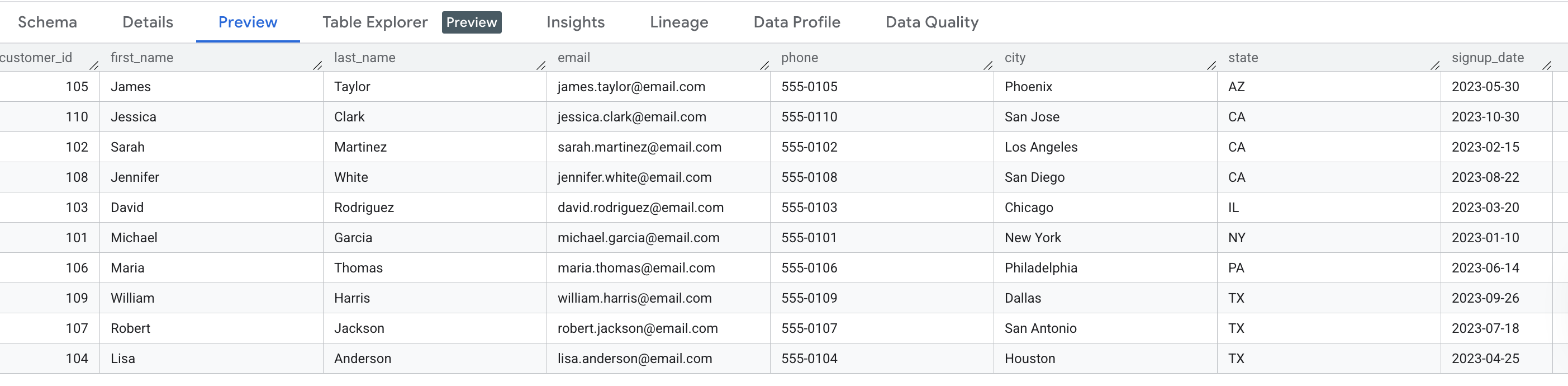
Now, let us see how easy it is to get the aggregated data to help our analysis.
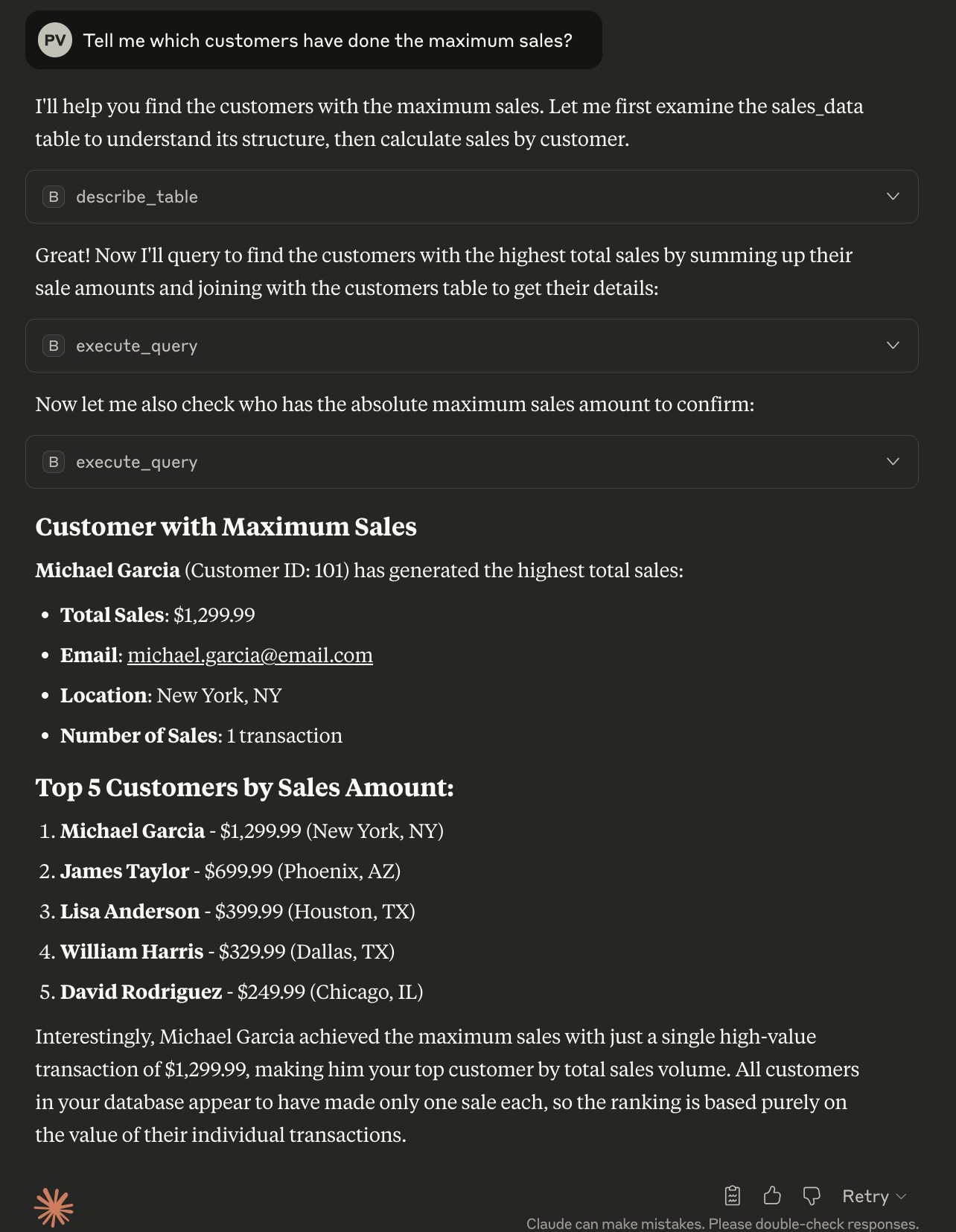
As pictured above, Claude is intelligent enough to use the tools at its disposal to answer the query for us.
3. Improvements on Data
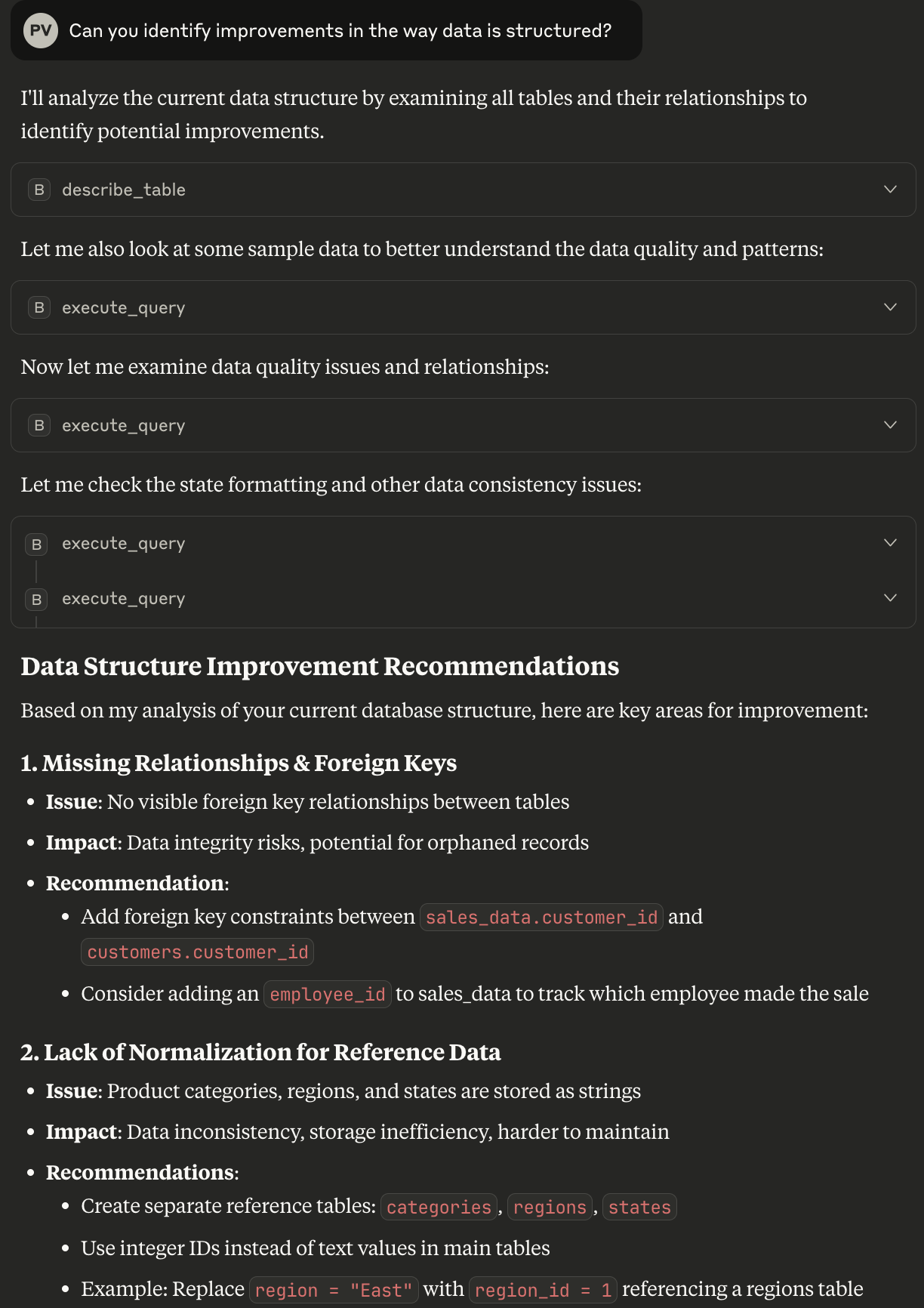
Now, let us move to the more advanced use cases and show the power of MCP. We can ask Claude to identify improvements in our data and its setup, and see what it says.
The screenshot below shows that it has given improvements. You will have to do due diligence to check on the relevance of these improvements, but at first glance, they seem pretty decent.
Conclusion
MCP is a shape-shifting concept that makes it easy to read, analyze, and improve our data. We can have access to multiple MCP servers, allowing Claude to be even more powerful and provide a more comprehensive response using more than one tool.
For example, if your sales data is in BigQuery and the employee data is in a MySQL database, you can have one MCP server for BigQuery and one for MySQL and aggregate both the information in a similar fashion with the same ease.
People who embrace MCP will have a huge advantage in the years to come, and I hope this helps you move closer to that path.
Opinions expressed by DZone contributors are their own.
Comments