

Configure Salesforce Platform Events Source Connector
I'm gonna show how to send data from Salesforce Platform Events to Kafka topic by setting up a Salesforce Platform Event Source Connector.
Join the DZone community and get the full member experience.
Join For FreeIn this article, I'm gonna show how to send data from Salesforce Platform Events to Kafka topic by setting up a Salesforce Platform Event Source Connector and using a property file as the source of the configuration in Kafka Connect.
Prerequisites
- Salesforce Development Account
- Set up Connected App
- Platform Event
- Self-Managed Confluent Platform (Here's the tutorial on how to set up https://dzone.com/articles/installing-and-configuring-confluent-platform-kafk)
- Kafka Connect Salesforce Connector
Instructions
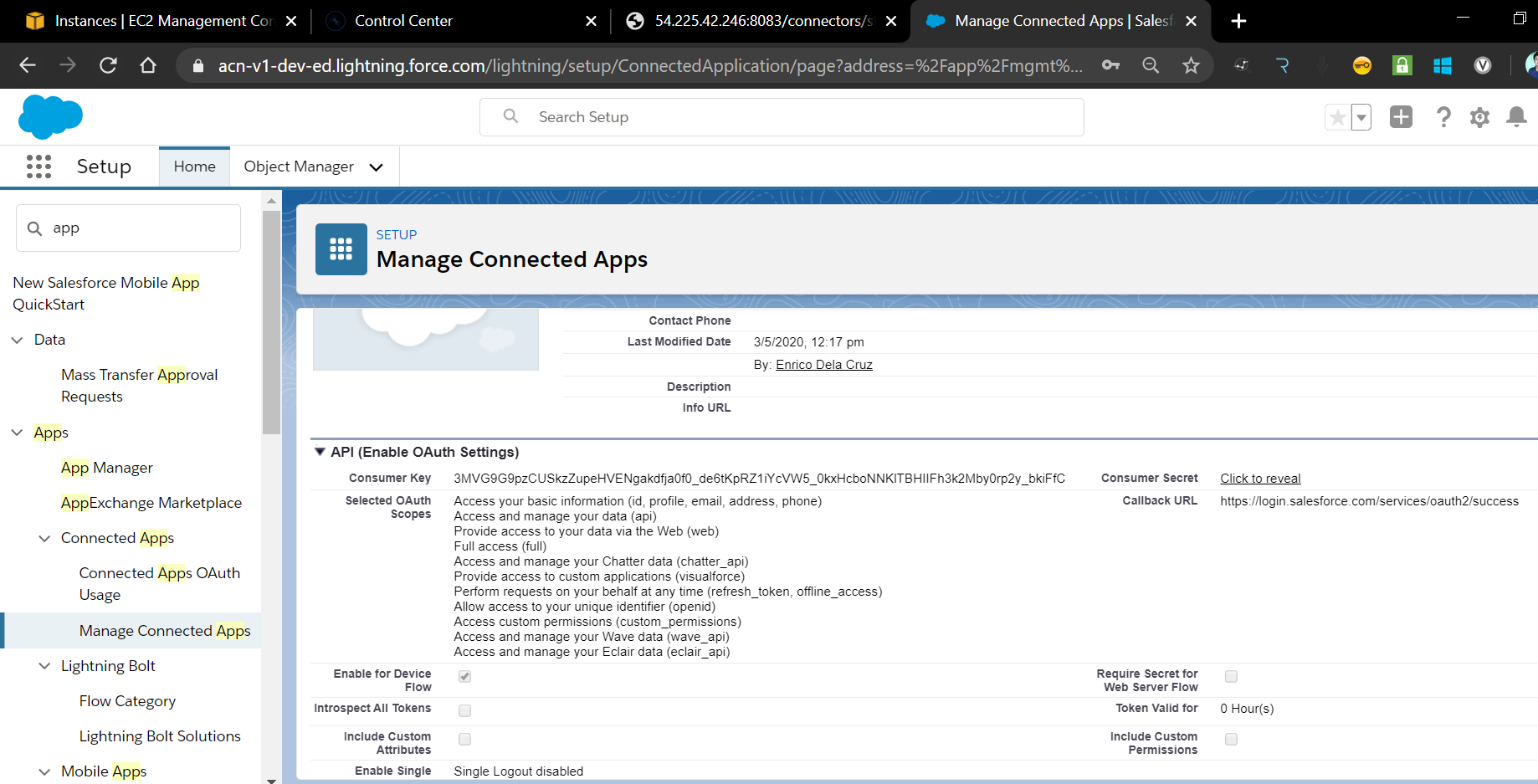
1. Create a new Connected App in Salesforce. Go to Setup, Search for App Manager in the Quick Find box and click the App Manager then on the App Manager page, click the New Connected App to set up a new API client.
We need the following details from Salesforce:
- Consumer Key — Can be retrieve from the Connected App.
- Consumer Secret - Can be retrieve from the Connected App.
- Username — Username you used to login to Salesforce.
- Password — Password you used to login to Salesforce.
- Security Token — Can be generated from your Profile Setting in Salesforce.
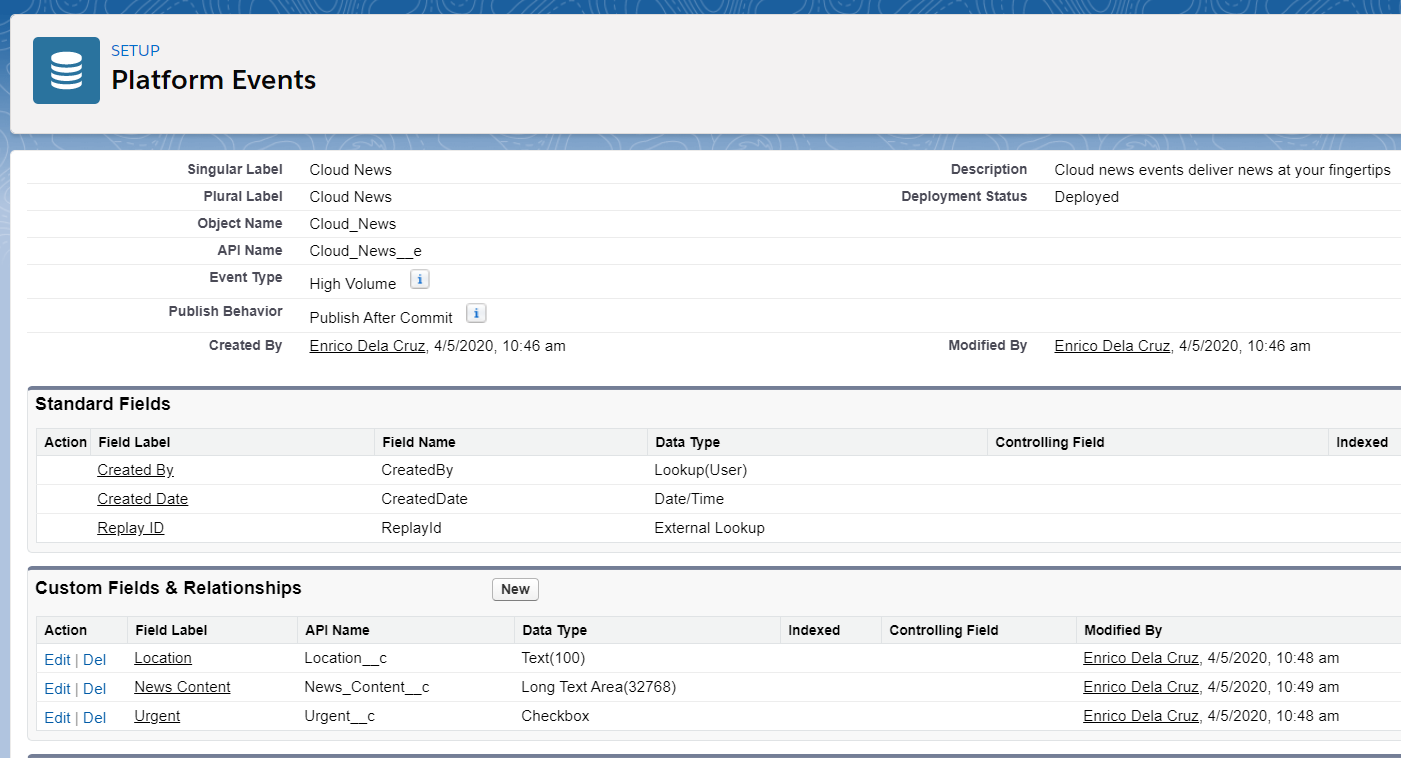
2. To create a Platform Event in Salesforce. From Setup, enter Platform Events in the Quick Find box, then select Platform Events. On the Platform Events page, click New Platform Event.
You can refer to this Trailhead Module on how to set up.
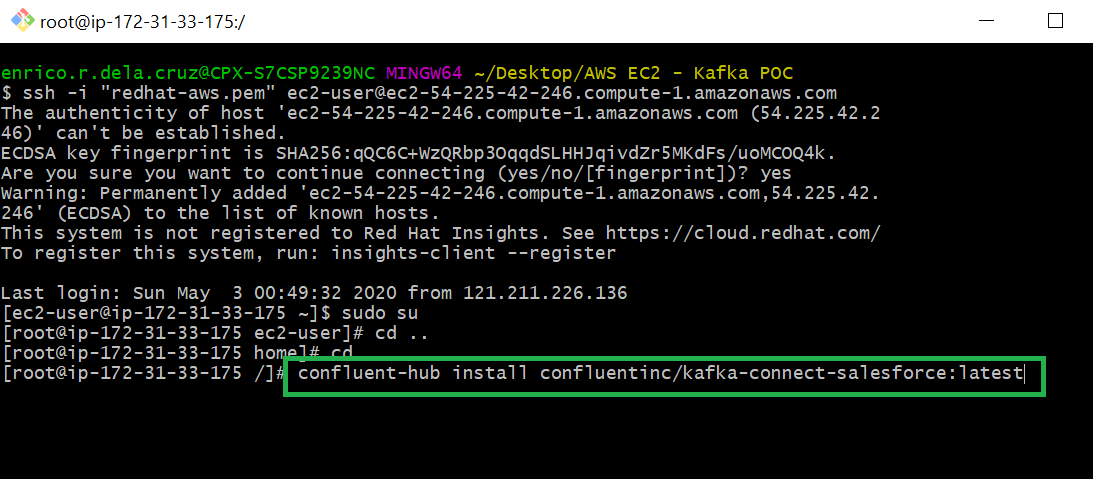
3. Install the Kafka Connect Salesforce Connector by executing the command
confluent-hub install confluentinc/kafka-connect-salesforce:latest on your Confluent Platform Server.
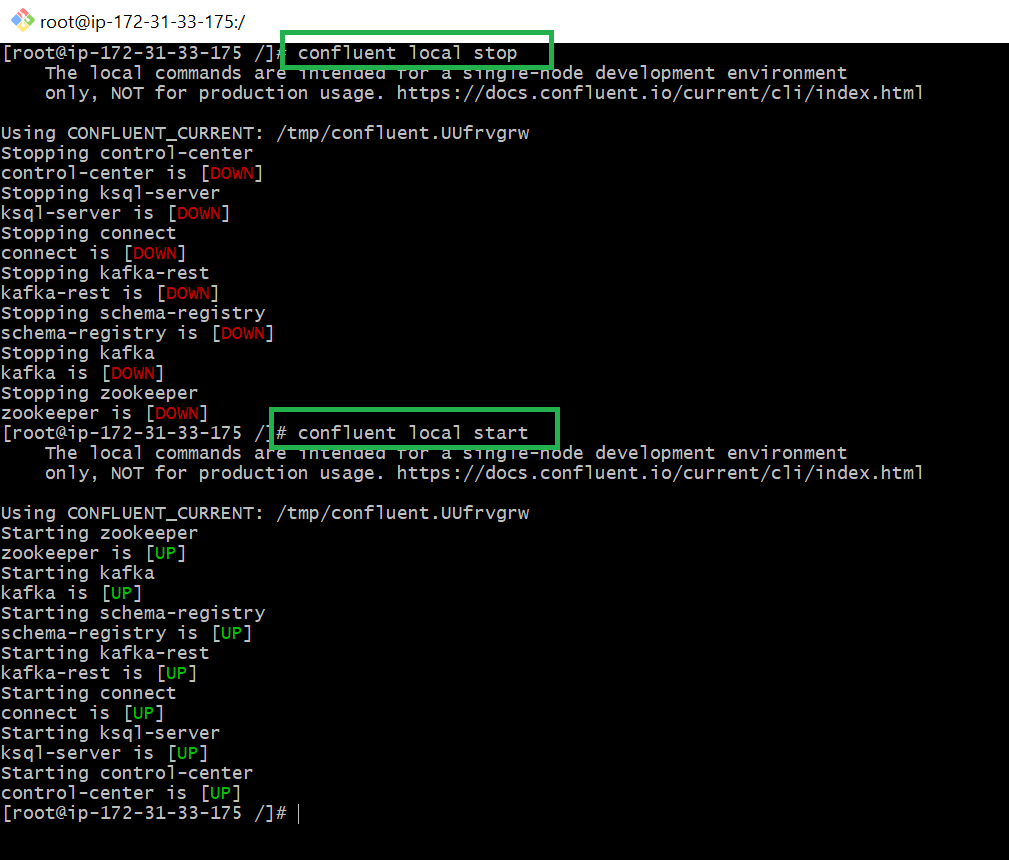
4. Restart the Confluent services by executing the command confluent local stop and confluent local start
5. Go to the Confluent Control Center http://<Public IP>:9021
On the Connect tab, Click Add Connector and you should see all available connectors including the newly installed Salesforce Source and Sink Connectors.
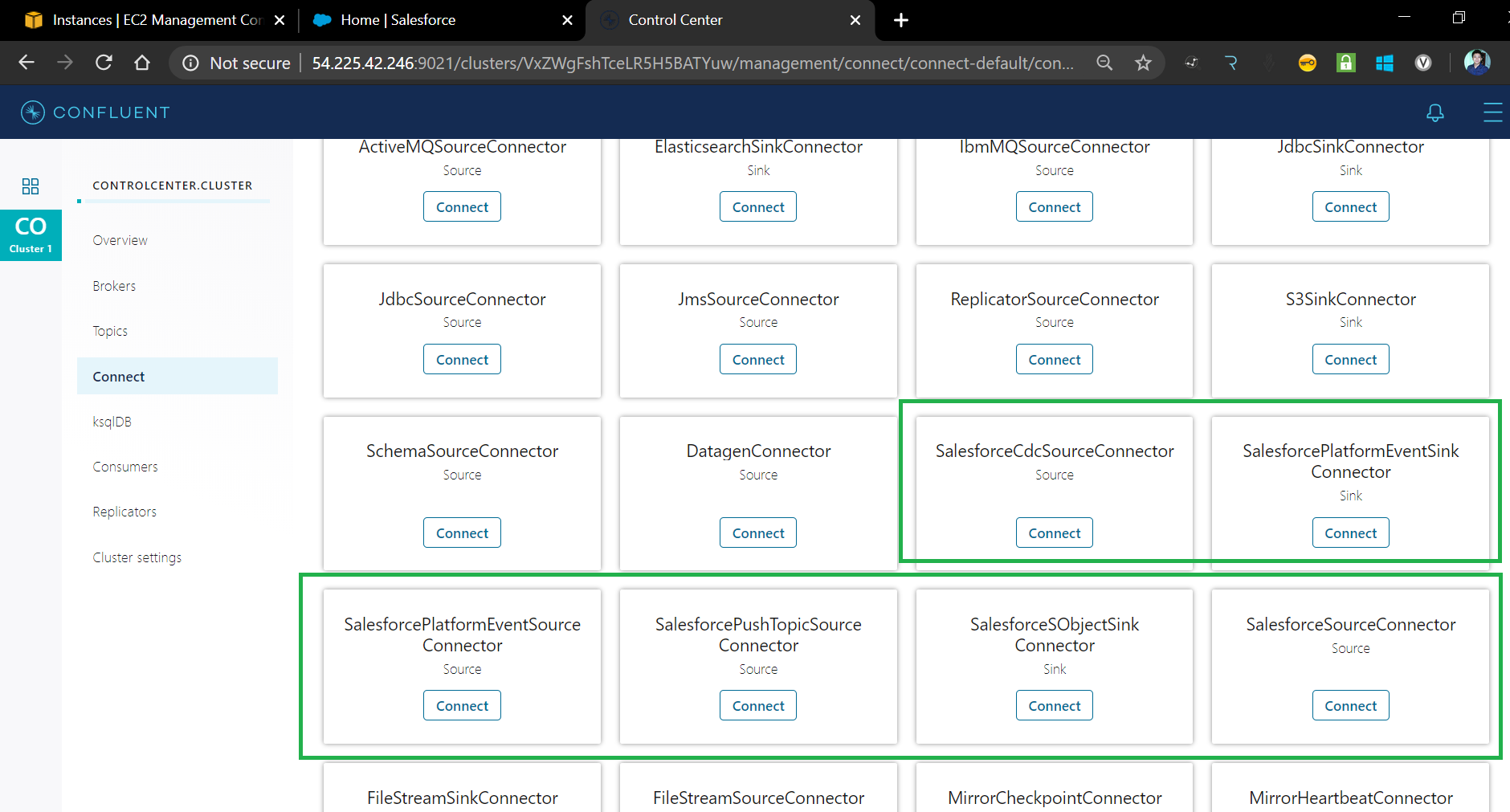
6. Create a new topic in the Confluent Control Center by going to Topics tab and clicking the Add a Topic button. Used the default settings to create.
Topic Name: sf_cloud_news_pe_in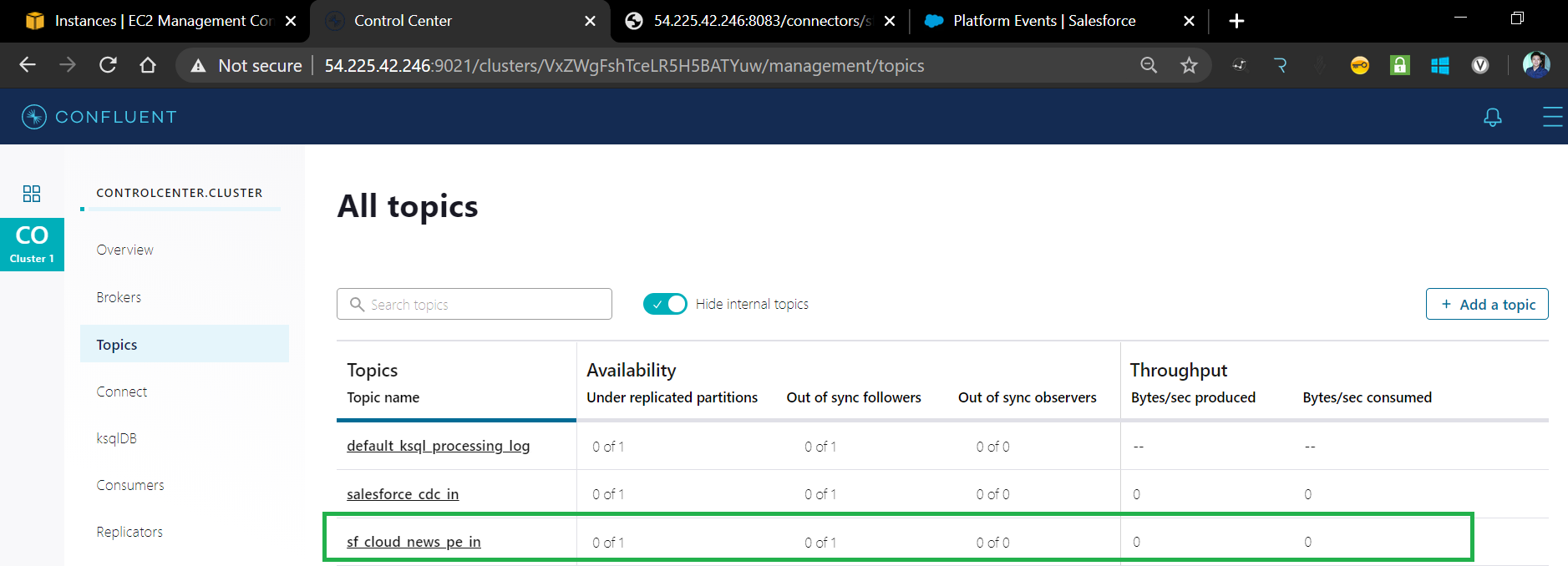
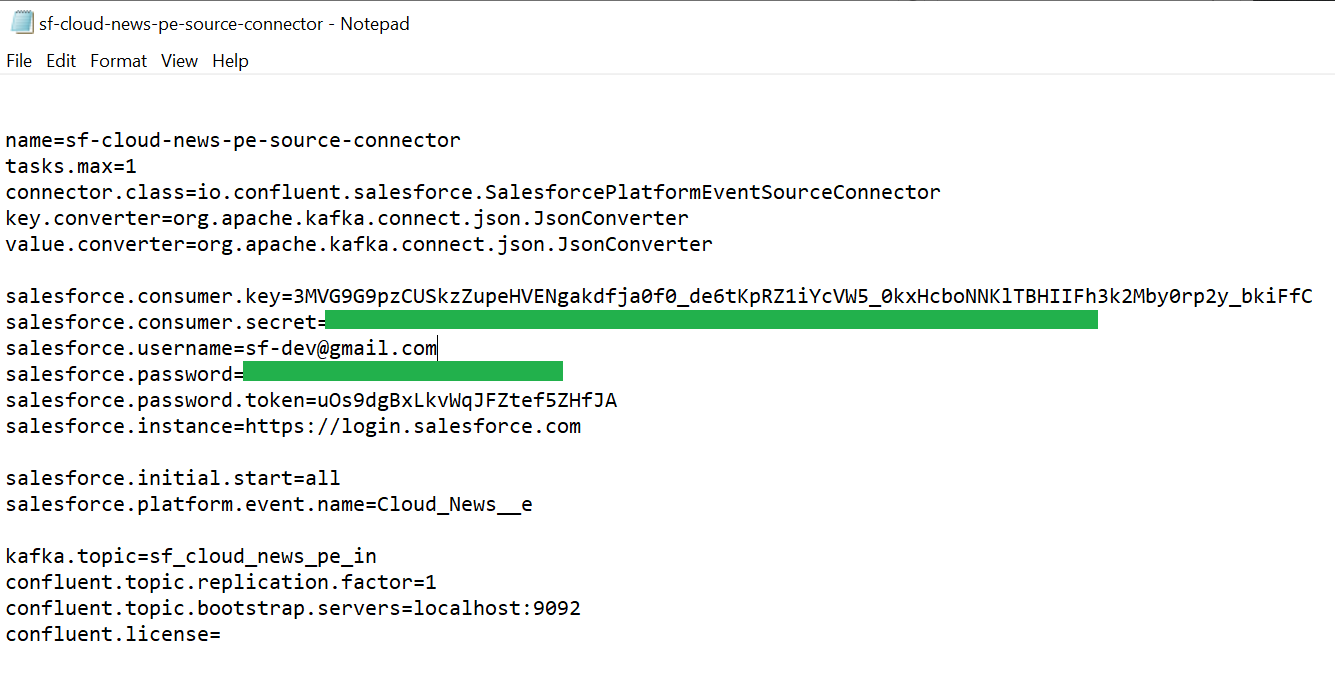
7. Create a .properties file containing the desire configurations for Salesforce Platform Event Source Connector, save it to your local as we will upload it to the Confluent Control Center.
Salesforce Platform Event Source Connector Configuration Details
xxxxxxxxxx
# Connector Name
name=sf-cloud-news-pe-source-connector
# You can define more than 1 task handler for performance tuning/scaling
tasks.max=1
# Type of Connector
connector.class=io.confluent.salesforce.SalesforcePlatformEventSourceConnector
# Data converter class — using JSON
key.converter=org.apache.kafka.connect.json.JsonConverter
value.converter=org.apache.kafka.connect.json.JsonConverter
# Salesforce Credentials
salesforce.consumer.key=<SALESFORCE CONNECTED APP CONSUMER KEY>
salesforce.consumer.secret=<SALESFORCE CONNECTED APP CONSUMER SECRET>
salesforce.username=<SALESFORCE USERNAME>
salesforce.password=<SALESFORCE PASSWORD>
salesforce.password.token=<SALESFORCE SECURITY TOKEN>
salesforce.instance=https://login.salesforce.com
# Salesforce Platform Event Name
salesforce.platform.event.name=Cloud_News__e
salesforce.initial.start=all
# Target Topic
kafka.topic=sf_cloud_news_pe_in
# License Setting — Default settings for trail/local version
confluent.topic.replication.factor=1
confluent.topic.bootstrap.servers=localhost:9092
confluent.license=
sf-cloud-news-pe-source-connector.properties
8. On the Confluent Control Center, go to the Connect page then click Upload Connector Config File, browse and select for the .properties file
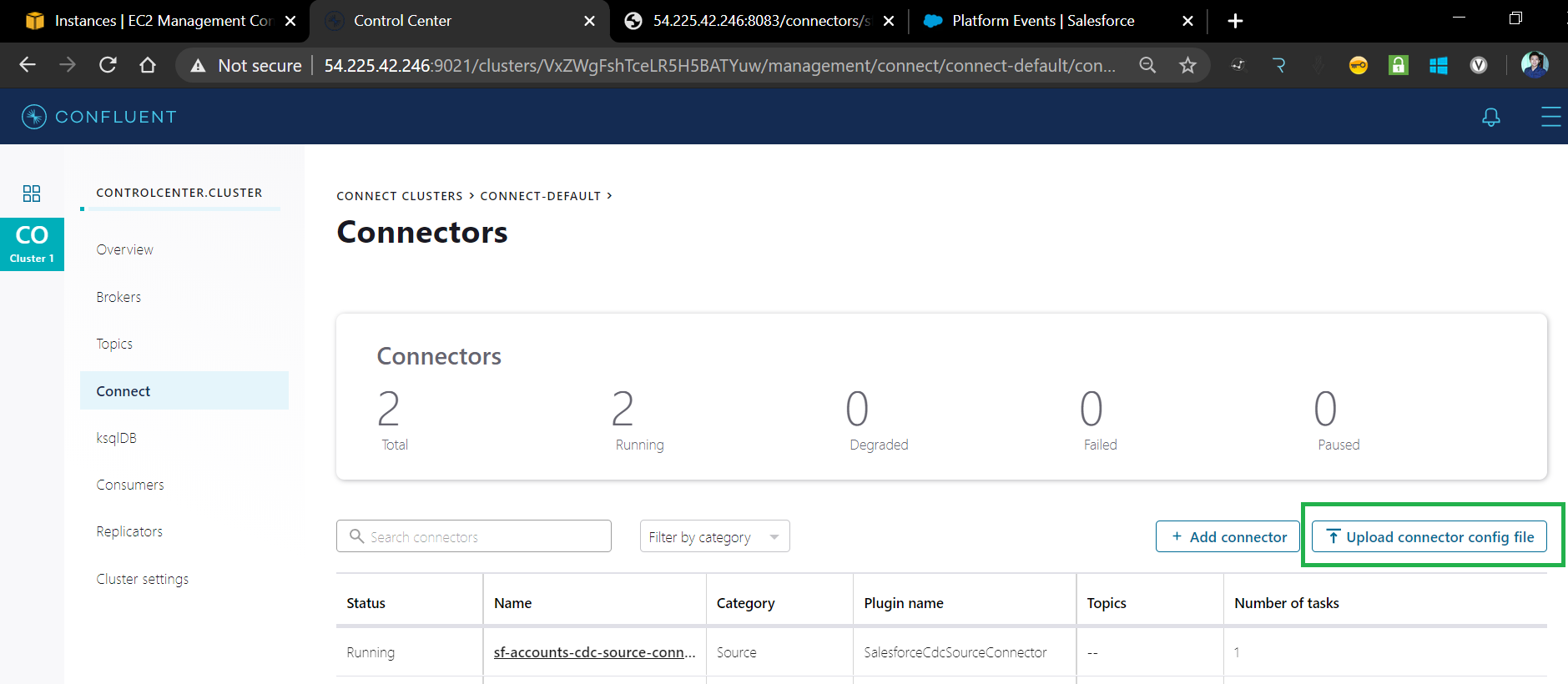
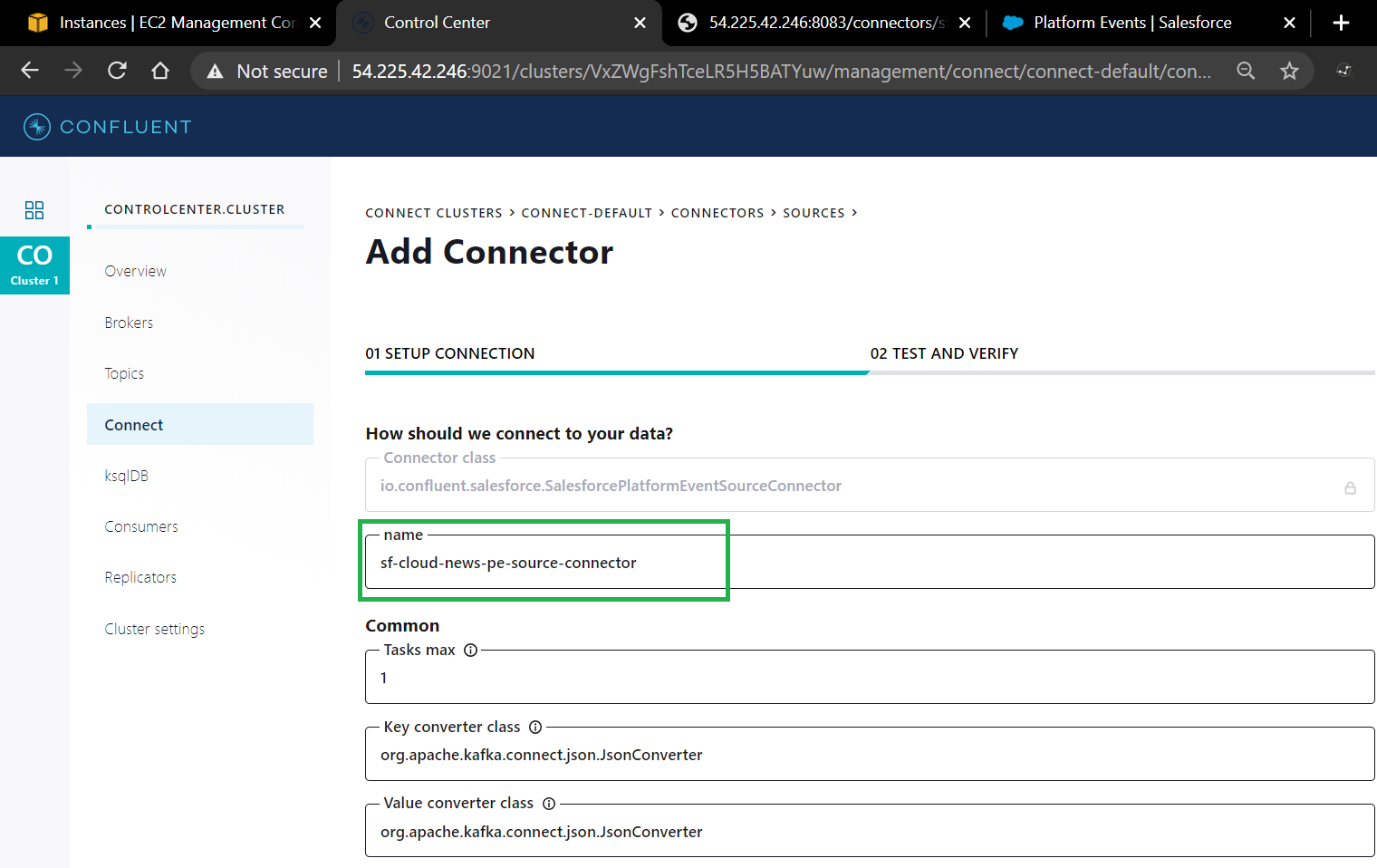
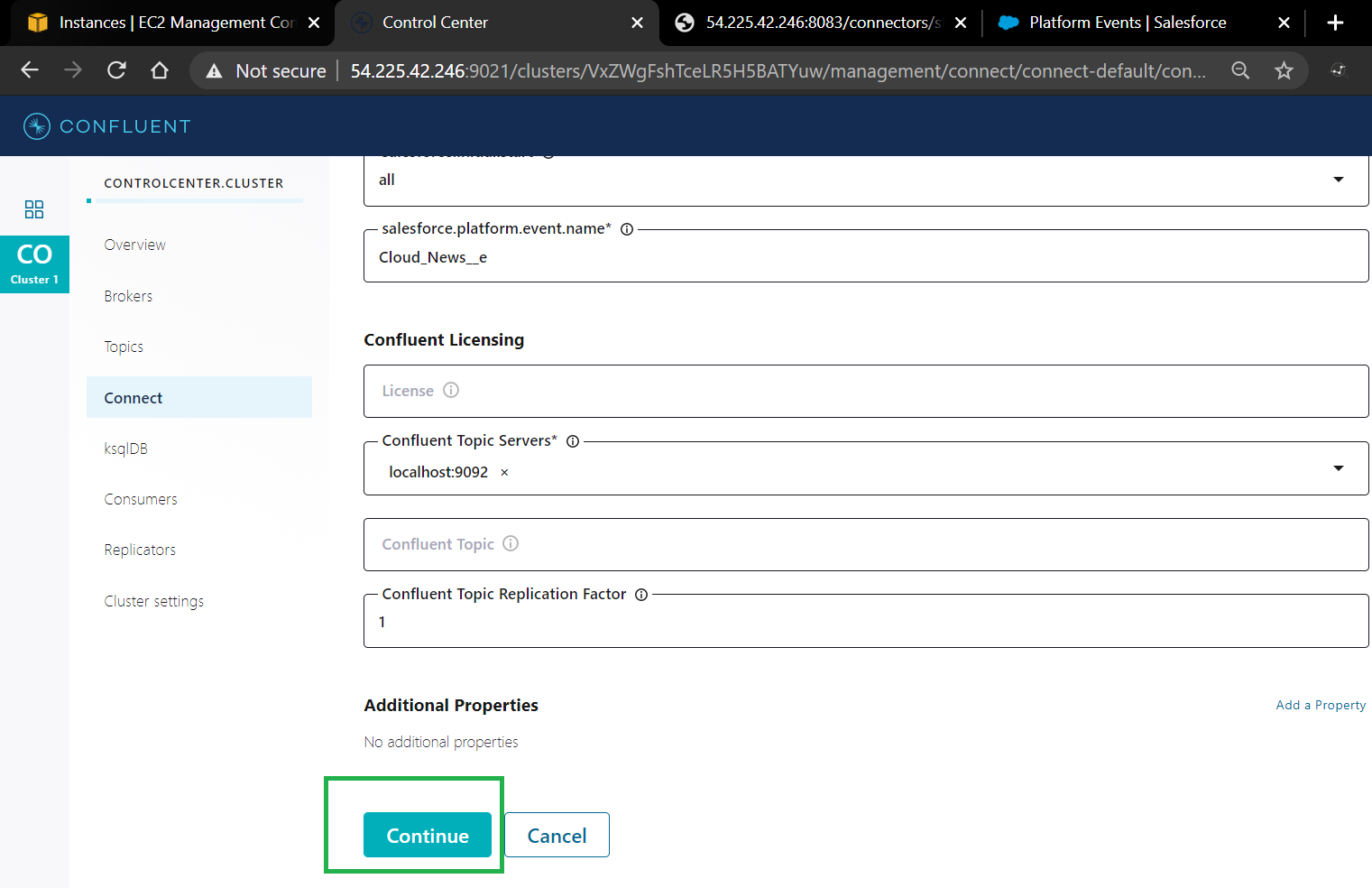
6. You should see the Connector Details Page, All configuration parameters from the file should be replicated in the form, Scroll down and click Continue.
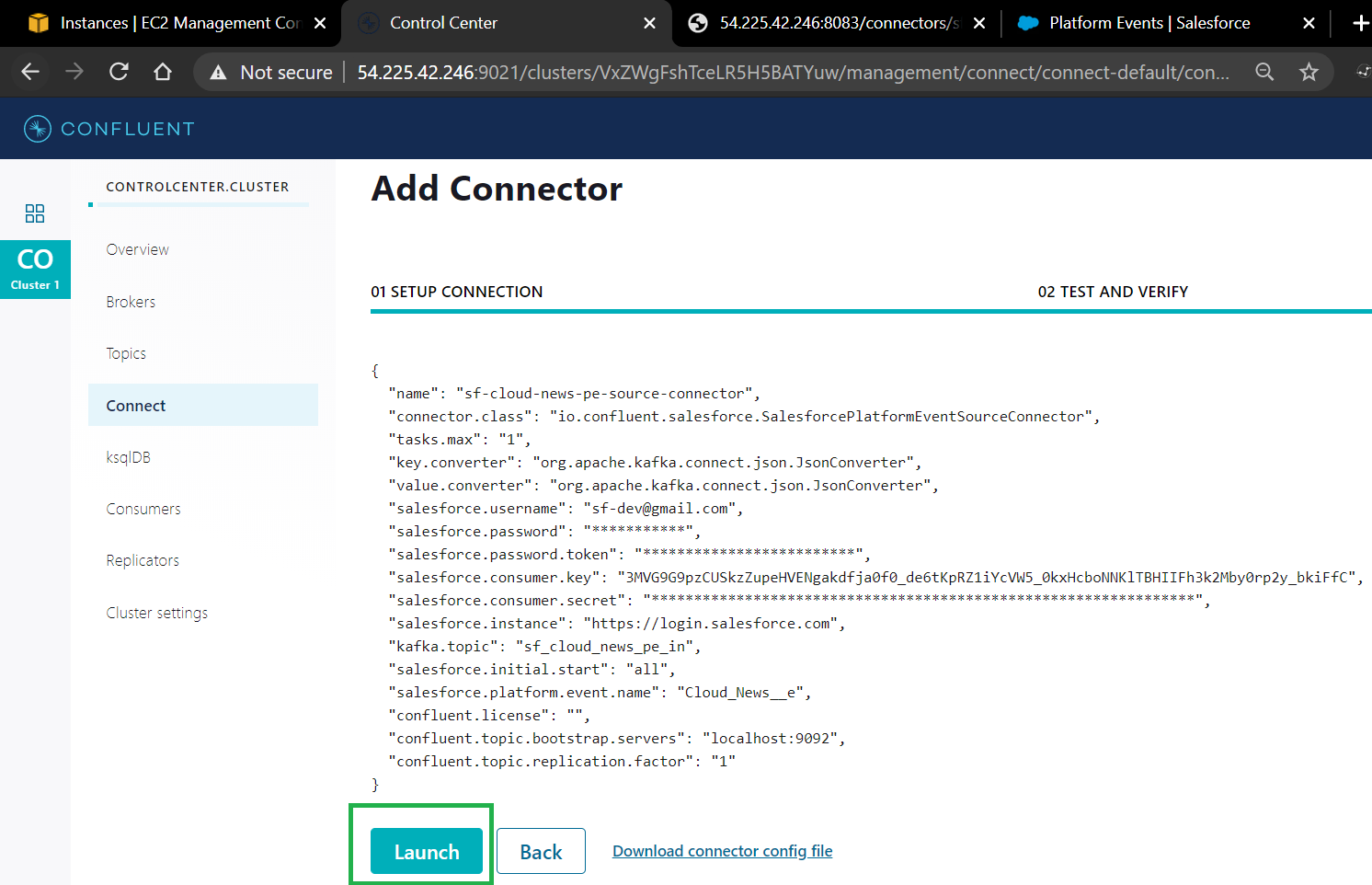
7. Click Lunch to deploy the Connector.
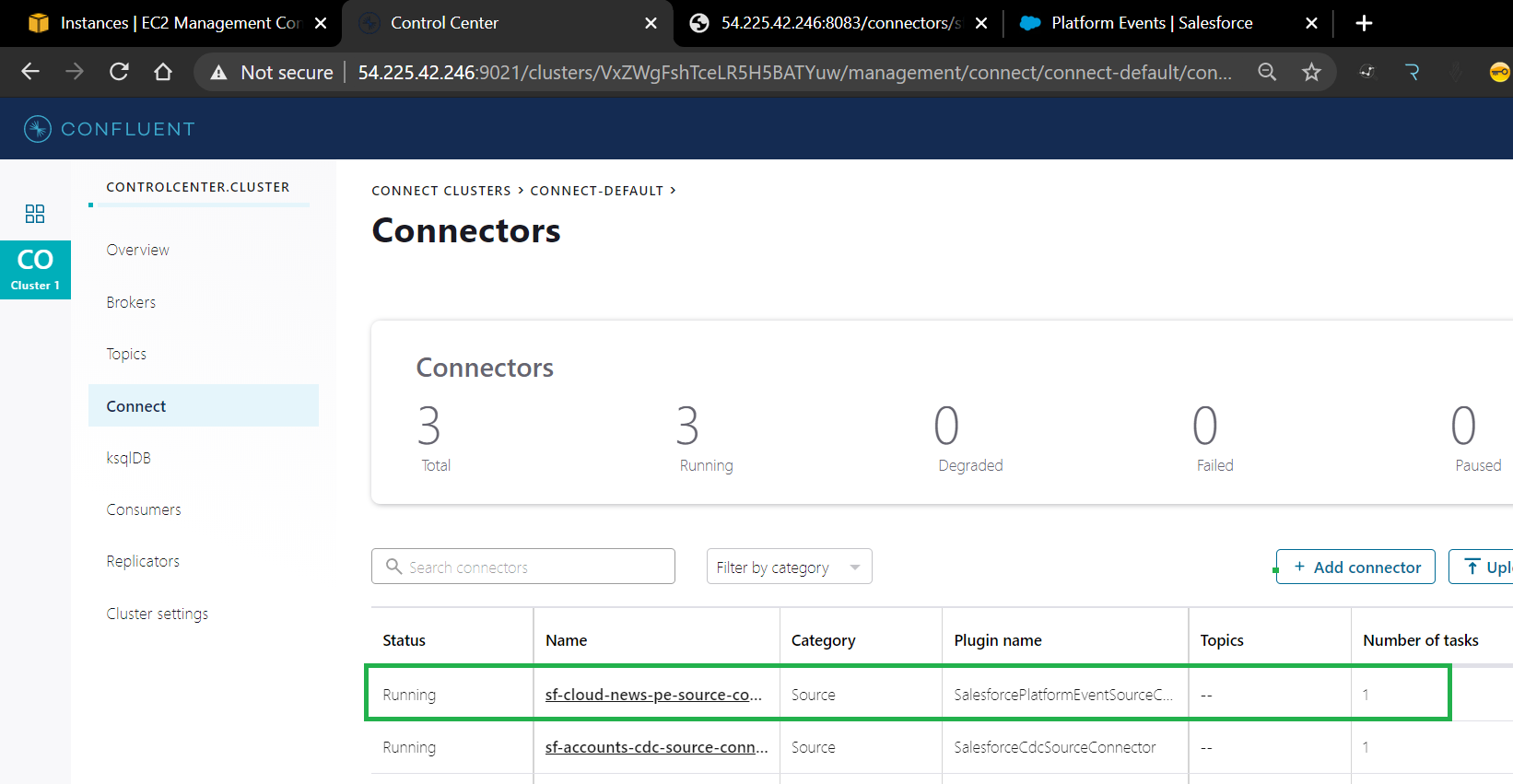
8. You should see that the connector status is running. In case the connector is failing, you can check and view the connector logs by sending a get request to http://<HOST>:8083/connectors/<CONNECTOR NAME>/status or executing the command confluent local status <CONNECTOR NAME> in the server.

Testing the Connector
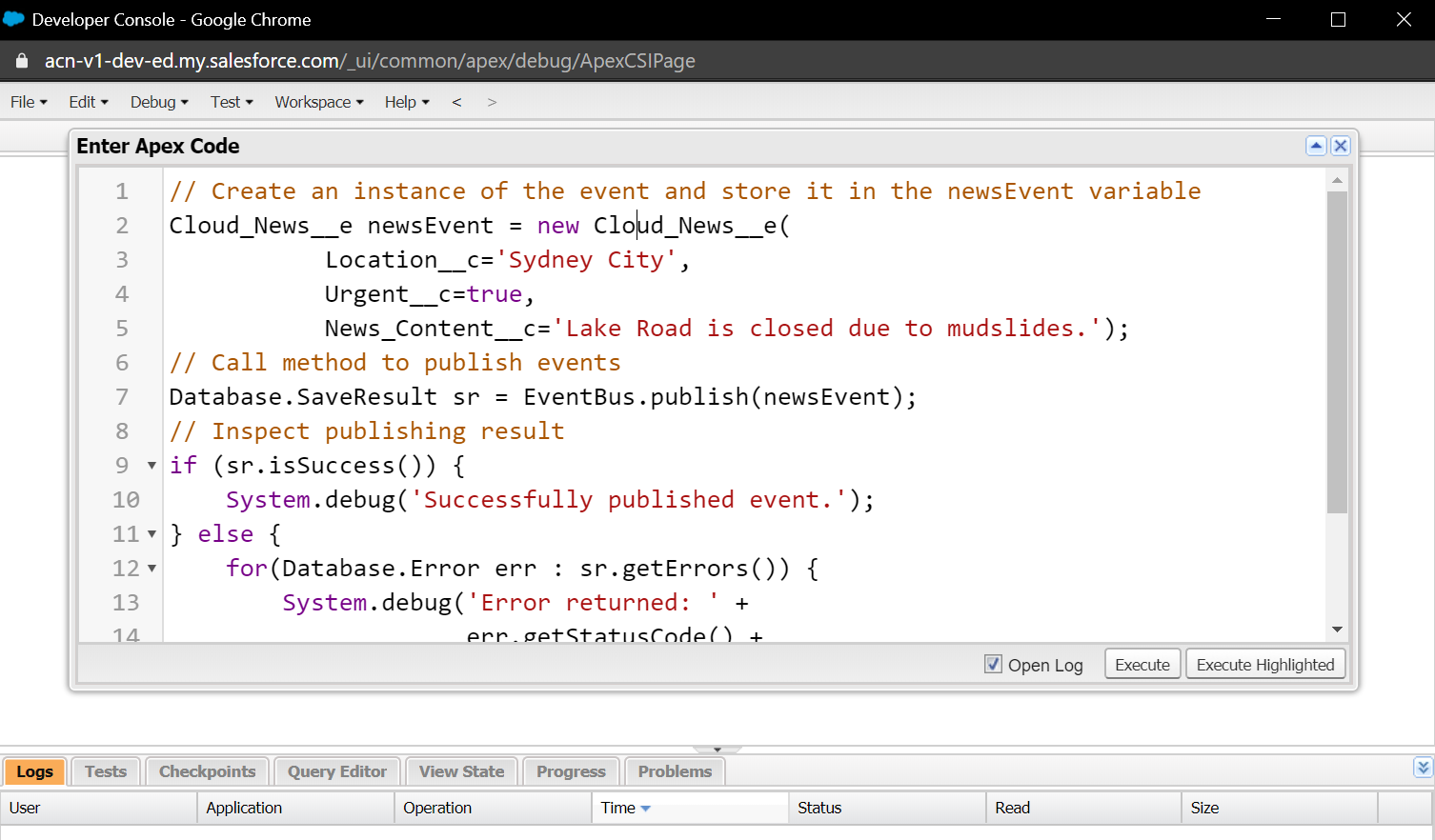
1. Publishing a new record to Platform Event Cloud_News__e by executing the below APEX code in Salesforce Developer Console.
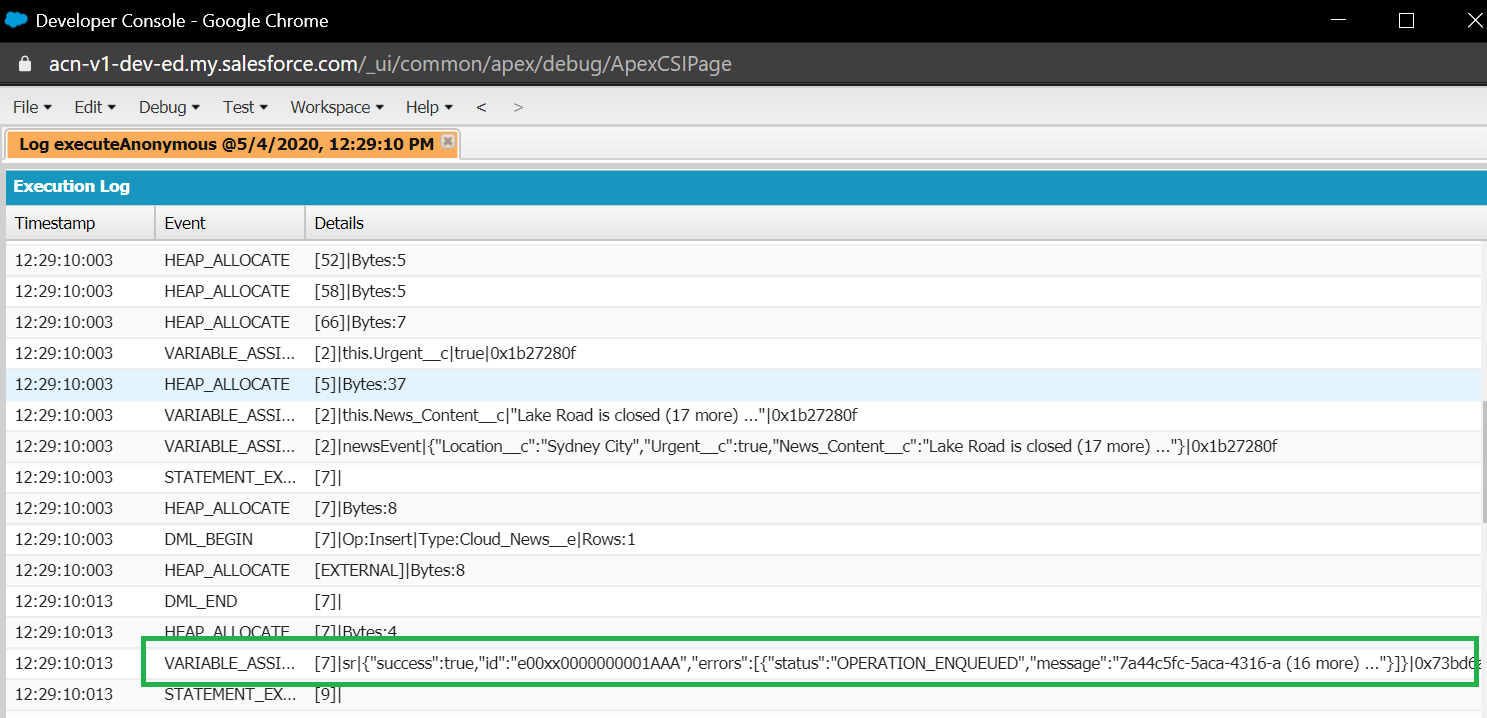
2. On the Confluent Control Center, we should see that the record from Salesforce was sent to the topic sf_cloud_news_pe_in
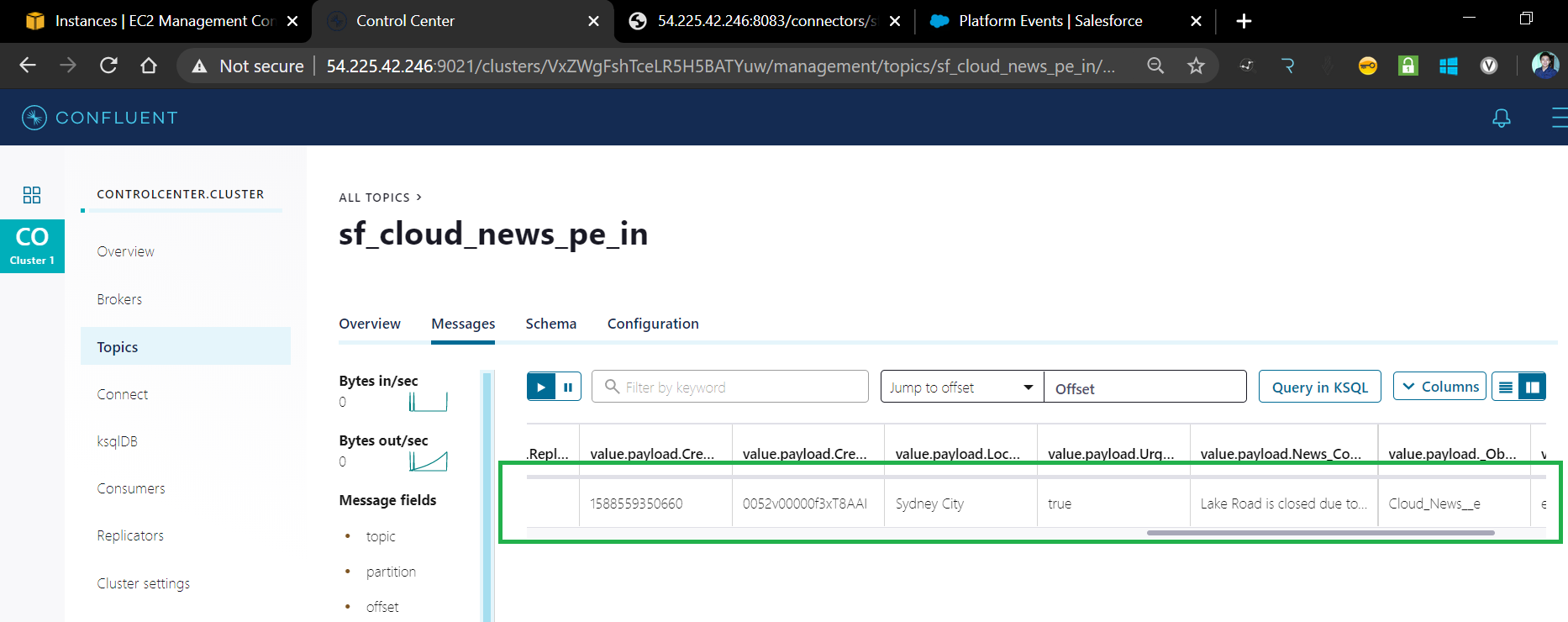
That's it, we just learned how to set up a Salesforce Platform Event Connector as a source in Kafka Connect by simply uploading a property file containing the custom configurations.
For more details, you can check this documentation from Confluent.
https://docs.confluent.io/current/connect/kafka-connect-salesforce/index.html
I hope this helps!
Opinions expressed by DZone contributors are their own.
Comments