

MuleSoft Email Connector - Part 1
In this article, I will guide you on how we can use the MuleSoft Email connector to send an email with an HTML body along with an attachment.
 ·
·
Join the DZone community and get the full member experience.
Join For FreeWhat Is An Email Connector?
MuleSoft Connector for Email sends and retrieves email messages over standard email protocols such as SMTPS/SMTP, IMAP, and POP3.
Some of the use cases for Email connectors include:
- Retrieve emails from POP3 mailboxes
- Retrieve, delete, and store emails from IMAP mailboxes
- Send emails over the SMTP protocol
A prerequisite to start with this walkthrough is to have email and file connectors added in Anypoint Studio. You can add these connectors from Add modules option. Also, you need to have a Google account as we are going to use Gmail to send an email. Also, you need to turn on Gmail Less secure apps setting else you won't be able to send mail from MuleSoft or any external application.
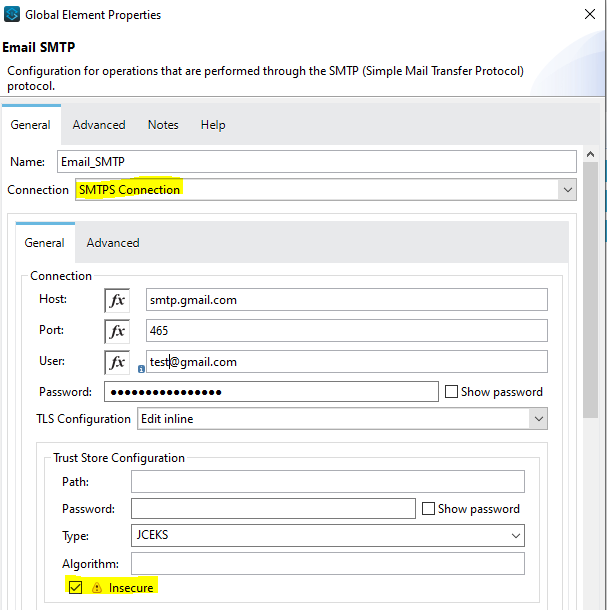
Let's first create the global Email SMTP configuration element. To create a global element, you can navigate to the Global Elements tab and click on create and search for Email SMTP.
In the configuration, we have to select a connection as SMTPS Connection and check the insecure checkbox. And provide the below details:
- Host = smtp.gmail.com
- Port = 465
- User = Your Gmail ID
- Password = Your Gmail Password
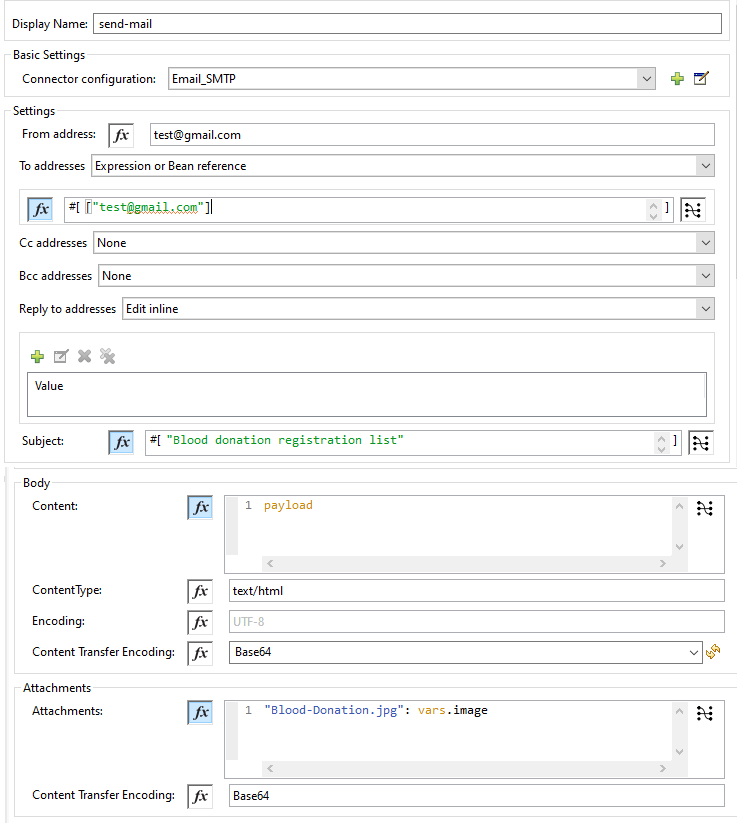
Let's configure the email send operation to send an email. In the To addresses field, we have to pass an array of emails to whom we want to send an email. In the Content field of the body section, we passed HTML content that we have got as a result of parse template operation. In the parse template, we just bound the blood-donation-registration-mail-template.html template that is defined under src/main/resources with an input request.
In the Attachments field of the Attachments section, we have passed the expression "Blood-Donation.jpg": vars.image where Blood-Donation.jpg will be considered as the name of attachment and vars.image is content of attachment file. An image variable holds the output of the file read operation. If we want to send multiple attachments, we can define JSON objects.
You can refer to the below snapshot for configuring send operation.
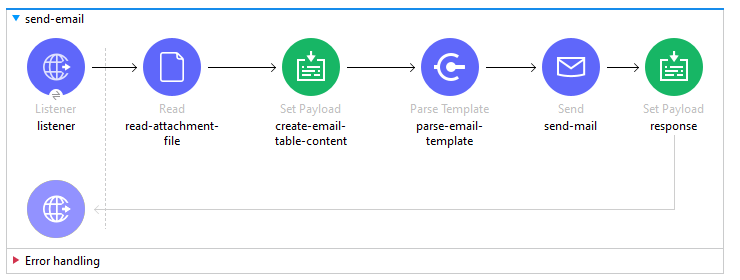
Our flow will look like below once completed. I have provided the Mule flow code at the end.
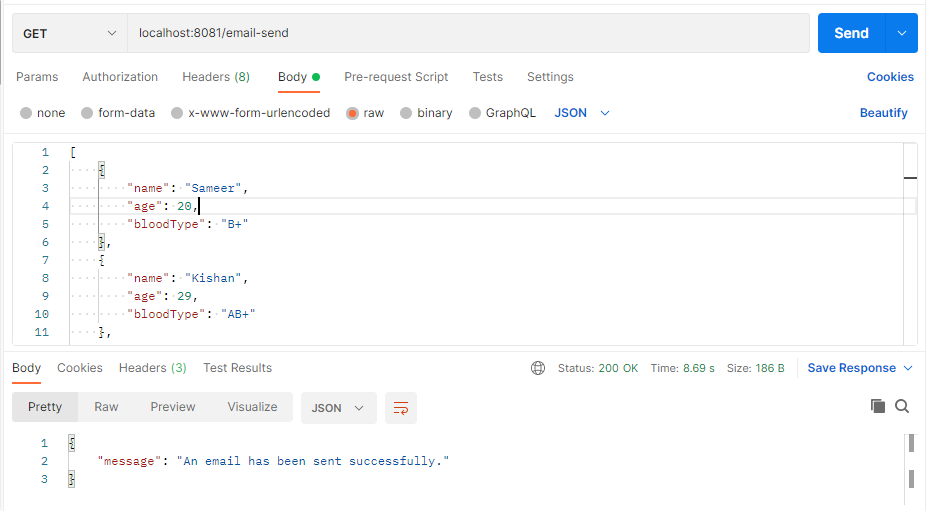
Let's do testing with the postman.
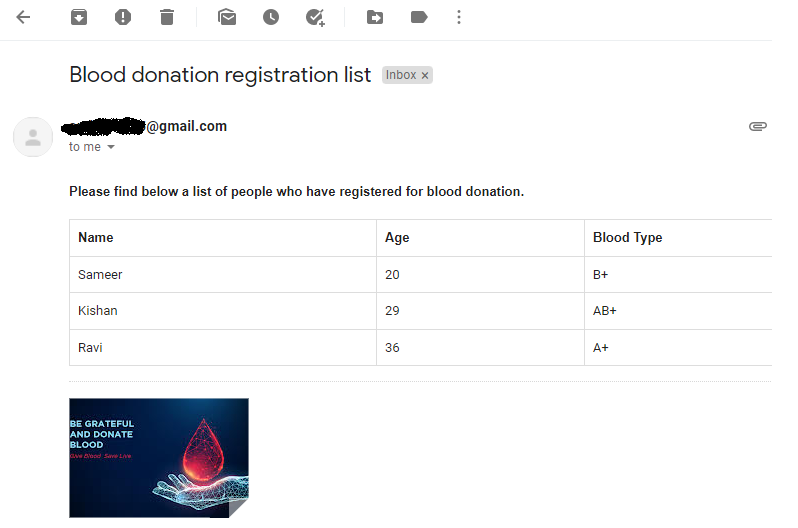
Email snapshot
Mule Flow Code for Reference:
<?xml version="1.0" encoding="UTF-8"?>
<mule xmlns:file="http://www.mulesoft.org/schema/mule/file" xmlns:tls="http://www.mulesoft.org/schema/mule/tls" xmlns:ee="http://www.mulesoft.org/schema/mule/ee/core" xmlns:email="http://www.mulesoft.org/schema/mule/email" xmlns:http="http://www.mulesoft.org/schema/mule/http" xmlns="http://www.mulesoft.org/schema/mule/core" xmlns:doc="http://www.mulesoft.org/schema/mule/documentation" xmlns:xsi="http://www.w3.org/2001/XMLSchema-instance" xsi:schemaLocation="
http://www.mulesoft.org/schema/mule/file http://www.mulesoft.org/schema/mule/file/current/mule-file.xsd http://www.mulesoft.org/schema/mule/core http://www.mulesoft.org/schema/mule/core/current/mule.xsd
http://www.mulesoft.org/schema/mule/http http://www.mulesoft.org/schema/mule/http/current/mule-http.xsd
http://www.mulesoft.org/schema/mule/email http://www.mulesoft.org/schema/mule/email/current/mule-email.xsd
http://www.mulesoft.org/schema/mule/ee/core http://www.mulesoft.org/schema/mule/ee/core/current/mule-ee.xsd
http://www.mulesoft.org/schema/mule/tls http://www.mulesoft.org/schema/mule/tls/current/mule-tls.xsd">
	<email:smtp-config name="Email_SMTP" doc:name="Email SMTP" doc:id="60188ae8-00d9-4805-a8d0-ca588189fd57" from='[email protected]'>
		<email:smtps-connection host="smtp.gmail.com" user="[email protected]" password="********">
			<tls:context>
				<tls:trust-store insecure="true" type="jceks"></tls:trust>
				<tls:key-store type="pkcs12"></tls:key>
			</tls:context>
		</email:smtps-connection>
	</email:smtp-config>
	<file:config name="File_Config2" doc:name="File Config" doc:id="26d4aa0f-e0ee-4dc6-ade6-9eb0f179010f">
		<file:connection workingDir="C:\Users\luffy\Downloads"></file:connection>
	</file:config>
	<flow name="send-email" doc:id="d8cba714-c4d5-4c15-a68b-cba4cccc807a">
		<http:listener doc:name="listener" doc:id="af9b9af3-1717-4ea7-8bc5-fe04597c5036" config-ref="HTTP_Listener_config" path="/email-send"></http:listener>
		<file:read doc:name="read-attachment-file" doc:id="18d301eb-2bbc-4f6f-8c6e-7d8d2f48266b" config-ref="File_Config2" path="Blood-Donation.jpg" target="image"></file:read>
		<set-payload value='#[%dw 2.0

output text/plain

---

payload map ((item, index) ->

  "<tr><td>" ++ item.name ++ "</td><td>" ++ item.age ++ "</td><td>" ++ item.bloodType ++ "</td></tr>") joinBy " "]' doc:name="create-email-table-content" doc:id="c741d5e6-9192-42bc-bdde-c444e58db093"/>
		<parse-template doc:name="parse-email- template" doc:id="2470fbc9-67a8-46d1-bd3b-824f6ea77915" location="blood-donation-registration-mail-template.html"></parse>
		<email:send doc:name="send-mail" doc:id="5e906be9-cfd2-4774-99ae-55b9191b9ed8" config-ref="Email_SMTP" fromAddress="[email protected]" subject='#["Blood donation registration list"]' toAddresses='#[["[email protected]"]]'>
			<email:body contentType="text/html">
			</email:body>
			<email:attachments><![CDATA[#["Blood-Donation.jpg": vars.image]]]></email:attachments>
		</email:send>
		<set-payload value='#[%dw 2.0

output application/json

---


{

	"message": "An email has been sent successfully."

}]' doc:name="response" doc:id="8ece226a-7110-48c8-901c-8d9d3a20ea97"></set>
	</flow>
</mule>
blood-donation-registration-mail-template.html file content for reference:
<!DOCTYPE html>
<html>
   <head>
      <style>
         table {
         font-family: arial, sans-serif;
         border-collapse: collapse;
         width: 100%;
         }
         td, th {
         border: 1px solid #dddddd;
         text-align: left;
         padding: 8px;
         }
         tr:nth-child(even) {
         background-color: #dddddd;
         }
      </style>
   </head>
   <body>
      <h4>Please find below a list of people who have registered for blood donation.</h4>
      <table>
         <tr>
            <th>Name</th>
            <th>Age</th>
            <th>Blood Type</th>
         </tr>
         #[payload]
      </table>
   </body>
</html>
That's it. Hope you learned to use the MuleSoft Email connector to send an email with an HTML body along with an attachment.
Opinions expressed by DZone contributors are their own.
Comments