

Setting Up a Mobile Automation Project in macOS With Katalon Studio
This tutorial will teach you how to design automated tests for both your iOS mobile applications with Katalon Studio.
Using Katalon Studio, a tester can design mobile app automation tests for both Android and iOS to run on physical devices, cloud services, or emulators.
This tutorial explains how to setup a mobile app testing project for Katalon Studio on macOS. It assumes that you are familiar with automated testing.
1. Setup Prerequisites
Katalon Studio requires the latest installation of Appium and Node.js. Please setup as per the following steps:
- Install Homebrew from the terminal:
/usr/bin/ruby -e "$(curl -fsSL https://raw.githubusercontent.com/Homebrew/install/master/install)"- Install Carthage with Homebrew:
brew install carthage- Install node and npm with Homebrew:
brew install node
brew install npm
Note: To make sure Node.js is installed correctly, you run the command which node on Terminal.
- Install Appium with npm:
npm install -g appiumSet the Appium Directory to "/usr/local/lib/node_modules/appium" in Katalon Preferences (from the Katalon menu, go to Preferences > Katalon > Mobile).
You will need to install and configure Xcode in case of testing on iOS devices. Please set up Xcode as follows:
- Open Xcode > Preferences > Accounts: Add developer’s Apple ID

- Open the Terminal at WebDriverAgent in Appium directory folder: <…>/appium/node_modules/appium-xcuitest-driver/WebDriverAgent and enter following command to initialize WebDriverAgent project:
mkdir -p Resources/WebDriverAgent.bundlesh ./Scripts/bootstrap.sh -d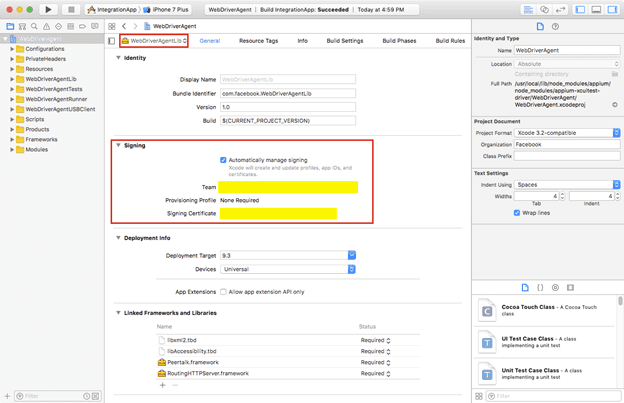
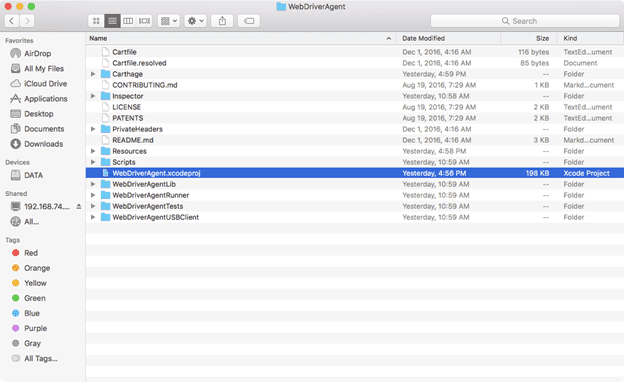 Open the project WebDriverAgent.xcodeproj under WebDriverAgent in Xcode.
- Select WebDriverAgentLib, and in the Signing section, check Automatically manage signing and select a team.
- Then on Xcode’s menu bar, select Product > Build:
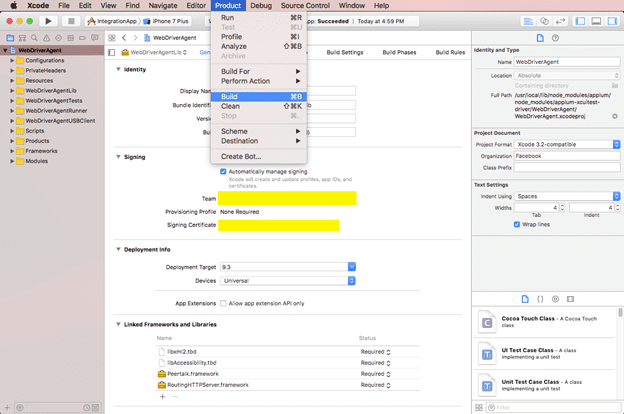
- Repeat the last two steps for WebDriverAgentRunner.
- Build WebDriverAgent to verify whether the steps above work.
xcodebuild -project WebDriverAgent.xcodeproj -scheme WebDriverAgentRunner -destination 'id=<udid>' testIf the following dialog is shown, select Always Allow. Note: <udid> is the device UDID of your mobile device.

You should be able to see Listening on USB in the build output, as below:

2. Set Up Devices
For Android devices:
- Turn on your Android device’s developer mode (go to Settings > Developer options).
- Connect the device to your computer via a USB cable. Just confirm if prompted for accepting/trusting the device.
For iOS devices:
- Connect your iOS Devices to your computer via a USB cable. Just confirm if prompted for accepting/trusting the phone.
- For iOS 8 and higher, you must enable the service UI automation on the device (connect the iOS device to Xcode) as follows:
- Plug in the iOS device.
- Open Xcode on Mac.
- Go to Settings on the device > Developer > turn ON UIAutomation.
- For iOS 6 and higher, on your iOS device, go to Settings > Safari > Advanced and enable Web Inspector.
To test an iOS native application file (.ipa or .app file), make sure the file is already built and signed properly to deploy on the device. Follow these steps to check if an application file is already built and signed correctly:
1. Open Xcode and navigate to Window/Devices.
2. Choose your device from the Devices list.
3. Press the “+” button and choose your application file.
4. If installed successfully, the application will appear in the Installed Apps section, as shown below:
3. Desired Capabilities
You can modify extra Desired Capabilities when executing automation tests in Katalon Studio.
To define Desired Capabilities for local execution using Chrome, Firefox, IE, Safari, or Edge, please access Project > Settings > Execution > Default > Mobile > iOS (or Android).
The example below shows Desired Capabilities settings for Android to enable Unicode inputs. 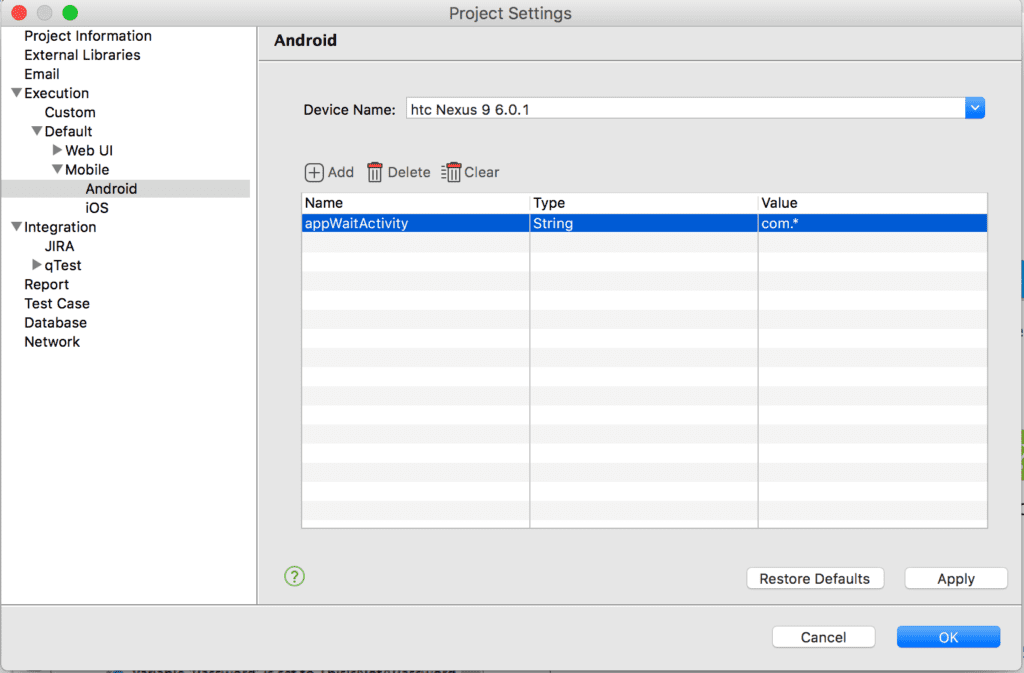
Refer to Desired Capabilities for which properties of each web browser are supported by Selenium. For Desired Capabilities to be used with Appium, refer to Appium server capabilities.
4. External Library
You may use external libraries in your test project. Go to Project > Settings > External Libraries to add new or remove existing libraries for Katalon Studio. External libraries are stored in the Katalon Studio project’s Drivers folder. 
Add: Click to add your external libraries. The selected libraries will be copied to the Katalon project’s Drivers folder.
- Remove: Click to remove existing libraries. They will be removed from the Katalon project’s Drivers folder.
The added libraries can be imported and referenced in the Script View of Katalon Studio:
Stay tuned for more Katalon Studio tutorials.
Published at DZone with permission of Oliver Howard. See the original article here.
Opinions expressed by DZone contributors are their own.