

Mule CloudHub Connector: Part 1
Need help connecting to CloudHub APIs? Use this tutorial to guide you through the steps of how to use CloudHub Connector in Mule Application.
What are CloudHub Connectors?
This helps you connect to CloudHub APIs through Mule applications. In total, there are 5 features provided by this connector as listed below:
- Get Application
- List Applications
- Create Notification
- List Notifications
- Mark Notification
In this article, we are going to look at the first 2 features using a simple demo.
Get Application
Create a Mule Project. Once completed, add the CloudHub connector module from the exchange as shown below.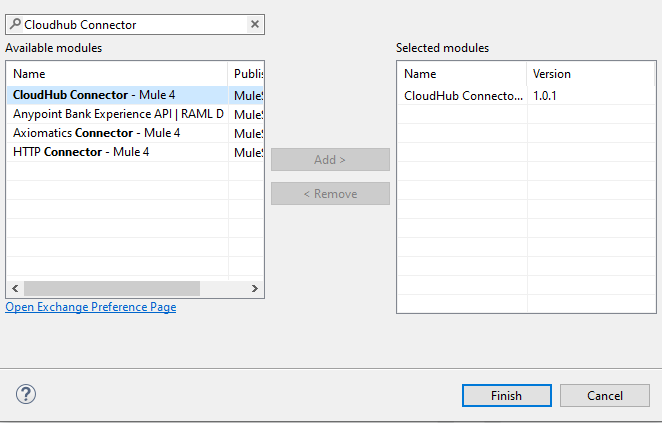
You can now see the list of features available for use.
Now create a simple Mule Flow by dragging an HTTP Listener and CloudHub Get Application Connector as shown.
Configure the HTTP Listener and CloudHub connection configuration as below.
HTTP Listener Connector Config:

CloudHub Connector Config:
Select the appropriate environment from which you want to get the application details. In the Domain section, select the Application Name.

Once the above configuration is completed, run the application, and you will get the app information as the Output.
- Endpoint: http://localhost:8081/getApp
- Output:
{
    "versionId": "61d69713c792727d25726477",
    "domain": "helloappdemo",
    "fullDomain": "helloappdemo.us-e2.cloudhub.io",
    "properties": {},
    "propertiesOptions": {},
    "status": "STARTED",
    "workers": {
        "type": {
            "name": "Micro",
            "weight": 0.1,
            "cpu": "0.1 vCores",
            "memory": "500 MB memory"
        },
        "amount": 1,
        "remainingOrgWorkers": 1.0,
        "totalOrgWorkers": 1.0
    },
    "workerStatuses": [
        {
            "id": "i-05b4a69e302383205",
            "host": "18.118.132.173",
            "port": 0,
            "status": "STARTED",
            "deployedRegion": "us-east-2",
            "staticIPEnabled": false
        }
    ],
    "lastUpdateTime": 1641453436509,
    "fileName": "helloapp-1.0.0-SNAPSHOT-mule-application.jar",
    "muleVersion": {
        "version": "4.4.0",
        "updateId": "61d3db0536b6517e4ffcf614",
        "latestUpdateId": "61d3db0536b6517e4ffcf614",
        "endOfSupportDate": 1662595200000
    },
    "region": "us-east-2",
    "persistentQueues": false,
    "persistentQueuesEncryptionEnabled": false,
    "persistentQueuesEncrypted": false,
    "monitoringEnabled": true,
    "monitoringAutoRestart": true,
    "staticIPsEnabled": false,
    "hasFile": true,
    "secureDataGatewayEnabled": false,
    "loggingNgEnabled": true,
    "loggingCustomLog4JEnabled": false,
    "cloudObjectStoreRegion": "us-east-2",
    "insightsReplayDataRegion": "us-east-2",
    "isDeploymentWaiting": false,
    "deploymentGroup": {
        "id": "5ac685b0de9e5022ac802745",
        "name": "US East (Ohio)"
    },
    "updateRuntimeConfig": false,
    "trackingSettings": {
        "trackingLevel": "DISABLED"
    },
    "logLevels": [],
    "ipAddresses": []
}
List Applications
We need to again follow the same steps as listed above to configure the Connector Configurations. Below are the snapshots for the same. This will list down all the applications in the given environment.


Once the above configuration is completed run the application. Below is the sample output you can see.
- Endpoint: http://localhost:8081/listApp
- Output:
[
    {
        "versionId": "61d69713c792727d25726477",
        "domain": "helloappdemo",
        "fullDomain": "helloappdemo.us-e2.cloudhub.io",
        "properties": {},
        "propertiesOptions": {},
        "status": "STARTED",
        "workers": {
            "type": {
                "name": "Micro",
                "weight": 0.1,
                "cpu": "0.1 vCores",
                "memory": "500 MB memory"
            },
            "amount": 1,
            "remainingOrgWorkers": 1.0,
            "totalOrgWorkers": 1.0
        },
        "lastUpdateTime": 1641453436509,
        "fileName": "helloapp-1.0.0-SNAPSHOT-mule-application.jar",
        "muleVersion": {
            "version": "4.4.0",
            "updateId": "61d3db0536b6517e4ffcf614",
            "latestUpdateId": "61d3db0536b6517e4ffcf614",
            "endOfSupportDate": 1662595200000
        },
        "region": "us-east-2",
        "persistentQueues": false,
        "persistentQueuesEncryptionEnabled": false,
        "persistentQueuesEncrypted": false,
        "monitoringEnabled": true,
        "monitoringAutoRestart": true,
        "staticIPsEnabled": false,
        "hasFile": true,
        "secureDataGatewayEnabled": false,
        "loggingNgEnabled": true,
        "loggingCustomLog4JEnabled": false,
        "cloudObjectStoreRegion": "us-east-2",
        "insightsReplayDataRegion": "us-east-2",
        "isDeploymentWaiting": false,
        "deploymentGroup": {
            "id": "5ac685b0de9e5022ac802745",
            "name": "US East (Ohio)"
        },
        "updateRuntimeConfig": false,
        "trackingSettings": {
            "trackingLevel": "DISABLED"
        },
        "logLevels": [],
        "ipAddresses": []
    }
]Opinions expressed by DZone contributors are their own.